
10 Christmas Photo Frame Ideas You Can Make in Canva (Shaped, Printable)
Ten Christmas photo frame ideas for Canva: star, tree, mitten and bauble windows, a Frames Lab burst, a photo-letter JOY banner, plus print tips and where Canva's built-in frames are enough.
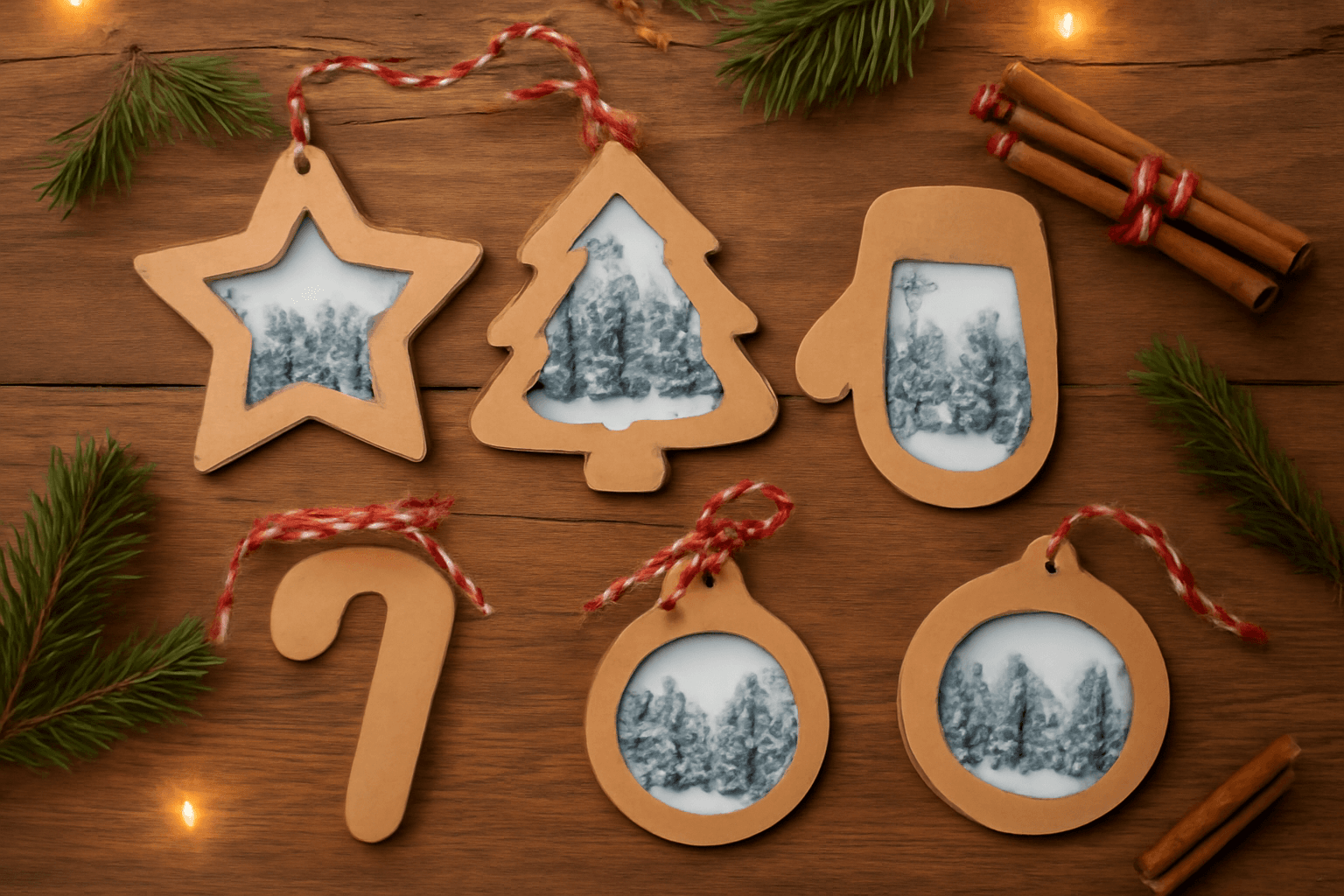
Christmas is the one season where a plain rectangle photo frame feels a little flat. A star, a tree or a mitten around the same snowy photo makes it look like a decoration instead of a snapshot. This post collects ten frame ideas you can build in Canva, from the five-minute kind to the weekend-project kind, with honest notes on when Canva's own tools are enough.
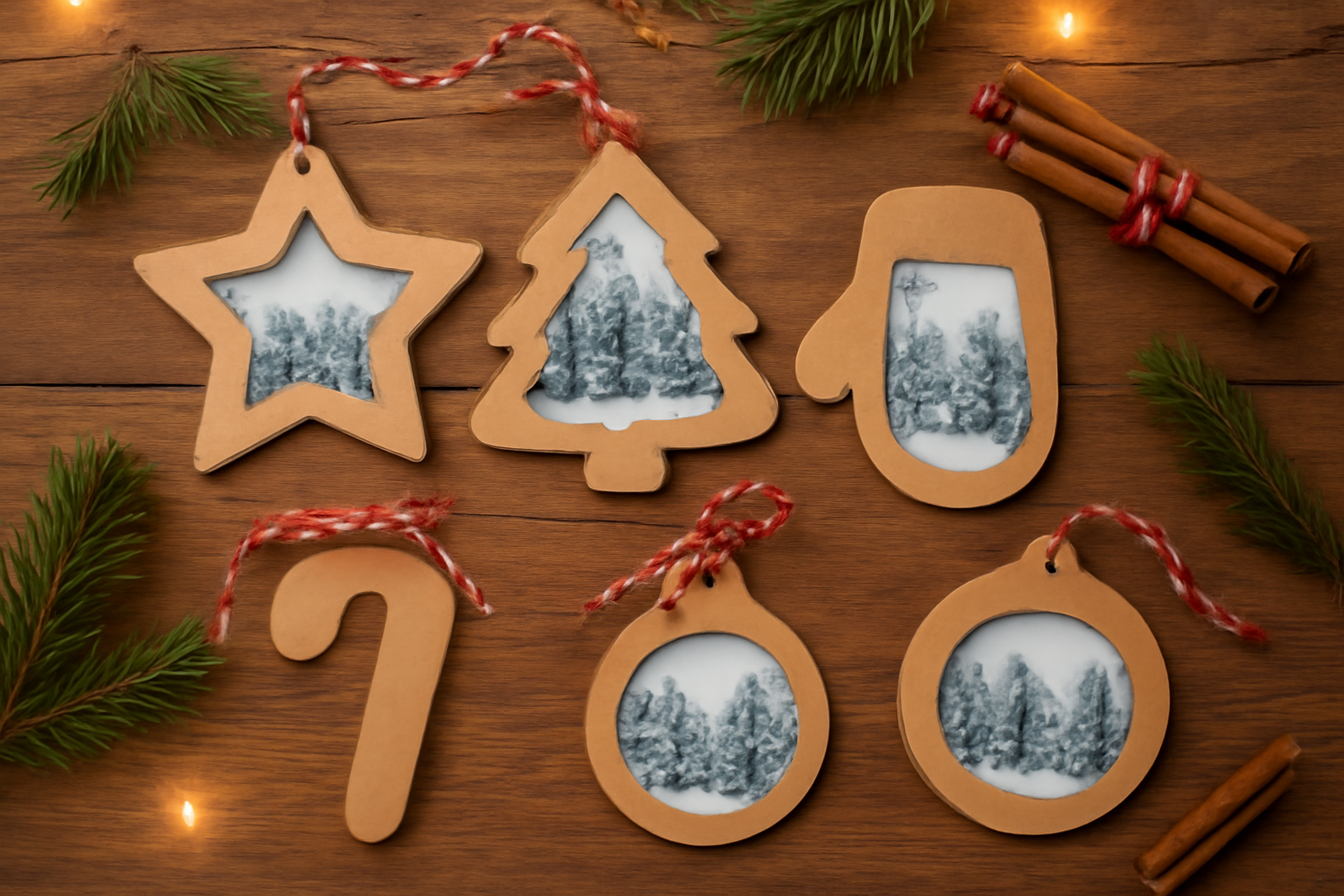
Quick-pick table #
| Idea | Best for | Main tool |
|---|---|---|
| Star window | Ornaments, cards | Image to Frame |
| Tree window | Cards, wall art | Image to Frame |
| Mitten window | Gift tags | Image to Frame |
| Bauble circle | Garlands | Canva Frames (built in) |
| Burst "snowflake" frame | Posters | Frames Lab |
| Four-photo advent grid | Year recap | Frames Lab |
| Arc over a doorway scene | Cards | Frames Lab |
| JOY photo letters | Banners | Text to Frames |
| Dotted ribbon edge | Any frame | Border Art Maker |
| December countdown page | Fridge calendar | Calendar Maker |
1. The star window #
A five-point star is the easiest shaped frame to read at ornament size. Use a PNG of a star on a transparent background (up to 5MB), load it into Image to Frame, and click Add frame to design. Then drag a winter photo in. Pick photos with a clear subject in the middle, because the star's points crop away the corners.
2. The Christmas tree window #
A tree silhouette works well for a card front. The stepped branches give you natural places to hang a tiny caption or a year. Keep the photo simple, like a snowy landscape or a close-up of lights, because a busy photo turns muddy inside a narrow top section.
3. The mitten window #
Mittens are friendly, forgiving shapes with a big body for the photo and a small thumb that stays empty. They make charming gift tags. Because the thumb area is tiny, check the preview before adding it to the design.
4. The bauble circle (built in) #
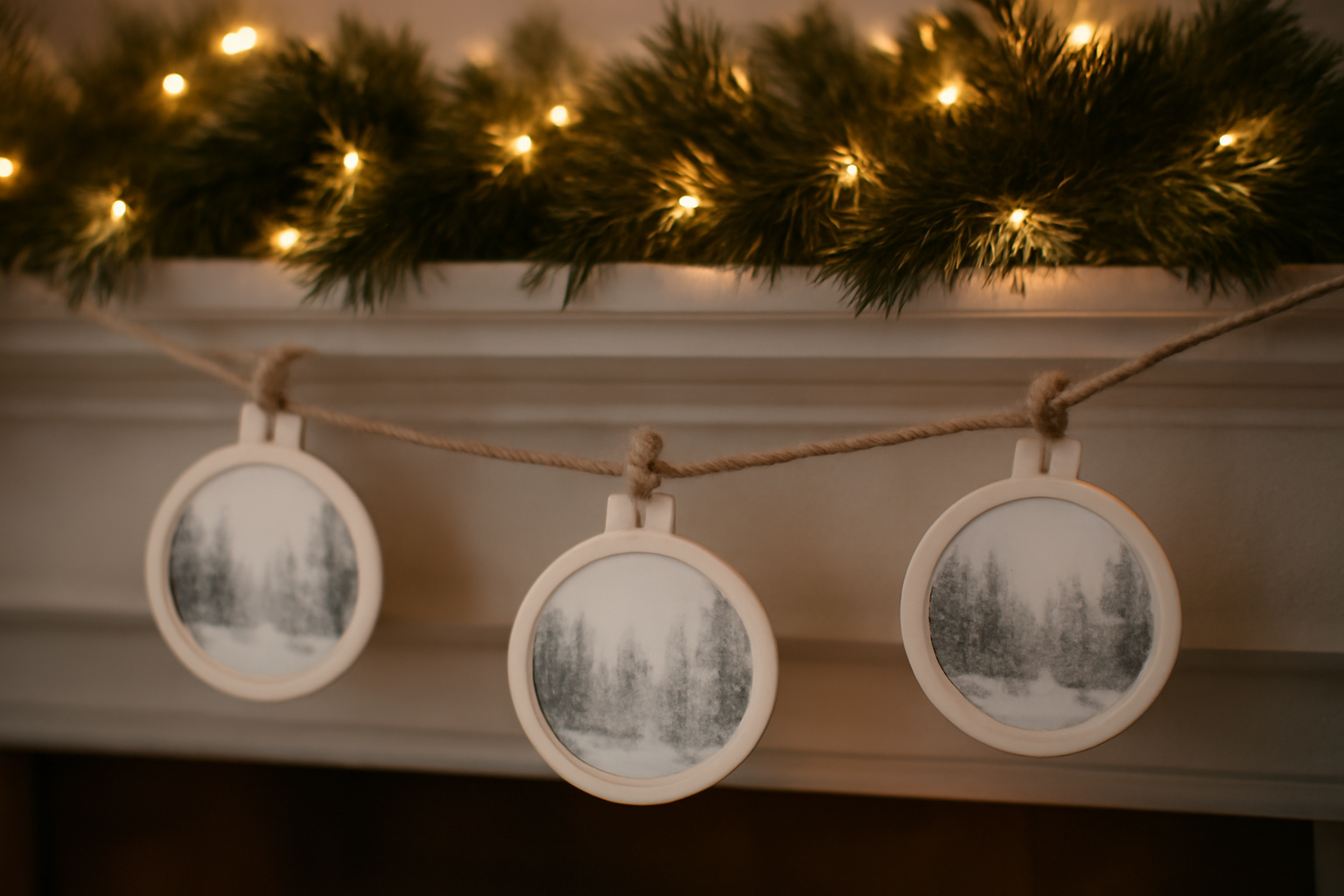
Honest note: a round bauble does not need an extra app. Canva's own circle frame, plus a small tab shape on top for the hanging loop, gets you a perfectly good ornament frame. Use the built-in tools when the shape is a circle, square or rounded rectangle. Reach for a custom frame app only when the shape is unusual.
5. The burst frame #
For a poster, a starburst or snowflake-like frame feels more festive than any outline. In Frames Lab, the Burst mode generates random ray-style frames. The results are random, so when you see one you like, pick it right away, because changing any option generates new samples.
6. The four-photo advent grid #
If you want one image that sums up the year, use Frames Lab's Grid mode with 2 columns and 2 rows, and a decent gap between cells. Frames Lab caps grids at around 30 cells, so keep it small. Four to six photos is plenty for a card. Our Christmas tree photo collage tutorial goes further with a full collage.
7. The arc over a doorway scene #
An arc frame (Frames Lab, Arc mode) feels like a window or an archway. Fill it with a doorway, a porch with lights or a fireplace. It also pairs nicely with a handwritten-style greeting underneath.
8. JOY or NOEL photo letters #
Photo-filled lettering is the showpiece idea. In Text to Frames, type a short word, turn on Split into letters, and each letter becomes its own frame so you can drop a different photo into each. The input is capped at 200 characters, so stick to a word or two. Heavy, thick fonts work best, since thin strokes hide most of the photo. See our guide on how to fill each letter with a different photo.
9. The dotted ribbon edge #
Any of the frames above can get a decorative edge. Border Art Maker repeats an icon or a dot around a path, which gives you a stitched ribbon or a string of lights around the frame. Use it sparingly, since the frame itself is already the star of the design.
10. The December countdown page #
A frame needs a home. Calendar Maker builds a month or custom date range inside Canva, so you can drop in a December page with shaped photo frames around it for the fridge. It is a good way to use all of the frames you made for the other nine ideas.
How to make the shaped frames step by step #
The workflow behind ideas 1 to 3 is the same.
- Find or draw a simple shape and save it as PNG, SVG or JPG under 5MB.
- Make sure the background is transparent. If the image has a white background, the frame will be a rectangle.
- Open Image to Frame, add the file, and preview the frame.
- Set a border color and thickness if you want one. The border only appears after the frame is added to the design, not in the preview.
- Click Add frame to design, then drag your photo into the frame.
If the outline is too intricate, the conversion can fail. Simplify the shape, or pick a ready-made one from the Frame Store. Image to Frame is free for students and teachers.
Print tips #
- Export as PDF Print for crisp edges. See what DPI actually means in Canva.
- Add a bleed if the frame touches the page edge. Our guide to bleed in printing explains how.
- Keep faces and text a few millimeters away from the edge, especially with pointy shapes like stars.
- Test-print a single sheet before you print twenty ornaments.
When Canva's built-in frames are enough #
If your idea is a circle, a square or a rounded rectangle, you do not need any app. Canva's Frames and Grids already do that. Custom frame apps earn their place when the shape is specific: a mitten, a tree, a candy cane, a letter. For other seasonal projects, see our Christmas design ideas, the photo ornaments tutorial, and our photo Christmas cards guide.
Try the apps #
- Image to Frame for shaped windows like the star, tree and mitten.
- Frames Lab for burst, grid and arc frames.
If a frame is not behaving after you add it, check our Canva frame not working fixes. For more general shapes, see creative photo frame ideas.
Frequently asked questions
Start with a PNG, SVG or JPG of the shape (a star, tree or bauble) with a transparent background, up to 5MB. Load it into Image to Frame, click Add frame to design, then drag your photo into the frame. A solid white background will give you a plain rectangle instead of the shape.
Yes, for simple ones. Canva's built-in Frames and Grids handle circles, rectangles and basic shapes. Custom shapes like a mitten or a tree outline need an app such as Image to Frame, which is free for students and teachers; other users may need Pro for the full feature set.
For ornaments and gift tags, 3 to 4 inches across is a common range. Export as PDF Print at 300 DPI, keep faces and key details away from the edge, and do a one-sheet test print before printing a batch.
Related products


More from QRdy Blog

Photo Grid Maker: Online Collage Apps vs Building a Grid in Canva with Frames Lab
Need a photo grid? Compare standalone photo grid maker apps with building the grid inside Canva using Frames Lab: control, layout limits, wavy grids, editing after, and cost.
Etsy Mockup Size: Best Image Dimensions for Etsy Listing Photos
The best Etsy mockup size is a square image of at least 2000 × 2000 px, saved as an sRGB JPEG under about 1 MB with the product centered. Here's what Etsy's own rules say, how to export mockups that pass them, and what to do when your tool exports smaller.
The Best Canva Apps for Baby Shower Decorations (2026): Banners, Photo Walls and Countdowns
Planning baby shower decorations in Canva? Here are the Canva apps that actually help: photo-letter banners, shaped photo frames, a photo wall grid and a countdown calendar, plus where Canva's built-ins are already enough.