
The Best Canva Apps for Baby Shower Decorations (2026): Banners, Photo Walls and Countdowns
Planning baby shower decorations in Canva? Here are the Canva apps that actually help: photo-letter banners, shaped photo frames, a photo wall grid and a countdown calendar, plus where Canva's built-ins are already enough.
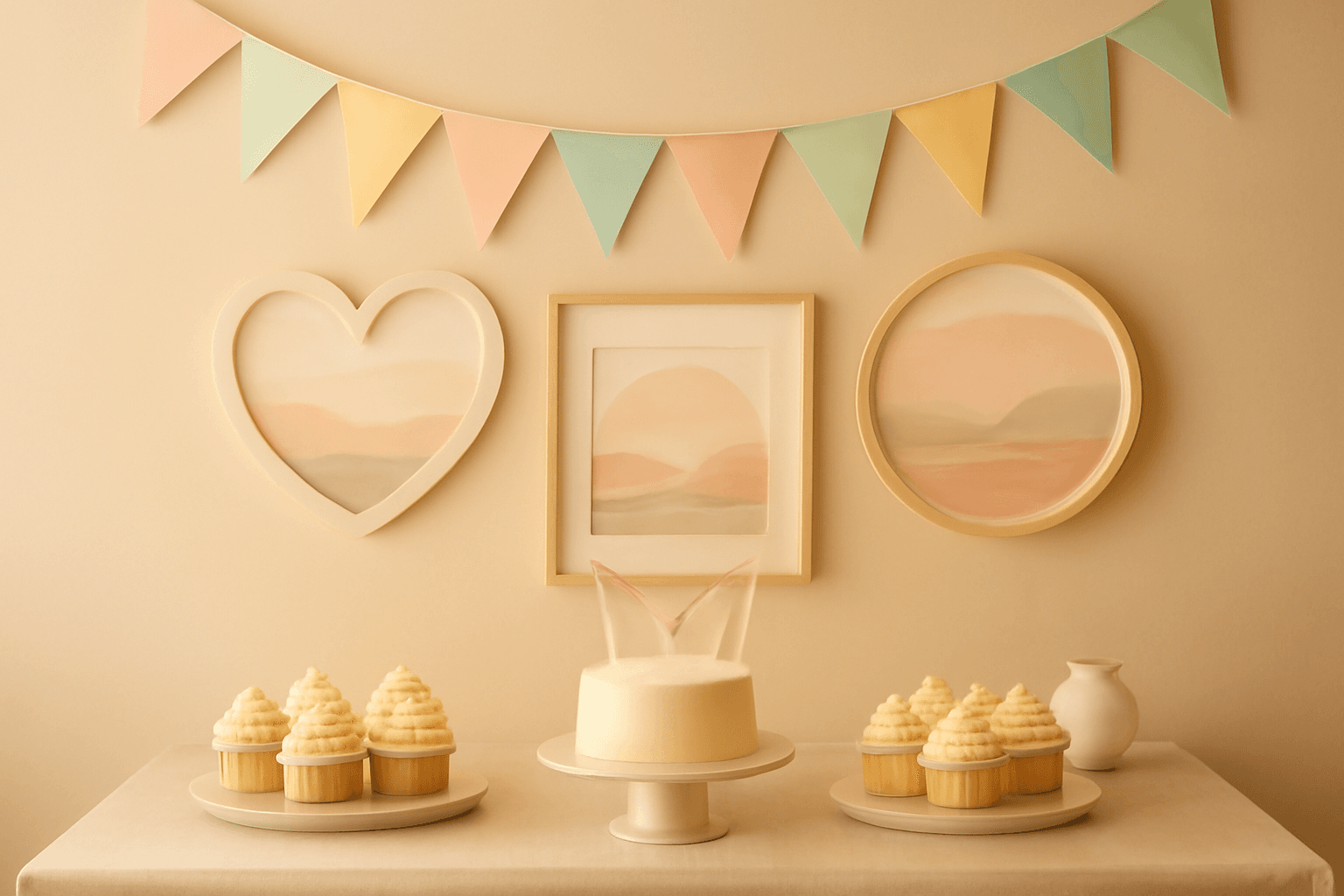
Baby shower decorations are one of those projects where Canva already does a lot for free: thousands of banner, sign and bunting templates, plus free shapes and grids. So this is not a list of apps you must install. It is a list of the few places where an app actually saves time or gets you a look the built-ins cannot.
We build Qrdy apps, so we are biased. We have tried to be honest about where Canva alone is enough.
Where Canva alone is enough #
Before adding any app, check whether a built-in does the job:
- A plain bunting or text banner: use a free template and swap the colors.
- A welcome sign or games sign: any free poster template works.
- A simple photo wall: Canva's free Grids and Frames handle a handful of square or round photos.
- Menu cards, place cards and thank-you tags: templates cover these well.
If your decorations are all text on a colored background, stop here. Apps help when the decoration is built from photos or needs a custom shape.
Quick-pick table #
| If you want... | Use | Why |
|---|---|---|
| A banner where each letter holds a different photo | Text to Frames | Each letter becomes a real Canva frame |
| A heart, bottle or onesie-shaped photo | Image to Frame | Turns any PNG, SVG or JPG outline into a frame |
| A photo wall, arch or grid | Frames Lab | Grid, Arc and Diagonal frames with set rows and columns |
| A countdown to the due date or party | Calendar Maker | Custom tab builds a date range, up to 150 days |
| A decorative edge on a sign or card | Border Art Maker | Repeating dots or icons along an edge |
1. Text to Frames: the photo-letter banner #
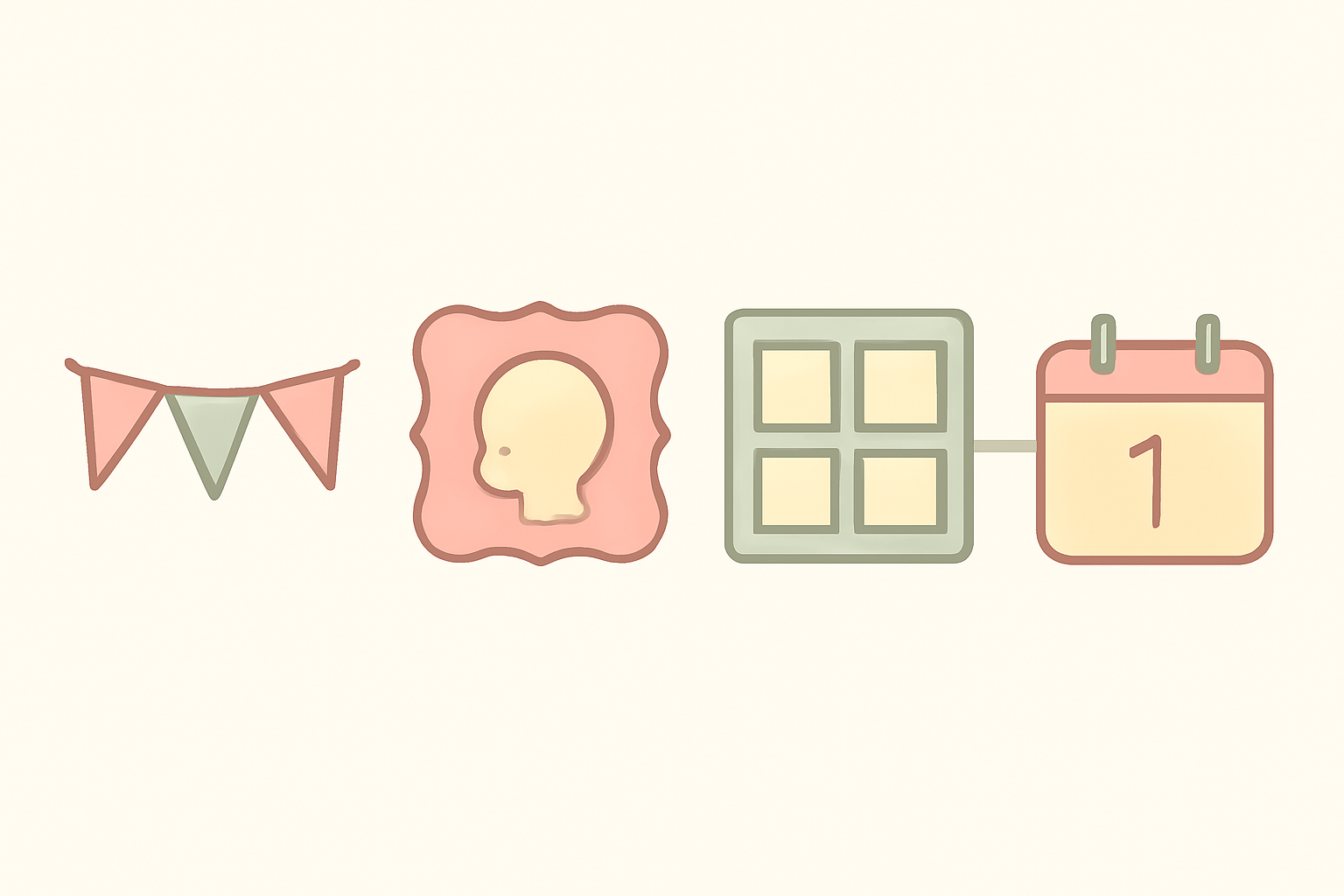
This is the app we would reach for first, because a banner made of letters that each show a different photo is hard to do by hand.
You type a phrase such as OH BABY or the baby's name, choose a font, and turn on Split into letters. Each letter is added to your Canva page as a genuine Canva frame, so you drag a photo into it and drag again to reposition the photo inside the letter.
What to know before you start:
- The text box takes up to 200 characters.
- The free version includes 5 fonts: Roboto, Open Sans, Lato, Playfair Display and Pacifico. The 100+ font library, plus the Blur, Border and Inner shadow effects, are Pro.
- Heavy sans fonts keep photos readable. Thin script fonts leave very little photo inside each letter.
- Some Canva design types do not allow frames. If you see a warning, open the app in a Poster, Presentation or Instagram Post design instead.
Photo ideas that work well: a scan, a nursery color swatch, a bump photo you are happy to share, or simple pattern textures if you would rather keep it abstract. Short words work better than whole sentences.
Honest limit: this makes the letters. You still need to print, cut and string them yourself.
2. Image to Frame: shaped photo cards #
If you have an outline, such as a heart, a baby bottle, a rattle or a star, Image to Frame turns it into a Canva frame you can fill with a photo.
Upload a PNG, SVG or JPG (up to 5 MB), pick a border thickness and color, then choose Add frame to design. Use a transparent-background PNG: if the file has a white or colored background, the frame will be a plain rectangle. Intricate outlines can fail to convert, and the app points you to its Frame Store for ready-made shapes in that case. It is free for students and teachers.
Good uses for a shower: a heart-shaped photo for the welcome table, a row of small shaped photos on a string, or a die-cut-style card for each guest.
3. Frames Lab: the photo wall #
Frames Lab builds frames from parameters rather than from an image. For a shower, three of its modes are useful:
- Grid: set columns, rows and the gap, then drop in photos. Wave and corner options soften the look. Grids over about 30 cells are blocked.
- Arc: a curved frame, handy for a rainbow-style photo arch.
- Explore: ready-made frames you can add in one click, so you do not tweak anything.
The free version has a limit on how many frames you can add, and Pro removes it. If you only need two or three plain rectangles, Canva's own grids are faster.
4. Calendar Maker: the optional countdown #
A countdown is a nice extra, not a necessity. Calendar Maker has Month, Week and Custom modes. The Custom tab builds a range of up to 150 days, which is enough for a due-date countdown poster. Adding calendar pages needs a Pro unlock, so if you only want one page, a Canva table can do the same job for free.
5. Border Art Maker: the finishing edge #
Border Art Maker repeats dots, icons or a small image along an edge and spaces them evenly. It is a finishing touch for signs and menu cards. It is also the most skippable app on this list.
A simple 20-minute decoration workflow #
- Pick a size first. Set the Canva page to the final printed size.
- Choose a palette of two or three colors and stick to it.
- Build the banner letters with Text to Frames and drop in photos.
- Add one or two shaped photos with Image to Frame for the welcome table.
- Build a small photo wall with a Frames Lab grid.
- Add a countdown or border only if you still have energy.
- Export as PDF Print at 300 DPI, print one test page, then print the rest.
Print specs worth checking #
- Banner flags: about 5x7 inches, printed on 100 lb cover or heavier paper.
- Signs: 8x10 or 11x14 inches, with a safe margin of at least 0.25 inches from the edge.
- Photo wall prints: 4x6 or 5x7 inches.
- Always print a test page first. Colors on a home printer often differ from the screen.
Which should you start with? #
For most baby showers, start with Text to Frames for the banner and use Canva's free templates for everything else. Add Image to Frame if you want a custom shaped photo, and Frames Lab if you want a bigger photo wall. Skip the countdown and border apps unless you already know you want them.
For invitations rather than decorations, see our guide to the best Canva apps for invitations. For announcements after the baby arrives, see the best Canva apps for birth announcements, and before you print anything, our bleed guide explains safe margins.
Try Text to Frames in Canva: https://qrdynamic.xyz/texttoframes-in-canva
Try Frames Lab in Canva: https://qrdynamic.xyz/frameslab-in-canva
Try Image to Frame in Canva: https://qrdynamic.xyz/imagetoframe-in-canva
Frequently asked questions
Yes. Canva's free templates, shapes and grids cover a simple banner or sign. The Qrdy apps add photo-filled letters, custom shaped frames and larger photo grids, and some of their features sit behind a Pro unlock or a free add limit.
Open Text to Frames in Canva, type a short phrase (up to 200 characters), turn on Split into letters, add it to your design, then drop a different photo into each letter. Pick a heavy font so the photos stay readable.
Set the page to the final printed size first. Banner flags are usually about 5x7 inches or letter size, signs are often 8x10 or 11x14, and photo wall prints are commonly 4x6 or 5x7. Export as PDF Print at 300 DPI.
No, it is optional. A countdown to the due date or the party is a small nice-to-have. Calendar Maker can build one with its Custom tab, but a plain Canva table also works for a single page.
Related products


More from QRdy Blog
How to Make a 2027 Planner in Canva (Monthly and Weekly Pages, Step by Step)
Build a printable 2027 planner in Canva: 12 monthly pages in one click, reusable weekly spreads, a matching style, and print-ready export. Step-by-step with Calendar Maker, plus when Canva's built-ins are enough.
Printify Mockup Generator vs Making Your Own Mockups: When to Use Each
Printify's built-in mockup generator is free and fast, but every seller on the same blank gets similar photos. Here is when to rely on it, when to make your own mockups from real product photos, and how to combine both.
What Is Die Cut? Meaning, Die Cut vs Kiss Cut, and How to Design One in Canva
Die cut means cutting paper, vinyl or card into a custom shape instead of a rectangle. Here is what it means, how it differs from kiss cut, and how to prepare a die cut file in Canva.