
Photo Grid Maker: Online Collage Apps vs Building a Grid in Canva with Frames Lab
Need a photo grid? Compare standalone photo grid maker apps with building the grid inside Canva using Frames Lab: control, layout limits, wavy grids, editing after, and cost.
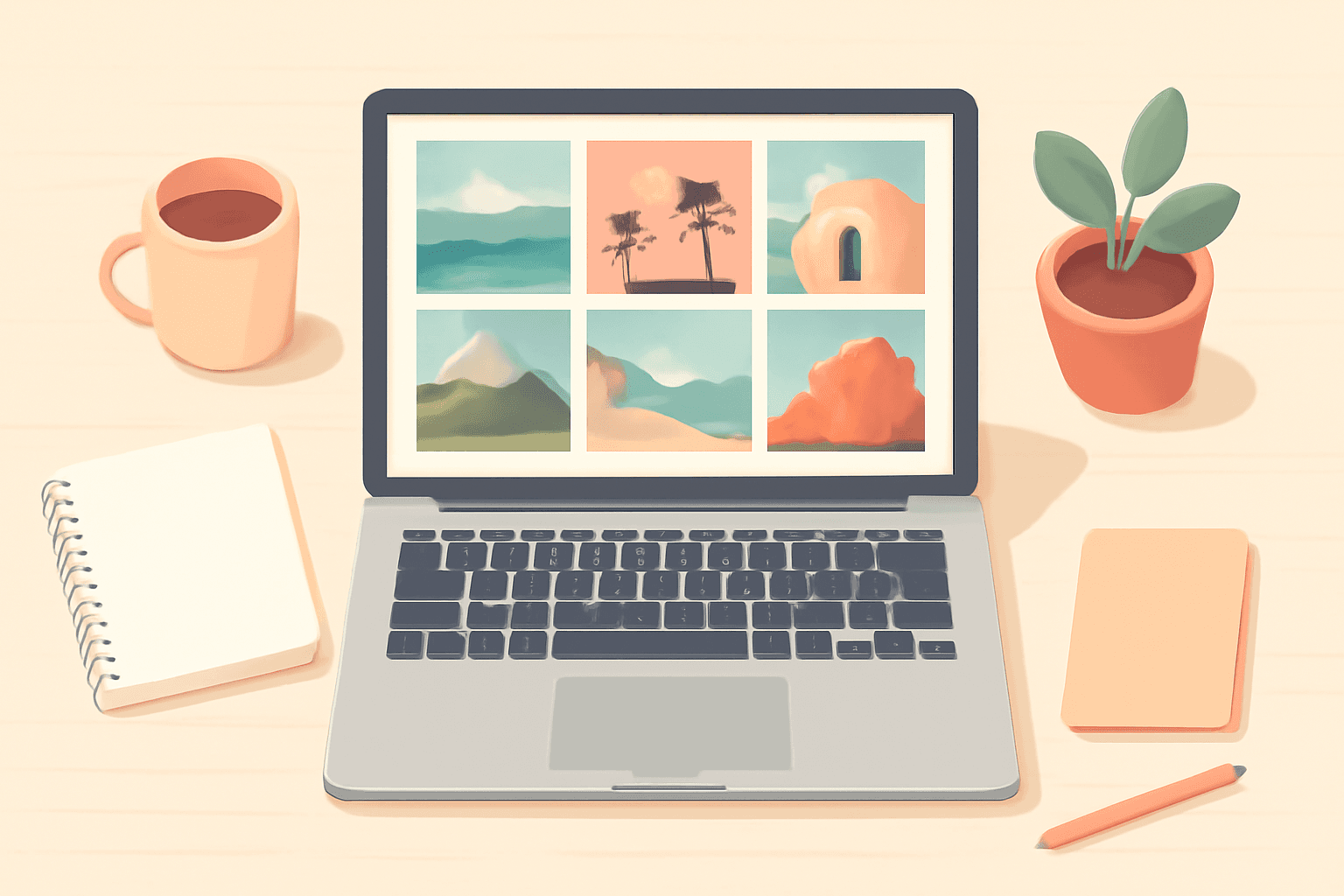
A photo grid looks like the simplest design job there is: a few pictures, neatly tiled. Yet the search "photo grid maker" sends you to dozens of standalone tools, while many people already have Canva open. So which route should you take? This post compares the two honestly: a standalone photo grid maker (the upload-pick-download kind) versus **building the grid directly in Canva with Frames Lab**, a Canva app that creates grid frames you can drop photos into.
Quick answer #
| Standalone grid maker | Canva + Frames Lab | |
|---|---|---|
| Speed for one simple grid | Fastest | A few clicks slower |
| Grid is part of a bigger design | Export, then re-import | Built in place |
| Custom rows, columns, gap | Preset layouts, usually | You set every number |
| Wavy or diagonal grid lines | Rare | Yes (Wave and Diagonal modes) |
| Edit after placing photos | Often locked to the tool | Swap photos any time in Canva |
| Cost | Free tier + watermark/upgrade | Free with a usage cap, Pro unlimited |
Verdict: use a standalone maker when you need one plain grid in under a minute. Use Frames Lab when the grid lives inside a design you are already making, or when you want a layout no preset offers.
Where a standalone photo grid maker wins #
- Zero setup. Open the site, upload, choose a layout, download. Nothing to install.
- Preset layouts. Dozens of ready-made arrangements, so you never think about columns.
- Good for social posts. If the only goal is a single image for a post, it is hard to beat for speed.
The trade-offs show up later: you export a flat image, so changing one photo means redoing the work, and putting the grid into a poster or card means importing a picture you can no longer reshape.
Where Canva + Frames Lab wins #
Frames Lab's Grid mode lets you set the dimensions, the number of columns and rows, and the gap between cells. Advanced options include straight edges, rounded corners and merging the cells into one block. Add a Border with your own colour and thickness, then press Add to design. The grid is sized to fit the page you have open.
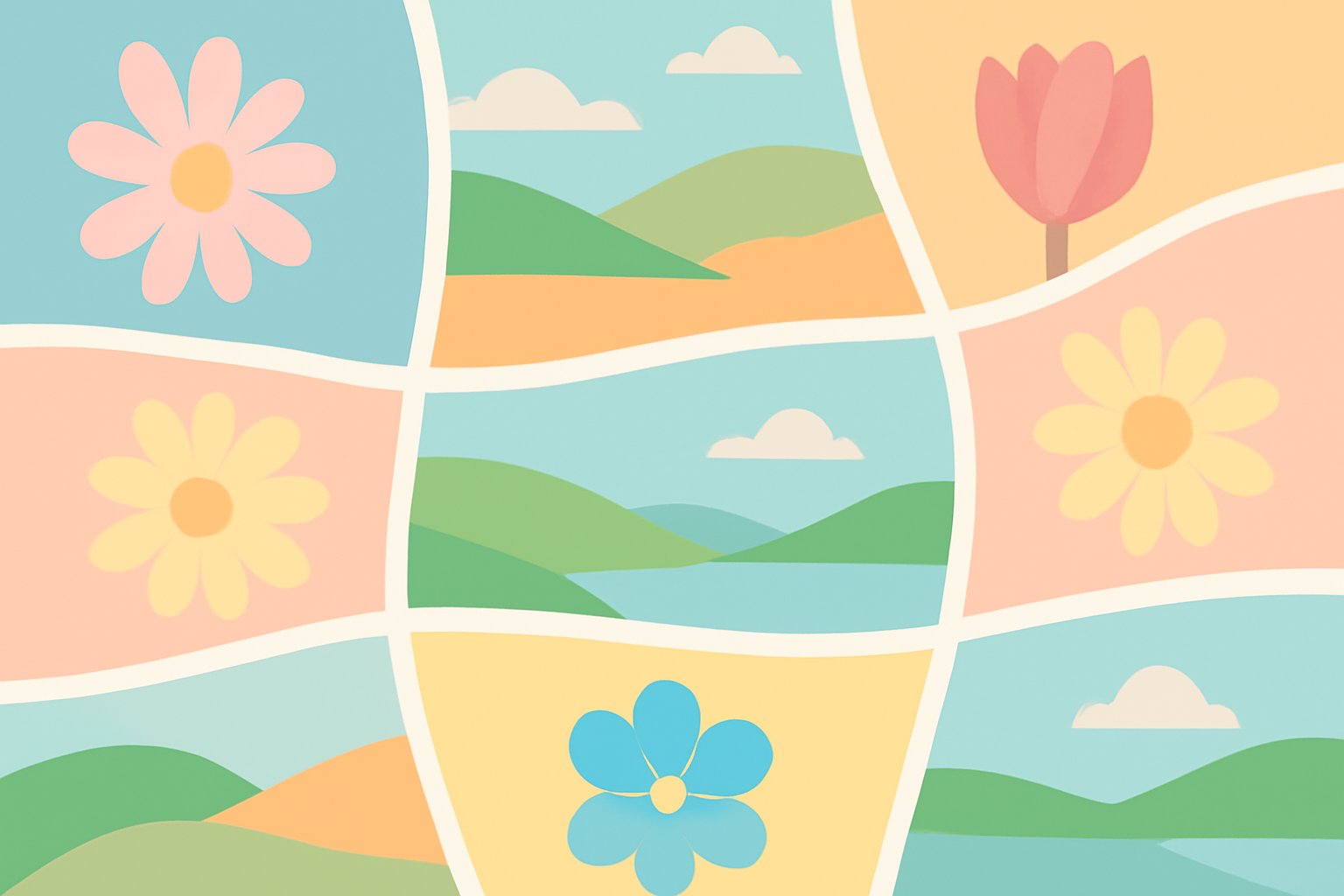
Because the result is a set of real Canva frames, you can:
- Drag any photo into any cell and re-crop it afterwards.
- Swap a photo later without rebuilding anything.
- Put text, stickers and backgrounds around the grid in the same design.
- Try layouts a preset list will not give you, such as a wavy grid (the Wave setting controls strength and frequency) or a diagonal strip grid.
How to make a photo grid in Canva with Frames Lab #
- Open a Canva design and launch Frames Lab from the side panel.
- Go to Create and choose Grid.
- Set the columns, rows and gap. Watch the Preview update.
- Optional: add Wave for curved lines, rounded corners, or a Border.
- Press Add to design.
- Drag your photos into the cells.
- Want it softer? Open the Style tab to add Blur, Border or Inner Shadow and re-add the frame.

Limits to know about #
- Grids with roughly more than 30 cells, or with very strong wave effects, may be blocked as too complex. Lower the rows, columns or wave strength.
- Free accounts can only add a limited number of frames; Pro removes the cap.
- If you want a big playful mosaic with toggled cells, Frame Collage is a better fit than Frames Lab.
Don't forget Canva's built-in options #
Canva also has its own grid elements and templates, and for a basic 2x2 or 3x3 they work fine. Frames Lab earns its place when you need exact numbers, curved lines, or consistent grids across many designs.
Which should you pick? #
- One plain grid, now: a standalone grid maker.
- A grid inside a poster, card, calendar or social kit: Frames Lab in Canva.
- A grid you will keep editing: Frames Lab, since photos stay swappable.
- Something unusual (wavy, diagonal, burst): Frames Lab.
Frequently asked questions
For a quick one-off, a standalone photo grid maker is fastest: upload, pick a layout, download. If the grid is part of a larger design (poster, card, calendar), building it inside Canva with Frames Lab saves the export-and-reimport step.
Yes. Frames Lab's Grid mode has a Wave option with adjustable strength and frequency, so the dividing lines curve instead of running straight. The Diagonal mode does the same for slanted strips.
Very complex layouts are blocked: grids with more than roughly 30 cells (or very strong wave effects) may be refused. Reduce rows, columns or wave strength and try again. Free users also have a cap on how many frames they can add.
Related products


More from QRdy Blog
Etsy Mockup Size: Best Image Dimensions for Etsy Listing Photos
The best Etsy mockup size is a square image of at least 2000 × 2000 px, saved as an sRGB JPEG under about 1 MB with the product centered. Here's what Etsy's own rules say, how to export mockups that pass them, and what to do when your tool exports smaller.
The Best Canva Apps for Baby Shower Decorations (2026): Banners, Photo Walls and Countdowns
Planning baby shower decorations in Canva? Here are the Canva apps that actually help: photo-letter banners, shaped photo frames, a photo wall grid and a countdown calendar, plus where Canva's built-ins are already enough.
How to Make a 2027 Planner in Canva (Monthly and Weekly Pages, Step by Step)
Build a printable 2027 planner in Canva: 12 monthly pages in one click, reusable weekly spreads, a matching style, and print-ready export. Step-by-step with Calendar Maker, plus when Canva's built-ins are enough.