
The Best Canva Apps for Christmas & Holiday Photo Cards (2026)
Six Canva apps that make a personalised holiday photo card look designed instead of dropped into a template — plus the card sizes, print settings and honest limits nobody mentions until December.
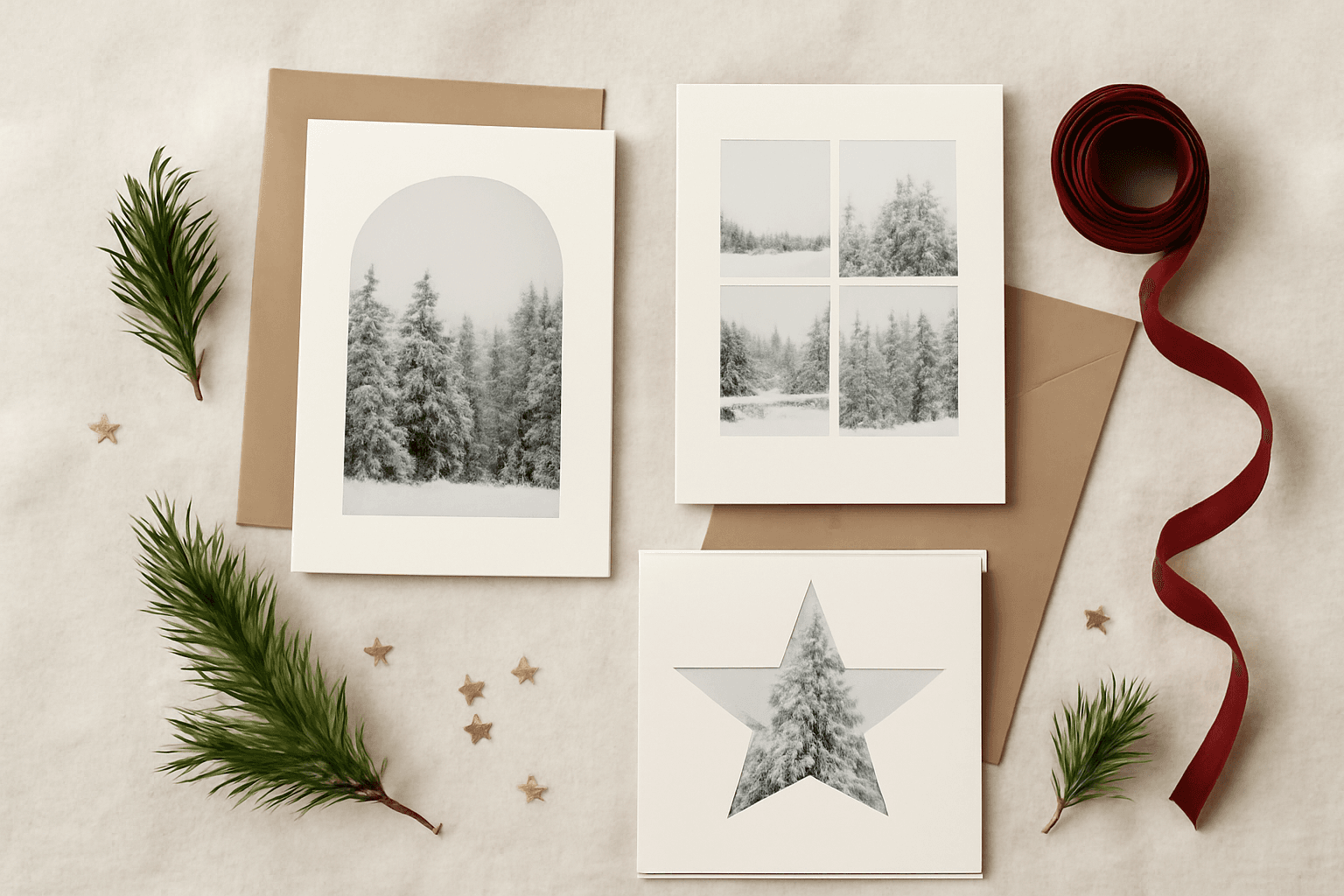
Every year the same thing happens. Some time in late November you open Canva, search "Christmas card", scroll through three hundred templates that all look like the same template, pick one, drop your photo into the rectangle in the middle, and send it. It is fine. It is also exactly the card four other people on your street sent.
The difference between a fine holiday card and a good one is almost never the photo. It is what shape the photo is in, how many photos share the page, and whether the type does anything at all. Those are the three things Canva's built-in tools are weakest at — and the three things these apps fix.
Here are the six Canva apps I actually reach for when making a photo card, what each one is genuinely best at, and where each one stops.
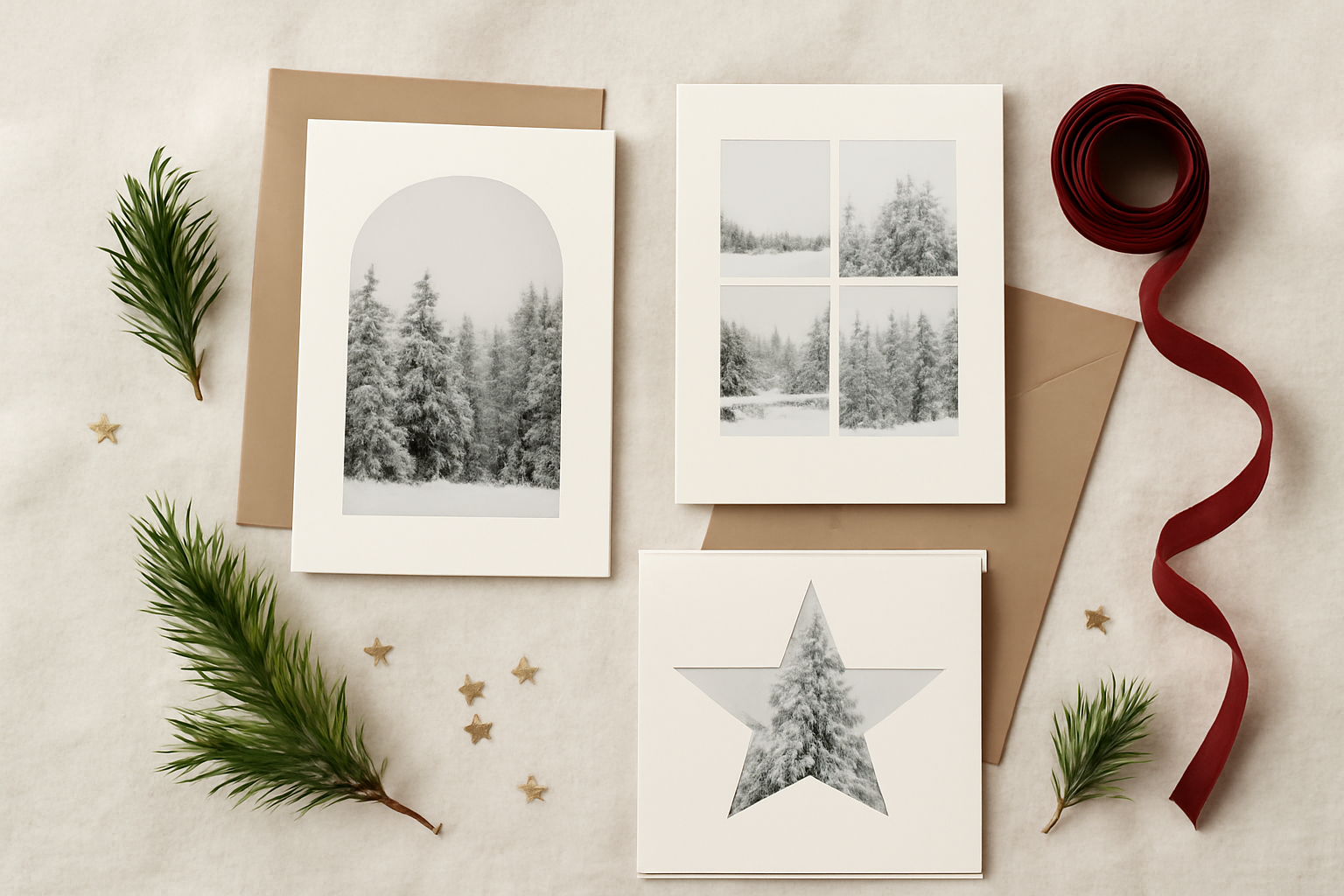
Quick pick #
| If you want… | Use | Free tier? |
|---|---|---|
| One hero photo inside a tree, star or ornament shape | Image to Frame | Limited — Pro unlocks the Frame Store |
| Six photos from the year in a tidy grid or arc | Frames Lab | Yes, with a cap on frames added |
| A festive frame shape you don't have a file for | AI Frames | Yes — 20,000+ frames free in the store |
| The family name or the year filled with photos | Text to Frames | Yes — 5 fonts free, effects are Pro |
| A decorative border around the whole card | Border Art Maker | Yes |
| A card that doubles as a 2027 calendar gift | Calendar Maker | Yes |
First, the honest part: what Canva already does well #
Before installing anything, know what you get for free:
- Hundreds of Christmas and holiday card templates, many of them genuinely well designed. If you need a card tonight, use one. Nothing below will beat a good template on speed.
- Free Frames and Grids under Elements. Canva's built-in frames include circles, arches, hearts and a handful of seasonal shapes, and they work exactly like the app-made ones — drag a photo in, it crops to fit.
- Custom page sizes in inches or millimetres, so you can set an exact 5x7 card without any add-on.
- A bleed option and a PDF Print export in the download menu, which is all you need for a professional print file.
What Canva does not give you: a frame in the shape of your tree drawing, a six-cell grid with the gap and corner radius you chose, or letters that each hold a different photo. That is the gap.
1. Image to Frame — one photo, any shape you like #
Best for: the single-photo card, where the crop is the whole design.
Image to Frame turns a PNG, SVG or JPG (up to 5 MB) into a real Canva frame — the kind you drag a photo into and it fills the outline. Feed it a fir-tree silhouette, a bauble, a star, a snowflake, a gingerbread man, your own hand-drawn shape scanned in, and you get a frame in that shape sitting on your page.
There are three ways to get a shape into it: upload a file, select an image already on your canvas, or export the whole current page as a transparent PNG (useful when you have combined several elements into one silhouette). You can set the border colour and thickness before you add it, though the border only shows up once the frame is in the design, not in the preview.
The one rule that matters: remove the background first. If your shape file still has a white background, the app has nothing to trace and you will get a rectangle. Transparent PNG or clean SVG in, proper outline out. Very intricate shapes with tangled curves can fail to convert — the app will say so and point you at its Frame Store instead.
Where it stops: one shape at a time, and the Frame Store sits behind Pro. If you want a photo grid, that is the next app.
Related: what a frame actually is in Canva and PNG vs SVG vs JPG, which matters more than you would think when your shape file refuses to convert.
2. Frames Lab — the year-in-review card #
Best for: the card with six, nine or twelve photos on it.
Frames Lab is the parametric one. Its Create tab gives you five modes, and two of them are made for holiday cards:
- Grid — set columns, rows, the gap between cells, corner rounding and a border, and it builds a collage frame that auto-fits your page. This is the "one photo per month" card, done properly, with even gutters instead of hand-nudged rectangles.
- Arc — a curved frame (you set the sweep in degrees and the start angle) that reads as a wreath or a bauble arrangement when you fill it.
There is also Shape (turn any element already on your page into a frame), Burst (randomised sunburst frames, good for a starry card) and Diagonal. The Explore tab has ready-made frame collections if you don't want to set anything, and the Style tab re-adds a frame you recently used with blur, border or inner shadow applied.
Where it stops: grids much beyond about 30 cells get blocked as too complex, so a 12-photo card is comfortable and a 36-photo one is not. The free tier limits how many frames you can add before it asks you to upgrade.
If the collage itself is the project rather than the card, the step-by-step photo collage guide covers the layouts in more depth.
3. AI Frames — when you don't have the shape file #
Best for: the shape you can picture but can't source.
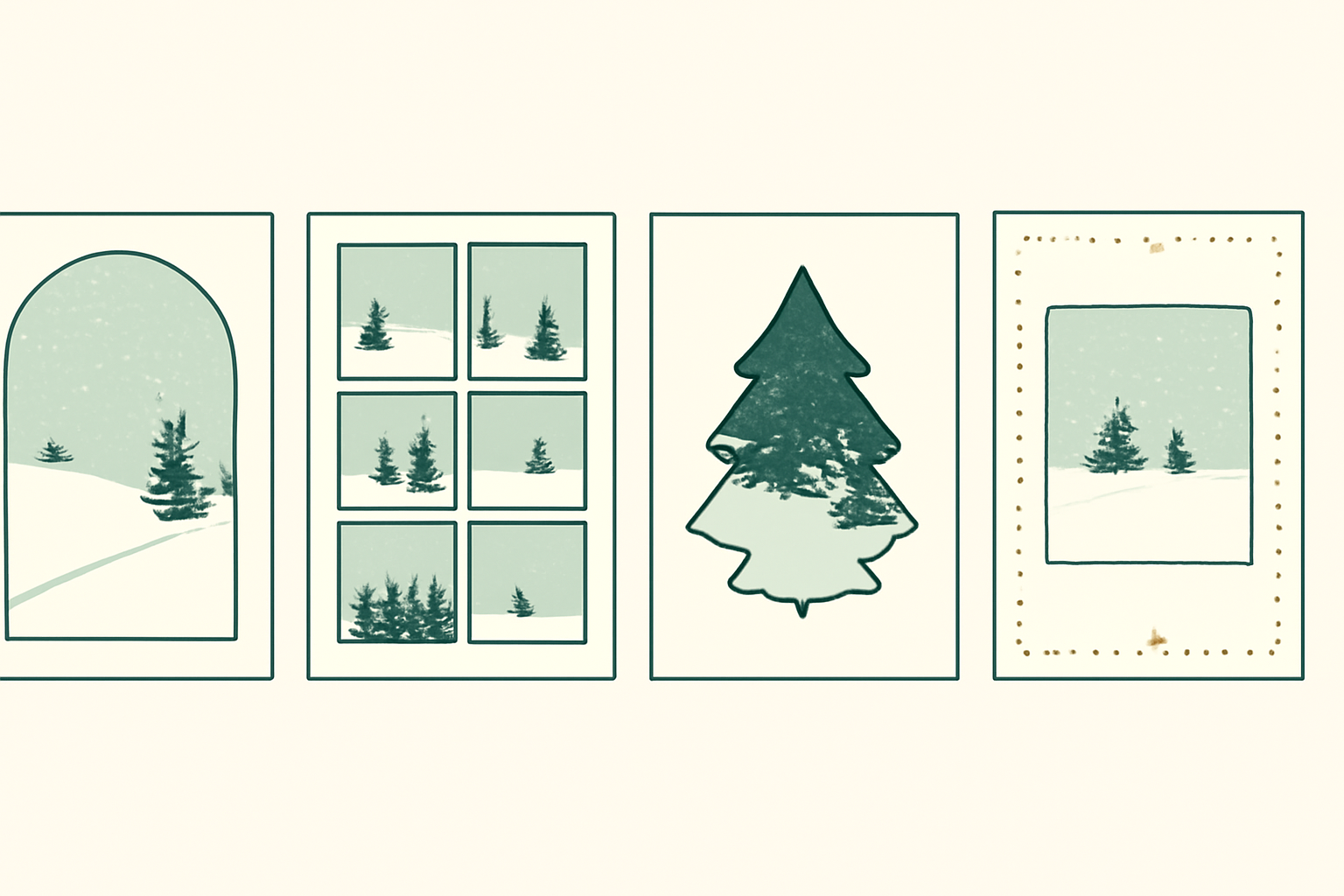
Type "a holly wreath frame" or "a frame shaped like a paper snowflake" and it generates one. That is the headline feature, but the more useful one in practice is the Frames Store: over 20,000 ready-made frames, free and searchable. Searching "star" or "ornament" and clicking the one you like is faster than generating, and it costs nothing.
It also has a Frames Style panel — shadow, custom border thickness and colour, and frame effects — which is genuinely rare among Canva frame apps and makes a flat shape look like it sits on the paper rather than in it.
Where it stops: generated shapes are approximations. If you need a specific silhouette — a particular logo, a specific tree drawing — Image to Frame with your own file gives you exact control.
4. Text to Frames — the name that holds the photos #
Best for: the card where the type is the picture.
Text to Frames converts each letter of your text into its own Canva frame. Type "NOEL", "2026", or your surname, pick a font, turn on Split into letters, and drop a different photo into every character. Not one photo showing through the whole word — a separate image per letter, each one repositionable inside its letter like any other Canva frame.
The practical settings: up to 200 characters, letter spacing from −100 to 100, font size, and three stacking effects (blur behind, border around the strokes, inner shadow inside them). Five fonts are free — Roboto, Open Sans, Lato, Playfair Display and Pacifico — and the remaining hundred-plus are Pro, as are the three effects.
Where it stops: some Canva design types refuse to accept frames at all, and the app will tell you so. Open it in a Poster, Presentation or custom-size document and it behaves. Also worth knowing: the preview is generated the same way as the final output, so what you see really is what lands on the page.
The concept behind it is knockout text, if you want the background.
5. Border Art Maker — the edge that finishes the card #
Best for: the two millimetres of decoration that make a plain photo card look intentional.
Border Art Maker repeats an element — dots, a built-in icon (stars, hearts, flowers, geometrics) or an image you upload — evenly around an edge, with control over spacing and rotation. A ring of tiny gold dots around a 5x7 photo card, or a repeating pine sprig along the top and bottom, takes about a minute and does more for the card than another hour of font shopping.
Where it stops: it decorates, it does not crop. Pair it with one of the frame apps rather than instead of one.
6. Calendar Maker — the card people keep #
Best for: the holiday card that stays on the fridge until March.
Calendar Maker generates month, week or custom calendar blocks straight into your Canva page. Put a photo frame on the top two-thirds of a 5x7 card and a small January 2027 grid on the bottom third, and you have sent something people actually use. The same trick scales up to a full twelve-month photo calendar as a gift.
Where it stops: it makes the calendar, not the card. The photo half still comes from the frame apps above.
One bonus: if the card is for a business rather than a family, Bulk QR generates codes in batches from a list — a QR on the back of each card pointing at your holiday hours or a thank-you video. Print one and scan it with a real phone before you print the rest.
Card sizes and print settings #
This is the part that goes wrong in December, so get it right in September.
| Card | Finished size | Envelope | Notes |
|---|---|---|---|
| US standard flat | 5 x 7 in | A7 (5.25 x 7.25 in) | The default. Every lab prints it. |
| US postcard | 4 x 6 in | None — mails as a postcard | Cheapest to print and to post. |
| European standard | A6, 105 x 148 mm | C6 | Also the size of an A5 sheet folded in half. |
| Square | 5 x 5 in | Square | Looks lovely; usually attracts a nonmachinable postage surcharge in the US. |
| Folded card | 5 x 7 in folded | A7 | Design the flat sheet at 10 x 7 in and fold. |
Settings that matter:
- Set the page size before you design, not after. Resizing later is a Pro feature in Canva, and reflowing a finished card is miserable.
- Turn on bleed in the download options and let any background colour or photo run past the trim line by about 3 mm. Trimming is never perfectly accurate.
- Keep text and faces at least 5 mm inside the trim, further if you are cutting at home.
- Download as PDF Print, not PDF Standard. PDF Standard is screen resolution; PDF Print gives you the 300 DPI a lab expects. More on that in what DPI actually means.
- Use 250-300 gsm card stock if you print at home. Anything lighter feels like a flyer in the hand.
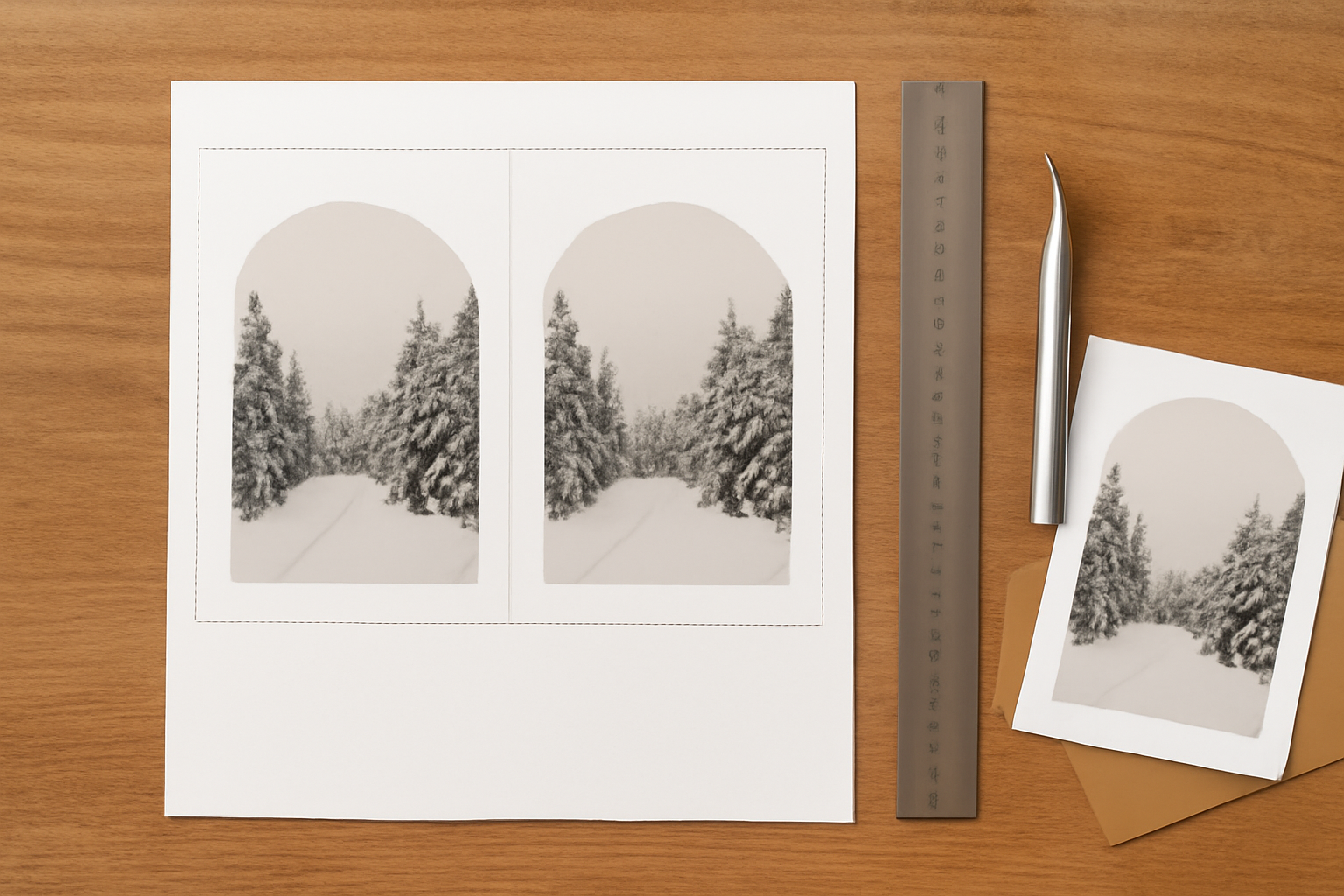
- Check your photo's shape before you crop it. A phone photo is 4:3; a 5x7 card is close to 5:7. Something has to give, and a frame decides that for you instead of stretching the image — the difference is explained in what aspect ratio means.
Which app for which card #
| Card you have in mind | Reach for |
|---|---|
| One great family photo, cropped into a tree | Image to Frame |
| Twelve small photos, one per month | Frames Lab (Grid) |
| Photos arranged in a wreath curve | Frames Lab (Arc) |
| A wreath or snowflake shape you don't own a file for | AI Frames |
| "2026" with a different photo in each digit | Text to Frames |
| A plain photo that needs an edge | Border Art Maker |
| A card that becomes next year's calendar | Calendar Maker |
| A business card with a scannable link | Bulk QR |
Start with one card #
The trap with a list like this is installing all six and designing none. Pick the one that matches the card in your head, build a single 5x7, print it on whatever paper is in the printer right now, and prop it up across the room. You will know within about four seconds whether the photo is too small, the type too thin, or the border too busy — and you will know it in September, when fixing it costs nothing.
More seasonal projects in 10 Christmas design ideas for Canva, and if you are still choosing between frame apps generally, the frame maker roundup compares them outside a holiday context.
Frequently asked questions
In the US, 5x7 inches is the default — it fits a standard A7 envelope and every print lab supports it. 4x6 inches is the cheapest option and mails as a postcard. In Europe, A6 (105 x 148 mm) is the equivalent standard. Square cards (5x5 inches) look great but usually carry a nonmachinable postage surcharge in the US, so check your postage before you print a hundred of them.
Yes — hundreds of them, and plenty are genuinely good. If you want a card done in ten minutes, search 'Christmas card' in Canva, pick a template, swap the photo and you are finished. The apps in this article are for when you want the card to look like yours rather than like a template: a photo cropped into a tree or star, six photos in a custom grid, or your family name filled with the year's pictures.
You can, and for small runs it is usually cheaper. Set your Canva page to the finished card size, download as PDF Print (not PDF Standard) so you get print resolution, and gang two 5x7 cards onto one sheet of 250-300 gsm card stock. Print one full sheet and cut it before you print the rest — home printers drift, and you want to discover that on sheet one rather than sheet twenty.
Early autumn is not too early. If you are ordering from a print service you want the file finished by early-to-mid November so you can post domestically in the first half of December, and earlier still for international mail. Building the card in September also means you can drop in a better photo later without redesigning anything — the frames stay put, only the picture inside them changes.
Related products


More from QRdy Blog
What Is a Mockup? Meaning, Types, and How Print-on-Demand Sellers Use Them
A mockup is a realistic preview of your design on a real product. Learn the two meanings of "mockup", the main product mockup types, what makes one look fake, and three ways print-on-demand sellers make them.
How to Make a Pumpkin Photo Frame in Canva (Halloween, Step by Step)
Put your family, pet or costume photo inside a pumpkin shape in Canva. Three ways to do it, a step-by-step with Image to Frame, plus tips for jack-o-lantern and ghost frames.
What Is a Perpetual Calendar? Meaning, Types, and How to Make One in Canva
A perpetual calendar works in any year because it never prints one. Learn what it is, the main types, how it works, and how to build a reusable birthday version in Canva.