
How to Make a Photo Collage in Canva
Build a grid, arc, or diagonal photo collage in Canva with Frames Lab — layouts Canva's native Grids can't make, with photos that crop to fit automatically.
Canva has a built-in Grids tool that works well for simple square layouts, but the moment you want a specific number of cells, a curved arc of photos, or a diagonal strip, you run out of options fast. The Frames Lab app builds the collage layout for you — grid, arc, or diagonal — in the exact dimensions you set, then every photo you drop in crops to its cell automatically.
This guide walks through making a photo collage from start to finish, plus three layout styles you can't easily build with Canva's native Grids.
Make a grid photo collage with Frames Lab #
The Grid mode is the fastest route to a classic collage — rows and columns of photos with even spacing.
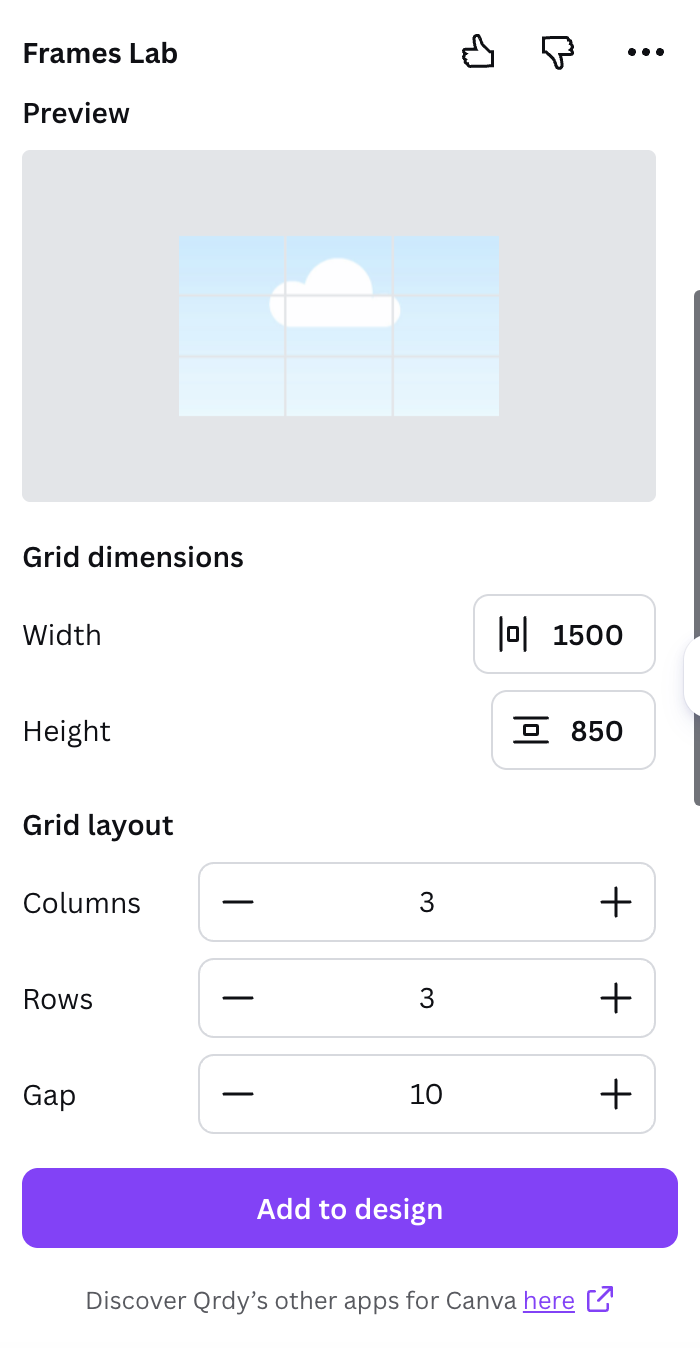
- Open Frames Lab and pick Grid mode. From the Apps panel in Canva, open Frames Lab, stay on the Create tab, and choose Grid. This mode builds a collage frame rather than a single-photo frame.
- Set the collage dimensions. Adjust the grid width and height so the collage matches your design — a square for Instagram, a tall rectangle for a Story, or a wide banner for a header.
- Choose columns, rows, and gap. Set the number of columns and rows for how many photos you want, and the gap for the spacing between them. The preview updates live as you change each value.
- Add it to your design and drop in photos. Click Add to design, then drag a photo onto each cell. Each one crops to fit its cell automatically — double-click a photo to reposition it inside.
Fine-tune the grid layout #
Two options under the grid controls change the whole look of the collage without starting over:
- Wave effect — curve the collage lines instead of keeping them straight, with controls for the wave's height and speed, for a softer, less rigid layout.
- Advanced options — combine cells into larger feature slots and round the corners, so one hero photo can sit alongside smaller ones.
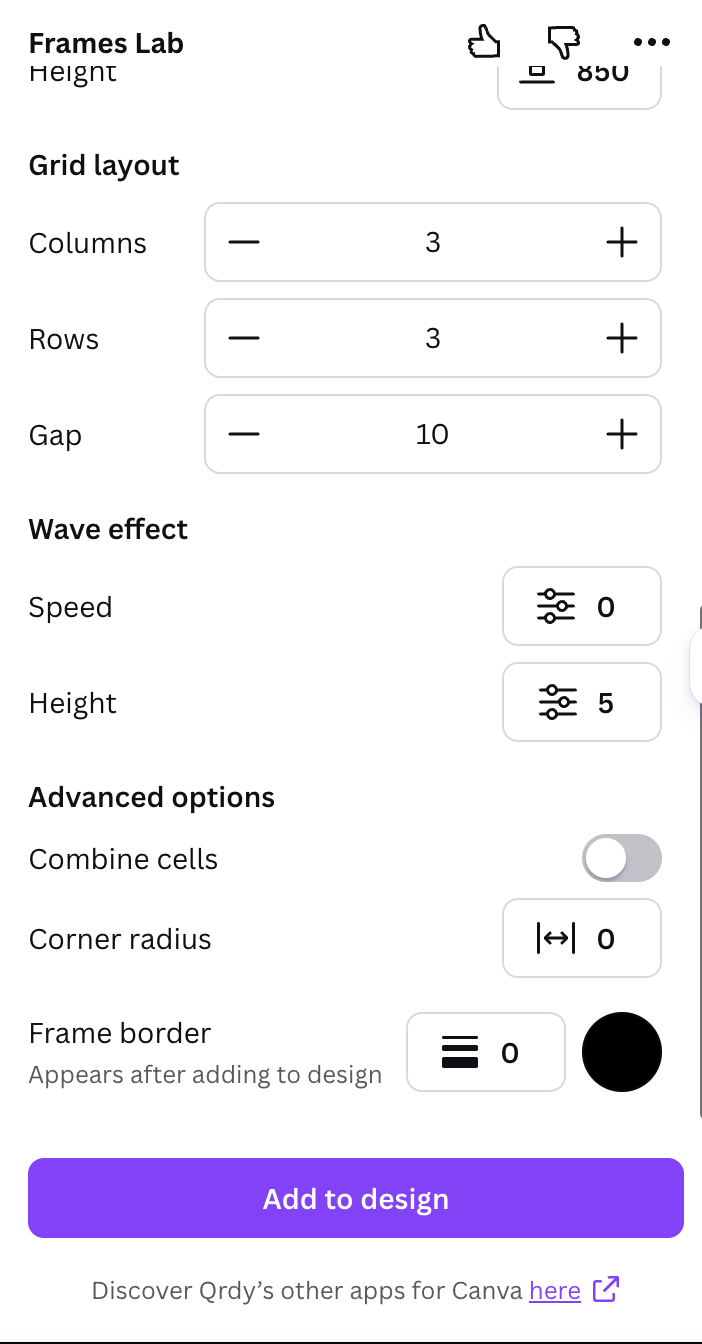
Note: very complex grids — too many cells or a strong wave — get blocked. If your collage won't add, reduce the rows and columns or lower the wave strength, then try again.
Try an arc or diagonal collage #
Grid is only one of the collage shapes. Two more modes give your photos a layout Canva's native Grids can't produce:
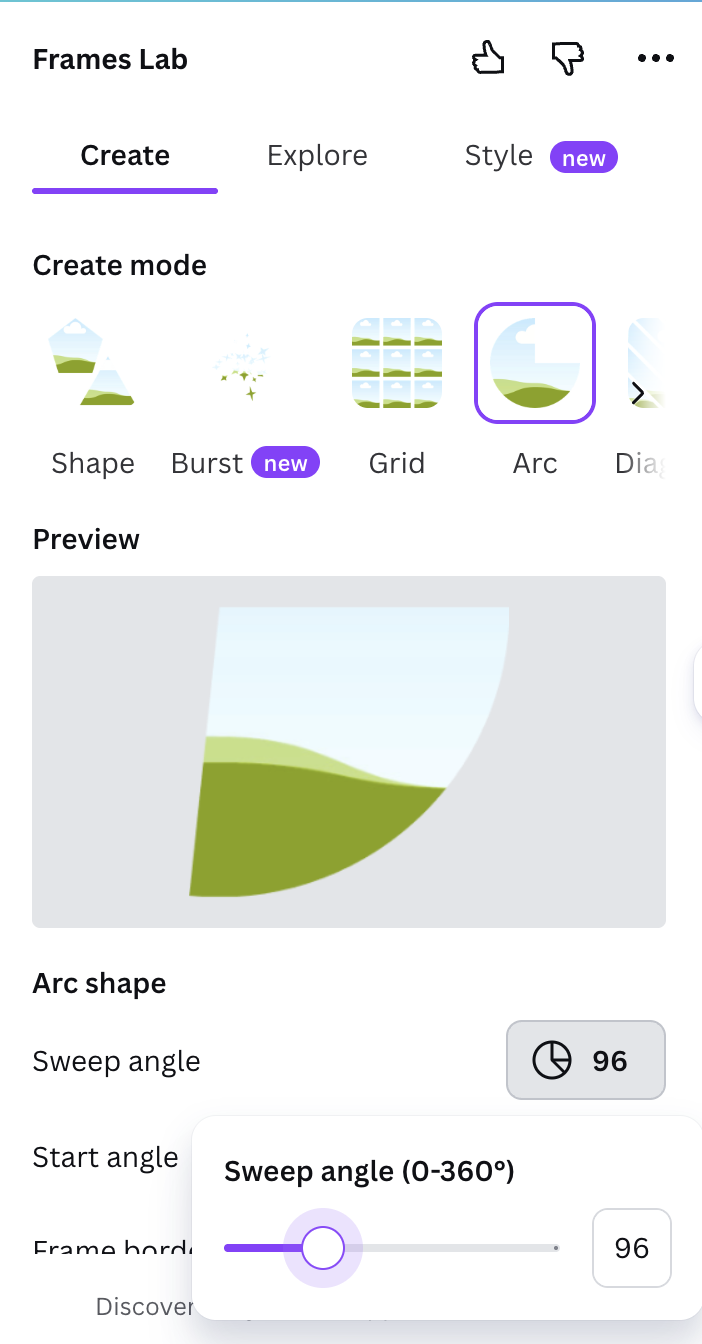
- Arc — set the sweep angle and start angle, then add it to your design. Your photos fan out along the curve, ideal for a wedding, travel, or celebration collage.
- Diagonal — strips that run on an angle you control, with the same spacing, gap, wave, and advanced options as Grid, for a dynamic magazine-style collage.
Style the collage #
Every frame you add is saved under Last frames in the Style tab. Select the collage there and add a border, blur, or inner shadow — each with its own color and strength — then re-add it with the effect applied. A thin border between cells is the quickest way to make a busy collage read clearly. Want a ready-made layout instead? Open the Explore tab and click any frame from the themed collections to drop it straight in.
Frames Lab vs Canva's built-in Grids #
Canva's native Grids (under Elements to Grids) are free and fine for a plain square-photo layout. Reach for Frames Lab when you need something Grids can't do: a precise column-and-row count, a curved arc of photos, a diagonal strip, combined feature cells, or a wave along the edges. Both let you drag a photo in and have it crop automatically — Frames Lab just gives you far more control over the shape of the collage.
Print or share your collage #
Once the collage looks right, download it as PNG for sharing online, or PDF Print for the cleanest printed result. If you're printing at home, keep the design inside the printable margins.
Frequently asked questions
Open the Frames Lab app from the Apps panel, choose Grid mode, set your columns, rows, and gap, then click Add to design and drop a photo into each cell. Each photo crops to fit automatically.
Yes. Frames Lab also has Arc mode for a curved sweep of photos and Diagonal mode for angled strips — layouts you can't build with Canva's native Grids.
Yes. Drag any photo onto a cell and it crops to that cell's shape automatically. Double-click the photo to reposition or zoom it inside the cell.
Canva's built-in Grids (Elements to Grids) are free for simple square layouts. Frames Lab has a free tier too, with a limit on how many frames you can add before upgrading.
Related products


More from QRdy Blog
Canva Monthly Calendar: Template vs Table vs Calendar Maker (Which Is Fastest?)
Three ways to make a monthly calendar in Canva: a ready-made template, a hand-built table, or the Calendar Maker app. We compare setup time, flexibility and 12-month projects, with a clear verdict.
How to Make a Hat Mockup From a Photo (So the Design Curves With the Cap)
Turn one photo of a blank cap into realistic hat mockups: drag a box around the front panel, let the design wrap the curve with the photo's real shading, then render all your designs at once in your browser.
The Best Canva Apps for Family Reunions (2026): Invites, Banners, Photo Walls and Calendars
Planning a family reunion in Canva? Here are the five Qrdy apps that actually help: shaped photo invitations, photo-letter banners, photo-wall grids, a countdown calendar and a QR link that can change after printing.