
The Best Canva Frame Maker Apps (2026)
Canva's built-in frames only come in preset shapes. These frame maker apps let you turn any image, word, or custom shape into a real Canva frame — here are the best ones, ranked, with free tiers and when to use each.
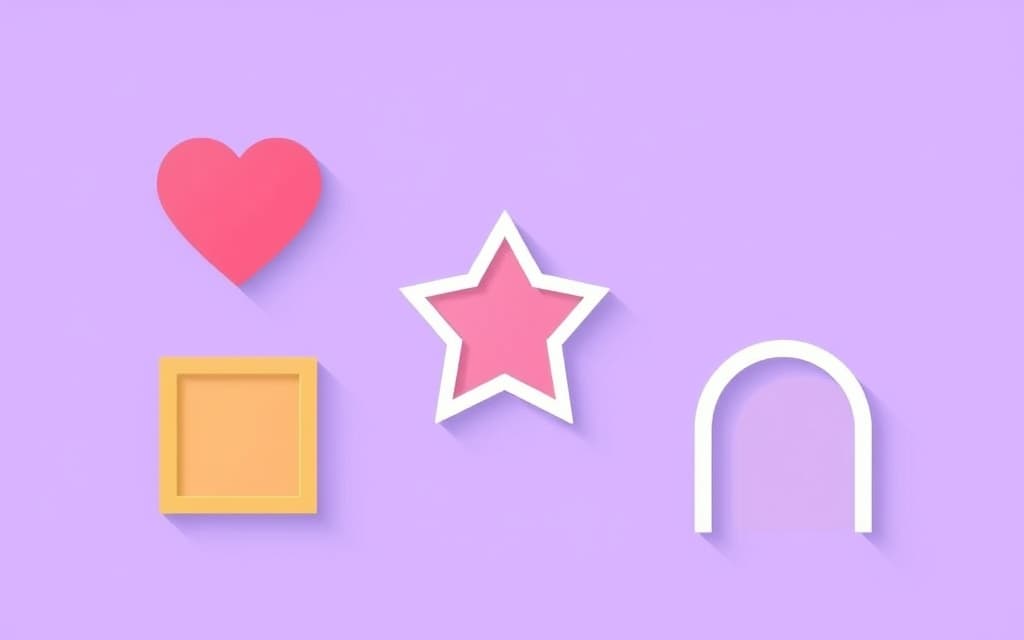
Canva's built-in Frames are handy, but if you've ever wanted to fill a heart, your logo, or the word SUMMER with a photo, you've hit their limit fast: you can only use the preset shapes Canva ships under Elements → Frames. There's no way to turn your own artwork or a custom shape into a frame.
That's exactly what a frame maker app does. Each app below runs right inside the Canva editor and generates a real, valid Canva frame — one you fill by dragging a photo or video into it, then reposition and zoom just like any native frame. Here are the best Canva frame maker apps in 2026, ranked, with what each is best for.
Quick pick #
| App | Best for | Free tier |
|---|---|---|
| Image to Frame | Turning any image, logo, or PNG into a frame | Yes (Pro unlocks Frame Store + border) |
| AI Frames | Describing a frame in words + a 20k+ free frame store | Yes (store is free) |
| Frames Lab | Precise parametric frames — arc, grid, burst, diagonal | Yes (limited adds) |
| Text to Frames | Photo-filled letters and words | Yes (5 fonts free) |
| Frame Collage | Grid and mosaic photo collages | Yes |
| Trace to Frame | Quick free-form polygon frames you draw | Yes |
1. Image to Frame — best overall #
If you already have the shape you want as an image, Image to Frame is the most direct tool. Upload a PNG, SVG, or JPG (up to 5MB), or export a shape you built on your Canva page, and the app converts it into a frame that follows the real outline of the image — then you drop a photo or video inside.
The one tip that makes or breaks the result: remove the background first. If your image still has a white or colored background, the frame comes out rectangular. With a transparent PNG, the frame hugs the true silhouette — your logo, a hand-drawn shape, a puzzle piece, anything. You can also set border thickness and color, and pull ready-made shapes from its Frame Store.
Use it when: you have a logo, icon, or custom graphic and want a photo to take its exact shape. Try Image to Frame
2. AI Frames — best when you don't have artwork #
No image to start from? AI Frames builds a frame from a text description. Type something like "a heart-shaped frame" or "a star frame with glowing edges" and it generates the shape, ready to drop a photo into.
Two things make it stand out. First, a free Frames Store with 20,000+ ready-made frames you can search and insert without spending AI credits — often faster than generating. Second, a Frames Style layer that adds shadow, custom border, and effects to give a plain frame real depth, which very few Canva apps offer.
Use it when: you want a frame but have no source artwork, or you'd rather browse a big library than make one. Try AI Frames
3. Frames Lab — best for precise, parametric frames #
Frames Lab is the most technical of the bunch — a toolbox for building frames to spec. Its Create tab offers five modes: Shape (turn a design element into a frame), Burst (radial sunburst frames), Grid (multi-cell collage grids), Arc (curved arc frames set by degree), and Diagonal (angled grids). Frames auto-scale to fit your design, and a Style tab adds Blur, Border, and Inner Shadow. There's also an Explore tab of ready-made collections.
Use it when: you need control — a 270° arc, a grid with an exact column count, or a sunburst — rather than a one-off shape. Try Frames Lab
4. Text to Frames — best for photo-filled words #
Want each letter of a headline to hold a different photo? Text to Frames turns every character of your text into its own real Canva frame. Type a word, pick from 100+ fonts, and optionally toggle Split into letters so each letter takes a separate image. It's different from a clipping mask, where a single photo shows through the whole word — here each letter is independent, and you can add Border, Blur, and Inner Shadow effects.
Use it when: you're making event banners, poster titles, or covers where typography should carry imagery. Try Text to Frames
5. Frame Collage — best for grids and mosaics #
Frame Collage builds grid collages by toggling cells on a matrix — a bit like pixel art. Choose an 8×8, 16×16, 24×24, or 32×32 grid, click cells on and off (or start from a preset like a heart or star), tweak spacing and border color, and every cell becomes its own frame to fill.
Use it when: you want a mosaic photo wall, a puzzle-style Instagram grid, or a bingo-card layout. Try Frame Collage
6. Trace to Frame — best for quick free-form shapes #
Trace to Frame lets you click points to draw a frame — minimum three points — either free-hand or traced over a reference image, then convert it to a Canva frame (or use it to crop a photo to any shape). It only draws straight lines (no Bézier curves) and can't make shapes with holes, so for curves you'd switch to Image to Frame or AI Frames.
Use it when: you need a quick custom polygon or a fast free-form crop and don't need curves. Try Trace to Frame
What about Canva's built-in Frames? #
Still worth knowing: Canva's native Frames (Elements → Frames) are free and perfect when a preset shape fits. Drop them in, fill with a photo, done — no app needed. Reach for the apps above only when you need a shape Canva doesn't offer: your own logo, a specific word, a parametric grid, or a hand-drawn outline.
How to choose #
Match the tool to your starting point. Have artwork already? Image to Frame. Want to describe it or browse a library? AI Frames. Working with text? Text to Frames. Need a grid? Frame Collage. Need geometric precision? Frames Lab. Want to draw it fast? Trace to Frame. Most have generous free tiers, so it's cheap to try a couple and see which fits your workflow.
Frequently asked questions
Canva has built-in Frames you can find under Elements, and you can drop a photo into any of them. But the shapes are limited to Canva's preset library — you can't turn your own logo, a custom shape, or a word into a frame. That's the gap these frame maker apps fill: they generate a real, valid Canva frame from an image, a text description, a typed word, or points you draw, and you fill it exactly like a native frame.
Each app has a free tier that lets you create frames, with a Pro upgrade that removes limits and unlocks extras like border and effect controls, more fonts, or unlimited frame adds. AI Frames also includes a free store of 20,000+ ready-made frames you can search and insert without using AI credits. For occasional use the free tiers are usually enough.
If you already have an image, logo, or PNG you want to shape a photo into, start with Image to Frame. If you want a frame but don't have artwork, use AI Frames (describe it) or its free frame store. For photo-filled text use Text to Frames, for grid collages use Frame Collage, and for precise parametric shapes like arcs and grids use Frames Lab.
Related products


More from QRdy Blog
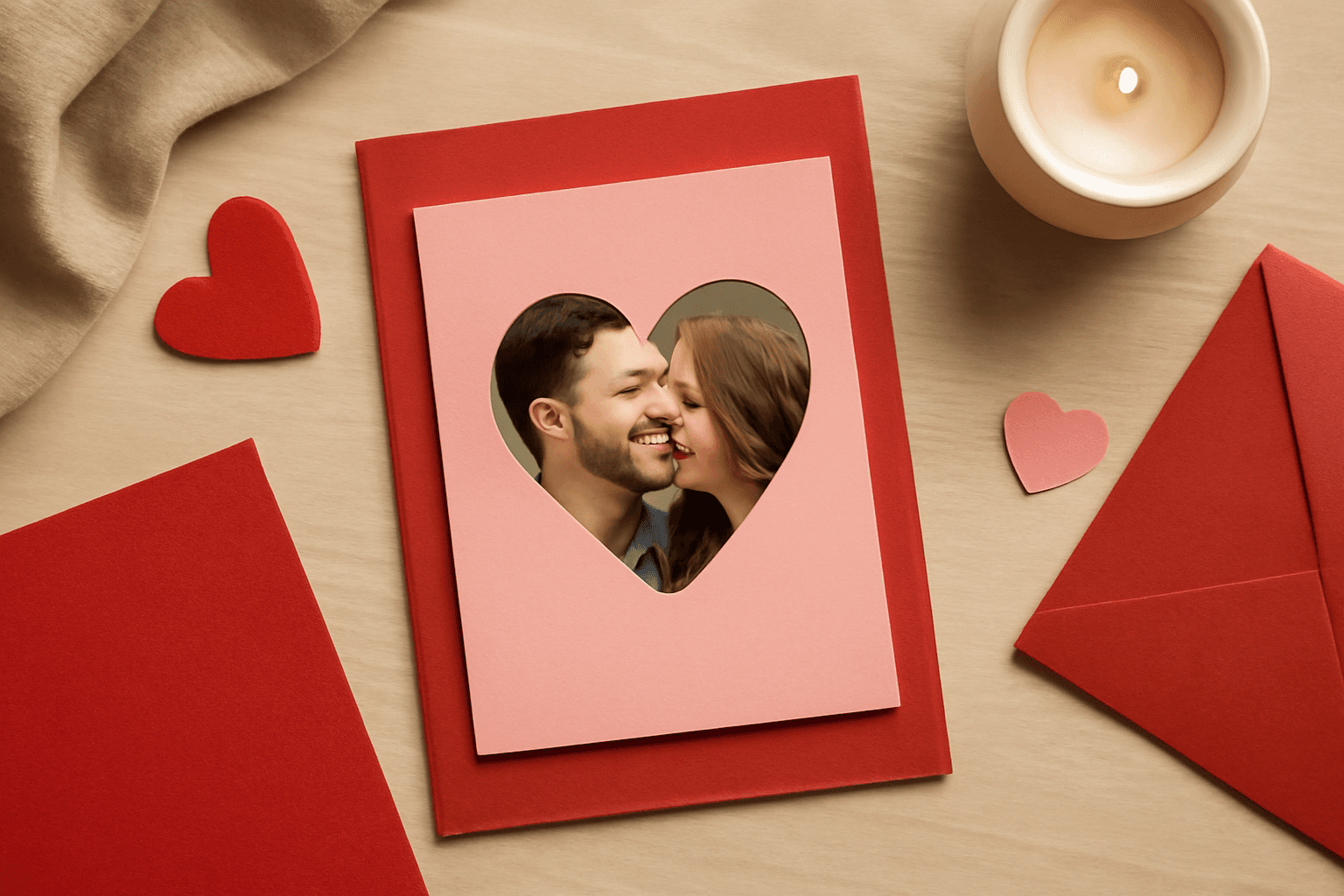
Ứng dụng Canva tốt nhất để làm thiệp Valentine (2026)
Chọn app Canva nào để làm thiệp Valentine có ảnh? So sánh Image to Frame, Text to Frames và Frames Lab: ảnh trong khung trái tim, tên người thương bằng chữ ảnh, lưới kỷ niệm.
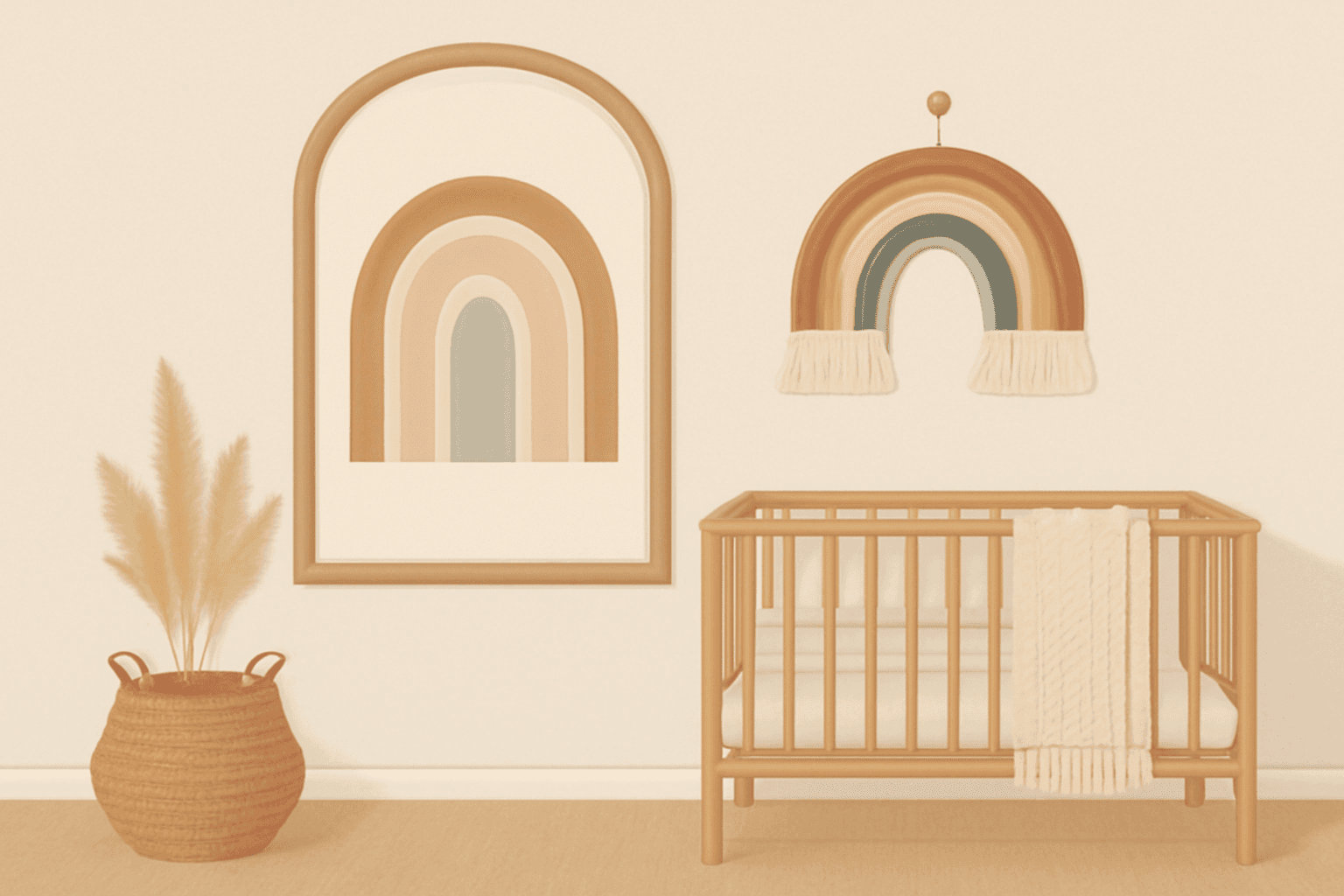
How to Make an Arch Photo Frame in Canva (Arch and Rainbow Curved Frames)
Arch and rainbow photo frames are everywhere in nursery art and boho posters. Here is how to make one in Canva step by step, using an arch shape or Frames Lab's Arc mode, with tips for sizing and spacing.

What Is a Bento Grid? Definition, Examples, and How to Make One in Canva
A bento grid is a layout of rounded tiles in mixed sizes, named after the Japanese lunch box. Learn what it is, how it works, and how to build one with photos in Canva.