
What Is Aspect Ratio? A Plain-English Guide (with Canva Examples)
Aspect ratio is the shape of your image, not its size. Here is what 1:1, 4:3 and 16:9 actually mean, why photos get cropped or squashed when you change them, and how to handle ratios in Canva without wrecking your design.
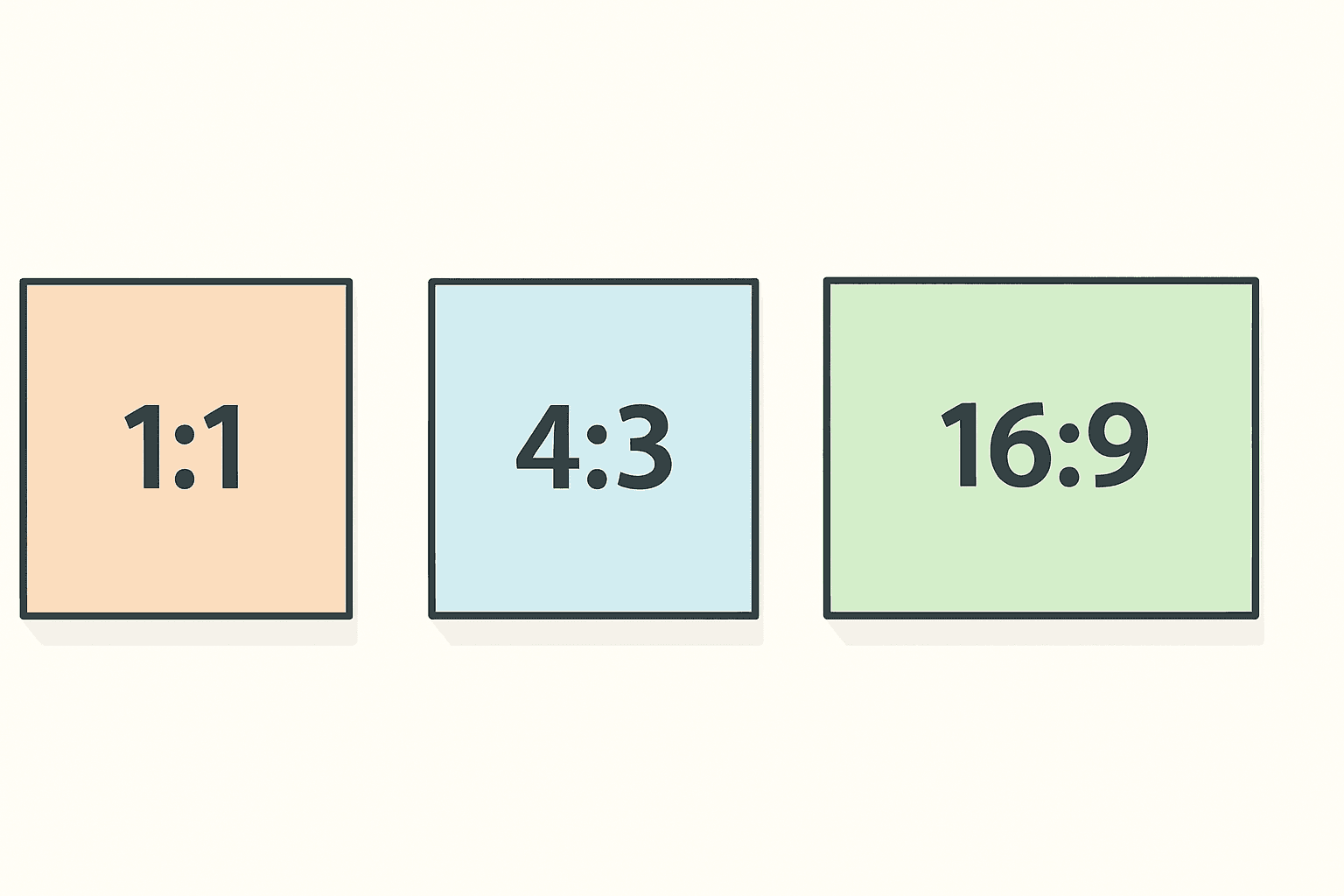
Aspect ratio is one of those terms that shows up everywhere — camera settings, Canva's resize menu, Instagram's upload screen, print shop order forms — and almost nobody explains it. So here it is, plainly.
Aspect ratio is the shape of a rectangle: how wide it is compared to how tall it is. That is the whole idea. It says nothing about how big the image is or how sharp it is. Only its proportions.
How to read an aspect ratio #
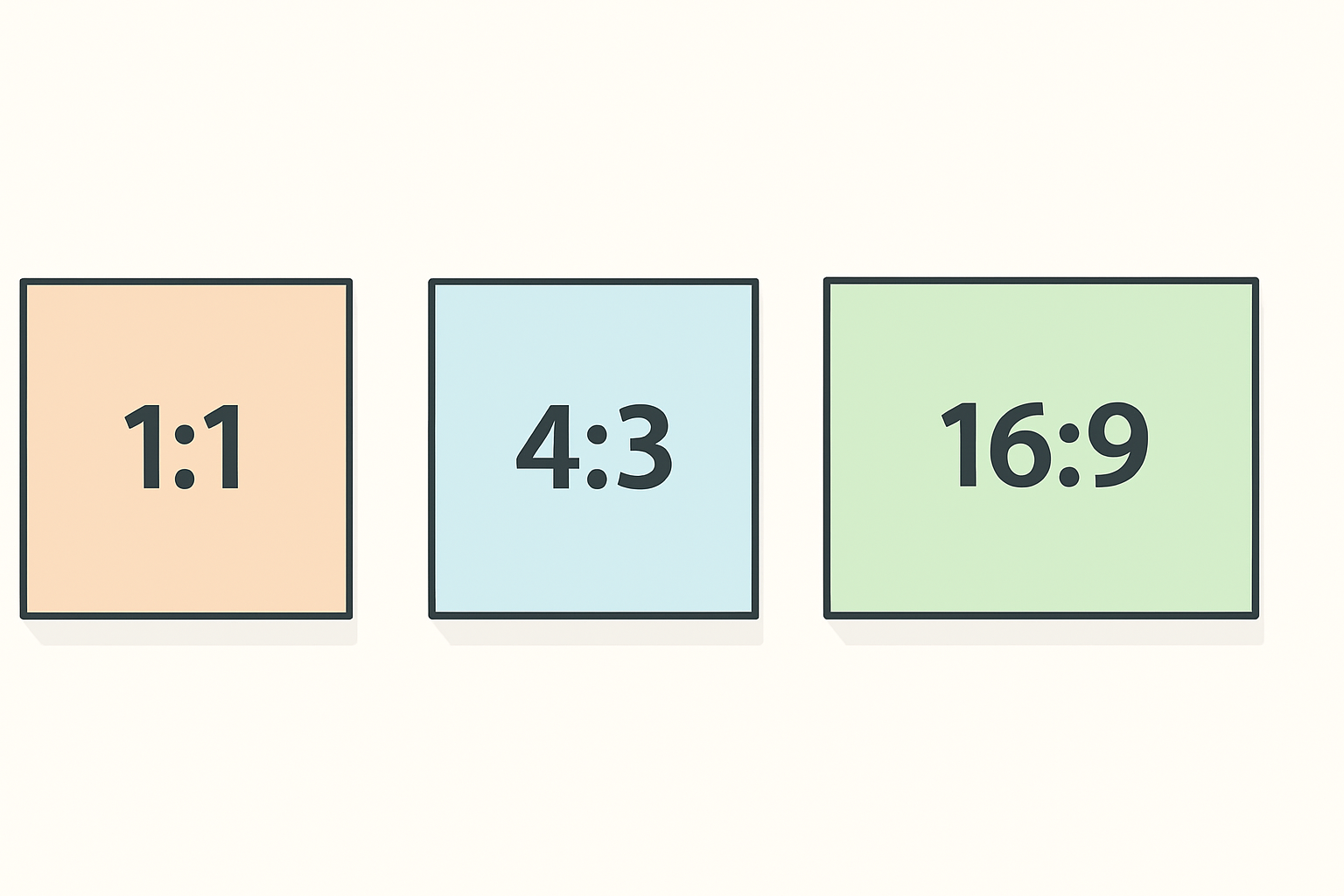
Ratios are written as two numbers with a colon: width : height.
- 1:1 — width equals height. A perfect square.
- 4:3 — 4 units wide for every 3 tall. Slightly wide, the classic older-camera shape.
- 16:9 — much wider than tall. Video, YouTube thumbnails, widescreen slides.
- 9:16 — the same shape flipped upright. Stories, Reels, TikTok.
- 3:2 — the standard shape a DSLR or mirrorless camera shoots, and the shape of a 4x6 print.
The numbers are proportions, not measurements. A 1000 x 1000 px square and a 50 x 50 px square are both 1:1. To find the ratio of any image, divide both dimensions by their greatest common factor: 1920 x 1080 divides down by 120 to give 16:9.
Aspect ratio vs resolution vs size — three different things #
These get muddled constantly, so it is worth separating them:
| Term | What it describes | Example |
|---|---|---|
| Aspect ratio | The shape | 16:9 |
| Resolution | How many pixels in total | 1920 x 1080 |
| Print size | Physical dimensions on paper | 6 x 4 inches |
Two images can share a ratio and have wildly different resolutions. Change the resolution and the image gets sharper or blurrier. Change the ratio and something has to be cut off or squashed — and that is where the trouble starts.
Why photos get cropped or stretched #
When you put an image with one ratio into a space with another ratio, there are only two possible outcomes:
Crop. The image keeps its true proportions, and whatever sticks out past the edges is trimmed away. Faces stay the right shape. You lose some content.
Stretch. Everything gets squeezed to fit the new shape. Nothing is lost, but circles turn into ovals and faces go long or wide. This is almost never what you want.
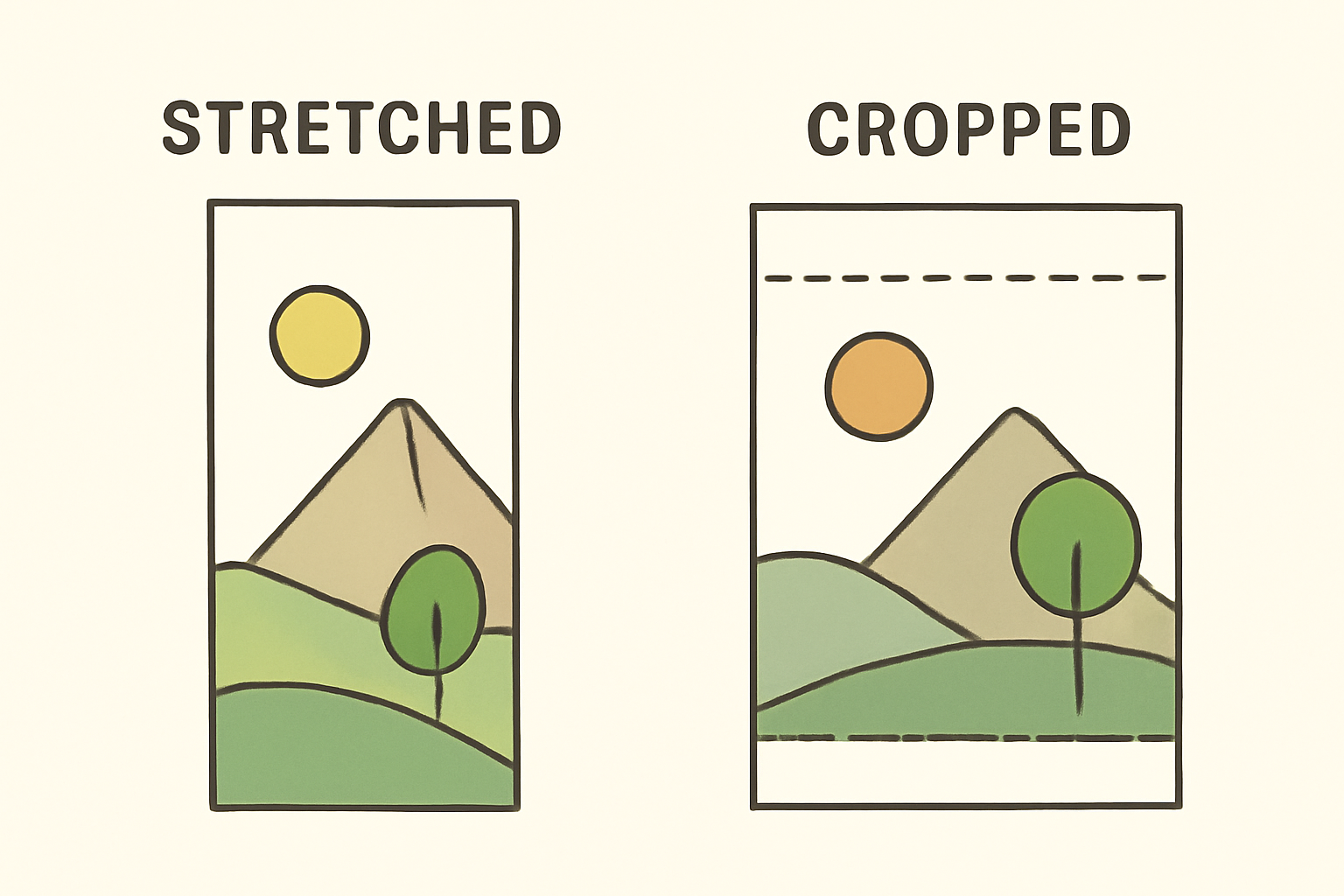
There is a third option people forget: letterbox it. Keep the photo whole and pad the leftover space with a background colour. That is why a vertical phone video shows black bars on a widescreen TV.
The practical rule: when a ratio has to change, crop deliberately rather than letting software stretch for you.
Common aspect ratios, and where they turn up #
| Ratio | Shape | Where you meet it |
|---|---|---|
| 1:1 | Square | Instagram grid posts, profile pictures, album art |
| 4:5 | Slightly tall | Instagram feed posts (uses more screen space) |
| 9:16 | Tall | Stories, Reels, TikTok, phone wallpapers |
| 16:9 | Wide | YouTube thumbnails, video, presentation slides |
| 3:2 | Mildly wide | Camera photos, 4x6 prints, postcards |
| 5:4 | Nearly square | 8x10 prints |
| 7:5 | Mildly wide | 5x7 prints and cards |
| A4 / Letter | Tall | Printable planners, calendars, worksheets |
Print sizes are where ratios bite hardest #
This is the one that surprises people. Standard photo print sizes are not all the same shape:
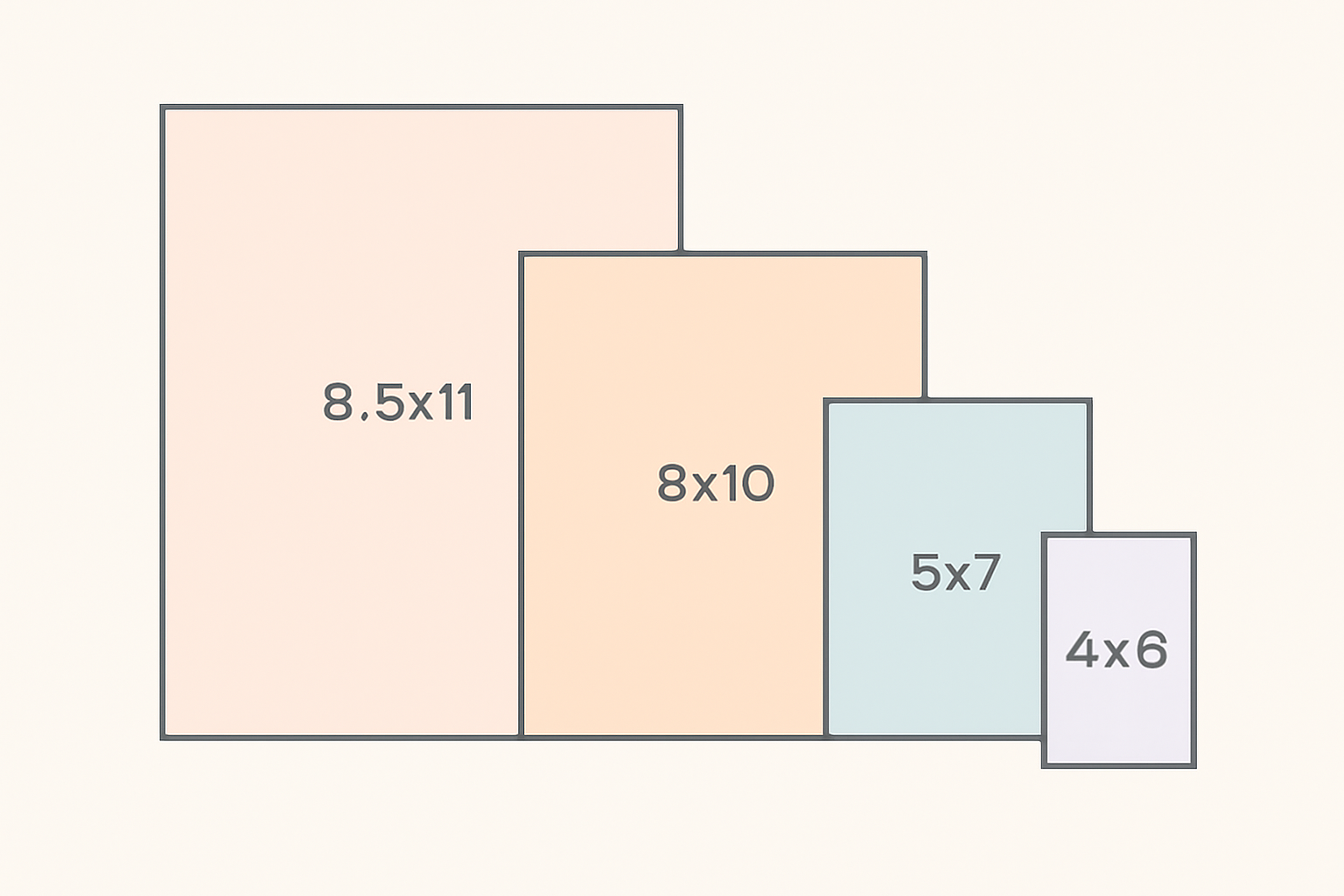
- 4x6 = 3:2
- 5x7 = 7:5
- 8x10 = 5:4
- 8.5x11 (Letter) ≈ 17:22
So a photo cropped to fill a 4x6 will not fill an 8x10 without losing a strip from each side. If you are designing a photo calendar or a framed print, decide the finished size first, then crop to that ratio. Doing it the other way round means someone's forehead ends up outside the frame.
Working with aspect ratios in Canva #
A few things worth knowing:
Canva designs have a fixed ratio once created. Your design size sets the canvas ratio. Changing it after the fact needs the Resize feature, which is a Canva Pro capability — on the free plan you would copy your elements into a new design at the correct size. Worth deciding the ratio before you start.
Frames crop automatically, and that is the point. Drop a photo into any Canva frame and it fills the frame at correct proportions, trimming the overflow. Double-click and drag to choose which part stays. A frame is the friendliest way to force a photo into a new ratio without stretching it.
Canva's built-in frame shapes are a fixed set. They cover the common cases well. When you need a specific shape — your logo, a custom outline, an odd ratio a client asked for — that is where Image to Frame comes in. It takes a PNG, SVG or JPG (up to 5 MB) and converts it into a real, working Canva frame in whatever shape and proportions your source image has. One tip that matters: remove the background first. If the image still has a white backdrop, you get a rectangular frame instead of the outline you wanted.
For collages, the frames set the ratios for you. Frames Lab builds arc, grid and polygon frame layouts, and Frame Collage builds toggleable grids — each cell is a frame, so every photo you drop in is cropped consistently rather than each one fighting for space.
For calendars and planners, start from the paper size. Calendar Maker generates month and week grids straight into a Canva design, so if you set up an A4 or Letter page first, the calendar lands in the right proportions for printing.
The short version #
Aspect ratio is shape, not size. Changing the shape always costs you something — either content (crop) or accuracy (stretch), and crop is nearly always the right trade. Pick the ratio you need before you design, not after, and let frames do the cropping so nothing ends up squashed.
Frequently asked questions
It means the image is 16 units wide for every 9 units tall — a wide rectangle. A 1920 x 1080 image is 16:9, and so is a 3840 x 2160 image. The pixel counts are very different but the shape is identical. 16:9 is the standard for YouTube thumbnails, video, and most presentation slides.
No. Aspect ratio is the shape (the relationship between width and height). Resolution is how many pixels there are in total. 800 x 600 and 1600 x 1200 are both 4:3, but the second one has four times the pixels. Ratio decides what fits in the frame; resolution decides how sharp it looks.
Crop, do not scale one dimension. Stretching squashes faces and circles because it changes width and height by different amounts. Cropping keeps everything in correct proportion and simply trims the parts that no longer fit. In Canva, dropping a photo into a frame crops automatically — you then drag inside the frame to choose which part is kept.
It depends on the print size, and this is where most people get caught. 4x6 is 3:2, 5x7 is 7:5, and 8x10 is 5:4 — three different shapes. A photo that fills a 4x6 perfectly will lose a strip off each side when printed at 8x10. Decide the print size first, then crop to that ratio.
Related products


More from QRdy Blog
10 Family Planner and Calendar Ideas You Can Make in Canva
Ten printable family planner ideas you can build in Canva with Calendar Maker: a fridge calendar, chore chart, birthday calendar, meal plan, carpool grid and more. Honest notes on where Canva's built-ins are enough.

Image to Frame vs Trace to Frame: Which Canva App Makes Your Custom Frame?
Need a custom-shaped frame in Canva? Image to Frame converts a PNG, SVG or JPG; Trace to Frame lets you click points to draw a polygon. Here is when each one wins, with a side-by-side table.
Ứng dụng Canva tốt nhất để làm thiệp Valentine (2026)
Chọn app Canva nào để làm thiệp Valentine có ảnh? So sánh Image to Frame, Text to Frames và Frames Lab: ảnh trong khung trái tim, tên người thương bằng chữ ảnh, lưới kỷ niệm.