
What Is Knockout Text? Definition, How It Works, and How to Make It in Canva
Knockout text is a design effect where a photo or pattern shows through the shape of your letters instead of a flat color. Here's what it means, how it actually works, and the fastest way to create it in Canva.
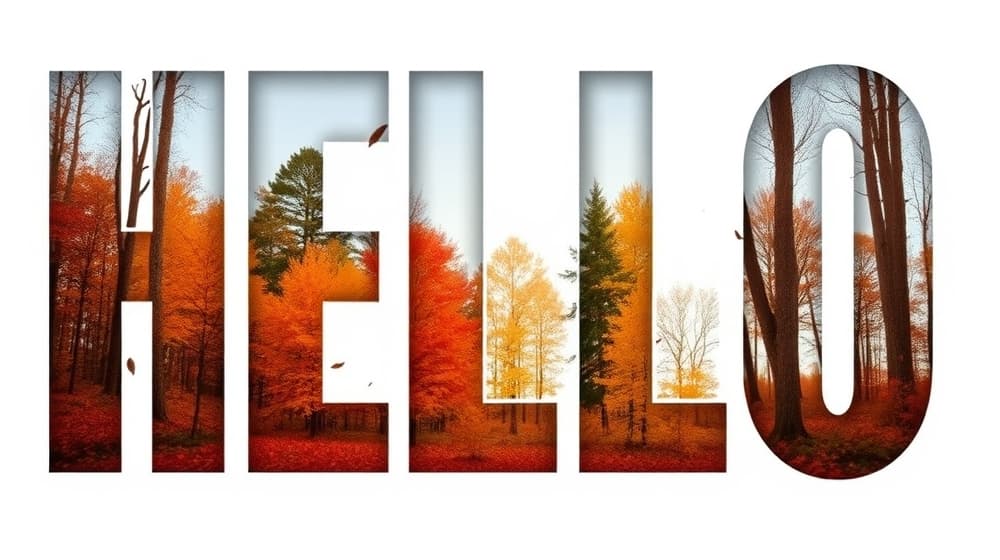
You've seen it on movie posters, event banners, and Instagram covers: a big bold word where, instead of a flat color, the inside of each letter is a photograph — a beach, a forest, a night sky. That effect has a name. It's called knockout text, and it's one of the most reliable ways to make typography feel designed instead of default.
This guide explains what knockout text actually is, how it works under the hood, how it differs from a clipping mask, and the fastest ways to create it in Canva.
Knockout text: the definition #
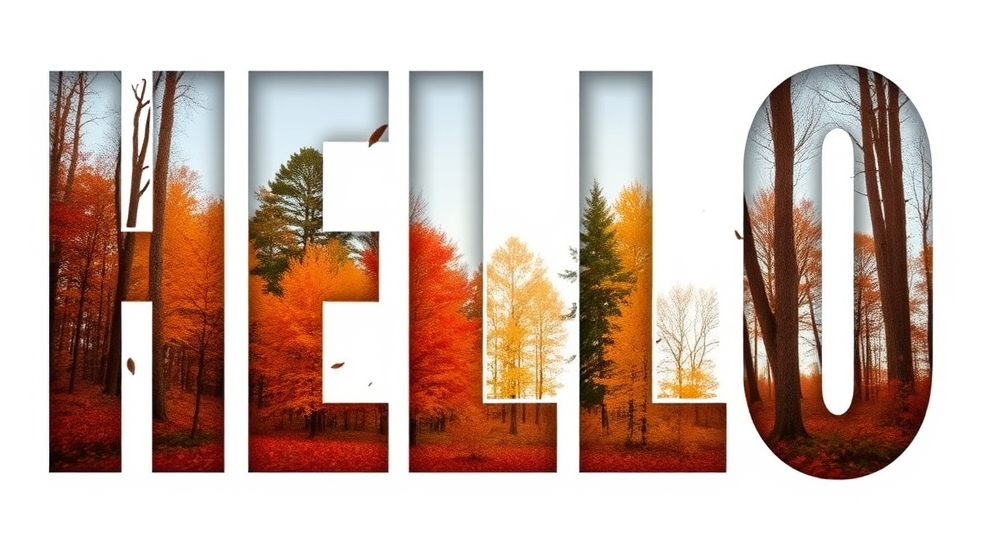
Knockout text is type that has been cut out of a layer so an image, video, or pattern shows through the shape of the letters. The letters themselves aren't painted a color — they're transparent openings, and whatever sits behind them is revealed only inside those openings.
The word "knockout" comes from print and layout: to "knock out" an element means to remove it from the layer on top so the layer beneath shows through. Apply that to type and you get letters that behave like little windows onto a picture.
You'll hear the same effect called a few different names, and they all point to roughly the same thing:
- Image-filled text or photo text — the everyday description.
- Text mask — the technique name (the text is used as a mask).
- Clipped text — because a clipping operation produces it.
- Knockout text — the print/design term for the result.
How knockout text works #
Under the hood, knockout text is a shape-based reveal. Three ingredients combine:
- A picture — the photo, video, gradient, or pattern you want to show.
- A letter shape — the outline of each character, treated as a geometric silhouette rather than as ordinary text.
- A clip rule — a simple instruction: show the picture only inside the letter shape, hide it everywhere else.
Because the letters are stored as vector outlines (mathematical curves, not pixels), the edges stay razor-sharp at any size — you can scale a knockout headline up to poster size without the letters going fuzzy. And because the fill is a real image layer, you can reposition or zoom the picture inside the letters until the most interesting part of the photo lands where you want it.
Knockout text vs. clipping mask vs. regular text #
These terms get tangled together, so here's a clean comparison:
| What the letters are | What fills them | Can each letter be different? | |
|---|---|---|---|
| Regular text | Editable type | A single flat color | No |
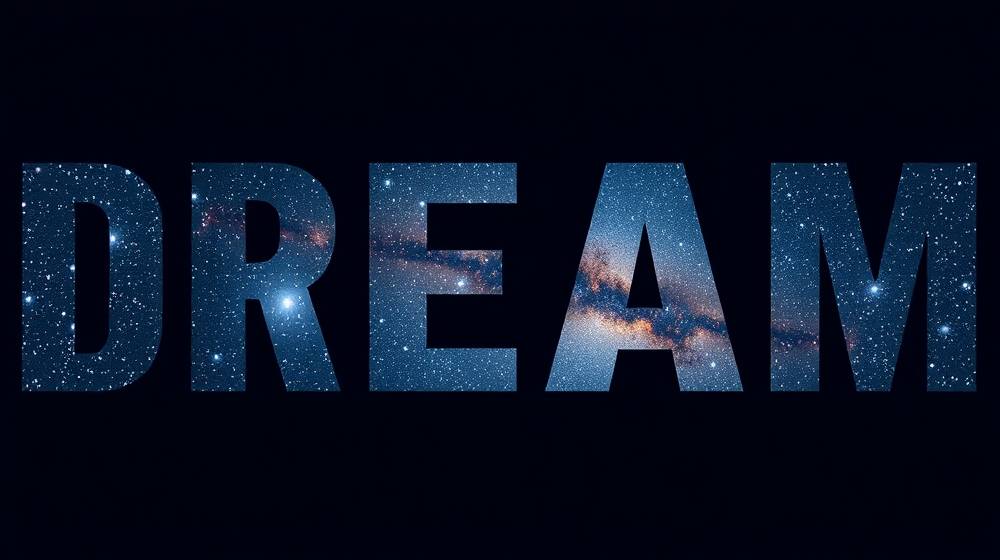
| Clipping mask | A mask shape (can be text) | One image revealed through the whole shape | No — one image spans everything |
| Knockout text | Transparent letter openings | An image showing through the letterforms | Depends on the tool |
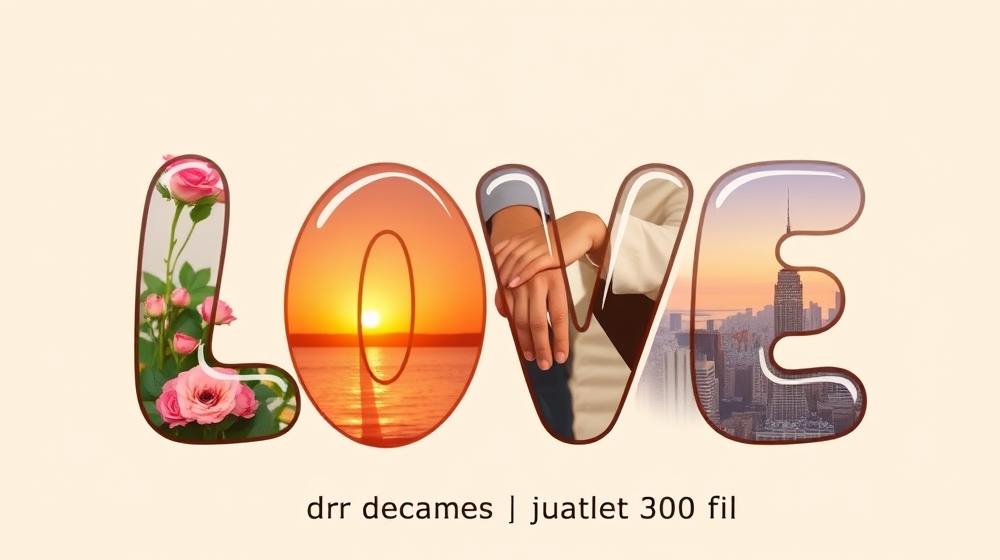
The key nuance: a clipping mask treats your entire word as one window, so a single photo runs continuously across all the letters. That's perfect when you want one cohesive image. But if you want a different photo inside each letter — one letter with roses, one with a sunset, one with a skyline — a single mask can't do it. For that you need each character to be its own separate frame.
How to make knockout text in Canva #
Canva doesn't have a single button labeled "knockout text," so there are a few routes depending on how much control you want.
Option 1 — Canva's built-in frames and Clipping Mask #
Canva's Elements panel includes some letter and word frames you can drag a photo into, which covers basic cases if a matching letter frame exists. For masking one image to a word, the Clipping Mask app clips a single photo to your text — great when you want one continuous image flowing through the whole word, and honest to say it's the right tool when that's all you need.
The limits show up when you want a specific font that isn't available as a frame, or a different image per letter. That's where a dedicated tool helps.
Option 2 — Text to Frames (any font, any image per letter) #
Text to Frames is a QRdy Canva app built specifically for this effect. It turns each letter of your word into a real Canva frame — the same kind of frame Canva uses for profile photos and rounded images — so you get full, familiar control. Here's the flow:
- Open the app — in Canva, open a design, go to Apps, and launch Text to Frames.
- Type your word (up to 200 characters) and pick a font. The app ships with 100+ Google Fonts — five are free (Roboto, Open Sans, Lato, Playfair Display, Pacifico), and Pro unlocks the rest, from clean sans-serifs to pixel, horror, and sci-fi display faces.
- Fine-tune letter spacing and size, and optionally turn on Split into letters so every character becomes its own independent frame.
- Check the preview — what you see in the preview is exactly what gets added, no surprises.
- Add to design, then drag an image (or video) into the letters. With Split into letters on, you can drop a different photo into each character; then reposition and zoom each image inside its letter until it looks right.
Because every letter is a genuine Canva frame, it accepts video too — so a social cover can have footage playing inside each letter. For extra polish, Pro adds three stackable effects: Blur (a glow or soft shadow behind the letters), Border (an outline hugging each letterform so it stays legible over a busy photo), and Inner shadow (depth inside the letters).
Where knockout text works well #
- Event banners — the event name with a highlight photo showing through each letter.
- Movie and album posters — a title where each letter reveals a different scene.
- Social media covers and thumbnails — a big word with a clip or bright image inside for scroll-stopping contrast.
- Birthday and greeting cards — a name where each letter holds a different memory.
- Logos and branding — a brand name with a texture or product shot inside.
A few tips for better knockout text #
- Use bold, chunky fonts. Thin letters leave too little opening for the image to read. Heavy weights give the photo room to show.
- Pick images with clear focal points. Busy photos turn to visual noise inside small letters; simple, high-contrast images read best.
- Add a border if legibility drops. When the photo inside makes the word hard to read, a thin outline around each letter brings it back.
- Mind the background. Knockout text pops most against a clean, contrasting background behind the whole word.
The bottom line #
Knockout text is simply type used as a window: letters cut out of a layer so an image shows through their shapes. A clipping mask gives you one image across a whole word; when you want a different photo or video inside each letter — with any font — a per-letter tool like Text to Frames turns each character into its own Canva frame and makes the effect a drag-and-drop job.
Frequently asked questions
Knockout text is a design effect where the letters act like windows: instead of a solid color, a photo, video, or pattern shows through the shape of each character. The type is "knocked out" of a layer so the image behind it is revealed only inside the letterforms. It's also called image-filled text, photo text, or a text mask.
They're closely related. A clipping mask hides everything outside a shape so one image shows through your text as a single window. Knockout text is the visual result of that masking applied to letters. The practical difference shows up when you want a different image inside each letter: a single clipping mask can't do that, but a per-letter tool like Text to Frames can, because each character becomes its own independent frame.
For a single image behind a whole word, Canva's Elements panel includes some letter and word frames you can drag a photo into, and the Clipping Mask app can mask one image to your text. For full control over any font, or to drop a different photo or video into each letter, the Text to Frames app turns each character into a real Canva frame. Type your word, pick from 100+ fonts, add it to your design, then drag images into the letters.
Related products


More from QRdy Blog
What Is a Mockup? Meaning, Types, and How Print-on-Demand Sellers Use Them
A mockup is a realistic preview of your design on a real product. Learn the two meanings of "mockup", the main product mockup types, what makes one look fake, and three ways print-on-demand sellers make them.
How to Make a Pumpkin Photo Frame in Canva (Halloween, Step by Step)
Put your family, pet or costume photo inside a pumpkin shape in Canva. Three ways to do it, a step-by-step with Image to Frame, plus tips for jack-o-lantern and ghost frames.
What Is a Perpetual Calendar? Meaning, Types, and How to Make One in Canva
A perpetual calendar works in any year because it never prints one. Learn what it is, the main types, how it works, and how to build a reusable birthday version in Canva.