
What Is a Mockup? Meaning, Types, and How Print-on-Demand Sellers Use Them
A mockup is a realistic preview of your design on a real product. Learn the two meanings of "mockup", the main product mockup types, what makes one look fake, and three ways print-on-demand sellers make them.
A mockup is a realistic preview image that shows your design on a real product, like a t-shirt, mug, cap or pillow, before anything is printed. Print-on-demand sellers use mockups as listing photos, so buyers can see what they will receive without the seller producing or photographing every variant.
That is the short answer. The word "mockup" also means something slightly different in app and web design, which is why search results for it can feel confusing. This guide separates the two meanings, then goes deep on the one that matters if you sell on Etsy, Printify, Printful, Redbubble or your own Shopify store: the product mockup.
Two meanings of "mockup" #
1. A design mockup (UX, apps, websites). In product design, a mockup is a static, high-fidelity picture of a screen. It sits between a wireframe (a rough layout with boxes and labels) and a prototype (something you can click). Designers use it to agree on colors, type and spacing before a developer builds anything.
2. A product mockup (print-on-demand, merch, packaging). Here a mockup is a photo of a physical product with your artwork placed on it so it looks printed. A good one follows the shape of the object, picks up the fabric folds and lighting of the original photo, and is hard to tell apart from a real product shot.
Both meanings share the same idea: show the finished thing before it exists. The rest of this article is about the second meaning.
Why print-on-demand sellers rely on mockups #
When you sell print-on-demand, nothing is made until someone orders. You might have 40 designs, each on 5 products in 3 colors. Shooting real photos of 600 variants is not realistic, so mockups do the job:
- Listing photos. Your main image, plus extra angles and lifestyle shots.
- Testing designs. Put a new design on a mockup and list it before you commit to samples.
- Consistency. Every listing in a shop can use the same background, angle and light, which makes the shop look curated.
- Ads and social posts. One mockup can be reused across Pinterest, Instagram and email.
What a good product mockup looks like (and what a fake one looks like) #
Buyers notice when a design looks "pasted on." The usual giveaways:
| Looks fake | Looks real |
|---|---|
| Design sits perfectly flat on a curved cap or mug | Design wraps around the curve and shrinks toward the edges |
| No wrinkles across the print on a shirt or pillow | Folds and creases run through the print |
| Print is brighter than the fabric around it | Print picks up the same shadows and highlights as the fabric |
| Hard, razor-sharp edge where the print ends | Edge follows the seam or panel of the product |
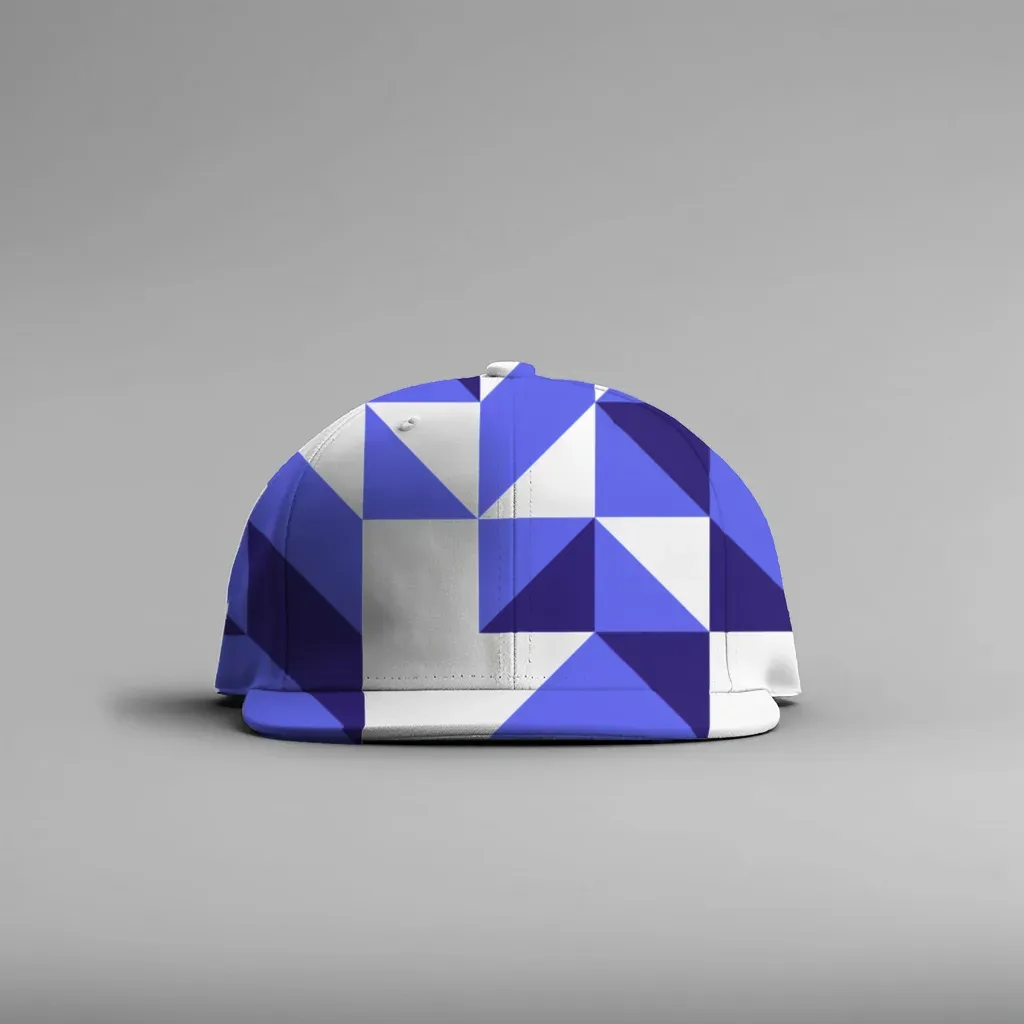
The design follows the curved front panel of the cap instead of sitting flat on top of it.
Types of product mockups #
You will run into a few common categories:
- Flat-lay mockups. The product lies flat, shot from above. Easy to make, but folds still matter on fabric.
- Lifestyle mockups. The product is in a real scene: a pillow on a sofa, a mug on a desk, a shirt on a person.
- Ghost or hanging mockups. Apparel shown on a hanger or "invisible" mannequin.
- Curved-surface mockups. Mugs, tumblers and caps, where the design has to bend around a cylinder.
- Multi-area mockups. Front and back of a shirt, or a set of three framed prints on one wall.
Three ways to make a product mockup #
1. A PSD file with a smart object (Photoshop) #
The classic method. Someone builds a Photoshop file from a product photo, with a "smart object" layer where your design goes, plus displacement maps and blending layers that create the folds and shadows. You open the file, paste your design into the smart object, save.
- Good: very realistic when the PSD is well made; full control.
- Trade-offs: you need Photoshop and a PSD that matches your exact product. Doing many designs means repeating the same steps, or buying a bulk plugin.
2. A mockup generator with a built-in library #
Many online tools offer a library of ready-made product scenes. You pick a scene, upload your design, download the result. Print-on-demand platforms also have their own generators tied to their catalog.
- Good: fast, no software to learn, often free for basic use.
- Trade-offs: you are limited to the scenes in the library, and thousands of other sellers use the same images. Exports or volume may be tied to credits or a subscription, depending on the tool.
3. A mockup made from your own product photo #
The third route starts from a photo you already have: your supplier's blank product image, a stock photo you licensed, or a shot from your phone. A tool turns that photo into a reusable template, then places your designs on it with the photo's own folds and lighting.
- Good: your listing photos are unique to your shop, and you can match the exact blank you sell.
- Trade-offs: you need a decent photo with a clear, unprinted print area. Busy backgrounds or hands covering the product make the setup harder.
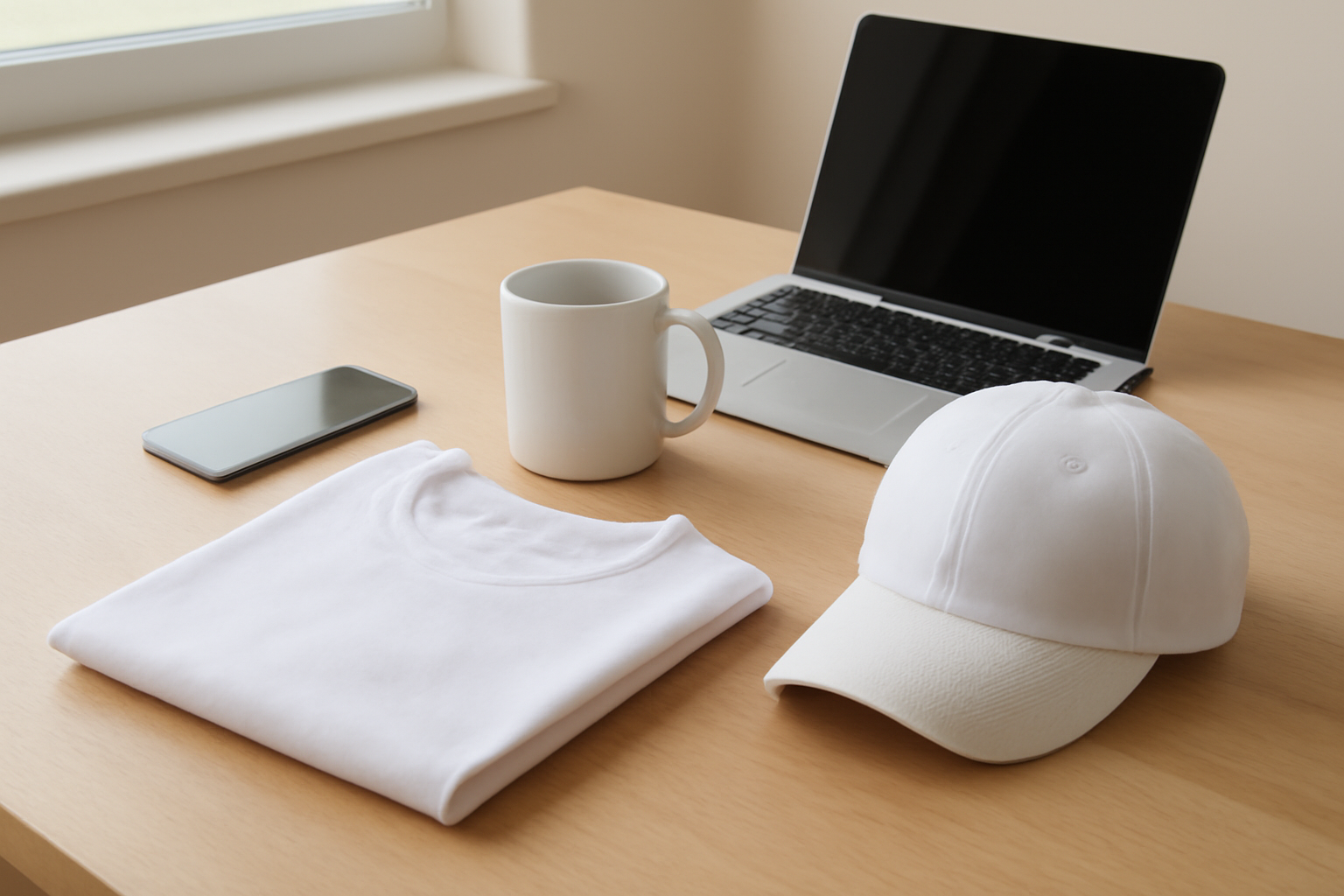
Plain, unprinted blanks like these are the starting point for a mockup made from your own photo.
How a photo-based mockup works #
Under the hood, turning an ordinary photo into a mockup takes a few steps:
- Find the product. The tool separates the product from the background so the design does not spill onto the table or wall.
- Pick the surface shape. A poster is flat (with some perspective), a mug or cap is a cylinder, and a pillow or draped shirt needs a free-form mesh that can bend in many directions.
- Measure the light. The tool reads the highlights, shadows and folds in the original photo.
- Apply the design. Your artwork is warped onto the surface, then the measured light and folds are laid back over it, so the print looks like it was there when the photo was taken.
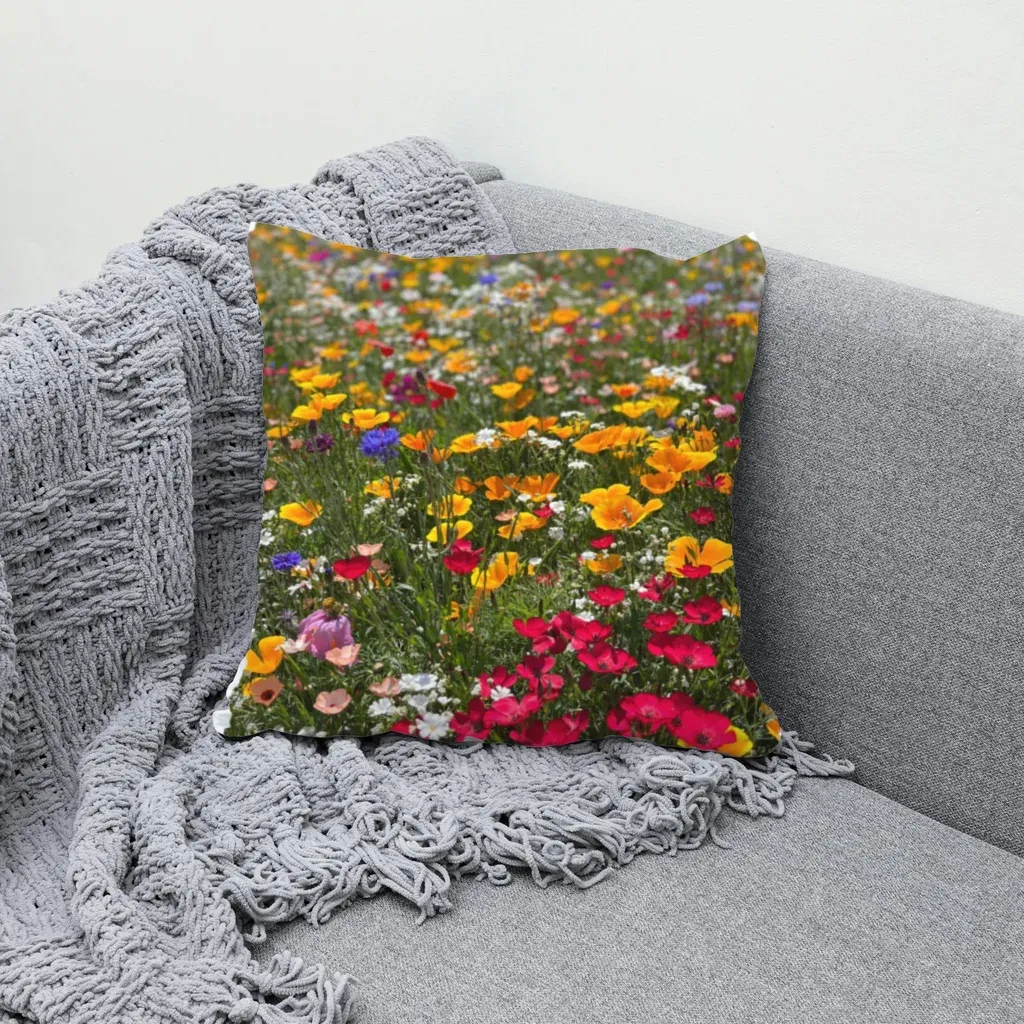
On a pillow, the print bends with the cushion and keeps the fabric's shading.
Where MockupPress fits #
MockupPress is our free tool for the third method: mockups from your own product photos, with no PSD and no Photoshop. The workflow is four steps: drop a photo → drag a box around the print area → save the template → render in bulk.
When you drag the box, it cuts out the product, snaps to its edges, picks a Flat, Cylinder or free-form surface, and measures the light from your photo. If the automatic result is off, Edit gives you three tools: Grid (drag mesh points to the edges), Add / Subtract brush (include or exclude areas, like a hand or a mug handle), and Highlights / Shadows / Edge sliders.
On the Bulk page you drop in many designs and render them across many templates at once. You get a ZIP of images plus a manifest.csv that lists every file, so it is easy to match images to listings.
To be clear about what it does not do:
- No built-in mockup library. You bring your own product photos.
- No product recoloring. For a black shirt and a white shirt, use two photos.
- Exports up to 1536 px on the long side.
- Data stays on your device. Everything runs in your browser and nothing is uploaded, which also means templates live in that browser only. Clearing browser data removes them.
- Works best on desktop in a modern browser with WebGL2.
It is free during the open beta, with no account and no watermark. Try MockupPress with your own product photo, or open the app directly at mockuppress.qrdyai.com.
Quick tips for better mockups, whatever tool you use #
- Start with a clean blank. White or light products with an unprinted print area work best.
- Use a transparent PNG design. It lets the fabric color show around your artwork.
- Match the design shape to the print area. A tall design on a wide panel gets cropped or shrunk. If the ratio talk is new to you, our guide on what aspect ratio means helps.
- Keep one look per shop. The same background and angle across listings looks more professional than a mix of styles.
- Don't over-promise. A mockup should show what the buyer will actually get: same blank, same print placement.
Frequently asked questions
In app and web design, a wireframe is a rough layout made of boxes and labels, while a mockup is a polished, static picture of the final screen. In print-on-demand, "mockup" means something else: a photo of a real product with your design placed on it.
Print-on-demand sellers use product mockups as listing photos, to test new designs before ordering samples, to keep a consistent look across a shop, and for ads and social posts. They let you show many design and product combinations without photographing each one.
Yes. You can use an online generator with a built-in scene library, or a tool that turns your own product photo into a template. MockupPress takes the second approach: drop a photo, drag a box around the print area, save the template and render designs in bulk in your browser.
Usually because the design is pasted flat on top of the photo. It ignores the curve of a mug or cap, skips the fabric folds, and does not pick up the photo's shadows and highlights. A realistic mockup bends the design with the surface and keeps the original lighting.
Yes, it is free during the open beta with no account and no watermark. It does not include a mockup library, so you bring your own product photos, and it exports images up to 1536 px on the long side.
More from QRdy Blog
How to Make a Pumpkin Photo Frame in Canva (Halloween, Step by Step)
Put your family, pet or costume photo inside a pumpkin shape in Canva. Three ways to do it, a step-by-step with Image to Frame, plus tips for jack-o-lantern and ghost frames.
What Is a Perpetual Calendar? Meaning, Types, and How to Make One in Canva
A perpetual calendar works in any year because it never prints one. Learn what it is, the main types, how it works, and how to build a reusable birthday version in Canva.
10 Family Planner and Calendar Ideas You Can Make in Canva
Ten printable family planner ideas you can build in Canva with Calendar Maker: a fridge calendar, chore chart, birthday calendar, meal plan, carpool grid and more. Honest notes on where Canva's built-ins are enough.