
What Is a Frame in Canva? Definition, How Frames Work, and How to Add Custom Ones
A frame in Canva is a shaped container you drop photos or videos into, and the media clips neatly to that shape. Here is what frames are, how they work, and how to add custom ones.

If you have used Canva for more than a few minutes, you have probably seen the word frame without ever getting a clear definition of it. This guide explains exactly what a frame is, how it works, how it differs from a grid or a clipping mask, and how to add custom-shaped frames that go beyond Canva's built-in set.
What is a frame in Canva? #
A frame in Canva is a shaped container that you drop a photo or video into. Instead of your image staying a plain rectangle, it is clipped to the shape of the frame — a circle, a heart, a star, a letter, a logo, or any other outline. The media fills the frame, and everything outside the shape is hidden.
The key idea: a frame holds media and clips it to a shape. You are not permanently cropping the original file. You can double-click the frame and reposition or zoom the photo inside it at any time, and the parts that fall outside the shape simply do not show.

How frames work, step by step #
Frames follow a simple three-part logic:
- The frame defines the shape. An empty frame is just an outline sitting on your page — a circle, an arch, a letter, and so on.
- You drop media in. Drag a photo or video from your uploads or the Elements panel directly onto the frame. Canva snaps it inside.
- The media clips to the outline. Whatever falls outside the shape is masked away. Move or scale the image within the frame to control what shows.
Because the clipping is non-destructive, frames are a safe, reversible way to give photos an interesting shape. Swap the image out, and the new one takes the same shape instantly.
Where to find built-in frames in Canva #
Canva includes a built-in set of frames. Open the Elements tab, search for frames, and you will find a collection of common shapes — circles, hearts, some outline styles, and a handful of decorative options. Drag one onto your page and drop a photo in. For basic shapes this is fast and free, and it is the right starting point for most beginners.
The limitation is range. Canva's built-in library covers popular shapes but not your shape — your logo, a specific icon, a hand-drawn outline, or an unusual silhouette. When you need a frame that Canva does not offer, that is where a dedicated Canva app comes in.
How to add a custom-shaped frame #
For custom shapes, Image to Frame is a QRdy Canva app that turns an image into a valid Canva frame. It runs in the app panel inside the Canva editor, so you never leave your design. You give it a PNG, SVG, or JPG (up to 5MB) and it converts that image into a frame shaped like the image's outline. You can then drop any photo or video inside, exactly like a native frame.
One detail matters more than any other: remove the background first. If your source image still has a white or colored background, the frame comes out as a rectangle. Use a transparent PNG so the frame follows the true outline of the shape — a star stays a star, a logo stays a logo.
Image to Frame is not the only option, and each app fits a different need:
- Frames Lab is a parametric toolbox for building frames by the numbers — arcs, grids, bursts, and diagonal layouts with precise controls, plus an Explore tab of ready-made frames and a Style tab for blur, border, and inner shadow.
- AI Frames generates a frame from a text description ("a heart-shaped frame with glowing edges") and includes a searchable store of 20,000+ free ready-made frames.
- Frame Collage builds multi-cell grids where every cell is its own frame, which is ideal for shaped collages.
Frame vs grid vs clipping mask #
These three terms get mixed up constantly, so here is the clean distinction:
| Concept | What it does | Best for |
|---|---|---|
| Frame | Holds one photo/video and clips it to a shape | A single shaped photo |
| Grid | Splits an area into cells; each cell acts like a frame | Collages and photo layouts |
| Clipping mask | Crops any image to a shape, letters, or a custom design | Typography and composite art |
A grid is really just a set of frames arranged together. A clipping mask is the broader design concept of cropping an image to a shape — frames are Canva's built-in, drag-and-drop version of that idea. If you specifically want to fill text with a photo, that is a clipping-mask job rather than a standard frame.
Common frame use cases #
- Profile and product shots clipped to a circle or a branded shape.
- Scrapbook and photo-book pages using hearts, stars, or seasonal shapes.
- Logos as frames, so a product photo shows through your brand mark.
- Worksheets and lesson materials with themed shapes for younger students.
The bottom line #
A frame in Canva is simply a shaped container for photos and videos — you drop media in, and it clips to the outline. Canva's built-in frames cover the basics for free, and when you need a shape Canva does not offer, apps like Image to Frame, Frames Lab, and AI Frames let you build custom frames from your own images, parameters, or a text prompt. Start with the built-in Elements frames, and reach for a custom-frame app the moment your shape is not in the list.
Frequently asked questions
A frame is a special Canva element shaped like a container (a circle, heart, star, letter, or other shape). When you drag a photo or video onto it, the media snaps inside and is clipped to that shape. You can reposition or zoom the image within the frame at any time without cropping the original file.
A frame holds one photo or video and clips it to a shape. A grid divides an area into multiple cells, and each cell behaves like a frame, so grids are better for collages while single frames are better for one shaped photo. Frame Collage from QRdy builds multi-cell grids where every cell is a frame.
Canva ships with a limited set of built-in frames, so for custom shapes you can use a Canva app. Image to Frame converts a PNG, SVG, or JPG (up to 5MB) into a valid Canva frame that follows the outline of your image. Frames Lab and AI Frames offer other ways to build parametric or AI-generated frames.
If your source image has a solid or white background, the frame is generated as a rectangle. Remove the background first so the image has transparency, then convert it. In Image to Frame, a transparent PNG makes the frame follow the true outline of the shape.
Related products


More from QRdy Blog

What Is a Bento Grid? Definition, Examples, and How to Make One in Canva
A bento grid is a layout of rounded tiles in mixed sizes, named after the Japanese lunch box. Learn what it is, how it works, and how to build one with photos in Canva.
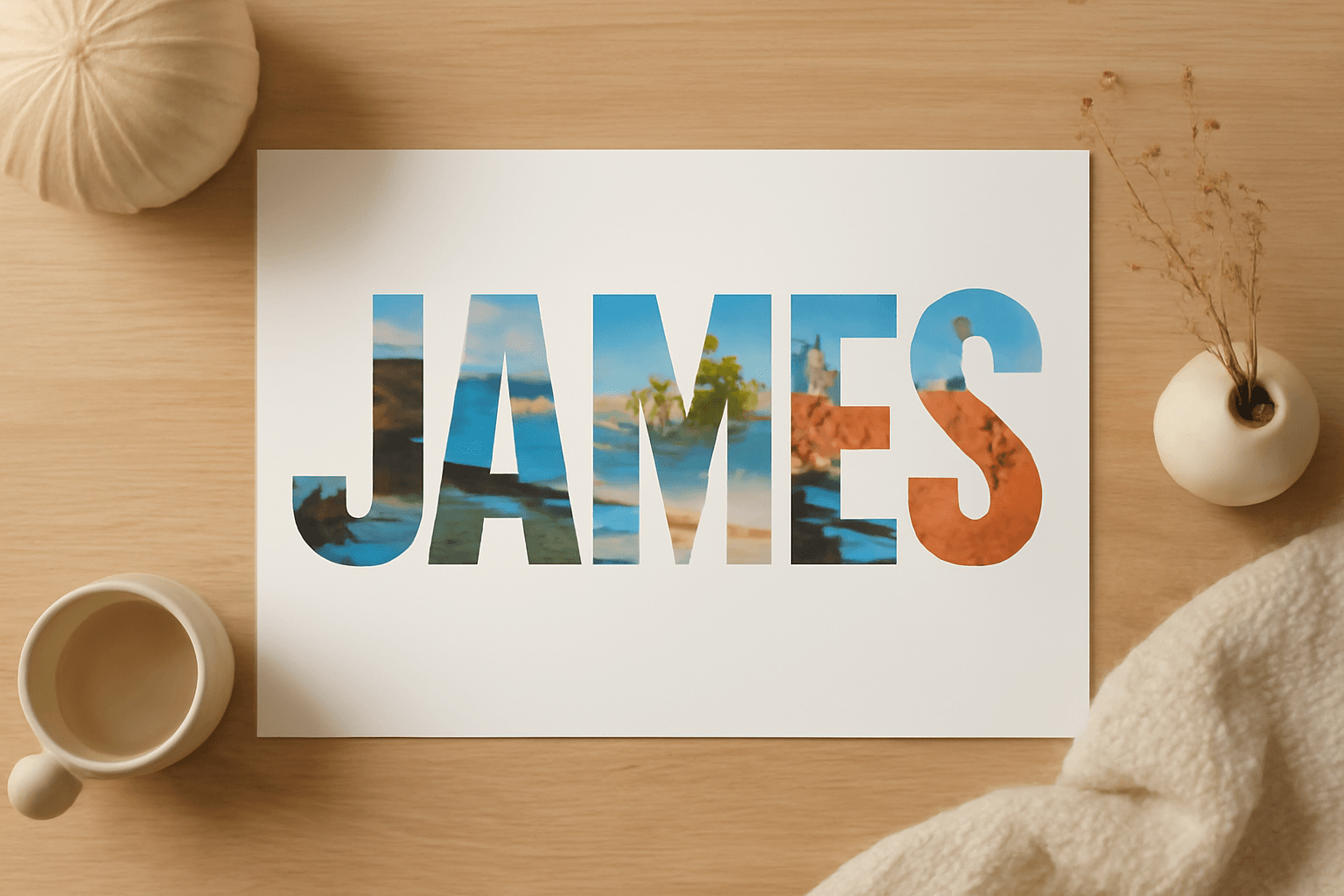
10 Photo Name Art Ideas You Can Make in Canva (Words Filled with Photos)
Ten photo name art ideas for Canva: names, words and dates where every letter is filled with a different photo. Gifts, banners, posters and more, built with Text to Frames.
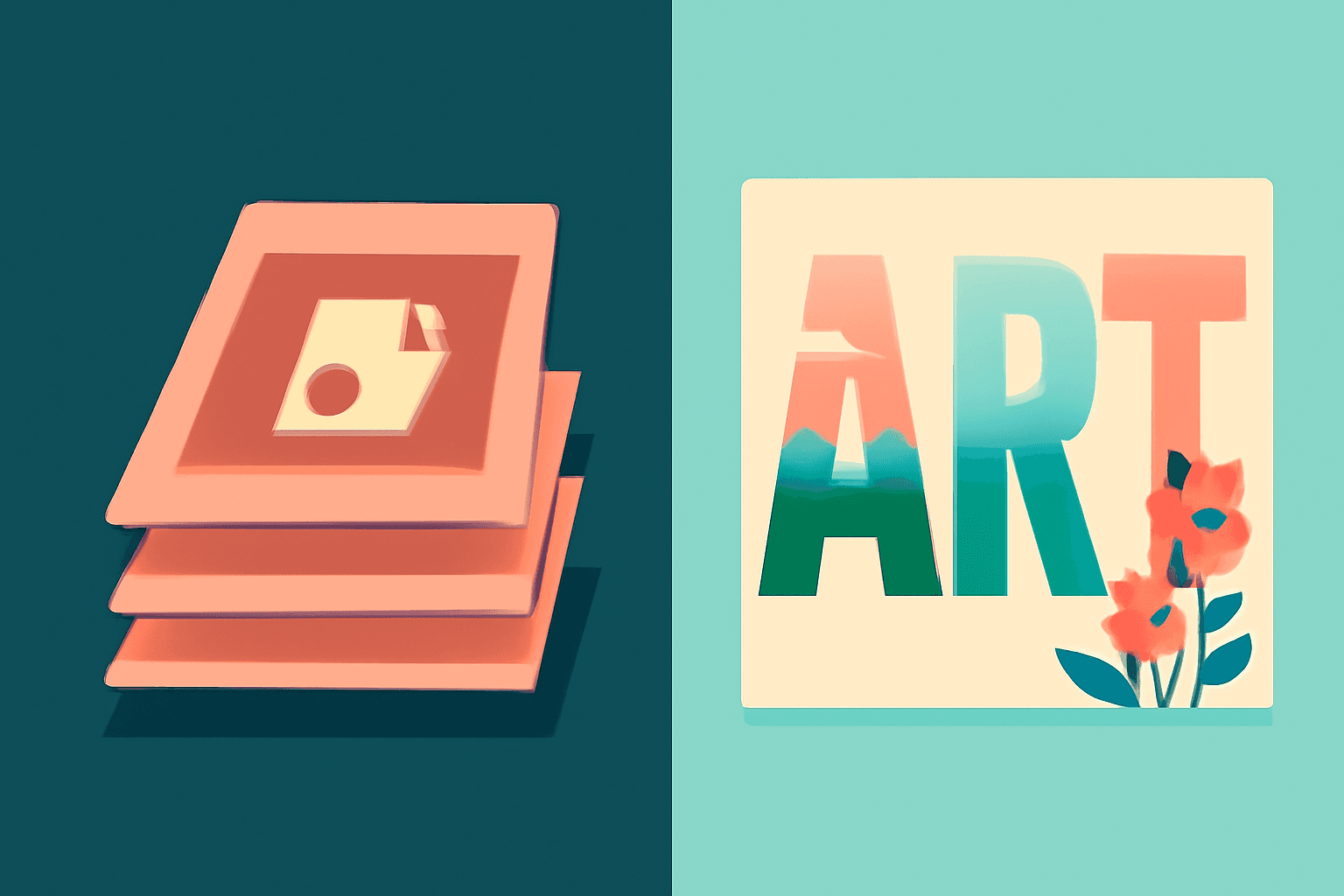
Photoshop Clipping Mask vs Text to Frames: Photo-in-Text in Canva
Filling text with a photo is a classic Photoshop trick. Here is how the Photoshop clipping mask compares with Text to Frames in Canva, and which one fits a quick title or banner.