
10 Bulletin Board Ideas You Can Make in Canva (Fall, Classroom and Calendar Boards)
10 printable bulletin board ideas for fall and the classroom: monthly calendar boards, photo-filled headline letters, Meet the Class grids, leaf photos, countdowns and more, all designed in Canva.
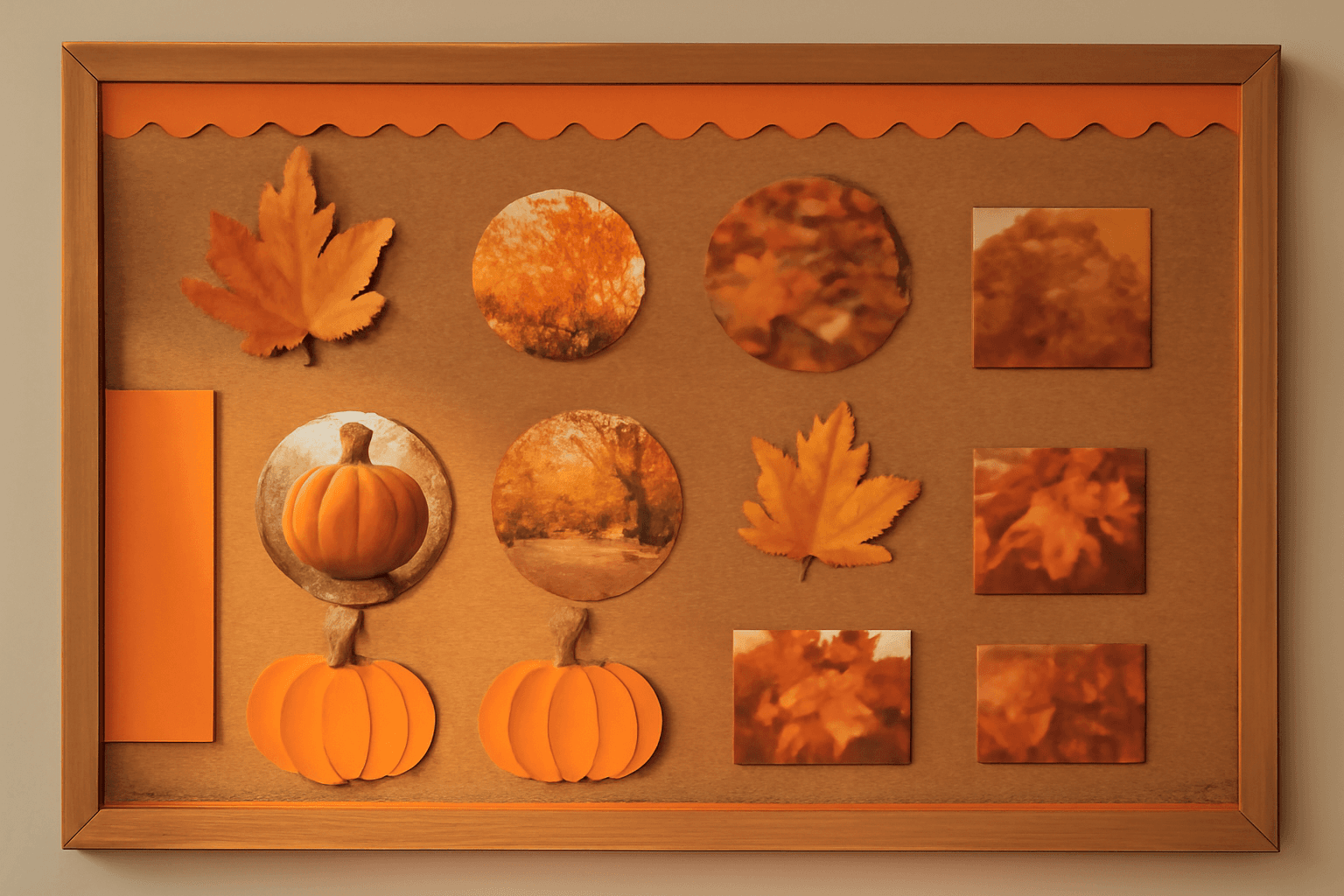
A bulletin board is the one design job teachers redo every month, and September to November is when most of us are staring at an empty corkboard. The good news: almost everything that goes on a board (the headline letters, the photo cutouts, the calendar, the border) can be designed in Canva, printed on a normal home or school printer, and pinned up in an afternoon.
Below are 10 bulletin board ideas that actually work on paper, starting with fall and classroom boards. Each one lists the tools we'd use. Some are plain Canva, some use Qrdy's Canva apps where Canva's built-in tools get slow.
Quick picks #
| Idea | Best season | Main tool |
|---|---|---|
| Monthly classroom calendar board | All year | Calendar Maker |
| Photo-filled "FALL" headline | Sept to Nov | Text to Frames |
| "Meet the Class" photo grid | Back to school | Frames Lab (Grid) |
| Leaf-shaped student photos | Fall | Image to Frame |
| Birthday board by month | All year | Calendar Maker |
| Pumpkin patch board | October | Image to Frame or Frames Lab |
| Countdown to winter break | Nov to Dec | Calendar Maker (Custom tab) |
| Thankful tree | November | Image to Frame |
| Star Student sunburst | All year | Frames Lab (Burst) |
| Rainbow arc of class photos | Spring or any time | Frames Lab (Arc) |
1. Monthly classroom calendar board #
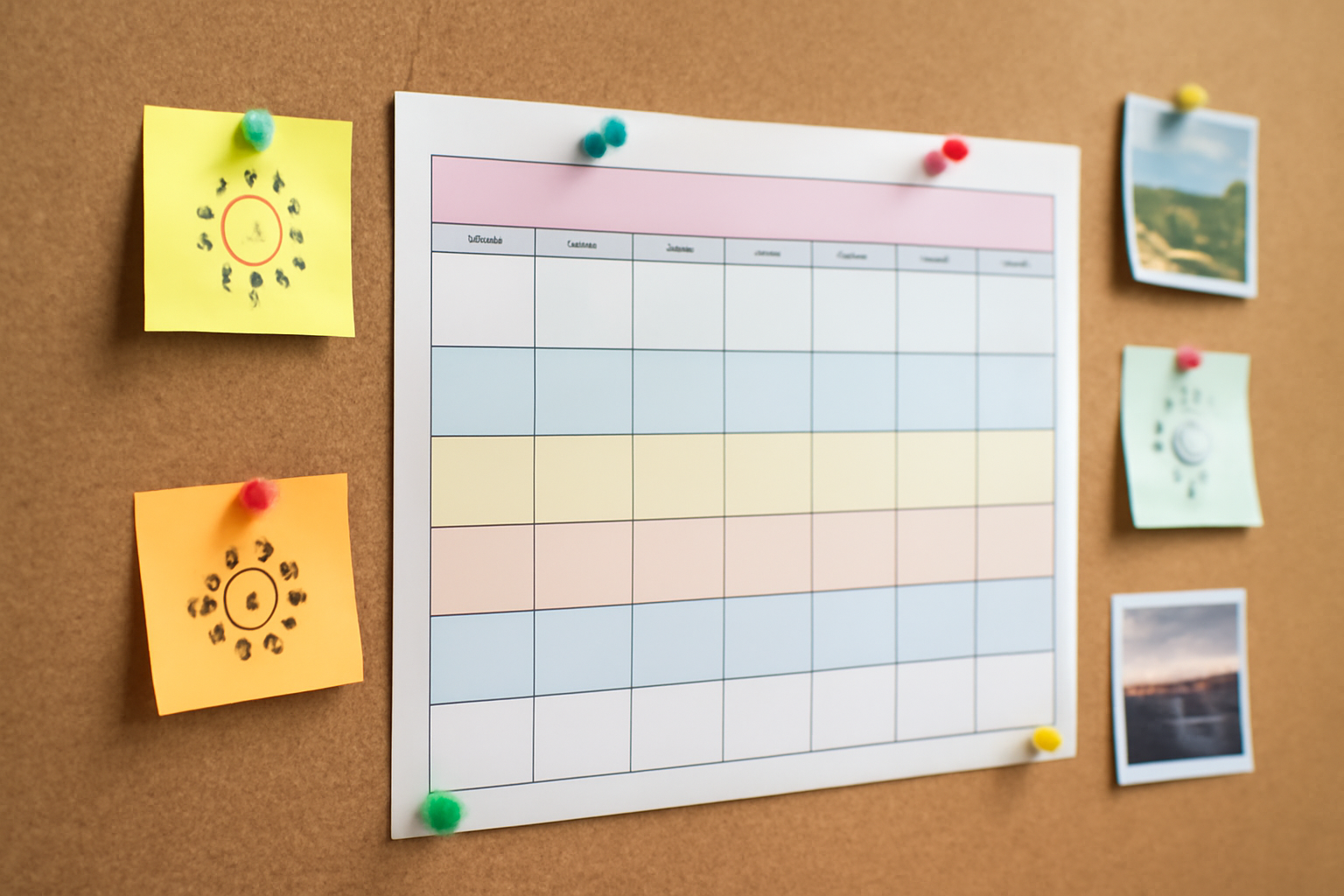
The calendar is the anchor of most classroom boards, and it's the piece people most often draw by hand. In Canva you can drag a table in and type 30 numbers, but you'll redo it every month.
How to make it: open a Letter or A4 print design, open Calendar Maker, and stay on the Month tab. Pick the month and year, tick Start week with Sunday if your school week starts on Sunday, then choose one of the 30+ example color styles (the warm and pastel ones read well from across a room). Push the number size up so dates are visible from the back row. Turn on Add all months plus Each month on its own page, and the whole school year lands in one design, one month per page. Print the month you need, when you need it.
Tip: the Week tab builds a table of weekdays with up to 27 rows. That makes a good weekly schedule strip to pin under the monthly grid.
2. Photo-filled "FALL" headline letters #
Store-bought bulletin board letters are one flat color. Letters filled with photos (fall leaves, the class pumpkin trip, kids' artwork) turn a headline into the best thing on the board.
How to make it: open Text to Frames, type your headline ("FALL", "HELLO AUTUMN", "WELCOME"), and turn on Split into letters so each letter is its own Canva frame. Pick a heavy font: thick letters show more of the photo. Roboto in bold is a safe free choice. Click Add to design, then drag a different photo into each letter.
Printing tip: since every letter is a separate frame, you can move each one onto its own page and scale it up to fill a Letter sheet. Print on cardstock, trim, and you have 8 to 10 inch letters. On a busy cork background, a white Border around the letters helps them stand out (the Border effect is a Pro feature).
If you'd rather use one photo across the whole word, Canva's native method works fine. We compare both approaches in putting a photo inside text in Canva. The full walkthrough for letter-by-letter photos is in how to fill each letter with a different photo.
3. "Meet the Class" photo grid #
A board with every student's face on it gets looked at every day, by the students and by parents at open house.
How to make it: in Frames Lab, go to Create > Grid. Set the columns and rows to match your class. A class of 24 fits a 6 × 4 grid, and grids above roughly 30 cells get blocked, so split bigger classes into two grids. Add a small gap and rounded corners, click Add to design, and drag each student's photo into a cell. Put the names underneath with plain Canva text.
Canva built-in alternative: Canva's own Grids work too if you only need a few cells. Frames Lab is faster when you need an exact count, or a wavy grid for a more playful look.
4. Leaf-shaped student photos #
Photos in leaf shapes scattered across a board look like a tree dropping its leaves. It's the classic fall board, without cutting 25 photos out by hand.
How to make it: find or draw a leaf graphic with a transparent background (this matters: with a white background you get a rectangle frame). Open Image to Frame, upload the PNG or pick it from your design, and click Add frame to design. Duplicate the frame, drop a photo into each one, and add a thin border in orange or brown. Image to Frame accepts PNG, SVG or JPG up to 5 MB, and it offers free access for students and teachers.
5. Birthday board by month #
Every elementary classroom has one, and it's usually 12 hand-lettered pieces of construction paper.
How to make it: use Calendar Maker with Add all months and Each month on its own page, and choose one of the page templates (Botanical, Watercolor, Scandi Minimal and more). That gives you 12 matching month pages. On each page, add a small circle frame per birthday kid with their photo and date. Print at half-letter size so all 12 fit on one board.
6. Pumpkin patch board (October) #
Turn the class into a pumpkin patch: every student's photo sits inside a pumpkin shape, with green paper vines connecting them.
How to make it: either turn a transparent pumpkin PNG into a frame with Image to Frame (same steps as the leaves), or browse the Explore tab in Frames Lab, where frame collections are grouped by theme and seasonal sets show up first. Add a thin dark-orange border so the pumpkins read as shapes from a distance. More October ideas are in our Halloween design ideas.
7. Countdown to winter break #
Kids love a countdown, and it's a good way to make the last weeks before a break feel organized.
How to make it: in Calendar Maker, open the Custom tab and set a start date (for example, the Monday after Thanksgiving) and an end date (the last day before break). The range can be up to 150 days. You get a single calendar covering exactly that stretch. Print it large, and let one student cross off each day or add a sticker.
8. Thankful tree (November) #
A brown paper trunk and branches, with "leaves" that each hold a photo or a written thank-you from a student.
How to make it: make one leaf frame with Image to Frame, then duplicate it. Half the leaves get photos (class moments from the fall), and the other half get a white fill with a short sentence typed by each student. It's the same leaf frame from idea 4, reused, so the board comes together quickly. For more November projects, see Thanksgiving design ideas for Canva.
9. Star Student sunburst #
A weekly "Star Student" spot works better when it looks different from the rest of the board.
How to make it: in Frames Lab, go to Create > Burst. Adjust Density, Spread and Variation until the preview shows a sunburst you like, then click it to add it right away (bursts are random, so grab a good one when you see it). Drop the student's photo inside, then add their name and 3 fun facts next to it. Keep the design and swap the photo each week.
10. Rainbow arc of class photos #
For spring, or for a "Welcome" board any time of year: class photos following a rainbow curve above the headline.
How to make it: in Frames Lab, go to Create > Arc. Set the Pill angle (180° gives a half-circle rainbow) and add a border in each rainbow color, one arc per band. Fill each arc with a colorful photo (crayons, paint, the playground) and stack them.
Printing bulletin board pieces from Canva #
- Design at Letter or A4 size, then print each piece on its own page. Big pieces (headline letters, the calendar) can be split across pages and taped together from the back.
- Use cardstock for anything that gets pinned and moved, and laminate pieces you'll reuse every year, like calendars and birthday pages.
- Download as PDF Print so photos stay sharp. For the settings, see what DPI means in Canva.
- Save the design and reuse it. Next year you only swap photos. Frames keep their shape, so new photos drop straight in.
Which tools you actually need #
You can build every idea here with plain Canva if you're patient. The apps just remove the slow parts:
- Calendar Maker: no more typing dates into table cells. Adding calendars to a design is part of Calendar Pro. Get Calendar Maker in Canva.
- Text to Frames: photo-filled headline letters, one photo per letter. The free version includes 5 fonts. Get Text to Frames.
- Frames Lab: exact photo grids, bursts and arcs. Get Frames Lab.
- Image to Frame: any shape (leaves, pumpkins, your school mascot) as a photo frame. Get Image to Frame.
Looking for more classroom tools? See the best Canva apps for teachers and our back-to-school design ideas.
Frequently asked questions
Yes. Type the headline, move each letter onto its own Letter or A4 page, scale it to fill the page and print on cardstock. With Text to Frames and Split into letters on, each letter becomes a separate Canva frame you can fill with a different photo.
Open a Letter or A4 print design and use Calendar Maker's Month tab. Turn on Add all months and Each month on its own page to get the whole school year in one design, then print one month at a time. Adding calendars to a design is part of Calendar Pro.
Design at Letter or A4, since any home or school printer handles it. Split larger pieces like headlines and calendars across several pages and tape them from the back. Download as PDF Print so photos stay sharp.
Related products


More from QRdy Blog
Serif vs Sans Serif: What's the Difference, and Which Font Should You Use?
Serif fonts have small strokes at the ends of their letters; sans serif fonts don't. Here's what that changes for readability, print, screens and pairing — and why heavy sans serifs win when you put photos inside letters.
The Best Canva Apps for Gift Tags (2026)
Gift tag season starts earlier than you think. Here are five Canva apps that make custom photo tags, decorative borders, name tags and QR tags faster than building each one by hand — plus what Canva already does well on its own.
How to Make Recipe Cards in Canva (Printable 4×6, with Photos)
A step-by-step guide to designing printable recipe cards in Canva: the right card size, a layout that still reads in a messy kitchen, a photo frame that isn't a plain rectangle, and how to print and cut a whole set at home.