
10 Thanksgiving Design Ideas You Can Make in Canva (Printable Decor, Menus & More)
Ten Thanksgiving projects you can actually design and print at home this year — turkey-shaped photo frames, a "GRATEFUL" photo banner, menu cards, a Friendsgiving invite, a November countdown and more. Each one names the Canva app that does the hard part.
10 Thanksgiving Design Ideas You Can Make in Canva
Thanksgiving is the one holiday where the decorating budget usually loses to the grocery budget. Which is fine — most of the table is going to be covered in food anyway. What you actually need is a handful of small printed things: cards that tell people where to sit, something on the wall that isn't a store-bought turkey cutout, and an invite that doesn't look like a group text.
All ten of these are designed in Canva and printed at home. Where Canva's built-in tools do the job, we say so. Where they don't, we name the app that fills the gap.
A note on timing: if you're reading this in late September, you're early in the good way. Searches for Thanksgiving decorations roughly triple between September and October, and that's the same curve your local craft store's card stock shelf follows.
1. Turkey-shaped photo frames for the kids' table #
The classic construction-paper turkey, except each tail feather holds a photo of the person it belongs to. Kids find themselves on the wall instantly, which buys you about forty minutes of cooking time.
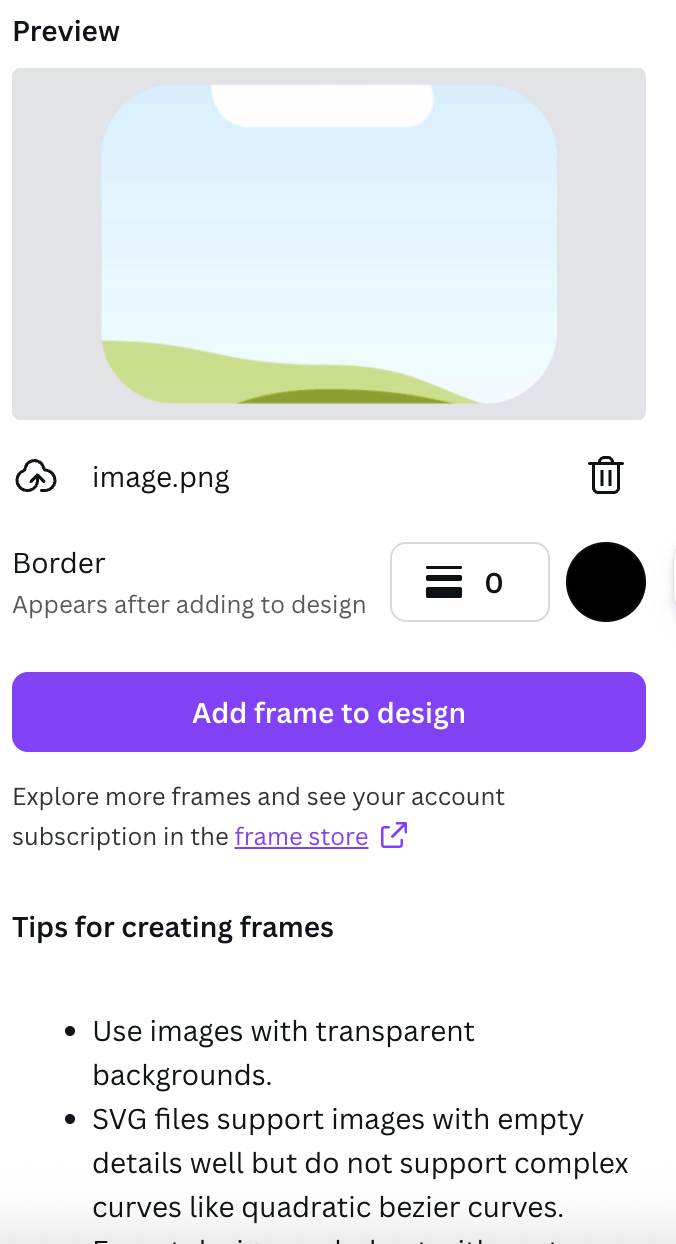
Find or draw a turkey silhouette as a PNG with a transparent background, then run it through Image to Frame. The app turns any PNG, SVG or JPG up to 5MB into a genuine Canva frame in that outline, so you drag a photo onto it in the editor and it fills the shape. Then just resize and reposition inside the frame like any other Canva frame.

The one step people skip: remove the background first. A turkey sitting on a white rectangle converts into a rectangle. A turkey on transparency converts into a turkey.
2. A "GRATEFUL" banner where every letter holds a different photo #
Eight letters, eight photos from the year. It reads as a word from across the room and as a photo album up close — which is exactly the thing people stop and look at.
Text to Frames does this in one pass. Type the word, pick a font, switch on Split into letters, and each character becomes its own independent Canva frame. Drop a different photo into each one. The free tier includes five fonts (Roboto, Open Sans, Lato, Playfair Display and Pacifico); Playfair Display is the one that suits a Thanksgiving table.
Print the letters on card stock, cut them out, punch two holes in each and string them on twine. "THANKFUL", "GATHER" and "FEAST" work the same way and cut the letter count.
3. Menu cards that list the actual food #
Not a restaurant menu — a plain list of what's on the table. It answers the "what's in this?" question about six times before anyone asks, which matters if someone at your table has an allergy or doesn't eat meat.
Canva's built-in text and layout tools handle this fine. Make it 5 × 7 inches, one card per two guests, and leave the dish descriptions to a single line each. The whole thing takes ten minutes and photographs well in the middle of the table.
4. Photo place cards #
Tent-fold card stock, name on the front, and a small photo of that person filling a leaf or acorn shape on the inside. Guests take them home, which is the cheapest party favour there is.
Same trick as idea 1 — a leaf silhouette through Image to Frame gives you a leaf-shaped photo frame you can drop a face into.

If you want more on the folding, sizing and card stock weight, we went deep on that in 10 place card ideas you can make in Canva.
5. A Friendsgiving invitation that isn't a group text #
Friendsgiving invitations get searched about 5,400 times a month, spiking hard through October — which tells you when people are actually planning these.
Design it at 1080 × 1350 for Instagram or a story, and export a second version at 5 × 7 inches if you're printing any. Put the date, the address, the start time and what to bring on the front. The what-to-bring line is the one everyone forgets and the one that decides whether you end up with four pies and no sides.
6. A gratitude wall #
A grid of small frames where everyone writes one thing they're thankful for, then the grid gets photographed and becomes next year's card.
Frames Lab builds the grid layout for you — it generates arc, grid and polygon frame arrangements rather than making you align twelve rectangles by hand. Print it as one large sheet, or as individual cards people pin to a board.
7. A November countdown calendar #
Not an advent calendar — a simple month grid with the dinner circled, plus the prep days marked: order the turkey, buy the wine, brine on Wednesday.
Calendar Maker generates the month grid directly inside your Canva design, so you're not drawing 30 boxes. Drop it onto a poster or a fridge-sized print and annotate the squares.
8. Recipe cards for the dishes people will ask about #
Somebody always asks for the stuffing recipe. Having ten printed copies on the side table is a small, disproportionately charming move.
4 × 6 inches, one recipe per card, ingredients on the left and method on the right. Print on the heaviest stock your printer will take — these get handled with buttery hands.
9. A photo-bordered serving sign #
For a buffet table: a small folded card per dish with the name of the food and a decorative border. Border Art Maker builds repeating borders from dots, icons or small images and distributes them evenly, so a row of tiny pumpkins runs cleanly around the edge instead of bunching in one corner.
10. The leftovers label set #
Genuinely useful, genuinely underrated. A sheet of small labels — "turkey, Thurs", "gravy, Thurs", "pie, do not touch" — printed on sticker paper or plain paper taped to containers. Everyone goes home knowing what's in the tub, and you stop finding mystery foil packets in December.
Design them as a grid of 2 × 3-inch rectangles on a letter-size page, leave the date field blank, and write it in with a marker.
Quick tips before you print #
- Set your document to the print size, not screen size. A design made at 1080px and stretched to 5 × 7 inches prints soft.
- Export as PDF Print, not PNG or JPG, for anything going through a printer. It keeps text crisp.
- Test one card first. Print a single copy on cheap paper, look at it under your actual dining room light, then commit to the full sheet.
- Watch your margins. Most home printers can't print to the edge of the page. Keep anything important at least a quarter inch inside the trim.
- Matte over glossy for anything on the table. Candlelight plus glossy stock equals glare in every photo.
Where Canva's built-ins are enough #
Worth being honest about this. Canva's own frames, grids and template library cover ideas 3, 5, 8 and 10 completely — those are text-and-layout jobs, and Canva is good at those. There's no reason to install anything.
The apps earn their place on the shape work: putting a photo inside a turkey, a leaf or a letter. Canva will not convert an arbitrary image into a frame, and it will not give each letter of a word its own separate photo. That's the specific gap Image to Frame and Text to Frames fill, and if none of your ten projects need a custom shape, you don't need either one.
What to make first #
If you're doing exactly one thing this year, make the place cards. They take the least time, they solve a real problem (nobody knows where to sit), and guests take them home. The banner is the second-best use of an evening — it's the thing people photograph.
Frequently asked questions
Late September to mid-October. Search interest in Thanksgiving decorations climbs from roughly 18,000 searches a month in September to 60,000 in October before peaking in November — which is also when card stock, printer ink and craft supplies start selling out. If you plan to mail invitations, aim to have them printed three weeks before the dinner.
Most of it. Canva's built-in frames, text, grids and templates are free, and free Canva can print-ready export to PDF. The parts that need help are the custom shapes: Canva won't turn an arbitrary PNG into a frame, and it won't give each letter of a word its own photo. That's where Image to Frame and Text to Frames come in, and both have free tiers you can test before deciding.
Card stock in the 200-300 gsm (about 80-110 lb cover) range. Anything lighter won't stand up when folded into a tent card. Matte finish is easier to write names on by hand and doesn't throw glare under candlelight — glossy looks better in photos but shows fingerprints at the table.
Start with a PNG of the shape on a transparent background, open Image to Frame in Canva, upload it and click Add frame to design. The result is a real Canva frame in that shape, so you drag any photo onto it and it fills the outline. The transparent background is the part people skip — a shape on a white background comes out as a rectangle.
Related products


More from QRdy Blog
Can You Still Use Mockups on Etsy? What the New AI Photo Rules Mean for Print-on-Demand Sellers
Etsy's new listing image rules require one unedited photo for most items, but print-on-demand sellers may use authorized stock photo mockups. Here is what Etsy actually says, which mockups fit, and how to order your listing photos now.
The Best Canva Apps for Name Tags (2026): Photo Initials, Shaped Badges and Batch Sheets
Name tags are one of the easiest things to make in Canva. These apps add the parts Canva does not: photo-filled initials, shaped badge windows, photo-grid tags, and batch QR tags.
How to Make a 2026-2027 School Year Calendar in Canva (Semester by Semester)
Build a printable 2026-2027 school year calendar in Canva: generate each month or semester with Calendar Maker, mark breaks and exam weeks, and print or share it as a PDF.