
10 Back-to-School Design Ideas for Canva (Photo Frames, Planners & More)
Ten back-to-school design ideas you can make in Canva — first-day photo signs, locker tags, class schedules, name banners and more, using free-to-try QRdy Canva apps.
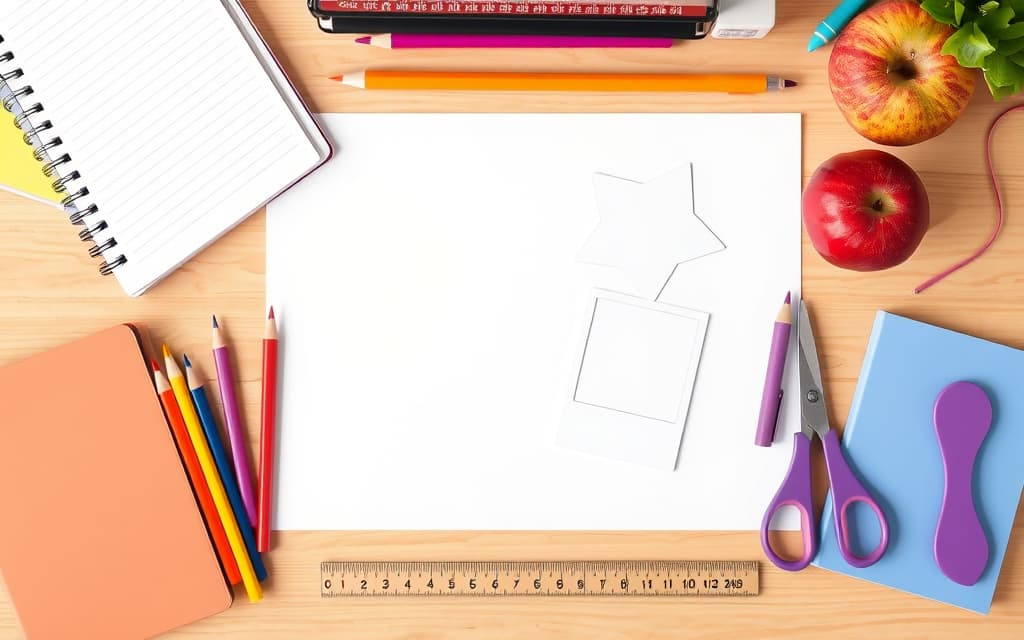
Late summer is design season for teachers, parents, and students. Classroom doors need decorating, first-day photos need a cute sign, and the semester needs a schedule everyone can actually read. The good news: you can make all of it in Canva, and most of these ideas take a few minutes.
Here are ten back-to-school projects, plus the fastest way to build each one. Canva has plenty of built-in tools, and where a QRdy Canva app saves real time, I'll point it out honestly.
1. First-day-of-school photo sign #
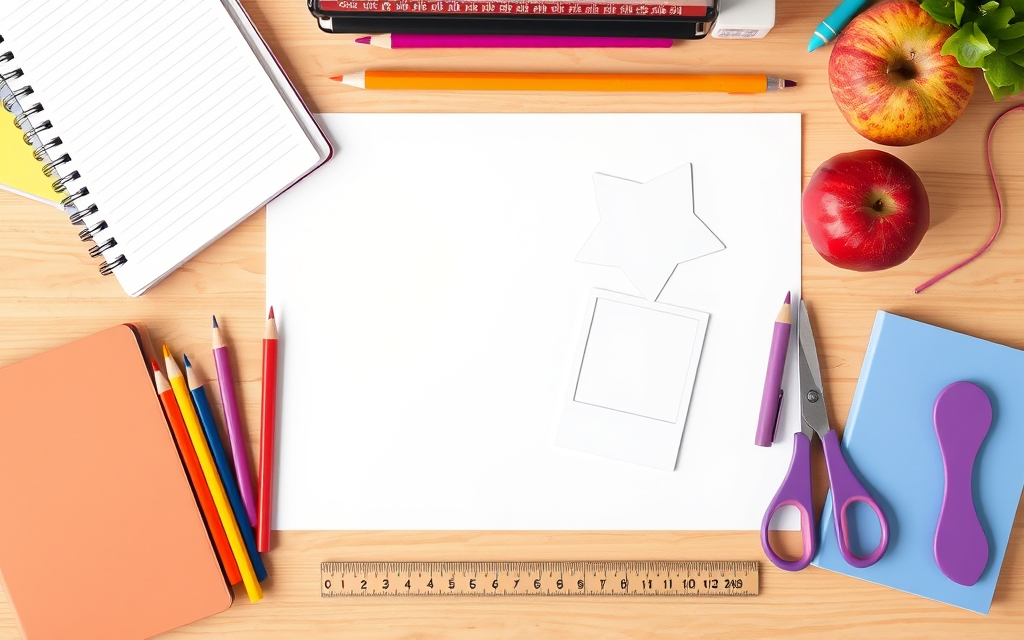
The classic "First Day of 3rd Grade" chalkboard sign. Design a printable board in Canva, add the grade and date, and leave a spot for the photo. Want the child's photo inside a fun shape — a star, an apple, a big number? Turn a PNG of that shape into a Canva frame with Image to Frame, then drop the photo in. Print it, hand it to the kid, snap the picture.
2. Custom photo frames in school shapes #
Apples, pencils, buses, letters — school themes are full of recognizable silhouettes. Canva's built-in Frames are mostly geometric, so for a specific shape, Image to Frame converts any transparent PNG (up to 5MB) into a real Canva frame you can fill with a photo. Tip: remove the background first so the frame hugs the true outline instead of a rectangle.

3. A class schedule everyone can read #
A weekly timetable doesn't need to be hand-drawn cell by cell. Calendar Maker has a Week tab: pick which days show, set the number of rows for each period, choose fonts and colors, and drop the table straight into your poster or handout. Teachers can reuse a saved setup every term.
4. Locker name tags and cubby labels #
Batch-friendly and fun. Build one tag layout in Canva, then style the edges with Border Art Maker — dotted borders, stars, little icons distributed evenly without copy-pasting each one. Duplicate, swap the name, print a sheet.
5. Name banners with photos inside the letters #
For a classroom door or a bedroom, spell out a name where each letter is filled with a different photo. Text to Frames turns every character into its own Canva frame (over 100 fonts, plus a "Split into letters" toggle), so "EMMA" can hold four different pictures. That per-letter effect is something Canva's native text can't do on its own.
6. Monthly homework or assignment calendar #
Give students a month-at-a-glance. Calendar Maker's Month tab builds a full grid — or all twelve months, each on its own page — with 30+ color presets and decorative page templates. Add due dates once it's on the canvas.
7. Classroom bulletin board collage #
A "Meet the Class" board looks great as a photo grid. Use Frames Lab to generate a Grid frame (set columns, rows, and gap), then fill each cell with a student photo. It auto-fits the design size, so you're not resizing by hand.

8. Reading-log or behavior-chart tracker #
Calendar Maker's Custom tab covers any date range up to 150 days — perfect for a 30-day reading challenge or a two-week behavior chart. Fewer columns, more rows, and you've got a printable tracker.
9. Teacher door decoration #
Combine a few ideas: a shaped photo frame from Image to Frame for the centerpiece, a decorative border from Border Art Maker, and a name banner from Text to Frames. Everything lives in the same Canva design, so colors stay consistent.
10. Back-to-school social posts #
If you run a class account or a tutoring page, announce the new term with a bold header. A photo-filled headline from Text to Frames or an arc-shaped frame from Frames Lab makes a plain announcement feel designed, not dashed off.
Quick tool guide #
| If you want to... | Use | Canva built-in alternative |
|---|---|---|
| Put a photo in a custom shape | Image to Frame | Elements frames (geometric only) |
| Photos inside letters | Text to Frames | Not available natively |
| Build a schedule or calendar | Calendar Maker | Manual table |
| Grid / collage board | Frames Lab or Frame Collage | Grids in Elements |
| Decorative borders | Border Art Maker | Manual copy-paste |
Every QRdy app above is free to try inside Canva, with a Pro tier that unlocks the full feature set. Start with one idea, and you'll likely reuse the setup all year.
Frequently asked questions
Just Canva and a printable template. Add the grade and date, leave space for a photo, and print. To put the child's photo inside a shape like a star or apple, turn that shape into a frame with Image to Frame and drop the photo in.
Use Calendar Maker's Week tab. Choose which days appear, set the number of rows per day for notes, pick fonts and colors, and add it straight to your design. You can save the setup and reuse it each term.
Each app is free to try inside Canva. A Pro tier unlocks the full feature set — for example, all 100+ fonts in Text to Frames or unlimited frame adds in Frames Lab. Many apps also offer student and teacher discounts.
Related products


More from QRdy Blog
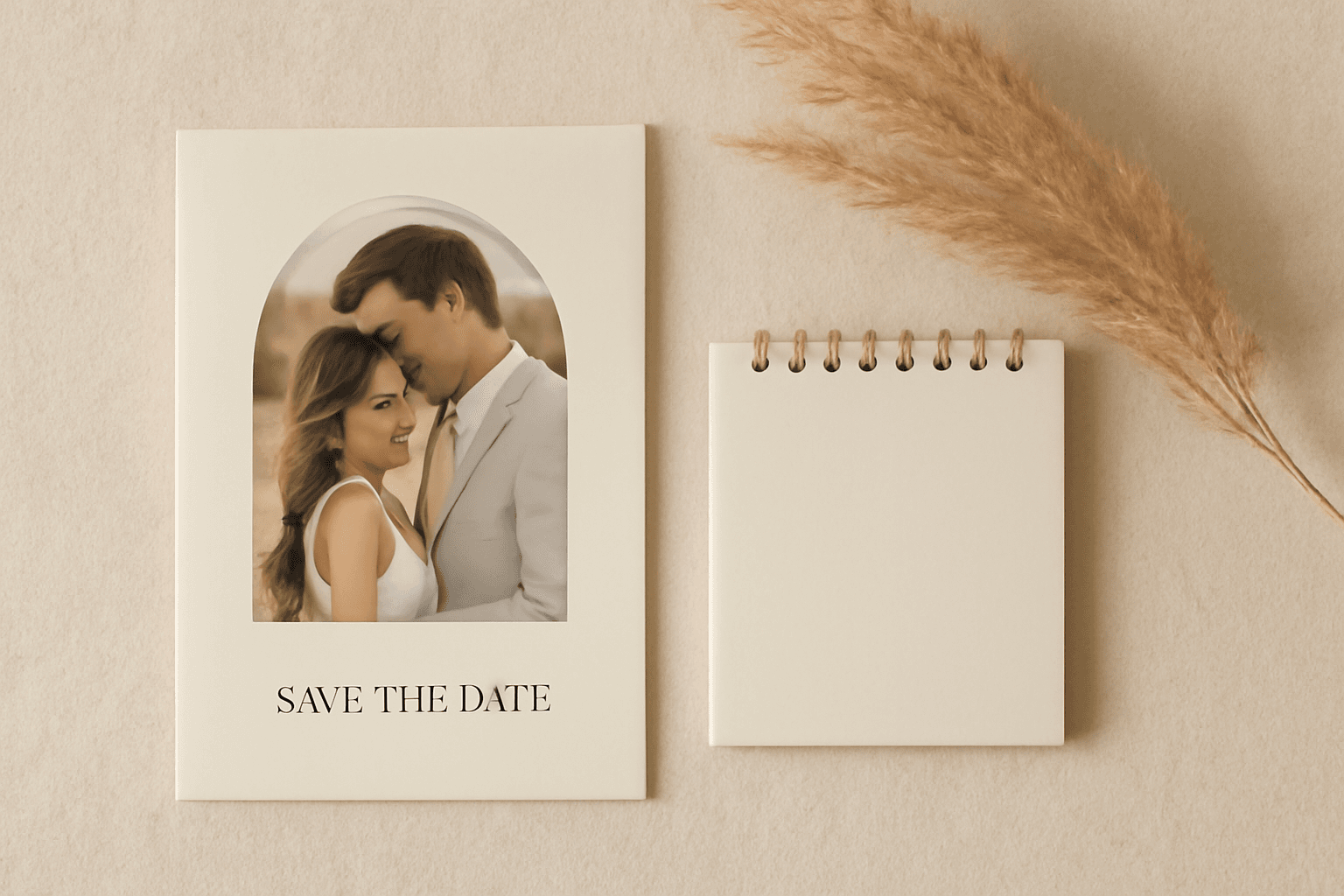
The Best Canva Apps for Save the Dates (2026): Photo Cards, Calendars & QR
Making a save the date in Canva? Here are five Canva apps that add what templates lack: arch and heart photo frames, a monogram, a mini calendar with the date circled, and a QR code.
What Is a Mockup? Meaning, Types, and How Print-on-Demand Sellers Use Them
A mockup is a realistic preview of your design on a real product. Learn the two meanings of "mockup", the main product mockup types, what makes one look fake, and three ways print-on-demand sellers make them.
How to Make a Pumpkin Photo Frame in Canva (Halloween, Step by Step)
Put your family, pet or costume photo inside a pumpkin shape in Canva. Three ways to do it, a step-by-step with Image to Frame, plus tips for jack-o-lantern and ghost frames.