
The Best Canva Apps for Teachers (2026)
Five Canva apps that make classroom prep faster — from generated schedules and name banners to worksheet borders, resource QR codes, and an interactive spin wheel for review games.
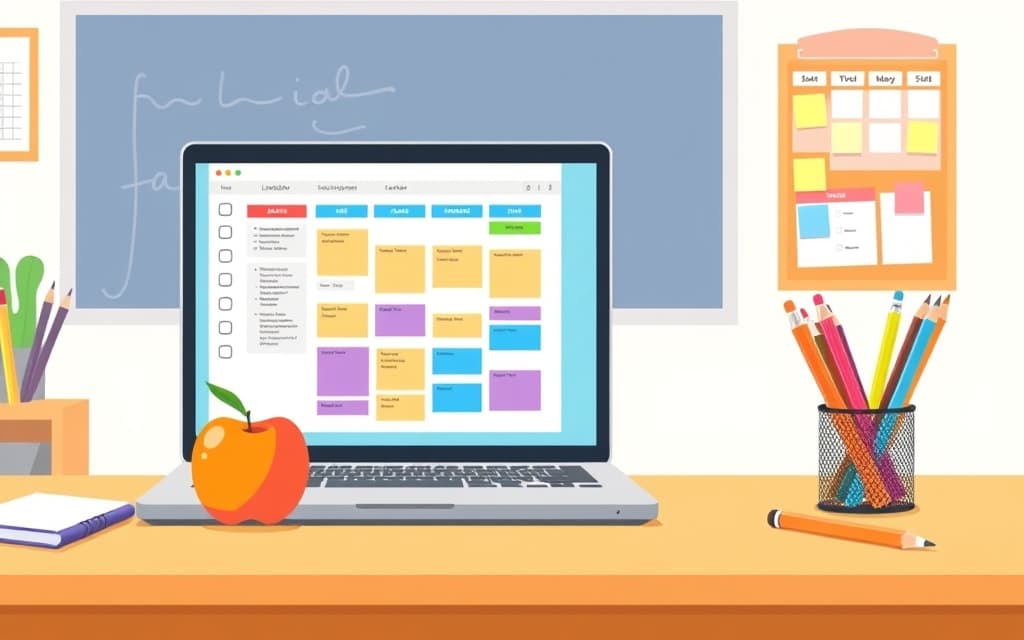
Between lesson planning, worksheets, bulletin boards, and classroom management, teachers already spend enough time on prep. Canva's built-in tools cover a lot — and if you're a verified K-12 teacher, Canva for Education is free — but a few add-on apps take the repetitive parts off your plate entirely.
Here are five Canva apps worth installing before the school year starts.
Quick pick #
| Task | App | Why it helps |
|---|---|---|
| Class timetable & planners | Calendar Maker | Generates a week or month grid — no manual tables |
| Review games & random picking | Spin Wheel Maker | Interactive wheel of names or questions |
| Name banners & bulletin titles | Text to Frames | Fills each letter with a photo |
| Worksheet & certificate borders | Border Art Maker | Custom repeating dotted/icon borders |
| Resource links & room WiFi | Bulk QR | Batch-creates QR codes in one go |
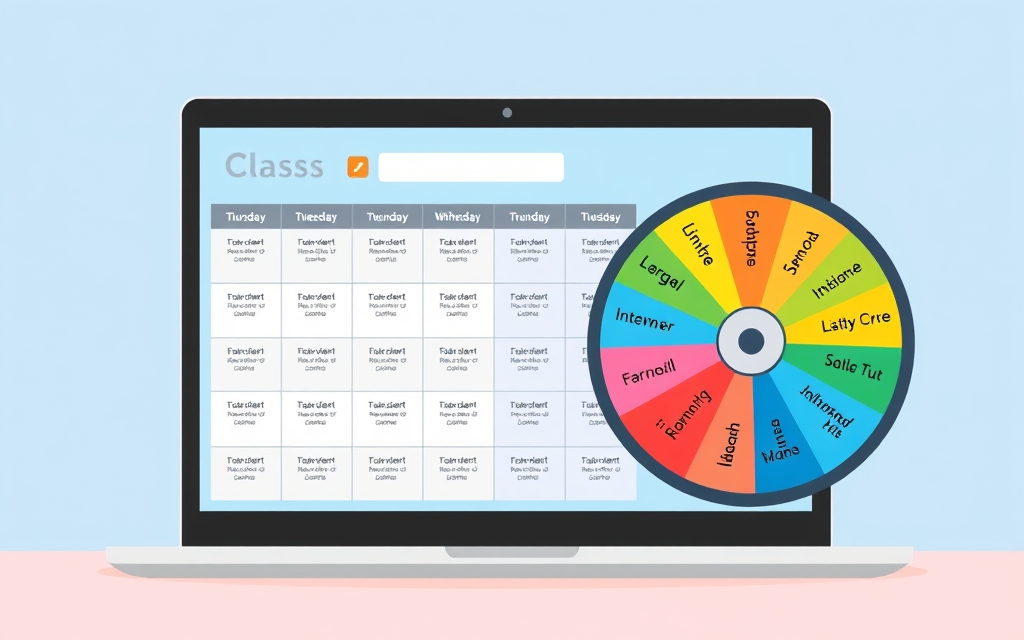
1. Calendar Maker — schedules and planners without drawing tables #
If you build class timetables, homework calendars, or weekly planners, Calendar Maker is the biggest time-saver on this list. It has three modes: Month for a full month grid, Week for a weekday timetable, and Custom for any date range (handy for a school term or a project timeline).
For a class schedule, the Week tab lets you pick exactly which days appear, set the number of rows for class periods, and shorten the weekday labels so everything fits. There are 30+ preset color themes, and you can save a setup to reload the same layout next term. It inserts straight onto your canvas, so you can print it or drop it into a planner design.
Best for: class timetables, homework calendars, meeting-the-parents schedules, year planners.
2. Spin Wheel Maker — review games and fair random picking #
A spinning wheel is a classroom staple — for picking a random student, choosing the next review question, or running a quick game. Spin Wheel Maker builds an interactive wheel loaded with your own text or images, so you can spin for names, topics, or rewards right inside a Canva design.
It's genuinely useful for keeping cold-calling fair and for turning revision into a game that students actually look forward to.
Best for: random student picker, review-game questions, classroom rewards, quiz rounds.
3. Text to Frames — photo name banners and eye-catching titles #
Text to Frames turns each letter you type into a real Canva frame, so you can drop a different photo into every character. Type a student's name or a bulletin heading, choose from 100+ fonts (five are free), and drag images in — great for "WELCOME," seasonal displays, or a name banner where each letter shows a different classroom photo.
Because each letter is a true Canva frame, you reposition and swap photos exactly like any other frame. It's the kind of title effect that normally needs Photoshop.
Best for: name banners, bulletin board titles, classroom door decor, event posters.
4. Border Art Maker — custom borders for worksheets and certificates #
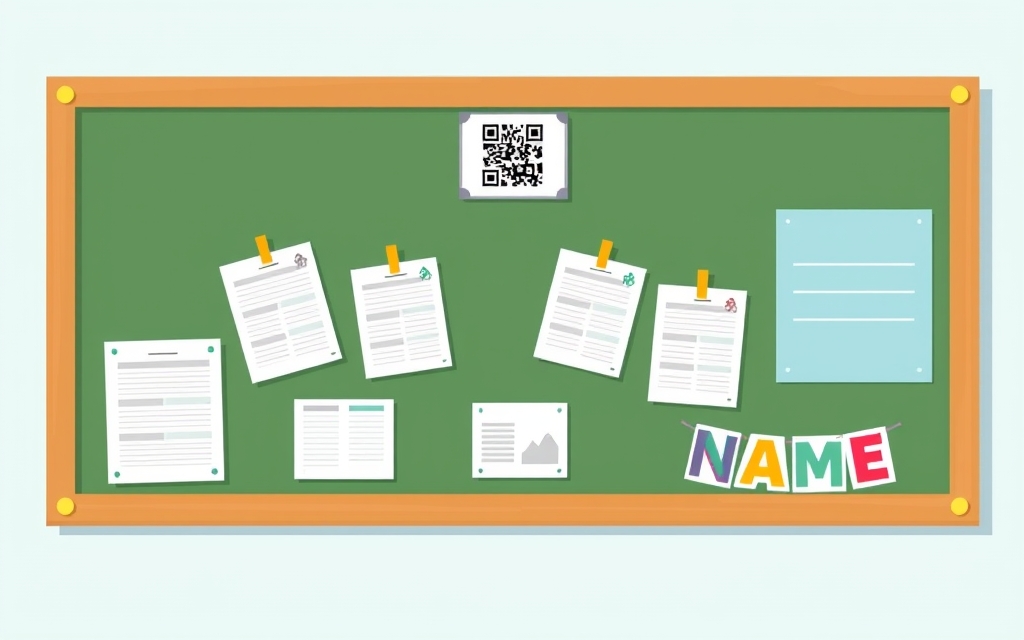
Canva has some border elements, but Border Art Maker lets you build your own from repeating dots, icons, or images. It distributes them evenly and lets you fine-tune spacing and rotation, so you can frame a worksheet, dress up a certificate, or outline a bulletin board with a themed border that matches your classroom.
Best for: worksheet frames, award certificates, seasonal borders, bulletin board edges.
5. Bulk QR — link students to resources in seconds #
When you want students to reach a resource, a form, or a video quickly, QR codes beat typing out long links. Bulk QR creates many static QR codes at once from a list — links, text, email, SMS, WiFi, or contact cards — and it can even read a QR code back from an image. Static QR codes are free and unlimited.
Make a sheet of QR codes for stations around the room, print a WiFi code for the classroom, or put a resource code on a handout. (For codes you'll want to re-point later, Qrdy's Dynamic QR is the tracked, editable option.)
Best for: resource links, room WiFi cards, station activities, worksheet shortcuts.
What Canva already does well #
To be fair, Canva's built-ins cover plenty. Canva for Education is free for verified teachers and includes a huge template library, native tables you can style by hand, and built-in Frames and Grids for photo layouts. If you only need an occasional simple table or a standard photo grid, you may not need an add-on at all.
These apps earn their place when the built-ins get tedious — generating a full schedule, filling letters with photos, building a custom repeating border, batching QR codes, or spinning an interactive wheel. For bigger photo collages and shaped frames on displays, Frames Lab is worth a look too.
How to choose #
Start with your biggest time sink. If it's scheduling, install Calendar Maker. If it's classroom engagement, grab Spin Wheel Maker. Bulletin boards and displays lean on Text to Frames and Border Art Maker, and Bulk QR is the quiet workhorse for connecting paper handouts to online resources. All of them run inside Canva, so there's nothing new to learn beyond opening the Apps panel.
Frequently asked questions
Each app has a free tier you can use inside Canva, and some features are Pro. Bulk QR makes unlimited static QR codes for free, and Calendar Maker, Text to Frames, Border Art Maker, and Spin Wheel Maker all have free options with paid upgrades for advanced features. Canva for Education itself is also free for verified K-12 teachers.
Canva for Education gives you templates, native tables, frames, and grids. These apps add things the built-ins don't do as easily — generating a full week schedule, filling letters with photos for name banners, building custom repeating borders, batch-making QR codes, or spinning an interactive wheel for review games.
Open a design, click Apps in the left toolbar, search for the app by name, and open it. The app runs in a side panel and inserts its result straight onto your canvas.
Related products


More from QRdy Blog
The Best Canva Apps for Save the Dates (2026): Photo Cards, Calendars & QR
Making a save the date in Canva? Here are five Canva apps that add what templates lack: arch and heart photo frames, a monogram, a mini calendar with the date circled, and a QR code.
What Is a Mockup? Meaning, Types, and How Print-on-Demand Sellers Use Them
A mockup is a realistic preview of your design on a real product. Learn the two meanings of "mockup", the main product mockup types, what makes one look fake, and three ways print-on-demand sellers make them.
How to Make a Pumpkin Photo Frame in Canva (Halloween, Step by Step)
Put your family, pet or costume photo inside a pumpkin shape in Canva. Three ways to do it, a step-by-step with Image to Frame, plus tips for jack-o-lantern and ghost frames.