
How to Put a Photo Inside Text in Canva: Native Method vs Text to Frames
Canva has no true built-in way to fill text with a photo. Here's how the native workaround compares to Text to Frames — and which one to use for image-in-text effects.
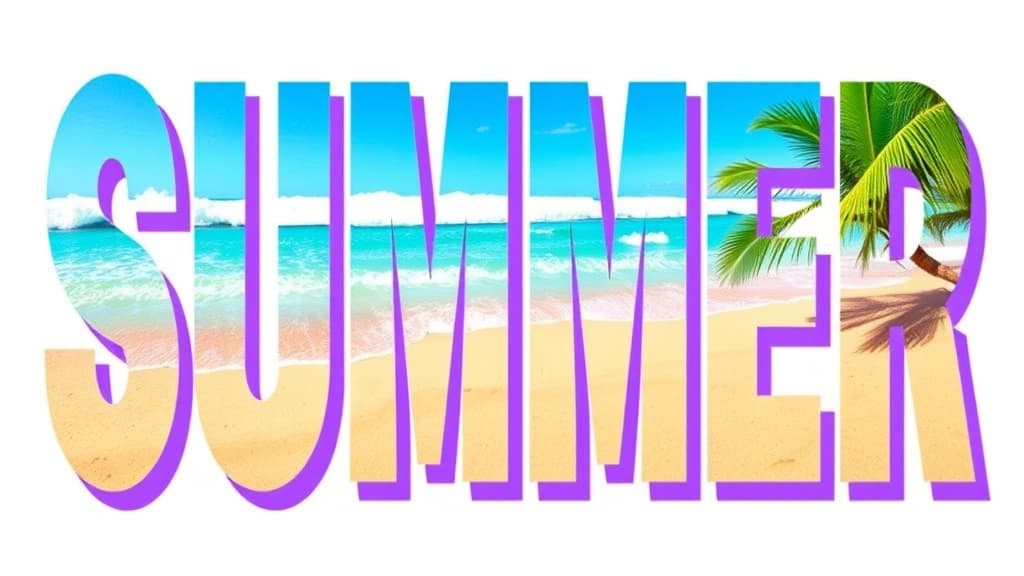
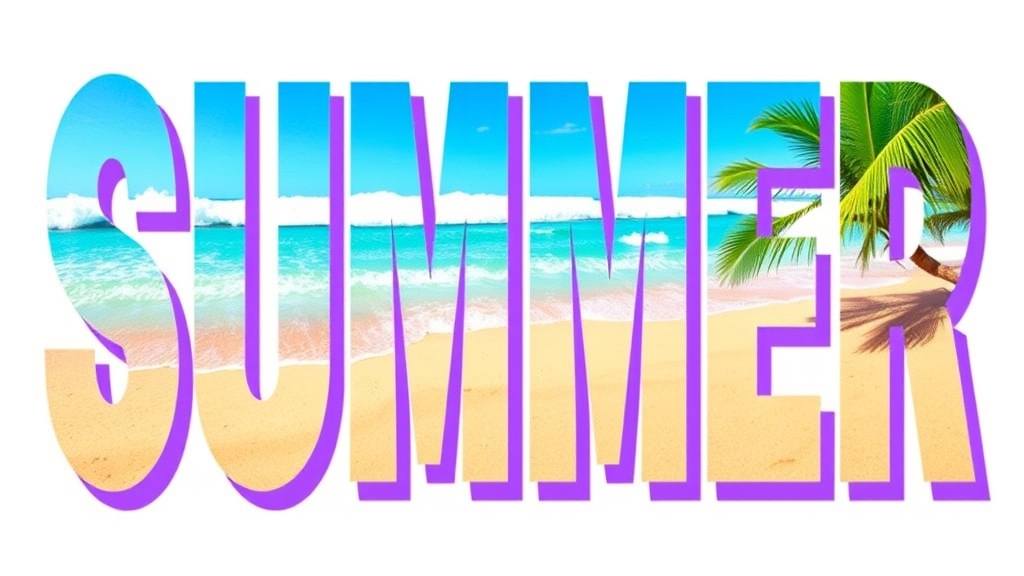
Putting a photo inside text — the word "SUMMER" filled with a beach, a name filled with confetti — is one of the most-requested effects in Canva. The catch: Canva has no single button that does it. This guide compares the native workaround with **Text to Frames**, a Canva app built for exactly this, so you can pick the right method.
The honest starting point #
Canva does not have a native "fill text with image" feature. Live text and photos are separate object types, and Canva won't clip one into the other on its own. What people call "the native method" is really a workaround using letter- or word-shaped frames from the Elements panel: you search a letter, drop in a frame if one exists, and place an image inside it. It works, but only for the shapes Canva happens to stock.
That gap is the whole reason apps like Text to Frames exist.
Quick comparison #
| Canva native (Elements frames) | Text to Frames | |
|---|---|---|
| Cost | Free | Free tier + Pro |
| Any word / font | No — limited to stocked letter frames | Yes — 100+ fonts, any text (up to 200 chars) |
| Different photo per letter | No — one image per frame | Yes — Split into letters |
| Output is editable | Yes, it's a frame | Yes, real Canva frames |
| Video inside letters | Frame-dependent | Yes |
| Effects (glow, border, inner shadow) | Manual | Built in (Pro) |
| Setup effort | High (hunt for frames, align each) | Type, pick font, Add to design |
Method 1 — The Canva native workaround #
Open your design, go to Elements, and search a letter or shape. Some results are frames (they show a dashed cutout). Drag one onto the page, then drop a photo into it and reposition. For a full word you repeat this letter by letter and align them by hand.
This is genuinely fine when you need one image showing through a simple shape and you're on a tight budget. Where it breaks down: most fonts and letters aren't available as frames, you can't easily flow one continuous photo across a whole word, and per-letter alignment is fiddly. Canva's own Clipping Mask app is a better native-adjacent option if you want a single image masked through text — but it still shows one photo across every letter at once.
Method 2 — Text to Frames #
Text to Frames is a QRdy Canva app that turns your typed text into real Canva frames, one per letter. The flow:
- Open Apps in Canva and launch Text to Frames.
- Type your text (up to 200 characters) and pick from 100+ fonts — modern sans, elegant serif, handwriting, even pixel and sci-fi styles.
- Toggle Split into letters if you want a different photo in each character.
- Optionally add Blur, Border, or Inner shadow (Pro), each with its own color.
- Hit Add to design, then drag images into the letters and zoom/reposition each one.
Because the output is standard Canva frames, everything stays editable — swap photos, drop in a video, or nudge the image inside a single letter without touching the rest. The live Preview matches the final result exactly, so there's no guesswork.
The free tier opens 5 fonts (Roboto, Open Sans, Lato, Playfair Display, Pacifico) and the core frame feature; Pro unlocks all 100+ fonts and the three effects.
The verdict #
Use the native Elements-frame workaround when you want one photo through a simple, stocked shape and you don't want to add an app. Reach for Clipping Mask when you want a single image masked cleanly through a whole word. Choose Text to Frames when you want any font, a different photo (or video) in each letter, and built-in glow/border/depth effects — the things Canva can't do on its own. For most people chasing that eye-catching image-in-text headline, Text to Frames is the fastest path from idea to finished design.
Frequently asked questions
Not directly. Canva has no button that clips a photo into live, editable text. The native workaround is to search Elements for a letter- or word-shaped frame and drop one image into it, but coverage is limited and you get a single image across the whole word. For per-letter photos or any font, you need an app like Text to Frames.
Clipping Mask shows one image through the entire word at once. Text to Frames turns each letter into its own Canva frame, so you can drop a different photo (or video) into every letter and reposition each one independently. Choose Clipping Mask for a single image through text, Text to Frames for per-letter control and 100+ fonts.
The output is real Canva frames, not a flattened PNG. You can drag images in and out, zoom and reposition the photo inside each letter, and swap images anytime — exactly like any other Canva frame. The text itself is fixed once added, so set your wording and font first.
Related products


More from QRdy Blog

Image to Frame vs Trace to Frame: Which Canva App Makes Your Custom Frame?
Need a custom-shaped frame in Canva? Image to Frame converts a PNG, SVG or JPG; Trace to Frame lets you click points to draw a polygon. Here is when each one wins, with a side-by-side table.
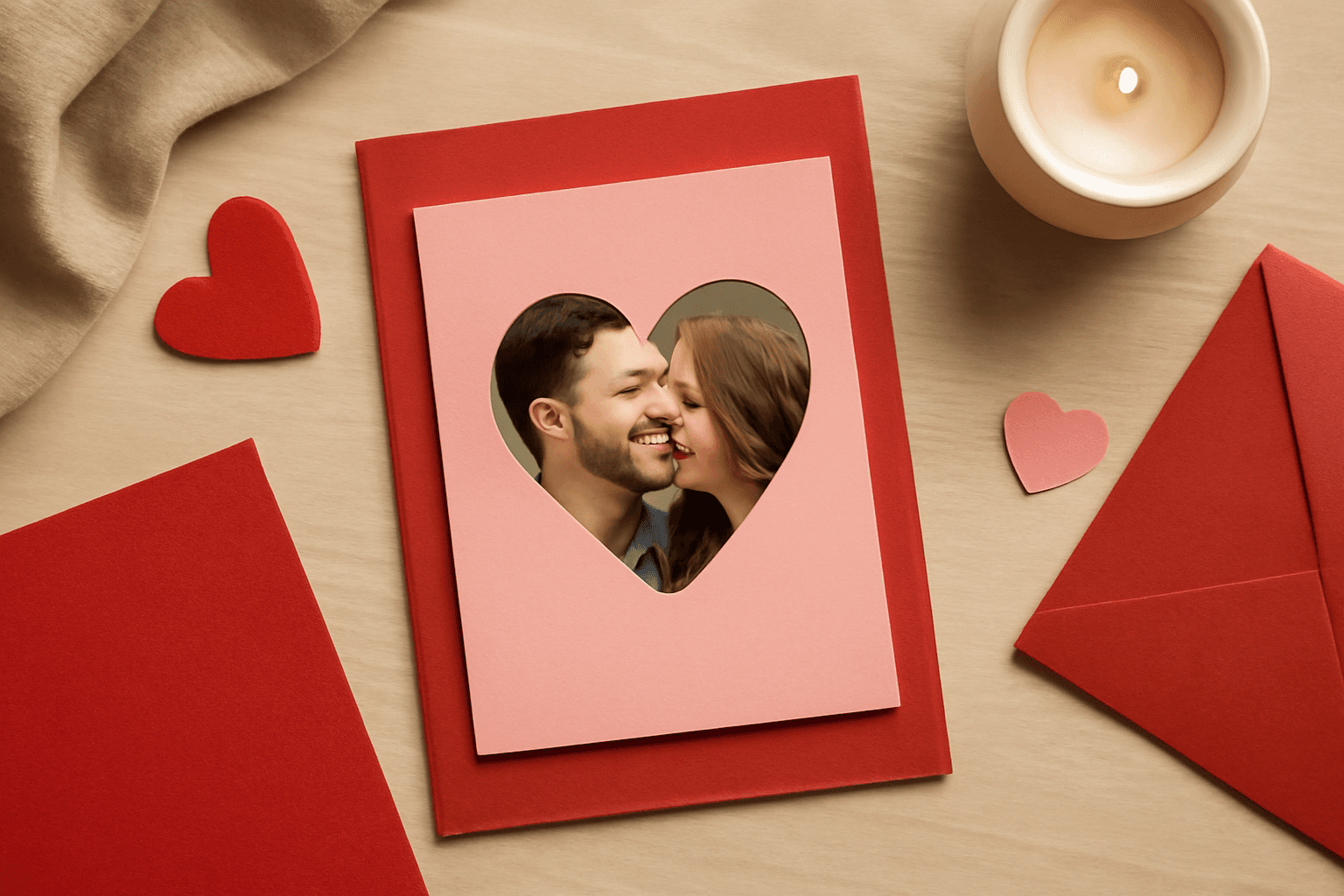
Ứng dụng Canva tốt nhất để làm thiệp Valentine (2026)
Chọn app Canva nào để làm thiệp Valentine có ảnh? So sánh Image to Frame, Text to Frames và Frames Lab: ảnh trong khung trái tim, tên người thương bằng chữ ảnh, lưới kỷ niệm.
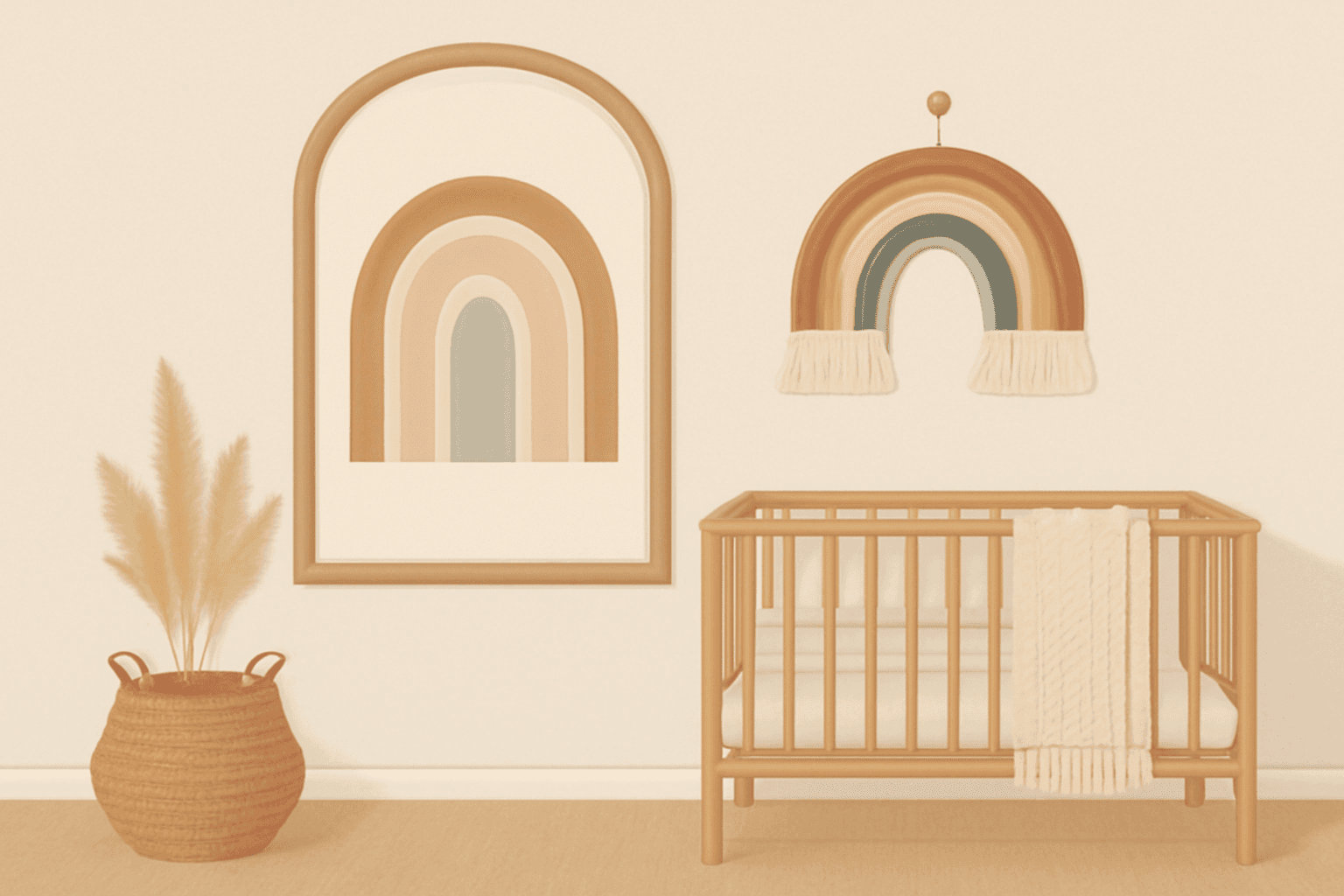
How to Make an Arch Photo Frame in Canva (Arch and Rainbow Curved Frames)
Arch and rainbow photo frames are everywhere in nursery art and boho posters. Here is how to make one in Canva step by step, using an arch shape or Frames Lab's Arc mode, with tips for sizing and spacing.