
Google Sheets & Excel vs Canva Calendar Maker: Which Should You Use?
A spreadsheet calendar is free, editable and calculates its own dates. A Canva calendar looks like something you would hang on a wall. Here is exactly when each one wins — and the workflow that uses both.
Almost everyone makes their first calendar in a spreadsheet. You open Google Sheets or Excel, widen seven columns, type Monday through Sunday, and start filling in numbers. It works — right up until you try to print it, or hand it to a client, or hang it on a wall.
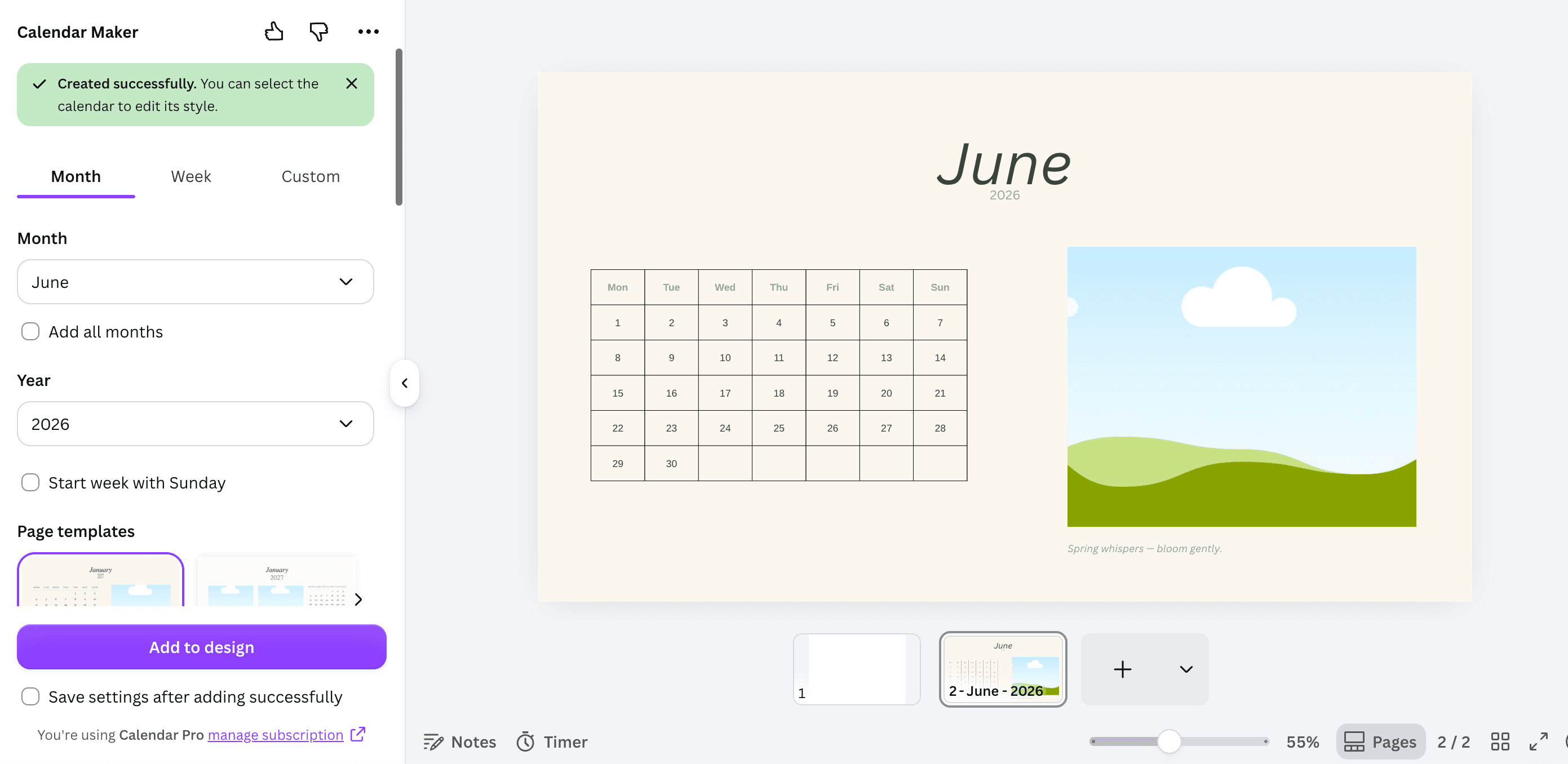
Canva is the opposite. It makes beautiful pages and it is hopeless at date arithmetic. And Canva has no built-in calendar generator, which is why Calendar Maker exists: it produces the dated grid inside Canva so you never type a single date.
This post is about picking the right one. They are genuinely good at different things, and the wrong choice usually shows up an hour into the job.
Quick comparison #
| Google Sheets / Excel | Canva + Calendar Maker | |
|---|---|---|
| Cost | Free (Sheets); Excel needs Microsoft 365 | Canva free; Calendar Maker's Add to design is Pro |
| How the grid appears | You type it, or use a template, or write date formulas | Pick a month and year — the grid is generated |
| Full year | Duplicate the tab 12 times and fix every date | Add all months + Each month on its own page |
| Typography | Cell fonts only; no real layout control | Any Canva font, bold/italic/underline, size 1-100, per-element colour |
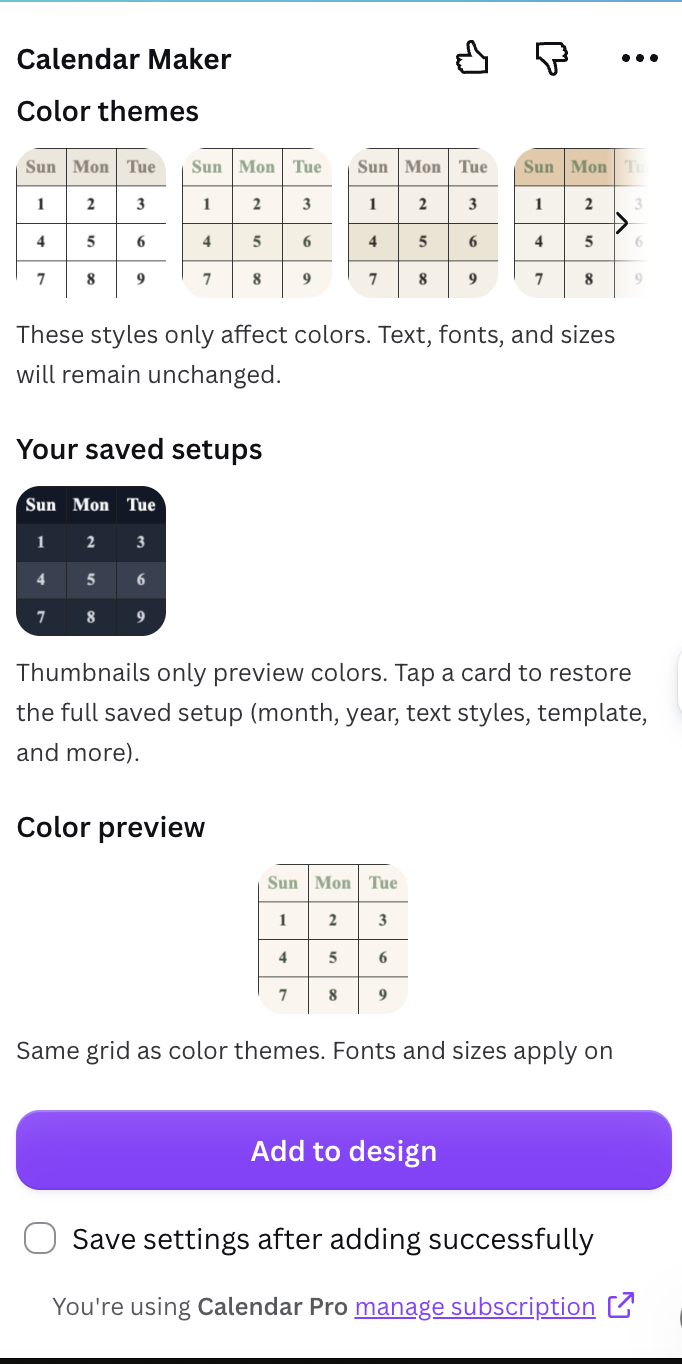
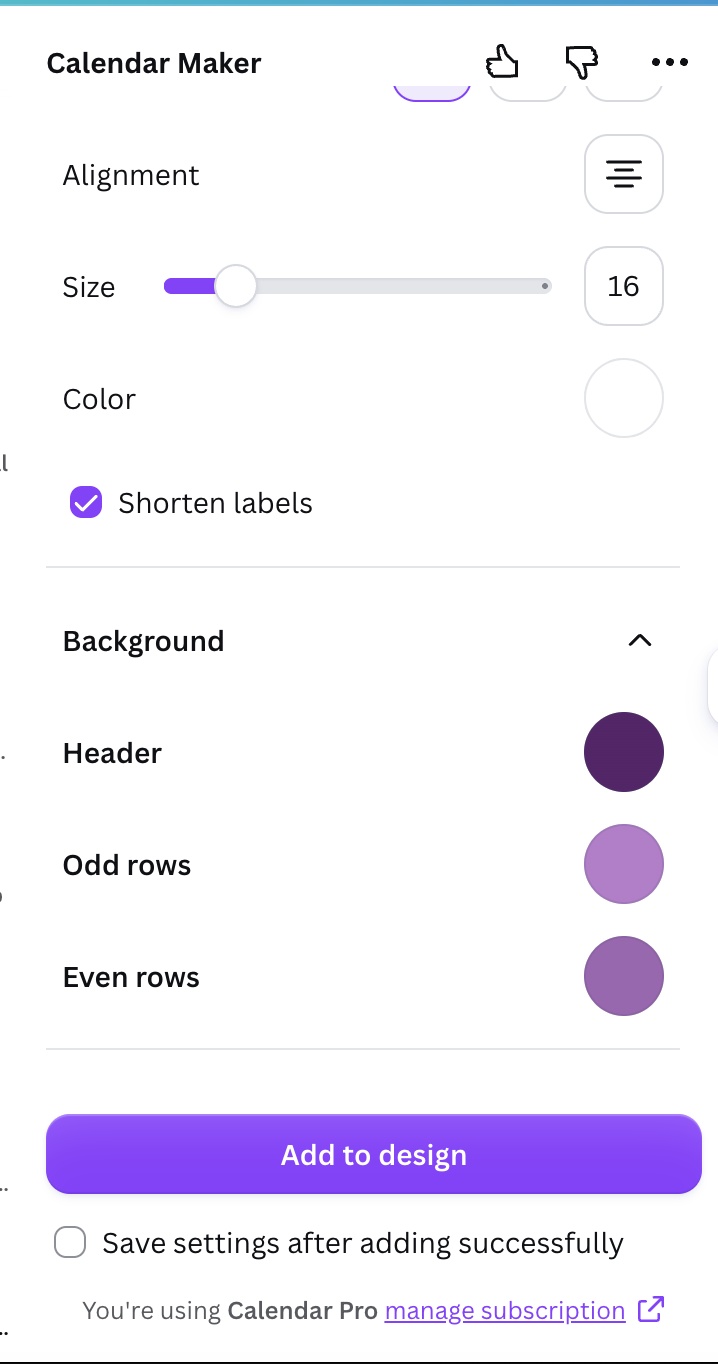
| Colour | Fill and border colours you set cell by cell | Header bar + two alternating row colours, 30+ preset palettes, live preview |
| Decoration | Effectively none | ~14 themed page templates, plus every Canva element |
| Sorting, filtering, counting | Yes — this is the whole point | No |
| Live edits by a team | Yes, simultaneously | Yes in Canva, but it's a design file, not data |
| Print output | Awkward — page breaks, scaling, cut-off columns | Set the page to the physical size and export PDF Print |
| Reuse next year | Re-do the dates | Change the year; reload a saved setup |
When a spreadsheet is the right answer #
Use Sheets or Excel when the calendar is really a table of data that happens to have dates in it.
That covers more cases than people expect: a staff rota you need to count hours from, a booking sheet several people edit at once, a project schedule where the dates shift when one task slips, an editorial calendar you want to filter by author, a class attendance grid.
The things a spreadsheet does that a design tool never will:
- Dates that calculate themselves. Type one date, drag the fill handle, and the rest follow. Shift the start date and everything after it moves.
- Filter, sort, count. How many Saturdays does Priya work this quarter? A spreadsheet answers that. A calendar poster does not.
- Conditional formatting. Weekends shaded automatically, overdue rows turning red.
- Real-time collaboration and version history, for free, with no design skill required.
- Export anywhere. CSV into another system, imported into Google Calendar, pasted into a report.
Both apps also ship calendar templates — File → New in Excel, and the template gallery in Sheets — so you rarely have to build the grid by hand.
Where the spreadsheet falls apart is the moment somebody says "can you make it look nice?" Cell borders are the only structure you get. You cannot put a photo behind the grid without it fighting the cells. And printing is its own small tragedy: columns spill onto page two, the scaling drops the text to six points, and the margins never quite land.
When Canva + Calendar Maker is the right answer #
Use Canva when the calendar is something people will look at — a wall calendar, a printable planner, a client deliverable, a social post, a classroom timetable, an Etsy listing.
Canva does not generate calendars on its own. It has calendar templates, which are gorgeous and fixed to whichever year the designer built them for, and it has a Table element, which is a blank grid you fill in yourself. Neither knows that 1 September 2026 is a Tuesday.
Calendar Maker fills that gap. It runs in the Canva side panel and has three tabs:
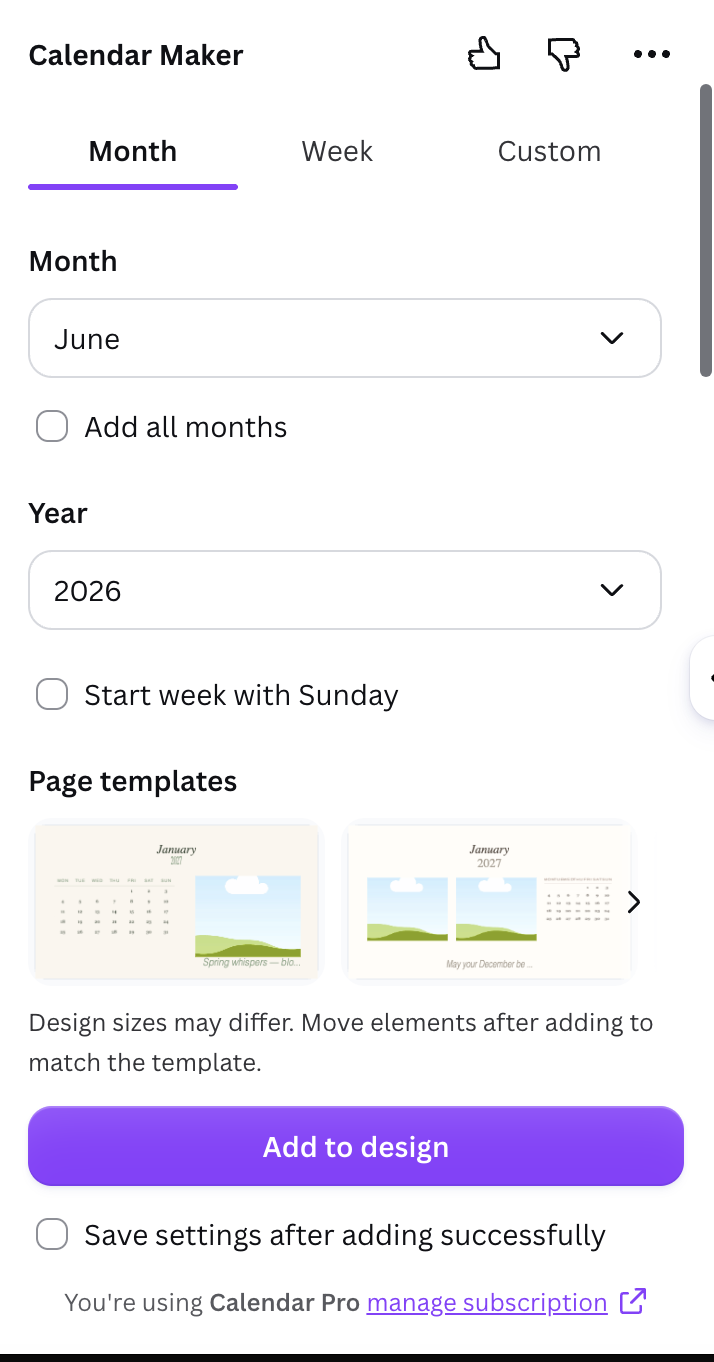
- Month — pick a month and year (anywhere from ten years back to ten years forward) and it builds the familiar dated grid. Tick Add all months for all twelve at once, and Each month on its own page to get twelve named pages instead of twelve stacked grids.
- Week — choose which weekdays appear, set Number of rows from 1 to 27 for the blank space under each day, and Shorten labels to turn "Monday" into "Mon". This is the timetable and weekly-planner tab.
- Custom — any date range you like, up to 150 days. Useful for a term, a sprint, a countdown, a six-week campaign.
Every tab has the same styling block underneath: font, bold/italic/underline, alignment, size (1-100) and colour, set separately for the day names and the date numbers; a header bar colour plus two alternating row colours; and a carousel of 30+ ready-made palettes covering Scandi minimal, botanical, pastel, warm, cool and dark. A live preview updates as you go, so you are not adding and undoing.
Two features matter more than they sound:
Page templates. The Month tab offers around fourteen themed pages — Botanical, Watercolour, Scandi Minimal, Midcentury, Coastal, Vintage Postcard and so on. Pick one and the app builds a decorated page with the month and year already filled in, drops the grid on top, and retunes the calendar's colours to match. Choosing a template while generating all twelve months automatically switches on one-month-per-page. Your design might be a different size from the template, so expect to nudge a few elements afterwards.
Saved setups. Tick Save settings after adding successfully and every successful insert stores the whole configuration — dates, fonts, colours, template — locally. Each tab keeps its own carousel of roughly the last thirty setups. Next term, next client, next year: click the card and everything comes back.
The honest caveat: Add to design is Pro-gated. Free accounts see Unlock to use instead of the add button, with a Restart app button to re-check after upgrading. Everything up to that point — building, styling, previewing — is free.
The workflow most people actually want #
You do not have to choose. The pattern that works is:
- Plan in the spreadsheet. Dates, shifts, deadlines, post topics — anything you need to sort, count or argue about lives in Sheets or Excel, where it is easy to change.
- Lock the plan. Once the dates stop moving, the spreadsheet's job is done.
- Publish in Canva. Set the page to the real physical size first (elements scale to the open page, so doing this late means redoing the layout), generate the grid with Calendar Maker, style it, then type the handful of entries that need to be visible onto the page.
The rule of thumb: if the information changes weekly, it belongs in a spreadsheet. If it gets printed, framed, posted or sold, it belongs in Canva.
What else Canva brings once the grid is there #
This is the part a spreadsheet cannot follow you into. Once the dated grid is on the page:
- Border Art Maker repeats an icon or shape evenly around the edge for a decorative border.
- Frames Lab builds a photo strip or grid above the dates — the classic photo-calendar layout. See how to make a photo collage in Canva.
- Image to Frame turns a logo or a shape into a frame so a photo sits inside it. Remove the background before converting, or the frame comes out rectangular.
- Color Harmony generates a matching palette and applies it across the pages, so twelve months look like one product.
If you want the step-by-step version of the print job, see how to make a free printable 2026 calendar with holidays.
The verdict #
Choose Google Sheets or Excel if the calendar is a working document: rotas, bookings, project timelines, anything you will filter, count, or edit weekly with other people. It is free, it is fast, and the dates maintain themselves.
Choose Canva with Calendar Maker if the calendar is a finished thing: a wall or desk calendar, a printable planner, a classroom timetable, a client or shop deliverable. You get typography, colour and decoration a spreadsheet cannot touch, and — because Calendar Maker generates the grid — you get them without typing 365 numbers.
Most people need both, in that order. The spreadsheet is where the plan is argued about. Canva is where it gets published.
Five things worth knowing before you start #
- Set the page size before you generate anything. A4, US Letter, 12x12 in — whatever it will be printed at. Elements scale to the open page, so changing it later means re-laying-out.
- Style the day names and the numbers separately. They are different controls for a reason; a small header font over larger numbers reads far better than one font at one size.
- Use a preset palette as a starting point, not a finish. Click a card from the 30+ carousel, then adjust the header bar and the two row colours.
- Turn on saved setups from day one. Rebuilding a client's exact styling from memory next January is worse than it sounds.
- Export as PDF Print, and check at 100%. Numbers that look fine at 30% zoom can be uncomfortably light on paper.
Related reading: Canva calendar templates vs Calendar Maker, making a calendar in Canva by hand vs Calendar Maker, and what is a content calendar.
Frequently asked questions
Not really. Canva has beautiful calendar templates, but each one is fixed to the year its designer built it for, and its Table element is a blank grid you fill in yourself. Neither knows which weekday a given date falls on. Calendar Maker is what generates the dated grid inside Canva — pick a month and year and it builds the layout for you.
Building, styling and previewing a calendar is free. The Add to design button — the one that actually inserts the grid into your design — is Pro-gated. Free accounts see Unlock to use instead, plus a Restart app button to re-check status after upgrading.
Yes. On the Month tab, tick Add all months for all twelve, and Each month on its own page to get twelve separate named pages instead of twelve stacked grids. If you also pick a decorative page template, one-month-per-page switches on automatically.
A spreadsheet, without much argument. Google Sheets and Excel give you simultaneous editing, version history, filtering and formulas that shift dates when a plan changes. Move to Canva once the dates are settled and the schedule needs to be printed, posted or handed to someone.
Related products


More from QRdy Blog
The Best Canva Apps for Invitations (2026): Birthday, Baby Shower & Party
Canva's invitation templates get you 80% of the way. These Canva apps cover the rest: custom photo shapes, monogram letters, borders, palettes and RSVP QR codes.

How to Put a Photo in a Heart Shape in Canva (3 Easy Ways)
Want a heart-shaped photo in Canva? Use the built-in heart frame, turn any heart graphic into a custom frame with Image to Frame or Frames Lab, or build a heart collage. Step-by-step for each.
What Is a Silhouette? Meaning, Examples, and How to Use One in Canva
A silhouette is a solid, single-color outline of a shape with no inner detail. Here is what it means, how it works, the main types, and how to turn one into a photo frame in Canva.