
How to Make a Calendar in Canva: By Hand vs Calendar Maker
Two ways to make a calendar in Canva: build the grid by hand, or auto-generate it with the Calendar Maker app. Here is an honest side-by-side on speed, accuracy, and control — plus which one to pick.
How to Make a Calendar in Canva: By Hand vs Calendar Maker
If you have ever typed "how to make a calendar in Canva" into Google, you have probably found two very different answers. One camp says to build the grid yourself with a table or a stack of squares. The other says to install an app that spits out a finished calendar in a few clicks.
Both work. But they are wildly different in effort, and the right choice depends on what you are actually making. This is an honest side-by-side of the do-it-by-hand method versus the **Calendar Maker Canva app** — where each one wins, and where each one hurts.
Method 1: Building a calendar by hand in Canva #
Canva does not have a native "generate a calendar" button, so the manual route means assembling the grid yourself. The usual approach is either the Elements → Tables tool, or dropping in a 7-column grid of rectangles and typing dates into each cell.
The upside is that it is free and it is 100% under your control — every line weight, gap, and color is yours to set. The downside shows up the moment you start typing numbers. You have to know which weekday the 1st lands on, count out 28 to 31 days, and get the alignment right. Do a single month and it is tolerable. Do all twelve and it becomes a genuinely tedious afternoon, and any typo in a date is invisible until someone catches it later.
Manual building is fine for a one-off, highly custom design where the calendar is more decoration than reference — for example a stylized "save the date" where only a handful of days matter.
Method 2: Calendar Maker (the QRdy Canva app) #
Calendar Maker is a Canva app that generates the calendar grid for you and inserts it straight into your open design. Instead of drawing cells, you pick a month and year and it builds an accurate grid — correct weekday alignment, correct number of days, every time.
It has three tabs:
- Month — a standard month grid. You can generate a single month, or tick "Add all months" to build all twelve at once, with an option to put each month on its own page.
- Week — a weekday table (Monday–Sunday, your pick) with an adjustable number of rows, great for schedules and weekly planners.
- Custom — a calendar for any date range up to 150 days, not tied to month boundaries.
For styling, you get font, bold/italic/underline, alignment, size and color controls for the header and the date numbers, plus header and alternating-row background colors. There are 30+ ready-made color styles in a carousel and about 14 decorative page templates (Botanical, Watercolor, Scandi Minimal, Coastal, and more). A live preview shows your choices before you insert, and you can save a setup to reuse it later. It also follows your language and Sunday/Monday start automatically.
One honest note: the full "Add to design" feature is a Pro (paid) part of the app. You can set everything up and preview for free, but inserting the finished calendar is gated behind unlocking Calendar Maker Pro.
Side-by-side comparison #
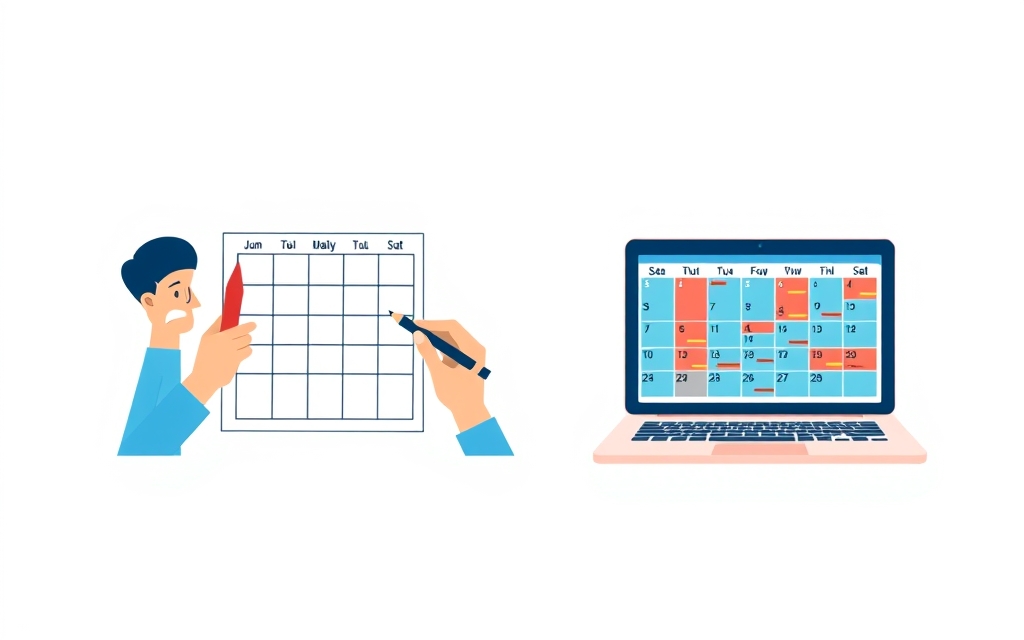
| By hand (tables / grid) | Calendar Maker app | |
|---|---|---|
| Cost | Free | Free to build/preview; Pro to insert |
| Time for one month | 15–30+ minutes | About a minute |
| Time for all 12 months | An afternoon | A few clicks (one page each) |
| Date accuracy | You count and type manually | Correct weekdays & day count, automatic |
| Weekly / custom-range layouts | Build from scratch each time | Built-in Week & Custom tabs |
| Ready-made color themes | None (you style everything) | 30+ styles + ~14 page templates |
| Total design freedom | Highest — every pixel is yours | High, within the app's controls |
| Best for | One-off, fully bespoke pieces | Real calendars, planners, multi-month sets |
The verdict #
If you need an actual working calendar — a wall calendar, a content calendar, a class schedule, a 12-month planner — Calendar Maker is the clear winner. It removes the two most painful parts of the manual method (counting days and repeating the work twelve times) and the dates are always correct.
Build it by hand only when the calendar is a small, decorative element in a larger custom design and you want total pixel-level control, or when you simply do not want to unlock a paid app for a single month.
Either way, the calendar is only half the page. Once the grid is in, tools like Frames Lab and Border Art Maker are handy for framing photos and adding decorative borders around it, and Image to Frame lets you drop a photo into a custom shape for the header. That is where a plain grid turns into a design worth printing.
Quick recommendation #
Making one simple month and love fiddling with layouts? The manual grid is fine. Making anything you will actually live by — or more than one month — save yourself the counting and let Calendar Maker generate it.
Frequently asked questions
No. Canva has calendar templates and a Tables tool, but no native button that generates an accurate month grid for a chosen year. To auto-generate one, you need an app like Calendar Maker; otherwise you build the grid by hand with a table or rectangles and type the dates yourself.
You can open Calendar Maker, configure your calendar, and preview it for free. Actually inserting the finished calendar into your design with 'Add to design' is a Pro (paid) feature that you unlock through the app.
Yes. In the Month tab, tick 'Add all months' to generate all twelve months in one go, with an option to place each month on its own page. Building all twelve by hand, in contrast, means repeating the manual process month by month.
Yes. Calendar Maker's Week tab builds a weekday table with your chosen days and an adjustable number of rows, which is ideal for class schedules and weekly planners. There is also a Custom tab for any date range up to 150 days.
Related products


More from QRdy Blog
Printify Mockup Generator vs Making Your Own Mockups: When to Use Each
Printify's built-in mockup generator is free and fast, but every seller on the same blank gets similar photos. Here is when to rely on it, when to make your own mockups from real product photos, and how to combine both.
What Is Die Cut? Meaning, Die Cut vs Kiss Cut, and How to Design One in Canva
Die cut means cutting paper, vinyl or card into a custom shape instead of a rectangle. Here is what it means, how it differs from kiss cut, and how to prepare a die cut file in Canva.
10 Photo Collage Ideas You Can Make in Canva (Grids, Arcs, Diagonals and More)
Ten photo collage ideas you can build in Canva, from classic grids and rainbow arcs to diagonal strips and sunburst layouts, with honest notes on when Canva's built-in grids are enough.