
Canva Calendar Templates vs Calendar Maker: Which Should You Use in 2026?
Canva has thousands of built-in calendar templates, so do you really need a calendar app? Here's an honest comparison of Canva's native templates vs the Calendar Maker app — when each one wins, and which to reach for.
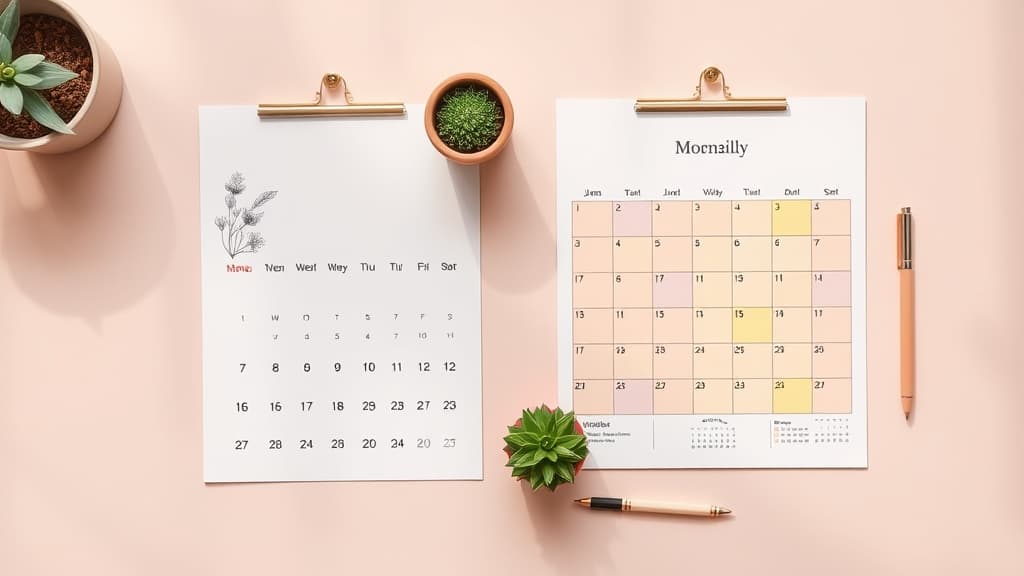
Canva Calendar Templates vs Calendar Maker: Which Should You Use in 2026?
If you have ever searched "calendar" in Canva, you already know the platform is packed with beautiful, ready-made calendar designs. So a fair question is: with thousands of templates built in, why would anyone install a separate calendar app?
The short answer is that they solve two different problems. Canva's templates give you a look. The Calendar Maker app gives you a correct, editable grid for any month and year — without retyping a single date. Here is how they actually compare.
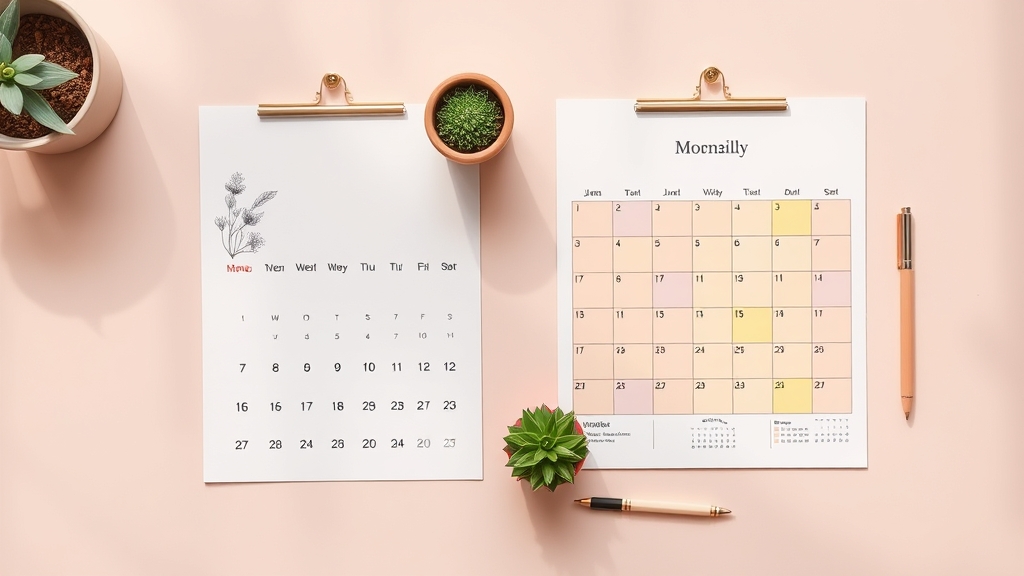
Quick comparison #
| Canva calendar templates | Calendar Maker app | |
|---|---|---|
| What it is | Pre-designed calendar layouts you browse and edit | A Canva app that generates a real calendar grid on demand |
| Dates | Fixed to the template's original year — edit by hand | Auto-generated for any month/year (~10 years back to 10 years ahead) |
| Change the year | Retype every date manually | Pick the year, regenerate instantly |
| All 12 months | Duplicate and re-edit each page yourself | "Add all months" — one click, optional page-per-month |
| Layout types | Whatever the template offers | Month grid, weekly table, or custom date range (up to 150 days) |
| Week start | Whatever the template used | Toggle Monday or Sunday start |
| Styling | Full Canva design freedom | Fonts, bold/italic/underline, alignment, size, colors + 30+ preset palettes |
| Decoration | Built into the template | ~14 themed page templates (Botanical, Watercolor, Scandi, Coastal…) |
| Reuse settings | Copy the design file | Save up to ~30 setups per tab and restore in one click |
| Best for | One-off, highly custom art pieces | Accurate calendars you rebuild often or for many months/years |
Where Canva's built-in templates win #
Canva's template library is genuinely excellent, and for some jobs it is the right choice. If you want a single, highly designed calendar — a decorative art print, a one-page 2026 wall calendar with a specific illustrated theme — starting from a professional template gets you 90% of the way there. You get complete creative control over every element, and you are not limited to a grid at all.
Templates are also the fastest path when the design matters more than the dates: a seasonal poster that happens to include a small month view, for example, where you will only fill in a handful of days.
The catch shows up the moment you need accuracy or repetition. Most Canva calendar templates were built for a specific year. To reuse one for 2026 or 2027, you have to check a real calendar and retype every date, shifting the whole grid because the first of the month lands on a different weekday. Do that for twelve months and the "template" stops feeling like a shortcut.
Where Calendar Maker wins #
Calendar Maker is built for exactly that pain point. Instead of drawing a table and typing days, you pick a month and year, and it generates an accurate grid and drops it straight into your open design. A few things it does that templates can't:
- Any month, any year. Choose within roughly a 20-year window and the dates are always correct — no manual fixes.
- All 12 months at once. Turn on "Add all months," and optionally put each month on its own named page, for a full-year planner in seconds.
- Three calendar types. A classic month grid, a weekly table (great for class schedules or weekly planners, with adjustable rows), or a custom date range up to 150 days.
- Deep styling that stays editable. Set fonts, weight, alignment, size, and colors for headers and date numbers, pick from 30+ preset color palettes, and preview live before inserting.
- Save your setup. Keep up to ~30 saved configurations per tab, so your brand's calendar style is one click away next time.
Because the output is inserted as real Canva elements, you can still restyle it by hand afterward — you get the generator's accuracy and Canva's design freedom.
The verdict #
Reach for Canva's built-in templates when you are making a one-off, design-heavy calendar and the dates barely matter, or when you want to start from a fully illustrated concept.
Reach for Calendar Maker when the dates have to be right and you don't want to type them — a new year's wall calendar, a full-year planner, a content calendar, a class schedule, or anything you rebuild regularly. It removes the single most tedious part of making calendars in Canva: entering the days.
For most people who make calendars more than once, the honest recommendation is to use both — grab a template you like for the styling, and let Calendar Maker generate the accurate grid on top. Pair it with Border Art Maker or Frames Lab to decorate the edges, and you have a polished, date-perfect calendar without the busywork.
Try it: Calendar Maker in Canva →
Frequently asked questions
Canva has thousands of pre-designed calendar templates you can search and edit, but it does not automatically generate a correct month grid for a specific month and year. You either edit the dates by hand or install a calendar-generating app like Calendar Maker, which builds the grid for you and inserts it into your design.
Canva templates are often locked to the year they were designed for, so you have to retype every date to reuse them. The Calendar Maker app lets you pick any month and year within a roughly 20-year window and generates an accurate grid instantly, so you never manually correct dates.
Calendar Maker has free functionality, with a Pro tier that unlocks the Add to design action and full features. Canva's built-in templates are available on Canva's own free and Pro plans. The best pick depends on how often you build calendars and whether typing dates by hand is worth your time.
Related products


More from QRdy Blog
Photoshop Clipping Mask vs Text to Frames: Photo-in-Text in Canva
Filling text with a photo is a classic Photoshop trick. Here is how the Photoshop clipping mask compares with Text to Frames in Canva, and which one fits a quick title or banner.
The Best Canva Apps for Birth Announcements (2026)
Making a birth announcement in Canva? Here are the best Canva apps for it in 2026: custom photo shapes, name lettering, photo grids, borders, and a first-year calendar. Honest picks, with Canva's built-in tools included.
How to Make a Christmas Tree Photo Collage in Canva (Step by Step)
Turn your favorite family photos into a Christmas tree-shaped collage in Canva: two methods (a tree-shaped frame or a stacked grid), exact steps, print sizes, and tips so faces stay visible.