
What Is a Content Calendar? Definition, Types, and How to Build One in Canva
A content calendar is a schedule that maps what you'll publish, when, and where. Here's what it is, the main types, why it works, and how to build one in Canva in minutes.
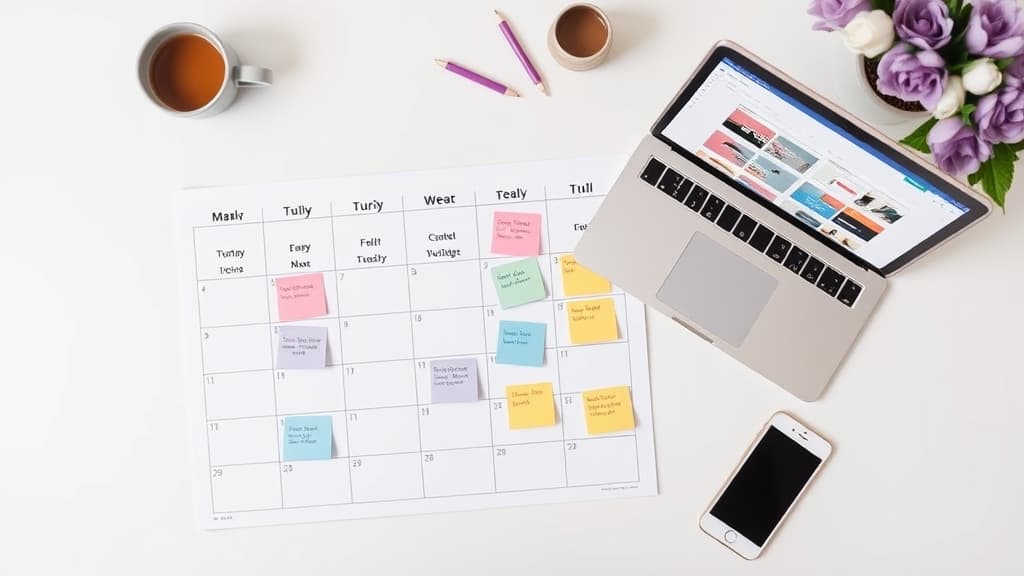
A content calendar is one of those tools that sounds like corporate overhead until the first week you skip it and everything scrambles. If you publish anything on a schedule — social posts, blog articles, newsletters, videos — a content calendar is what turns "we should post more" into an actual plan you can see and follow.
This guide explains what a content calendar is, the main types, why it works, and how to build one in Canva in a few minutes.
What is a content calendar? #
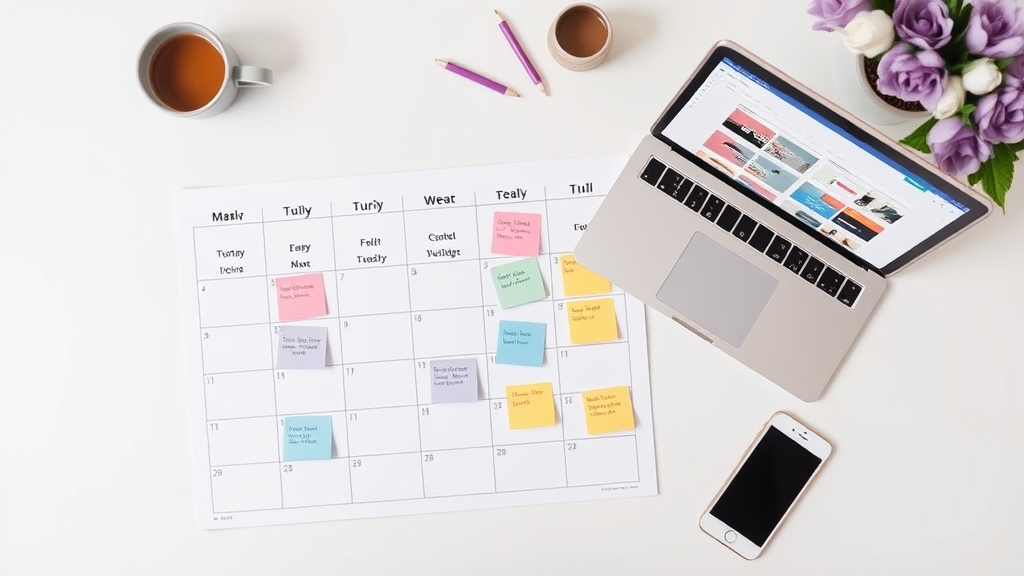
A content calendar is a schedule that maps out what you're going to publish, when it goes live, and on which channels. Instead of deciding what to post the morning it's due, you plan ahead and lay everything out in a single view — usually a monthly or weekly grid — so you can see the whole picture at once.
At its simplest, a content calendar answers four questions for every piece of content:
- What is the content (topic, format, headline)?
- When does it publish (date, and often time)?
- Where does it go (Instagram, blog, email, TikTok, LinkedIn)?
- Who owns it (writer, designer, approver)?
That's it. The magic isn't in the tool — it's in having those answers written down somewhere everyone can see, before the deadline arrives.
Why a content calendar actually helps #
It's easy to treat planning as busywork, but a content calendar solves a few very real problems:
It kills the daily scramble. When the month is mapped out, you're never staring at a blank screen wondering what to post today. The decision was already made last week.
It shows gaps and clashes. Laid out in a grid, you can instantly spot a week with nothing scheduled, or three product promos stacked on the same day. You fix balance problems before your audience feels them.
It keeps a team aligned. A shared calendar means the writer, designer, and manager are all looking at the same plan. Fewer "wait, was that going out today?" messages.
It makes batching possible. Once you can see ten upcoming posts, you can write or design them in one focused session instead of ten interruptions — which is almost always faster and more consistent.
It ties content back to goals. Planning ahead lets you line posts up with launches, holidays, and campaigns instead of reacting to them at the last minute.
The main types of content calendar #
Not every calendar looks the same. The right structure depends on how much you publish and how far ahead you plan.
Monthly calendar #
The classic grid: a full month laid out as days, with each cell holding what's scheduled for that date. This is the go-to for most social media and marketing teams because it balances the big picture (the whole month) with enough room for daily detail. It's ideal for spotting rhythm and pacing across weeks.
Weekly calendar #
A single week broken out by day, usually with more room per day for notes. Weekly calendars work well for high-frequency publishing — daily posts, multi-channel campaigns — or as a planner and to-do layout where each day needs several lines of detail rather than one entry.
Custom date-range calendar #
Sometimes your plan doesn't fit a tidy month or week: a two-week product launch, a 40-day campaign countdown, or an event lead-up. A custom range lets you build a calendar for exactly the window you care about, without padding it out to a full month.
Editorial vs. social vs. campaign calendars #
Beyond layout, calendars also differ by purpose. An editorial calendar tracks longer pieces like blog posts and their production stages. A social media calendar focuses on day-to-day posts across platforms. A campaign calendar zooms in on a single initiative. Many small teams simply combine all of these into one master calendar rather than juggling three.
How to build a content calendar in Canva #
You don't need specialized software to start. Canva works well because the calendar can live right alongside the graphics you're already designing — and with a calendar app, you skip the tedious part of drawing the grid by hand.
Option 1: Use the Calendar Maker app #
Calendar Maker is a QRdy Canva app that generates a calendar and drops it straight into your open design — no manually drawing tables or typing in dates. Here's the flow:
- Open Calendar Maker inside your Canva design and pick a tab: Month, Week, or Custom (a date range up to 150 days).
- Choose your dates. For a monthly plan, select the month and year; you can even generate all 12 months at once, each on its own page.
- Style it to match your brand. Set fonts, bold/italic, text color, header-bar color, and alternating row colors — or apply one of 30-plus built-in color presets. A live preview shows changes instantly.
- Pick a decorative page template if you want (around 14 themed designs like Botanical, Scandi Minimal, or Coastal), or keep it clean.
- Click "Add to design," and the calendar lands in your Canva project, ready for you to fill in posts.
- Save your setup so next month you can rebuild the same styled calendar in one click.
Once the grid is in your design, you plan on top of it: add text or color-coded elements for each post, one color per channel or content type, so the whole month reads at a glance.
Option 2: Build it manually #
If you'd rather do it by hand, add a table (roughly seven columns for the days of the week), type the dates, and style the cells yourself. It works, but it's slower and easy to get wrong — which is exactly the busywork a calendar app removes.
Make it more useful (and better looking) #
A content calendar earns its keep when it's easy to read and easy to act on:
- Color-code by channel or content type so Instagram, blog, and email are instantly distinguishable.
- Frame or decorate it with an app like Border Art Maker or Frames Lab if the calendar doubles as a printable wall planner.
- Add a QR code with Qrdy Dynamic QR that links to your live Google Calendar, a booking page, or a campaign brief — handy when the calendar is shared or printed.
- Keep a "someday" column for ideas that aren't scheduled yet, so nothing gets lost.
The bottom line #
A content calendar is simply a plan for what you publish, when, and where — laid out somewhere you can see it. It replaces last-minute panic with a clear view of the weeks ahead, helps teams stay aligned, and makes consistent publishing far more achievable. Whether you build it as a monthly grid, a weekly planner, or a custom campaign range, the fastest way to start in Canva is to generate the grid with Calendar Maker and plan your posts right on top of it.
Frequently asked questions
A content calendar is a schedule that organizes what content you'll publish, when it goes live, and on which channels. It usually lives in a monthly or weekly grid so a whole team can see upcoming posts, deadlines, and gaps at a glance.
They overlap heavily and the terms are often used interchangeably. An editorial calendar tends to focus on longer-form pieces like blog articles and their production stages, while a content calendar usually covers all channels including social posts, emails, and videos. In practice most teams keep one combined calendar.
Yes. You can build one manually with a table, or use a Canva app like QRdy Calendar Maker to generate a month, week, or custom date-range grid in a few clicks and drop it straight into your design, then add your posts and color-coding on top.
Related products


More from QRdy Blog

How to Put a Photo in a Heart Shape in Canva (3 Easy Ways)
Want a heart-shaped photo in Canva? Use the built-in heart frame, turn any heart graphic into a custom frame with Image to Frame or Frames Lab, or build a heart collage. Step-by-step for each.
What Is a Silhouette? Meaning, Examples, and How to Use One in Canva
A silhouette is a solid, single-color outline of a shape with no inner detail. Here is what it means, how it works, the main types, and how to turn one into a photo frame in Canva.
10 Weekly Schedule & Countdown Calendar Ideas You Can Make in Canva
Ten practical ideas for weekly schedules and countdown calendars in Canva: class timetables, chore charts, 30-day challenges, wedding and holiday countdowns, all built with Calendar Maker's Week and Custom tabs.