
How to Make a Free Printable 2026 Calendar (with Holidays) in Canva
A step-by-step guide to making a free printable 2026 calendar in Canva, adding US holidays, and exporting a clean one-page or 12-month PDF ready to print.
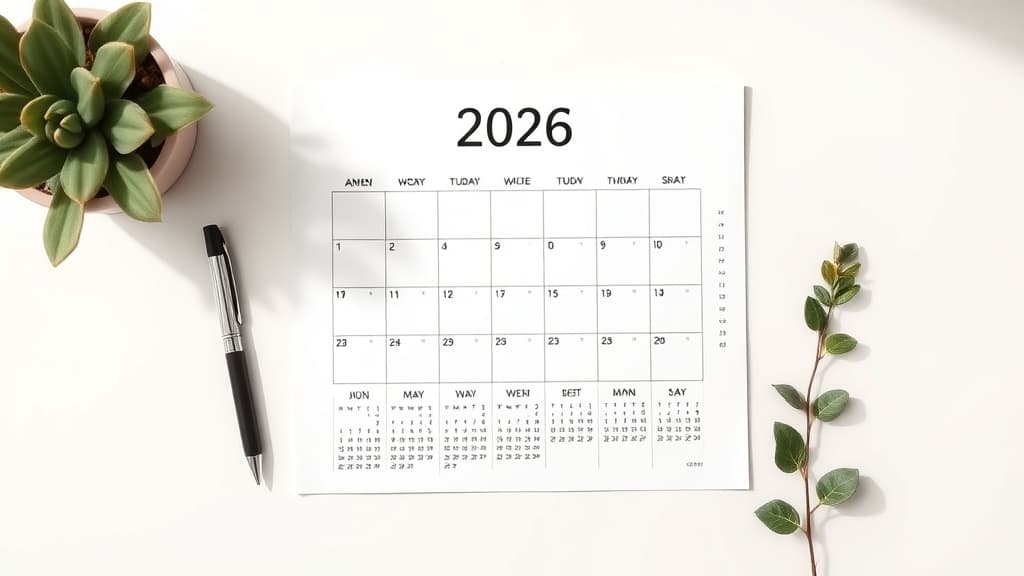
A fresh year calendar you actually like — in your own colors, with your holidays, printed on your own paper — takes about ten minutes to make in Canva. No need to buy one or settle for a generic template. This is a step-by-step guide to building a free printable 2026 calendar in Canva, adding holidays, and exporting a clean one-page or 12-month PDF that prints sharp at home.
We'll use Canva's built-in options where they're good enough, and the Calendar Maker Canva app where it saves real time — because drawing a 2026 month grid by hand, cell by cell, is exactly the kind of busywork you don't need to do.
What you'll need #
- A free Canva account.
- The Calendar Maker app (optional but recommended — it auto-generates the grid so you skip the manual layout).
- A 2026 holiday list for your country (grab it from an official source so the dates are right).
- A printer, or a print shop if you want a large wall version.
Step 1: Set up your page size for printing #
Before anything else, decide the print size so your calendar fits the paper.
- In Canva, create a new design and choose a print size: US Letter (8.5 × 11 in) or A4 for home printers, or a larger custom size for a wall calendar.
- Pick the orientation — landscape usually suits a month grid, portrait suits a one-page year overview.
- If you want one full page per month, you'll add 12 pages; if you want the whole year on a single sheet, you'll keep it to one page. (More on that in Step 3.)
Getting the canvas size right first means you won't have to rescale everything later.
Step 2: Generate the 2026 grid #
You've got two paths here.
The manual way: search Canva templates for "2026 calendar," pick one, and edit the dates. This works but the free templates are limited, and if the template is for a different year you'll be retyping every date.
The fast way (Calendar Maker): open the Calendar Maker app inside Canva, go to the Month tab, and choose your month and 2026 as the year. The app draws the full, correctly-dated grid for you — Sundays or Mondays as the week start (it guesses from your region, and you can flip it). Turn on "Add all months" to generate all 12 at once, and "Each month on its own page" so every month lands on a clean separate page. Hit Add to design and the grids drop straight in.
Either way, you now have accurate 2026 dates without counting on your fingers.
Step 3: Choose one-page or 12-month layout #
Decide how you want the year to live on paper:
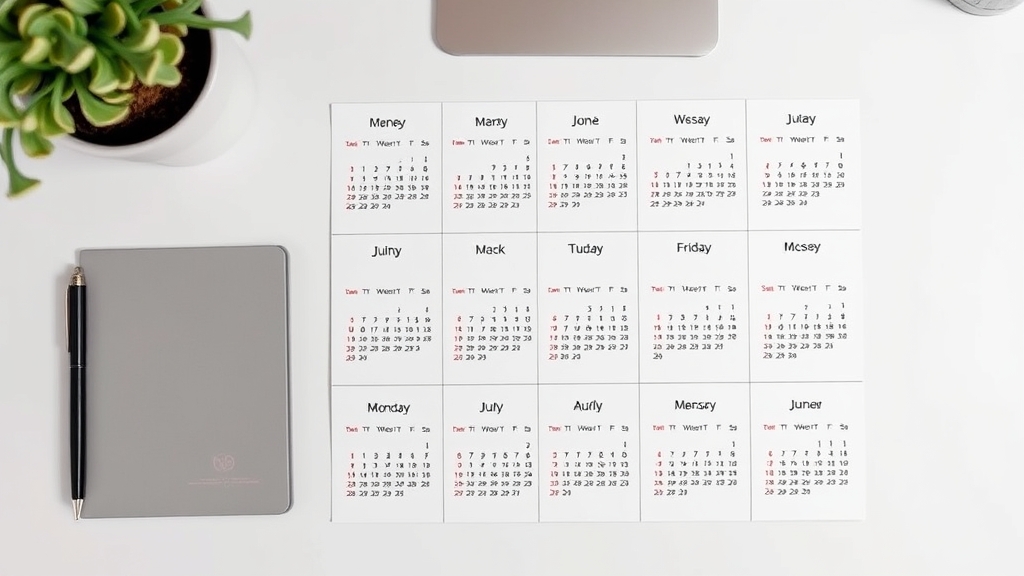
- One-page year (2026 printable calendar one page): a compact overview with all 12 months on a single sheet — great for a desk or fridge quick-reference. In Calendar Maker, generate all 12 months and arrange the smaller grids on one page.
- 12-month layout (printable monthly calendar 2026): one full page per month with room to write. Use "Each month on its own page" so you get 12 print-ready pages in order.
Pick based on whether people will write on it (go 12-month) or just glance at it (go one-page).
Step 4: Style it to match your space #
Now make it yours. In Calendar Maker's style panel — or directly on the Canva elements — adjust:
- Fonts for the weekday headers and the date numbers.
- Colors for the header bar and the alternating row shading (the striped look makes weeks easier to scan).
- One of the 30+ preset color palettes if you'd rather start from a ready-made scheme (Scandi minimal, botanical, pastel, dark mode, and more), then tweak from there.
Keep contrast high if you're printing in black and white, and leave the date cells light so handwriting stays readable.
Step 5: Add your 2026 holidays #
Holidays don't appear automatically, so this is the manual-but-quick part that makes the calendar genuinely useful.
- Open your official 2026 holiday list.
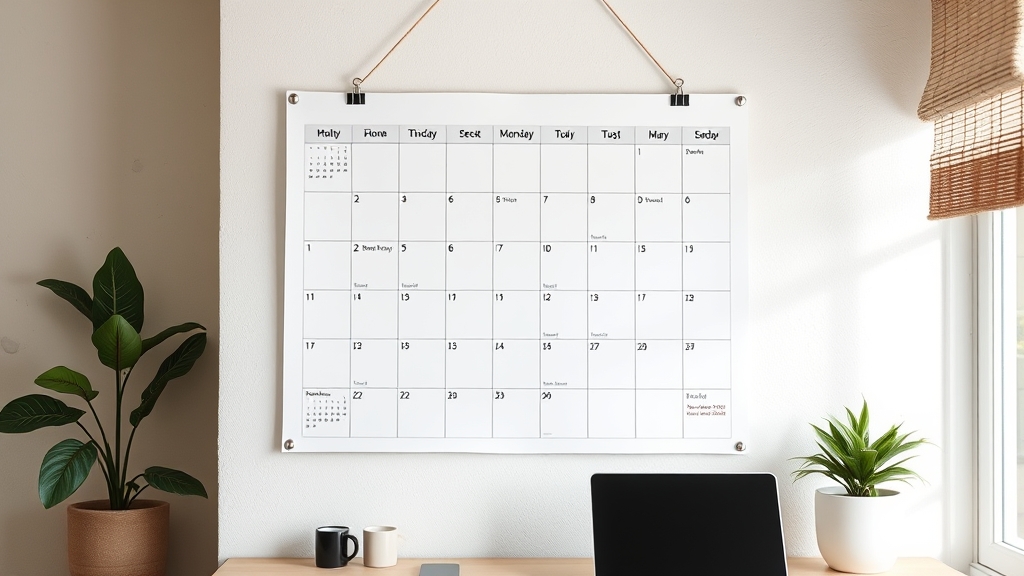
- For each holiday, click into the matching date cell and type the holiday name, or add a small text box over that day.
- Give holidays a distinct accent color (a soft red or gold works well) so they pop against regular dates.
- Add your own dates too while you're here — birthdays, paydays, term dates, deadlines.
Tip: keep the holiday text small and consistent so it doesn't crowd the number in each cell.
Step 6: Add a decorative touch (optional) #
If a plain grid feels too bare, dress it up:
- Use Border Art Maker to add a dotted or icon border around each page for a themed look.
- Drop a seasonal photo into a custom shape with Image to Frame or arrange a small header collage with Frames Lab.
- Add a title, a motivational quote, or your family name at the top.
Don't overdo it — leave breathing room around the grid so the printed dates stay the star.
Step 7: Export a print-ready PDF #
Last step — get it off the screen and onto paper.
- Click Share → Download.
- Choose PDF Print for the sharpest result (better than PNG for text and lines).
- Enable crop marks and bleed only if a print shop asked for them — for home printing, leave them off.
- Download, open the PDF, and print. Set your printer to "Fit to page" or "Actual size" depending on whether you want margins.
That's it — a free, custom, holiday-marked 2026 calendar, printed on your terms.
Quick recap #
Set your print size, generate accurate 2026 grids (Calendar Maker does this in one click and skips the manual date-drawing), choose a one-page or 12-month layout, style it, type in your holidays with a bold accent color, add optional borders or photos, and export as a PDF Print. Ten minutes of setup gets you a calendar that fits your wall, your colors, and your year — for free.
Frequently asked questions
Yes. Canva's free plan includes calendar templates you can edit and download as a PDF. For an auto-generated, fully styled monthly or one-page 2026 grid, the Calendar Maker Canva app builds the whole thing from a month-and-year selection, so you don't have to draw the grid by hand.
Holidays aren't inserted automatically, so add them manually: check an official 2026 holiday list, then type each holiday into the correct day cell or add a small text label. Use a distinct accent color for holidays so they stand out from regular dates.
For home printing, set your design to US Letter (8.5 x 11 in) or A4, and download as PDF Print for the sharpest result. A one-page layout fits the whole year on a single sheet; a 12-month layout gives one full page per month.
Related products


More from QRdy Blog
How to Make a Hat Mockup From a Photo (So the Design Curves With the Cap)
Turn one photo of a blank cap into realistic hat mockups: drag a box around the front panel, let the design wrap the curve with the photo's real shading, then render all your designs at once in your browser.
The Best Canva Apps for Family Reunions (2026): Invites, Banners, Photo Walls and Calendars
Planning a family reunion in Canva? Here are the five Qrdy apps that actually help: shaped photo invitations, photo-letter banners, photo-wall grids, a countdown calendar and a QR link that can change after printing.
How to Make a Birthday Calendar in Canva (Family Birthday Tracker, Step by Step)
Build a printable family birthday calendar in Canva: 12 months, one page each, with names added in minutes. A step-by-step tutorial using Calendar Maker, plus honest notes on what Canva does on its own.