
Photo Collage vs Photo Montage vs Photo Mosaic: What's the Difference?
Collage, montage and mosaic get used as if they mean the same thing. They don't. Here is how each one works, a side-by-side table, and which to build in Canva for your photos.
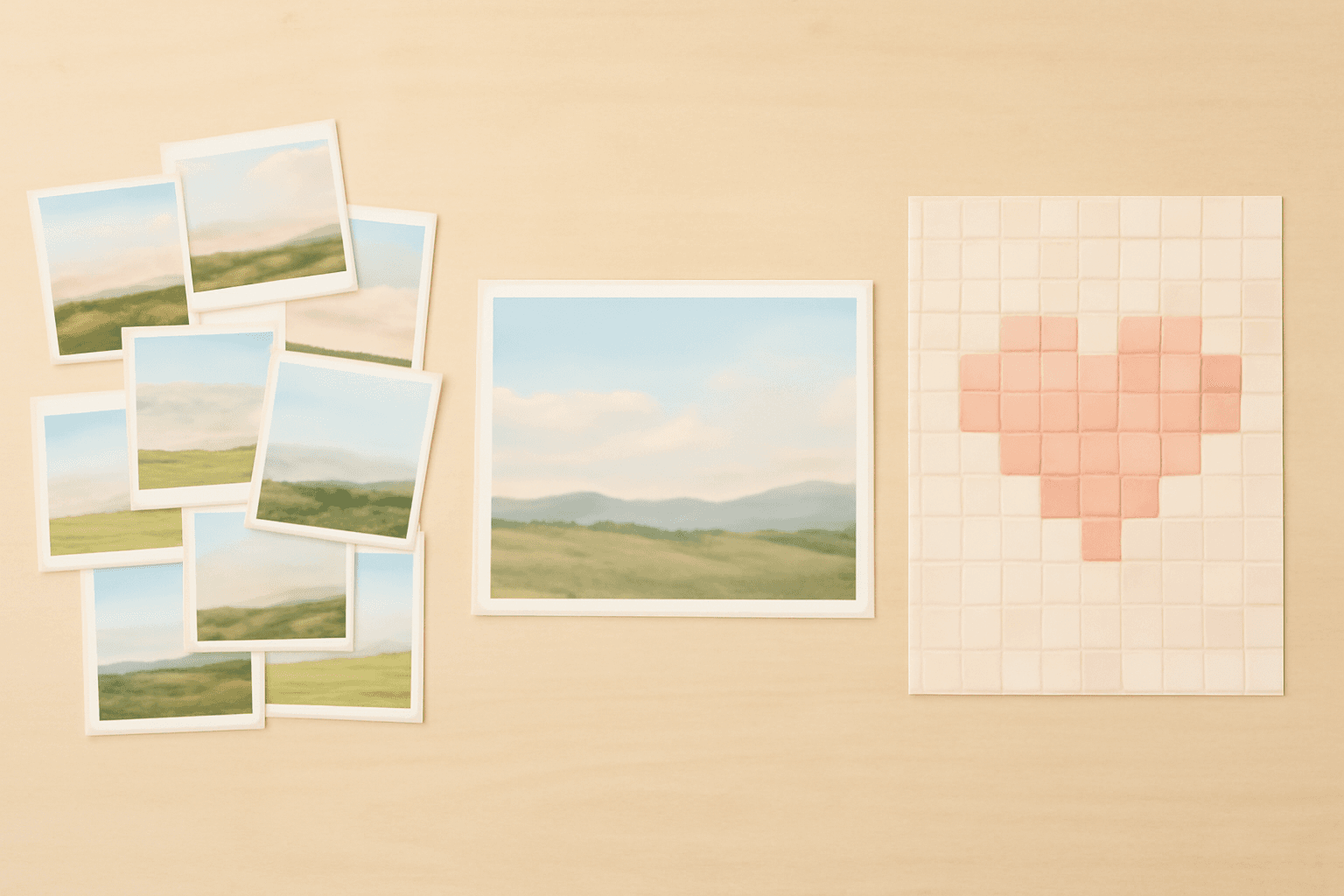
People say "collage", "montage" and "mosaic" as if they were the same thing. They aren't, and picking the wrong word (or the wrong technique) is why a lot of photo projects come out looking muddy. This guide separates the three, gives you a side-by-side table, and says honestly which one Canva handles well on its own and where an app helps.
The short answer #
A collage shows several photos next to or on top of each other, and each photo stays readable. A montage merges or sequences images so they read as one scene or one story. A mosaic uses many small pieces (tiles, colors or tiny photos) to build one larger image, so the whole matters more than any single piece.
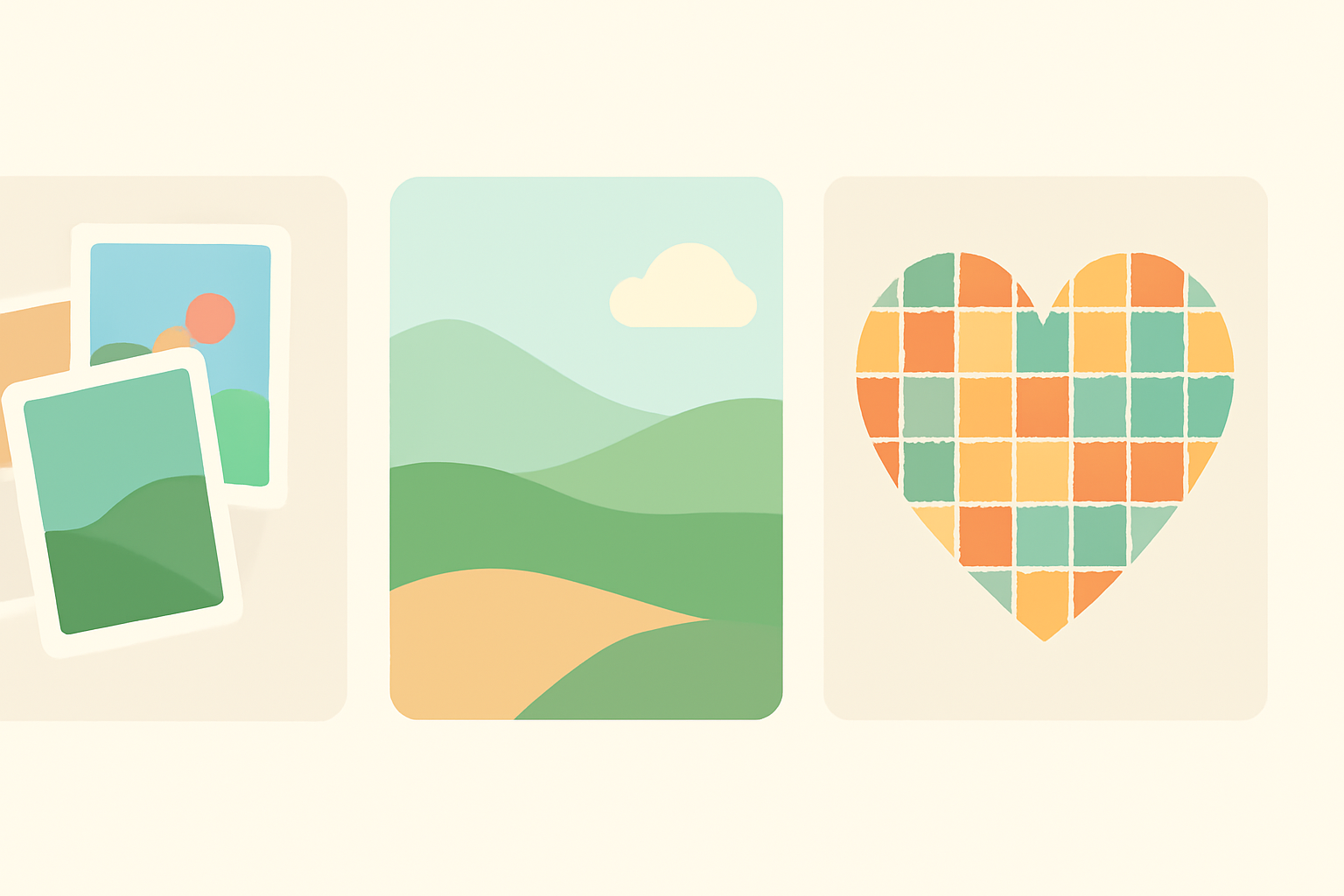
Side-by-side comparison #
| Collage | Montage | Mosaic | |
|---|---|---|---|
| Each photo is visible | Yes | Often partly hidden or blended | Rarely, tiles are tiny |
| Edges between photos | Clear, often a gap or border | Soft, faded or hidden | Tight, a grid of tiles |
| Main goal | Show many moments together | Tell one scene or story | Build one big picture from small parts |
| Typical count | 2 to 30 photos | 2 to 10 layered images | Dozens to thousands of tiles |
| Easiest in Canva | Yes (Grids or a frame app) | Medium (layering, transparency) | Hard for real photo tiles |
| Good for | Gifts, albums, posters | Banners, covers, posters | Wall art, keepsakes, craft kits |
Photo collage: many photos, each one visible #
A collage is the one most people actually want. You place photos in a layout, set a gap, and every picture keeps its own space. Layouts can be a neat grid, a freeform scatter, or a shaped arrangement such as a heart, an arch or a circle.
Canva already does this well. Its built-in Grids cover simple rows and columns for free, and for a basic four-photo layout you do not need an app at all.
Where a frame app earns its place is control. Frames Lab builds grid frames with exact columns, rows and gaps, and has Arc, Diagonal, Burst and Shape modes for collage layouts that Canva's presets do not offer. It builds a frame for you to drop photos into, so you stay inside the normal Canva editor. Honest limits: the grid is capped at roughly 30 cells, and free accounts have a limit on how many frames you can add before an upgrade prompt appears.
If you only need a fast pixel-style layout, Frame Collage toggles cells on a 8x8 to 32x32 matrix and turns each cell into a frame. See our Frames Lab vs Frame Collage comparison for which one suits which job.
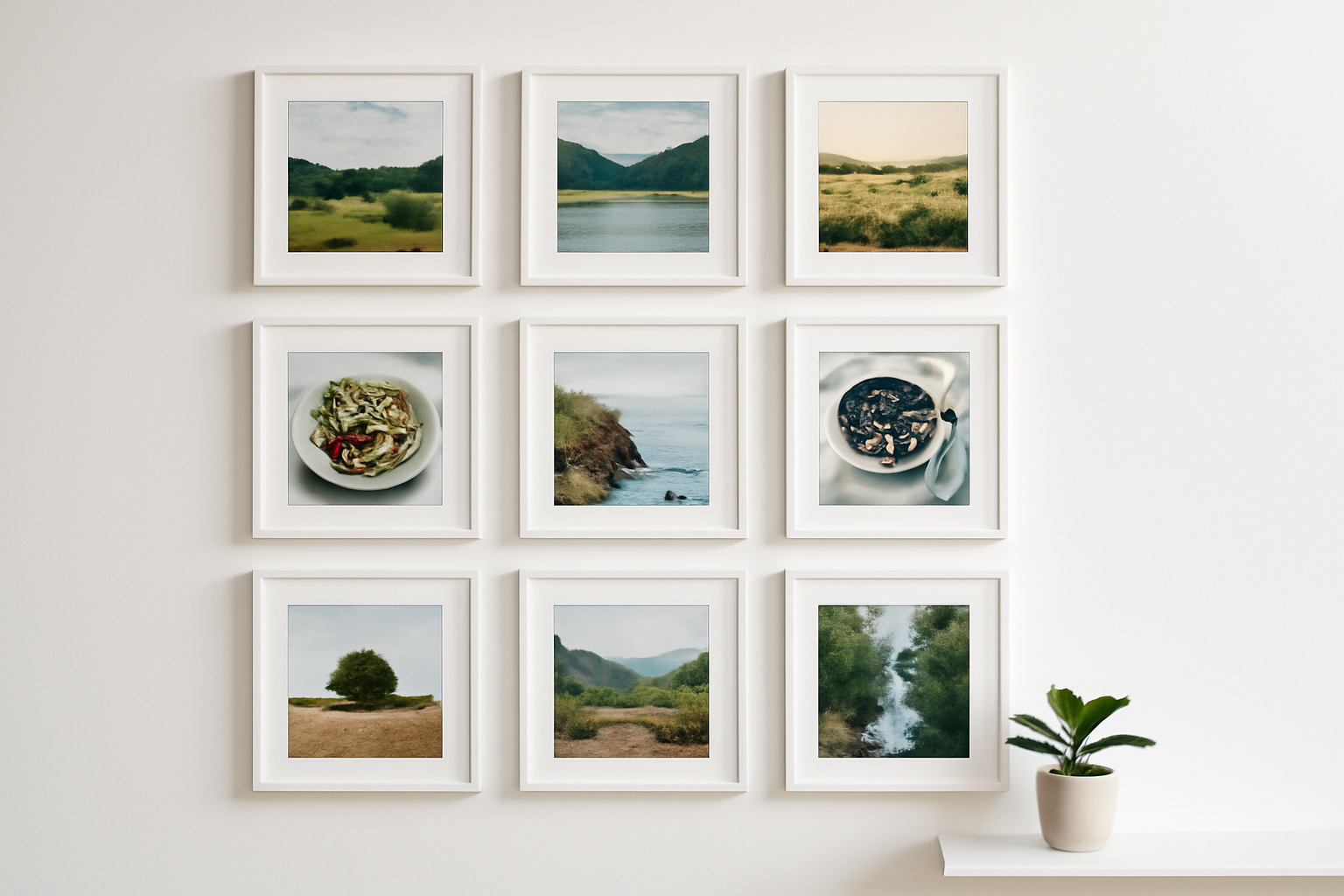
Photo montage: one scene built from several images #
A montage combines images so the joins disappear or become part of the story. Think of a panorama stitched from three shots, a banner where a sky fades into a landscape, or a poster where a portrait dissolves into a skyline. The photos lose their individual borders on purpose.
In Canva you build a montage by layering images, changing transparency, and using a gradient or soft mask to fade edges. It takes more patience than a collage, and there is no one-click version. The keyword "photo montage" gets about 1,900 searches a month, but a lot of those searchers actually want a slideshow video (photos in sequence with music), which is a different project.
Photo mosaic: small pieces, one big picture #
A mosaic builds one large image out of many small pieces. In its classic form, each piece is a tiny photo chosen so the average color matches a spot in the target picture; from far away you see the big image, up close you see the small photos. A simpler version uses plain colored tiles, like pixel art or a craft mosaic.
This is where honesty matters. True photo mosaics made from hundreds of real photos need dedicated mosaic software that matches tiles by color. Canva does not do that on its own, and neither does a grid frame app. What a grid app can do is build a tile layout, such as a heart or letter drawn on a 16x16 grid, and you fill each cell with a color or photo yourself. That is a pixel-style mosaic, not an automatic one.
If the mosaic you have in mind is a printable craft for kids (stick the pieces, build the picture), that is a different tool entirely: QrdyCraft makes printable mosaic sticker kits from a photo or idea. It runs on the web at craft.qrdyai.com rather than inside Canva.
Which one should you make? #
- You have 4 to 20 photos from an event and want them all seen: make a collage.
- You want one dreamy banner or cover from a few images: make a montage.
- You want one bold shape or image made of lots of small pieces: make a mosaic.
- You want a gift with a single photo in a special shape: skip all three and use a shaped frame, for example with Image to Frame.
How to build a collage in Canva in five steps #
Step 1: Pick your canvas size #
Set the page size first (for example 8x10 in for a print, 1080x1080 px for social). Changing size after the layout is built forces you to redo gaps.
Step 2: Decide grid, scatter or shaped #
Grid is the safest and reads as clean. Scatter looks casual. Shaped (arch, circle, heart) feels like a gift. Pick one and stick with it.
Step 3: Make the layout #
For a plain grid, use Canva's Grids. For custom columns, rows and gaps, an arch, or a diagonal layout, open Frames Lab, choose the Grid or Arc mode, set columns, rows and gap, and press Add to design. The frame fits your page size automatically.
Step 4: Drop photos in and match the crop #
Drag each photo into a cell. Keep a consistent gap and crop each image so faces or key subjects sit in the same part of the cell.
Step 5: Export for the right use #
For print, download as PDF Print at 300 DPI and check bleed (see what is bleed in printing). For social, PNG at the native size is fine.
Common mistakes #
- Calling a collage a mosaic in a search or a listing. Buyers searching for a mosaic often want tiles or craft kits, not a photo grid.
- Mixing too many aspect ratios in one collage. Crop to a few consistent shapes.
- Too many cells. Past about 30 tiles in Frames Lab the layout is blocked, and past a dozen photos a collage gets hard to read anyway.
- Building a montage without checking the joins at full size. Soft fades that look fine zoomed out can show hard lines in print.
Where Canva alone is enough #
For a plain collage of a handful of photos, Canva's free Grids are all you need. Reach for an app only when you want exact columns and rows, a shape such as an arch, or a layout Canva does not ship. The apps do not replace blending tools for a montage, and none of them automatically build a photo mosaic from thousands of images.
Try the grid and arc layouts in Frames Lab to build a collage layout in a minute, and see what is a photo collage for the basics.
Frequently asked questions
No. A collage keeps each photo visible as its own piece, usually side by side or overlapping. A montage blends or sequences images so they read as one continuous scene or story, and the borders between photos are often hidden.
In a grid collage every cell is a photo you want people to look at. In a true photo mosaic, hundreds of tiny images or color tiles are chosen to build one larger picture, so the whole matters more than any single tile.
Collages are easy with Canva Grids or a grid frame app like Frames Lab. A montage needs layering and blending in the editor. A mosaic of tiles can be built with a toggle-grid app, but a mosaic made of thousands of real photos needs dedicated mosaic software.
Related products


More from QRdy Blog
How to Make a Mockup Without Photoshop (From Any Product Photo)
Make a realistic product mockup from any plain photo, no PSD or Photoshop needed: drag one box around the print area, fix what the auto pass missed, save a template and render all your designs at once in your browser.
The Best Canva Apps for Save the Dates (2026): Photo Cards, Calendars & QR
Making a save the date in Canva? Here are five Canva apps that add what templates lack: arch and heart photo frames, a monogram, a mini calendar with the date circled, and a QR code.
What Is a Mockup? Meaning, Types, and How Print-on-Demand Sellers Use Them
A mockup is a realistic preview of your design on a real product. Learn the two meanings of "mockup", the main product mockup types, what makes one look fake, and three ways print-on-demand sellers make them.