
How to Put a Photo in a Heart Shape in Canva (3 Easy Ways)
Want a heart-shaped photo in Canva? Use the built-in heart frame, turn any heart graphic into a custom frame with Image to Frame or Frames Lab, or build a heart collage. Step-by-step for each.
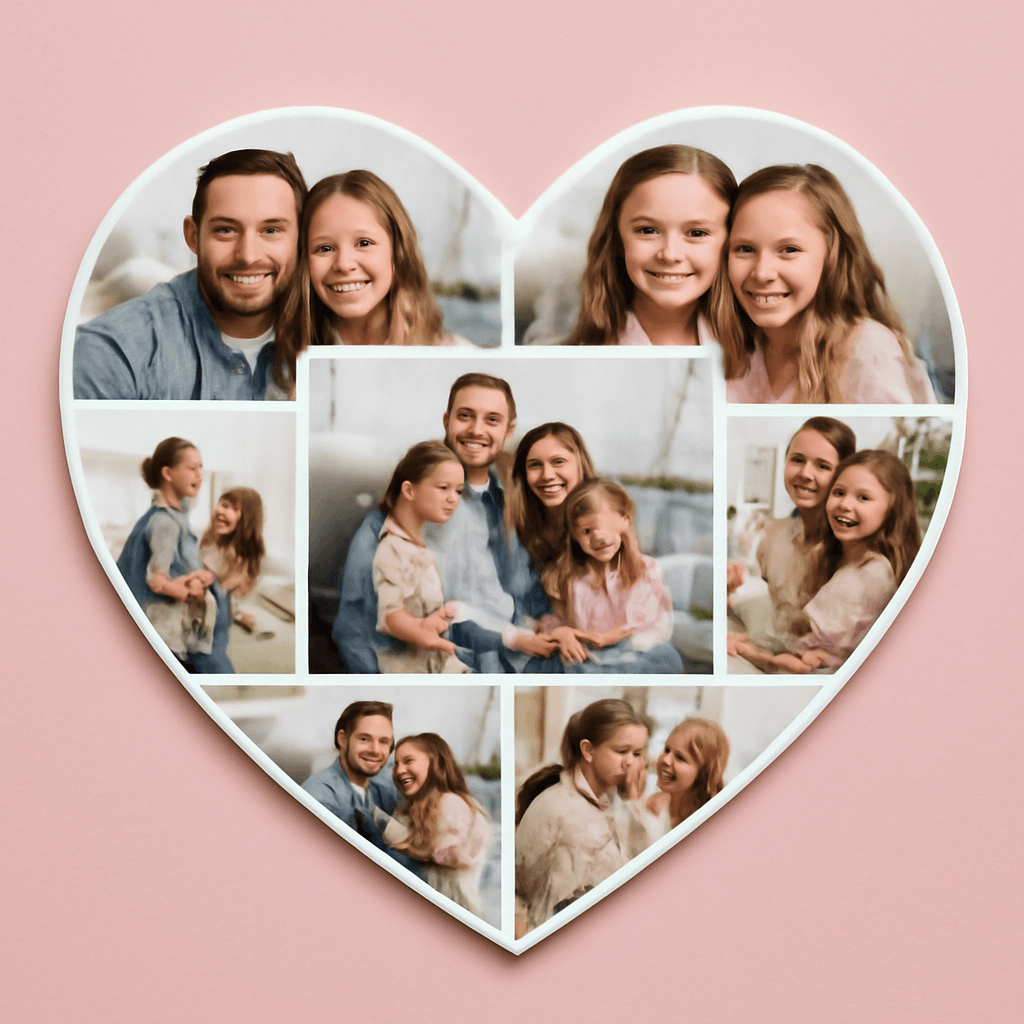
A heart-shaped photo is one of the most-requested edits in Canva: Valentine's cards, anniversary gifts, wedding signs, baby announcements, Mother's Day collages. The catch is that a heart you drop in from Elements is just a graphic, so a photo dragged onto it won't clip. Only frames hold photos. So the real question is: how do you get a heart-shaped frame?
Here are three ways, from fastest to most flexible.

Quick pick: which method should you use? #
| Method | Best for | Effort |
|---|---|---|
| Canva's built-in heart frame | One photo, plain classic heart | Lowest |
| Image to Frame (custom heart) | Your own heart design, outlined or decorative hearts | Low |
| Frames Lab (Shape mode) | A heart already in your design, auto-fits the page | Low |
| Frame Collage (heart collage) | Many photos arranged into a heart | Medium |
Method 1: Canva's built-in heart frame #
- In the Canva editor open Elements and search for "heart frame" (or just "frames" and scroll to the heart).
- Click the heart to add it to your page, then resize it.
- Drag a photo from Uploads onto the frame. It snaps inside.
- Double-click the photo to reposition or zoom it so the faces sit nicely inside the curves.
Tip: this is genuinely the best option if you just need one classic heart. The limits are the catalog (you get the hearts Canva ships) and styling (no custom outline shapes, no heart-of-hearts, no hand-drawn look).
Method 2: Turn any heart image into a frame with Image to Frame #
Use this when you have a specific heart in mind: a hand-drawn heart, a brand heart, a heart made of small hearts, or a heart PNG/SVG you downloaded. Image to Frame is a Canva app from Qrdy that converts a PNG, SVG, or JPG (up to 5 MB) into a valid Canva frame.
- Prepare the heart. Use an image with a transparent background. If it still has a white or colored background, remove it first. Otherwise the frame will be a rectangle instead of a heart.
- Open Image to Frame from the Apps panel in Canva.
- Bring the heart in using one of three options: upload a file, select an image already on your page, or export your design page as a transparent PNG.
- Check the preview. The app shows the frame it's about to create. If it isn't right, remove the image and pick another.
- Set the border (optional). Choose a border color and thickness (0 to 50). Note that the border only shows after the frame is added to your design, not in the preview.
- Click Add frame to design.
- Drag your photo in. It crops to the heart outline. Double-click to adjust position and zoom.

Tips:
- Simple, bold outlines convert best. Very intricate line art may be too complex to convert; if so, try a simpler heart or grab one from the app's Frame Store.
- Want a heart you can't find? Describe it in AI Frames instead of hunting for a file.
Method 3: Convert a heart that's already in your design with Frames Lab #
If you've already placed a heart graphic on your page (including one generated by Canva's AI shape tools), Frames Lab can convert it in place.
- Add a heart from Elements → Shape or Elements → Graphics.
- Open Frames Lab and, on the Create tab, choose Shape mode.
- Click Recheck design. The app lists the shapes it finds.
- (Optional) Set a border color and thickness first.
- Click your heart in the list to add it as a frame. It's sized to fit your page automatically.
- Drag a photo onto it. If you edit the design later, click Recheck design again so the app refreshes.
Frames Lab also has a Style tab where you can add Blur, Border, or Inner Shadow to a frame you've already used, which gives a soft glow around the heart.
Method 4 (bonus): A heart-shaped photo collage #
For many photos in one heart, use Frame Collage: it builds a grid (8×8 up to 32×32) where each cell is its own frame, and you can toggle cells on and off to trace a heart. Then drop a different photo into each cell. For a simpler look, put one large heart frame in the center and let smaller photos sit around it.
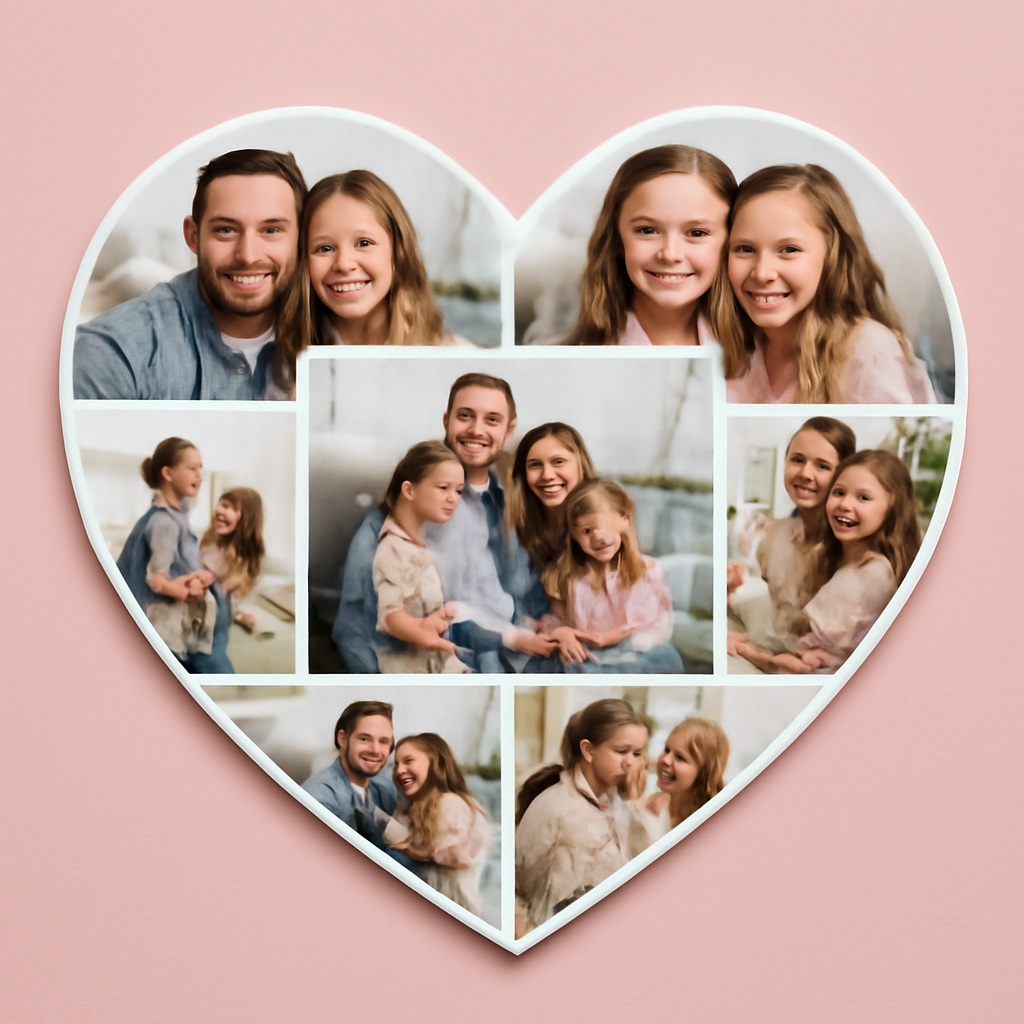
Tips for a heart photo that looks good #
- Choose photos with the subject centered. Heart curves cut the top corners, so faces near the edges get clipped.
- Use a wider crop for couples. Heart shapes are roughly as wide as tall; portrait crops leave empty space.
- Add a border for print. A thin white or colored border gives a clean edge, especially on cards.
- Export as PNG for transparency. If you want the heart on another background, download as PNG with a transparent background (Canva Pro) or place it on your final design directly.
Wrap-up #
For one plain heart, use Canva's built-in frame. For a custom heart, convert an image with Image to Frame or a shape already in your design with Frames Lab. For lots of photos, build a collage. In every case the principle is the same: get a heart-shaped frame, then drag your photo in.
Frequently asked questions
Yes. Search "heart frame" or "frames" in Elements, add the heart frame to your page, then drag a photo onto it. It's the fastest method when a plain heart is all you need. For a custom heart (rounded, outlined, a heart made of smaller hearts), you need a frame-maker app.
With Image to Frame, this almost always means the source image still has a solid background. Remove the background or use a transparent PNG first, then convert it, so the frame follows the heart outline instead of the image's rectangular edges.
Yes. Build a collage grid with Frame Collage and toggle cells on and off to trace a heart, or use a heart frame and place several photos behind it. Each cell is its own frame, so you can drop a different photo into each one.
Related products


More from QRdy Blog
What Is a Silhouette? Meaning, Examples, and How to Use One in Canva
A silhouette is a solid, single-color outline of a shape with no inner detail. Here is what it means, how it works, the main types, and how to turn one into a photo frame in Canva.
10 Weekly Schedule & Countdown Calendar Ideas You Can Make in Canva
Ten practical ideas for weekly schedules and countdown calendars in Canva: class timetables, chore charts, 30-day challenges, wedding and holiday countdowns, all built with Calendar Maker's Week and Custom tabs.
Vector vs Raster: What's the Difference (and Which to Use)
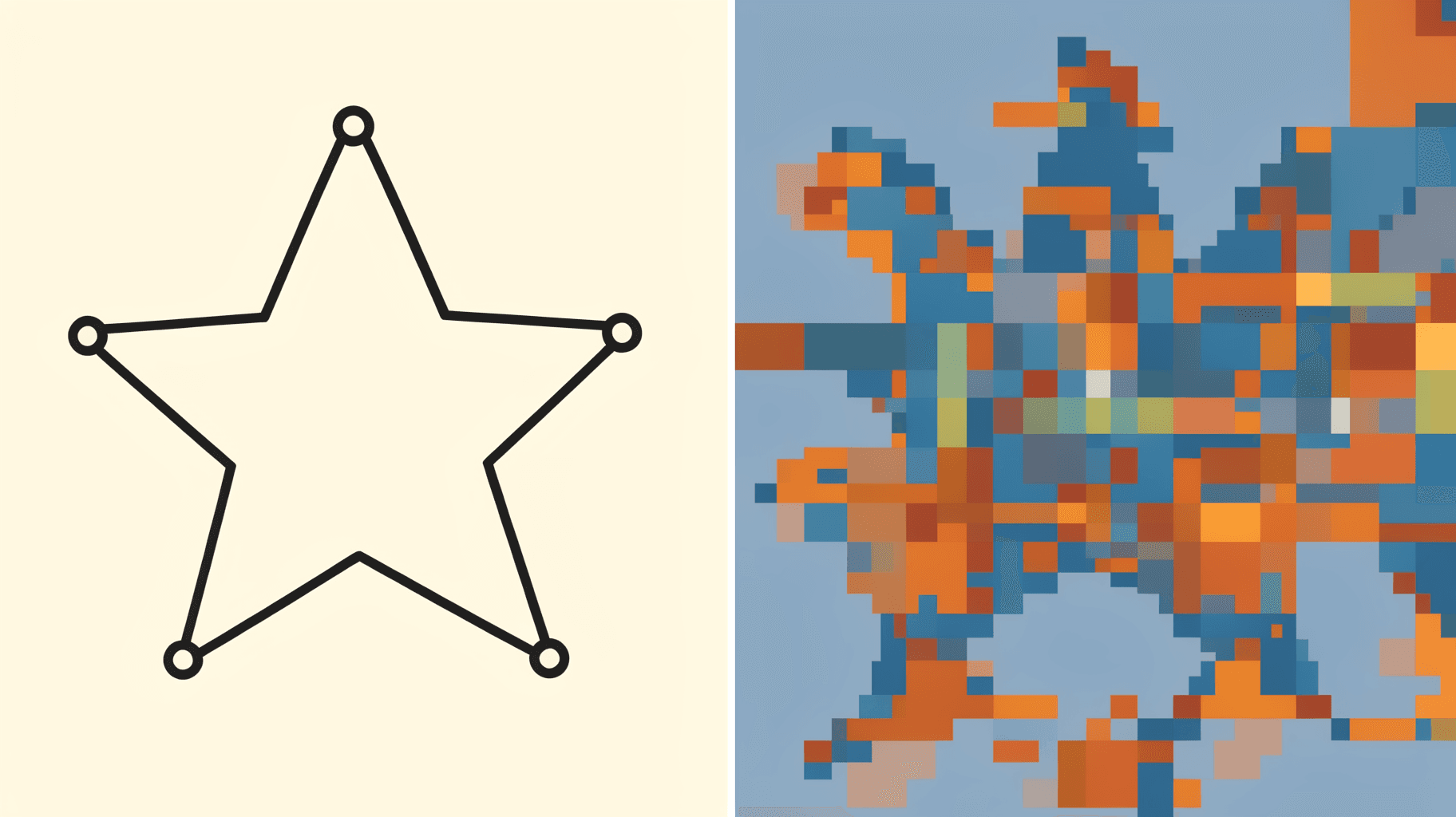
Vector graphics are built from math paths that scale to any size; raster images are grids of pixels that don't. Here's the real difference, plus which one to reach for with logos, photos, and Canva frame shapes.