
How to Make a Mockup Without Photoshop (From Any Product Photo)
Make a realistic product mockup from any plain photo, no PSD or Photoshop needed: drag one box around the print area, fix what the auto pass missed, save a template and render all your designs at once in your browser.
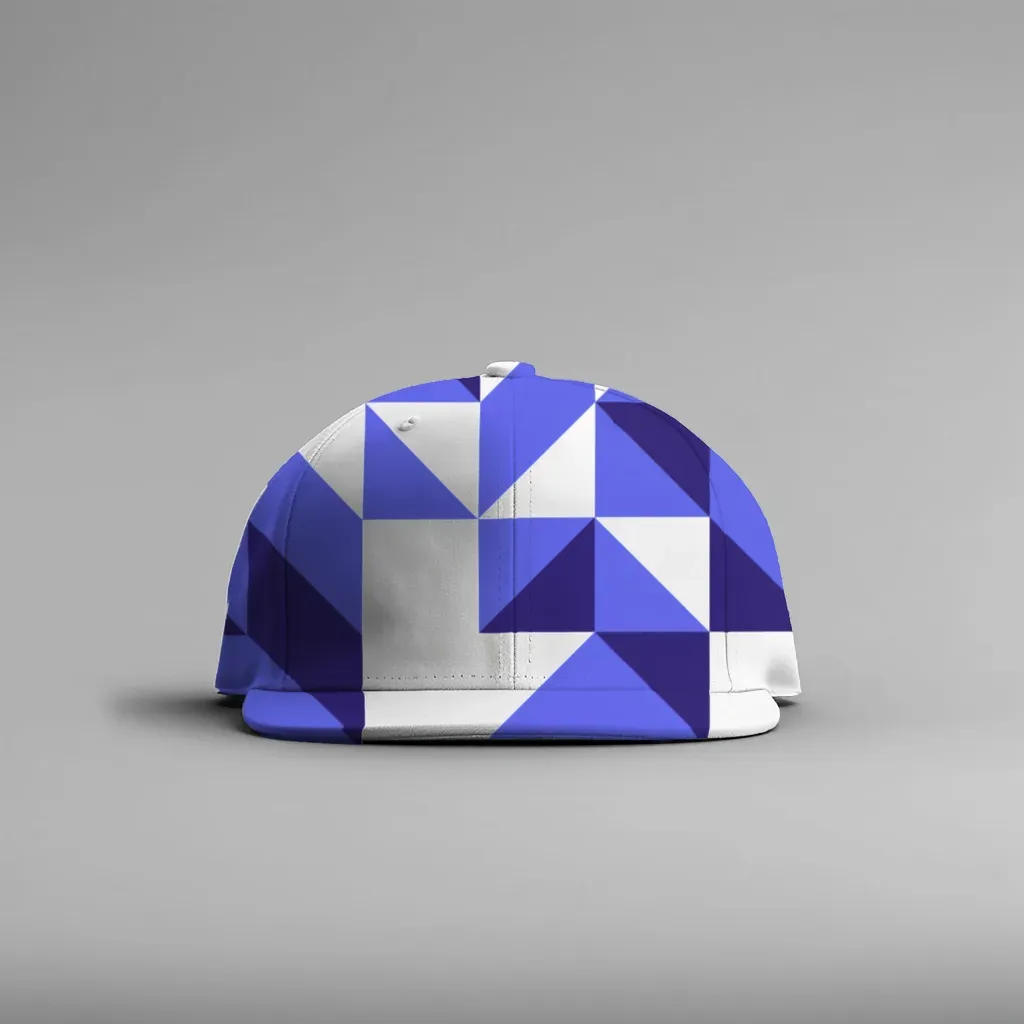
You can make a mockup without Photoshop by starting from any plain product photo: open it in a browser-based tool, drag a box around the print area, let the tool cut out the product and map the design to its surface, fix anything it missed, then save that photo as a reusable template and render all your designs onto it at once.
That is the whole idea. No PSD file, no smart objects, no warp tool. The rest of this guide walks through each step, explains what is happening behind the scenes so you know what to check, and is upfront about where the automatic part still needs a human touch.
If you are new to the term itself, start with What Is a Mockup? and come back here.
What you need before you start #
- One clear product photo. A blank white or light product works best: a supplier photo, a stock photo, or a picture you took with your phone. The print area should be visible and not covered by hands, straps or heavy shadows.
- Your designs as PNG or JPG files. Transparent PNGs look the most natural, because only the artwork lands on the product.
- A desktop browser. Chrome, Edge, Firefox or Safari on a laptop or desktop. The tool needs WebGL2, which any recent browser has.
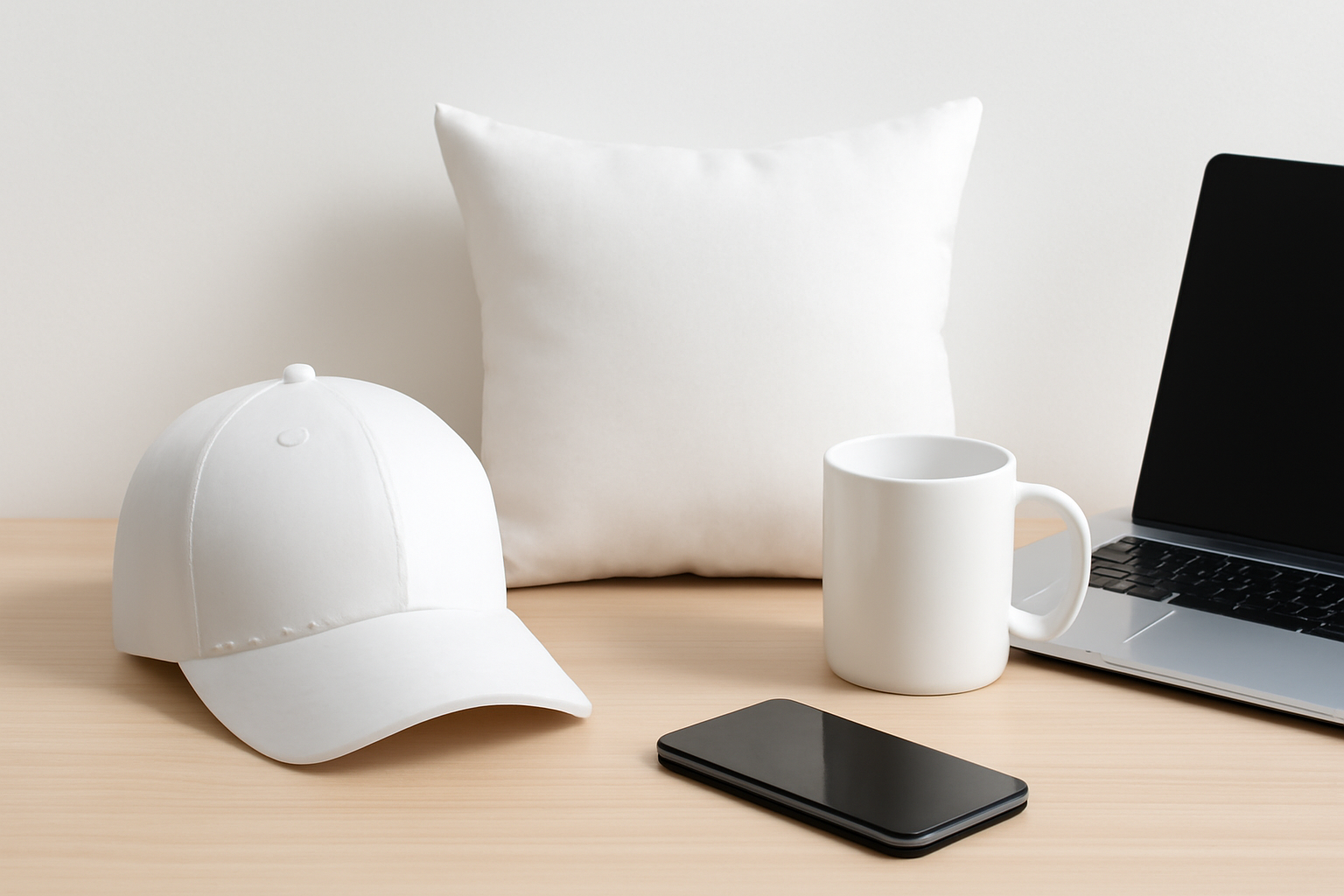
Illustration: any plain product photo like this can be the starting point.
How the Photoshop method works (and why people look for an alternative) #
The classic route is a PSD mockup with a smart object. You open the PSD, double-click the smart object layer, paste your design, save, and Photoshop wraps it onto the product using layers someone else built: a displacement map for folds, blend modes for shading, a mask for the edges. It produces excellent results.
The catch is that someone has to build that PSD first. If your supplier photo, your own product shot or your favorite stock image does not come as a PSD, you either build the layers yourself (Warp, displacement map, clipping mask, multiply layer) or go hunting for a PSD that looks close enough. And if you have 40 designs, you repeat the replace-and-export loop 40 times unless you add actions or a batch plugin.
Going without Photoshop means a tool has to do the PSD-building part for you, from a normal photo.
Step-by-step: make a mockup from any photo #
These steps use MockupPress, a free web app that runs in your browser. The same logic applies to any photo-to-mockup workflow.
1. Drop in your product photo #
Open the Photos page and drop a JPG or PNG. One photo opens straight into template editing. The image is resized to a maximum of 1536 px on the long edge and stored in your browser, not uploaded to a server.
2. Drag a box around where the design will print #
This is the only required action. Draw a rectangle around the print area: the chest of a shirt, the front panel of a cap, the face of a pillow. In about a second, the tool:
- Cuts out the product from the background so the design does not spill onto the wall or table. This uses a segmentation model that runs locally in your browser (it downloads about 14 MB the first time).
- Snaps to the edges of the print surface.
- Chooses a surface shape: Flat for posters, framed prints or cards seen in perspective, Cylinder for mugs, tumblers and caps, or a free-form mesh for fabric that bends, like pillows and draped shirts.
- Reads the light from your photo: highlights, shadows and fabric folds, so the design picks up the same shading as the product instead of looking pasted on.
A live preview shows a labeled grid pattern on the product, which makes it easy to spot stretching or misalignment. You can switch the preview to a color sample or drop in one of your own designs.
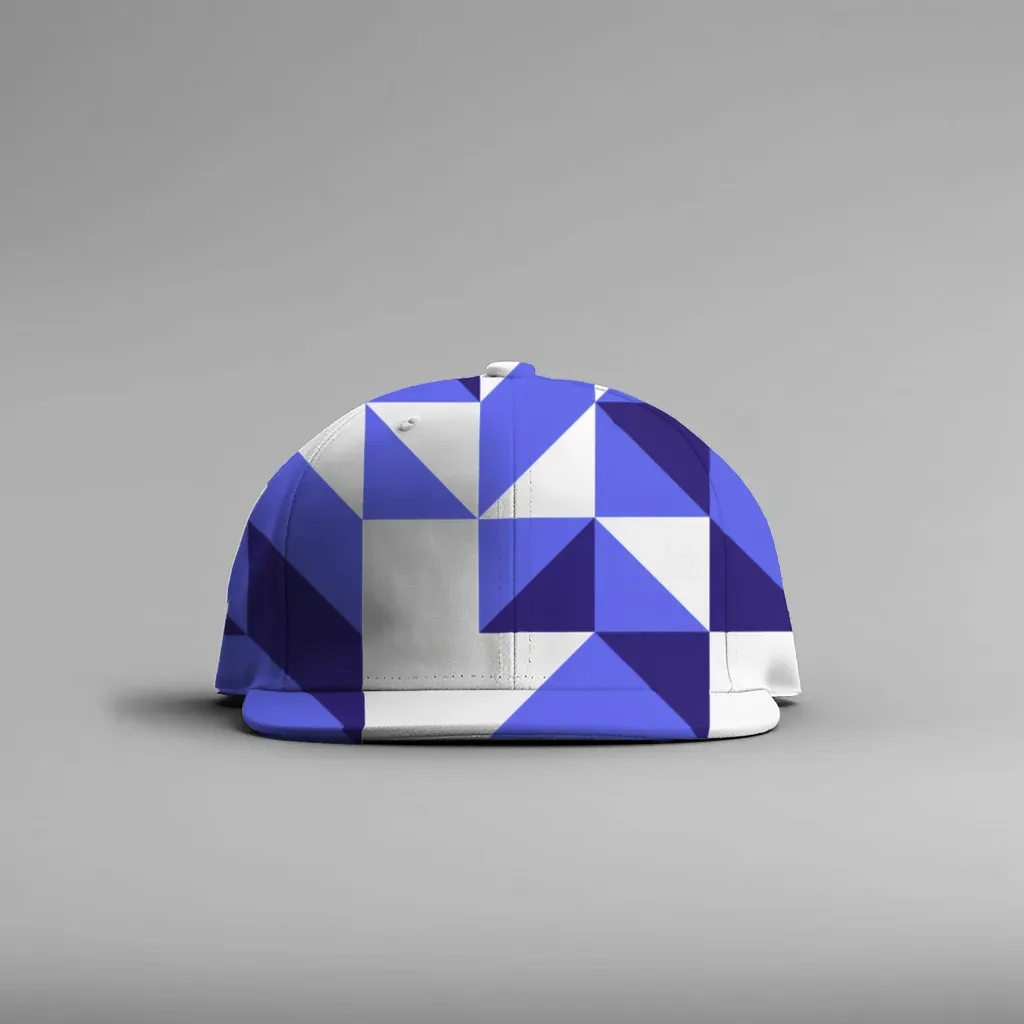
A real render: the design follows the curve of the cap's front panel because the surface was detected as a cylinder.
3. Fix what the automatic pass missed #
Automatic detection is a starting point, not a promise. Photos with a hand in the frame, a busy background or a steep angle usually need a few touches. There are only three editing tools, which keeps this quick:
- Grid: drag the grid points so they hug the edges. Click an edge to add a dividing line, double-click to remove a point. Points snap to the outline (hold Alt to turn snapping off).
- Add / Subtract brush: paint to add or remove parts of the print area, for example to keep the design off a mug handle, a strap or someone's fingers.
- Highlights / Shadows / Edge: two sliders for how strongly the photo's lighting shows through the design, and one to grow or shrink the print area by a few pixels if the design falls short of the edge or bleeds past it.
Undo works as usual. Need a second print area, such as the back of a shirt or a set of three frames on one wall? Use Add area and drag another box.
4. Save it as a template #
Click Save. The template takes the photo's file name and you can rename it later. On the Templates page you can set how designs fit the print area: Cover (fill and crop, the default), Fit inside, or Stretch. Each template also shows a recommended design ratio and size, which helps when you prepare artwork.
5. Render your designs in bulk #
Go to the Bulk page, pick one or more templates, and drop in your designs. Click Render and every design is placed on every selected template. A real test run: 23 designs on 2 templates (a cap and a sofa pillow) produced 46 images at 1536 × 1536 in under a minute on a laptop.
You download a ZIP with all images plus a manifest.csv listing each file, its template and design. File names follow a pattern you control (for example {design}_{template}), and adding a / in the pattern creates folders, so one folder can equal one listing. In Chrome and Edge you can also save straight to a folder on your computer.
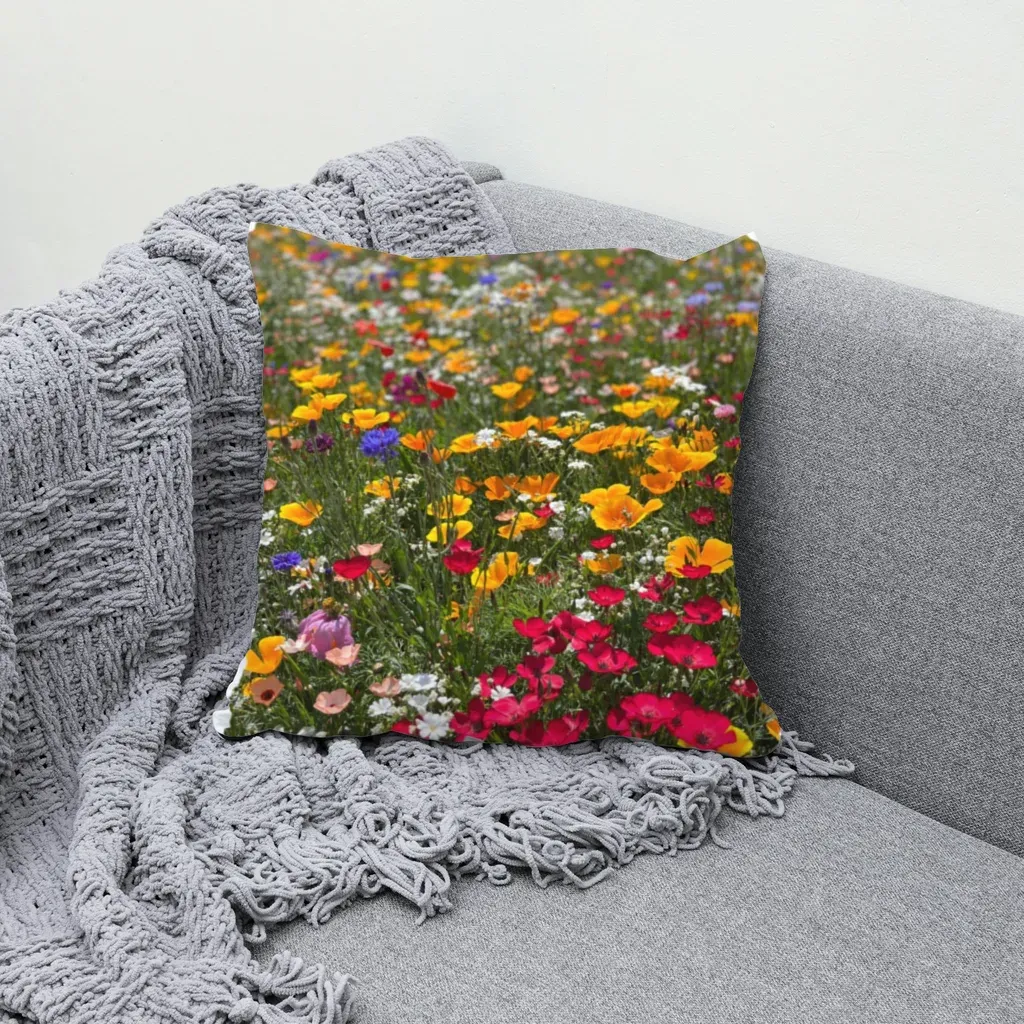
A real render from the same batch workflow: the print follows the pillow's folds and keeps the photo's shading.
Ready to try it on your own product photo? Make a mockup from your photo in the browser. It is free during the open beta, with no account and no watermark.
Tips for better results #
- Shoot or choose photos with even light. Soft, diffuse light gives clean shading. Harsh direct sun creates hard shadows that can make dark designs look muddy.
- Keep the print area unobstructed. Every finger or strap across the print area is something you will need to brush out.
- Use transparent PNGs. A white rectangle behind your artwork will show up on colored products.
- Prepare light and dark versions. If you sell on both light and dark blanks, name your files
name_lightandname_dark. The bulk renderer picks the right one based on whether the product in the template is light or dark. - Check the grid preview before saving. If the labeled squares look evenly spaced and follow the surface, your designs will too.
- Use one photo per color. The tool does not recolor products, so if you sell a cap in white and black, use one photo of each.
Honest limits to know #
- There is no built-in mockup library. You bring the product photo. That is the point (your listings do not look like everyone else's), but it means you need a decent photo to start.
- Output tops out at 1536 px on the long edge. That is plenty for most marketplace listing photos, but not for large print previews.
- Your data stays on your device. Photos, templates and designs live in your browser's storage. Clearing browser data or switching computers means starting over, and there is no sync between devices.
- Desktop is best. It works on a phone, but dragging boxes and grid points is much easier with a mouse or trackpad.
- Products that already have a printed graphic will have your design placed on top of it, so start from a blank.
Photoshop vs. a browser-based workflow at a glance #
| Photoshop + PSD | Photo-to-mockup in the browser | |
|---|---|---|
| Starting file | A prepared PSD with smart object | Any product photo |
| Software | Photoshop subscription | A web browser |
| Folds and shading | Excellent, built by the PSD author | Measured from your photo, editable |
| Many designs at once | Needs actions or a plugin | Built in (designs × templates) |
| Fine control | Total, layer by layer | Grid, brush and three sliders |
| Max size | As large as the PSD | 1536 px long edge |
Photoshop still wins on maximum control and resolution. If you already own a great PSD for a product, keep using it. The browser route wins when your starting point is just a photo and you have a pile of designs to get through.
The short version #
Pick a clear photo, drag one box, fix anything that looks off, save, and render everything in one batch. You never need to open Photoshop, and the files never leave your computer.
Frequently asked questions
Yes. A browser-based tool like MockupPress lets you start from any product photo, drag a box around the print area and render your designs onto it. It is free during the open beta, with no account, no watermark and no render limit.
No. A photo-to-mockup tool builds what a PSD normally provides (cut-out, surface shape, shading and folds) directly from a normal photo. You still need a clear photo with a visible print area.
No. The product photo is your own real photo and no product pixels are generated. A segmentation model runs locally in your browser only to cut the product out of the background; the design is then mapped onto the surface using the light measured from your photo.
Up to 1536 px on the long edge, matching your photo after resizing. That suits most marketplace listing photos, but it is not meant for large print previews or 4K images.
No. Everything runs in your browser and is stored in its local storage. The flip side is that clearing browser data or switching computers removes your templates, since there is no cloud sync.
More from QRdy Blog
Photo Collage vs Photo Montage vs Photo Mosaic: What's the Difference?
Collage, montage and mosaic get used as if they mean the same thing. They don't. Here is how each one works, a side-by-side table, and which to build in Canva for your photos.
The Best Canva Apps for Save the Dates (2026): Photo Cards, Calendars & QR
Making a save the date in Canva? Here are five Canva apps that add what templates lack: arch and heart photo frames, a monogram, a mini calendar with the date circled, and a QR code.
What Is a Mockup? Meaning, Types, and How Print-on-Demand Sellers Use Them
A mockup is a realistic preview of your design on a real product. Learn the two meanings of "mockup", the main product mockup types, what makes one look fake, and three ways print-on-demand sellers make them.