
Frames Lab vs Frame Collage: Which Canva Collage App Should You Use?
Both apps build photo collages in Canva, but they get there in opposite ways: Frames Lab generates a grid from numbers you set, while Frame Collage lets you toggle cells on a matrix like pixel art. Here is which one fits your layout.
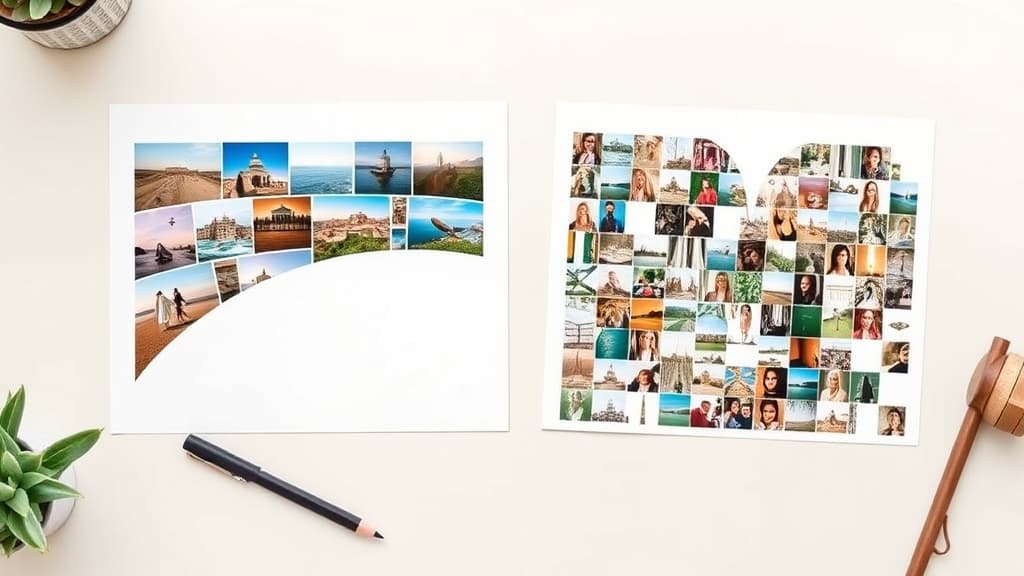
Both of these are QRdy Canva apps, both make photo collages, and both end up producing the same thing: real Canva frames you can drag photos into. But the way you get to the collage is completely different, and that difference decides which one you should open.
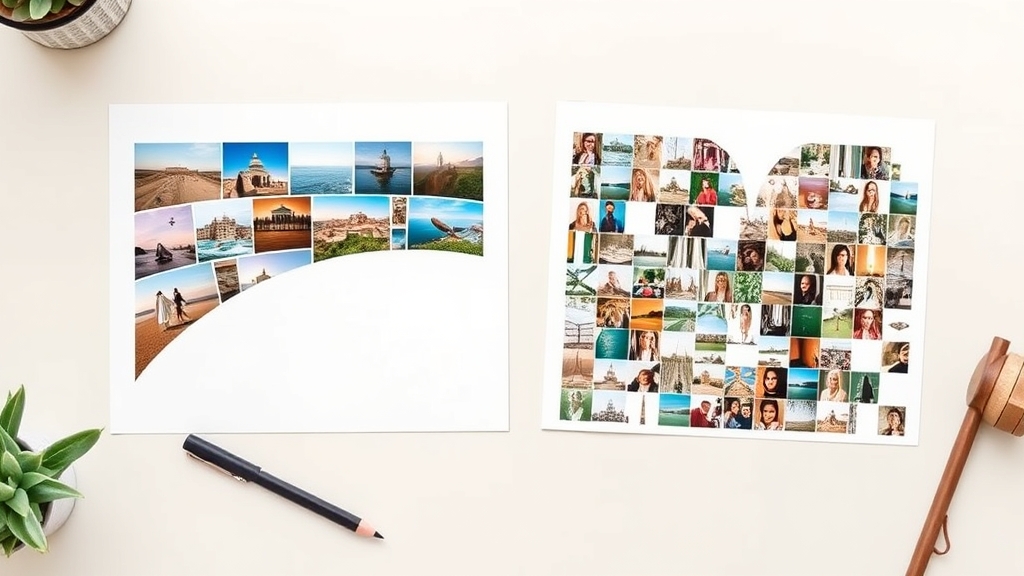
Frames Lab is parametric. You type numbers — 3 columns, 4 rows, 12px gap — and it generates a tidy grid. Or an arc. Or a diagonal grid, or a burst.
Frame Collage is manual. You get a blank matrix and you click cells on and off, like pixel art, until the lit cells form the shape you want.
If you know exactly what layout you want but not what shape, use Frames Lab. If you know exactly what shape you want, use Frame Collage.
Quick comparison #
| Frames Lab | Frame Collage | |
|---|---|---|
| How you build it | Set parameters (rows, columns, gap, angle) | Toggle individual cells on a matrix |
| Layouts available | Grid, Arc, Diagonal, Burst, Shape | Grid only — but any silhouette within it |
| Grid sizes | You choose rows × columns (roughly 30 cells max) | 8×8, 16×16, 24×24, 32×32 |
| Shaped collages (heart, star, letter) | No | Yes — that's the point |
| Curved or angled layouts | Yes — arc, wave, diagonal angle | No |
| Presets to start from | Explore tab (ready-made frame collections) | Built-in cell presets (heart, star, letters, animals) |
| Border control | Colour + thickness on every mode | Border colour + spacing between cells |
| Extra effects | Style tab: Blur, Border, Inner Shadow | Single-colour preview before you fill |
| Best for | Clean magazine grids, arc banners, mood boards | Mosaic photo walls, Instagram puzzle feeds, shaped keepsakes |
What Frames Lab actually does #
Frames Lab has five Create modes, and only one of them is a plain grid:
- Grid — set width and height, columns, rows and the gap between cells. There's a wave option that bends the grid lines, and advanced settings for straight borders, rounded corners, and merging the whole thing into one block.
- Arc — a curved photo frame. You set the arc size in degrees (270°, say) and the starting angle.
- Diagonal — the same idea as Grid but the strips run at an angle you choose, with spacing, gap and wave controls.
- Burst — randomly generated sunburst and firework frames. Density, size, spread, variation and distribution are all adjustable, and the app shows you between 2 and 10 previews at a time.
- Shape — takes a shape already sitting in your design (from Elements → Shapes or Graphics) and converts it to a frame. Hit Recheck design so the app can find it.
Everything updates in a live preview, and the generated frame auto-scales to fit whatever page size you have open, so you're not resizing by hand.
There are two other tabs worth knowing about. Explore is a library of ready-made frame collections — click one, it goes straight into your design, no settings at all. Style remembers the frames you've recently added and lets you re-add them with Blur, Border or Inner Shadow applied.
One real limit: grids beyond roughly 30 cells get blocked, and heavy wave settings can trip the same wall. If you see a "layout too complex" message, drop the rows and columns or ease off the wave.
What Frame Collage actually does #
Frame Collage gives you a matrix — 8×8, 16×16, 24×24 or 32×32 — and you click cells to switch them on and off. Lit cells become frames. Dark cells stay empty.
That's a much simpler feature list, and it buys you exactly one thing Frames Lab cannot do: the collage can be a shape. Turn on the right cells and your photos spell out a heart, a star, a letter, an animal silhouette. There are presets so you don't have to click 400 squares by hand for the common ones, but you can absolutely draw your own.
You also get spacing and border colour, plus a flat single-colour preview so you can judge the silhouette before you commit any photos to it.
At 32×32 you're looking at over a thousand potential cells, which is why this is the app for mosaic-style work — dense photo walls, blocky pixel-art portraits, Instagram grids where the individual tiles matter less than the pattern they make together.

Pick by what you're making #
Use Frames Lab if you're making:
- A magazine-style photo grid with precise, even gutters
- An arc or curved banner across the top of a poster
- A diagonal or wave-bent collage that isn't a boring rectangle
- A mood board or vision board with a mix of frame styles
- Anything where you want the frame to have blur, an inner shadow, or a coloured border
Use Frame Collage if you're making:
- A heart, star or letter built out of many small photos
- A dense mosaic photo wall — anniversary, graduation, year-in-review
- An Instagram puzzle feed where a single image is split across a grid
- A bingo card, worksheet grid, or any large even matrix
- Blocky pixel-art style artwork
What Canva already does natively #
Worth being straight about this: Canva has Grids (Elements → Grids) and Frames (Elements → Frames) built in, and they're free.
Grids handle the basic case well — a 2×2 or 3×3 rectangular photo layout with adjustable gaps. If that's genuinely all you need, you don't need either app. Canva's Frames library also has plenty of shapes for single photos.
Where the native tools stop is where these two apps start. Canva Grids do rectangles only — no arcs, no diagonals, no wave, and no way to set an exact column count for an unusual layout. And nothing in Canva builds a shaped mosaic out of hundreds of small cells. If you've ever tried to hand-assemble a heart out of 200 tiny photo squares in Canva, you already know why Frame Collage exists.
The verdict #
These aren't competitors. They solve two different problems that happen to share the word "collage."
Frames Lab is the one to install first. It's broader — five modes, an Explore library, a Style tab — and the layouts it produces (arc, diagonal, wave grid) are the ones you'll reach for most often in ordinary design work. It's the general-purpose frame toolbox.
Frame Collage is the specialist. You won't open it every week, but the day you need photos arranged into a heart or a letter, nothing else in Canva does it and you'll be very glad it's there.
Install Frames Lab for the everyday work. Add Frame Collage when a project calls for a shaped mosaic.
Related apps worth knowing #
If neither is quite right, the rest of the QRdy frame family covers the gaps:
- Image to Frame — you already have a PNG or SVG of the shape you want; this converts it into a Canva frame (PNG/SVG/JPG, up to 5MB).
- AI Frames — describe the frame in words and let it draw one, plus a library of 20,000+ free frames.
- Clipping Mask — for a one-off cut-out rather than a reusable frame.
- Trace to Frame — click points to draw a custom frame outline by hand.
Quick tips for either app #
- Set your page size before you generate. Frames Lab scales the frame to the open design, so getting the canvas right first saves a resize.
- Remove backgrounds first. If you're feeding a photo into a frame with a visible edge, a stray white background will show.
- Drop photos in last. Build and position the whole layout empty, then fill it — much easier to judge the composition.
- Double-click to reposition. Once a photo is inside a frame, double-click it to pan and zoom the crop.
- Check at 100% before printing. Small mosaic cells hide low-resolution photos on screen and expose them on paper.
Frequently asked questions
Yes. They are separate Canva apps and neither one replaces the other. A common combination is a Frames Lab arc or grid as the main photo block, with a small Frame Collage mosaic beside it as a decorative accent. Both output ordinary Canva frames, so once they are on the page they behave identically — you drag photos in and Canva does the rest.
Frame Collage. Its whole point is that you toggle individual cells on a matrix, so the lit cells can spell out a heart, a star, a letter or any blocky silhouette you draw yourself. It also ships with presets for common shapes. Frames Lab does not do that — its Grid mode is always a full rectangular grid.
Yes. Both apps output real Canva frames, and Canva frames accept video as well as photos. Drop a video clip onto a cell and it plays inside that shape. This works the same whether the frame came from Frames Lab, Frame Collage, or Canva's own Frames in Elements.
Frames Lab limits how many frames free users can add to a design; when you hit the cap the app shows an upgrade prompt that opens qrdynamic.xyz in a new tab. Pro removes the limit. Free and Pro tiers can change, so check the current terms inside the app before you plan a big project around it.
Related products


More from QRdy Blog

The Best Canva Apps for Graduation Announcements (2026)
Graduation announcements have to survive being shrunk to a five-by-seven and handled by fifty relatives. Here are the Canva apps that make a cap-shaped photo, a photo-filled headline, and a real four-year collage possible — plus an honest look at what Canva already covers for free.
How to Make Photo Christmas Cards in Canva (Step by Step)
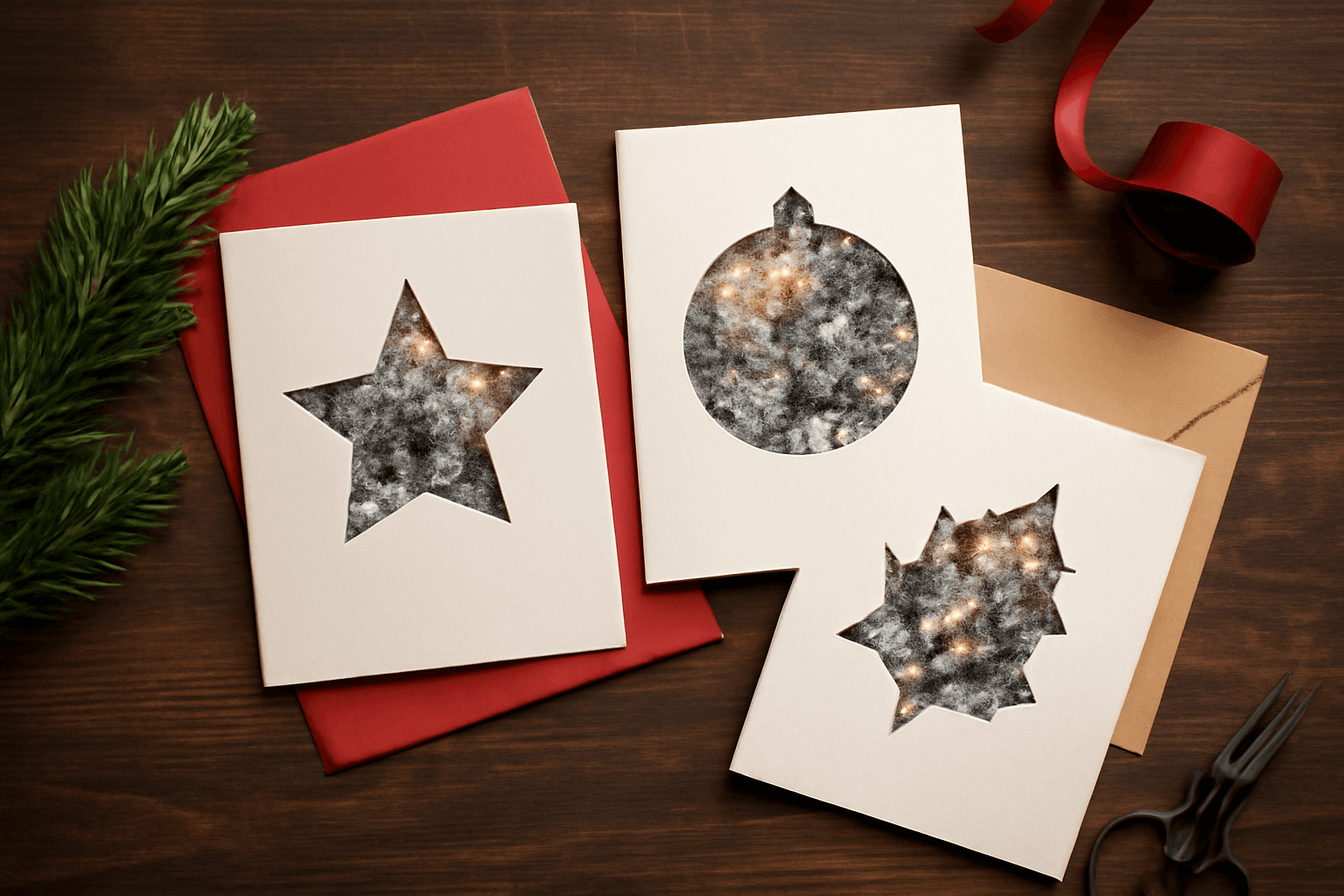
A step-by-step guide to designing photo Christmas cards in Canva: shaped photo windows, multi-photo grids, and lettered greetings, plus the card sizes, bleed, and DPI you need for a clean print.
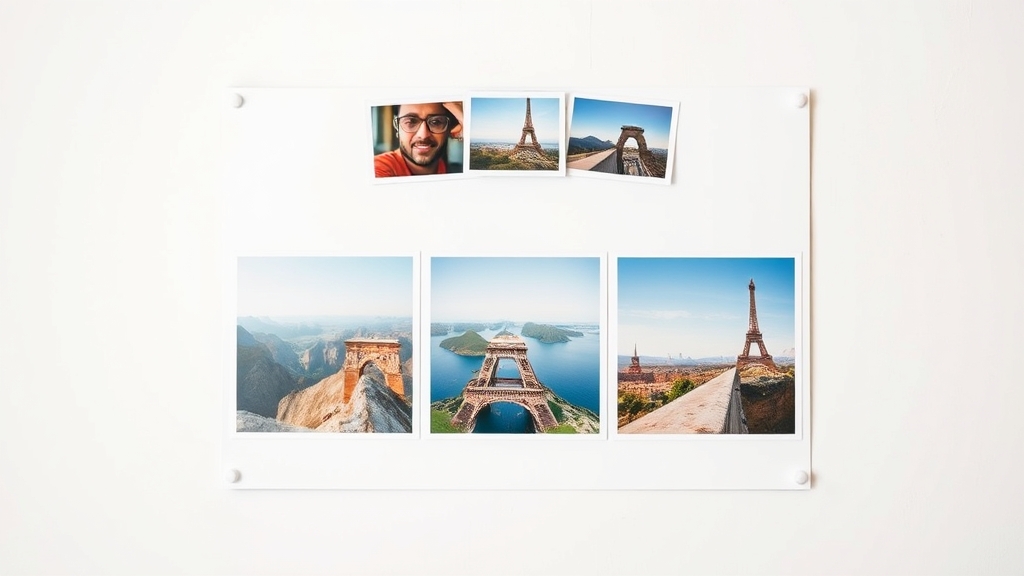
What Is a Triptych? Meaning, Types, and How to Make One in Canva
A triptych is art or a photo split across three panels meant to be seen as one piece. Here's where it came from, how it differs from a diptych, the sizing and spacing rules, and how to lay one out in Canva.