
How to Make a 2027 Planner in Canva (Monthly and Weekly Pages, Step by Step)
Build a printable 2027 planner in Canva: 12 monthly pages in one click, reusable weekly spreads, a matching style, and print-ready export. Step-by-step with Calendar Maker, plus when Canva's built-ins are enough.
A 2027 planner is easy to want and tedious to build: twelve month grids, correct dates, a weekly spread, and a look that stays consistent across every page. Doing that by hand in Canva means drawing tables and typing hundreds of numbers. This guide shows a faster route with Calendar Maker, the Qrdy app that generates the date grids for you, and it is honest about where Canva's built-in tools are already enough.
What you will build #
A printable planner with a cover, twelve monthly pages for 2027, and a reusable weekly spread you can print as many times as you like. The whole thing lives in one Canva design, so you can print it at home, send it to a print shop, or keep it as a digital planner.
Step 1: Pick a page size first #
Decide how you will use it before you touch a date. Common sizes: US Letter or A4 for a binder or clipboard, A5 or half-letter for a smaller bound planner, and A3 or 11x17 if you want pages that double as wall calendars. In Canva choose Custom size, set the width and height, and keep to it for every page. If you plan to print to the edge, read our guide to bleed in printing first.
Step 2: Choose a look before you add dates #
Pick two or three colors and one or two fonts. A planner feels professional when every page shares them. Calendar Maker ships with 30+ ready-made color styles (Scandi minimal, botanical, pastel, warm, cool, dark) that set the header bar and alternating row colors in one click, so you can start from a palette instead of inventing one. If you want a custom palette, Color Harmony pairs well, and the CMYK note in that article matters if you print professionally.
Step 3: Add the 12 monthly pages #
Open Calendar Maker from the Apps panel in your design and stay on the Month tab.
- Pick the year 2027.
- Turn on Add all months.
- Turn on Each month on its own page so every month gets its own page, named by month and year.
- Choose whether the week starts on Sunday or Monday with Start week with Sunday.
- Optionally pick one of the page templates (around 14 themed designs) to get a decorated page behind the grid.
- Click Add to design.
Twelve pages appear, each with the right dates for 2027. This is the step that saves the most time, since you never type a date.
Step 4: Add a weekly spread #
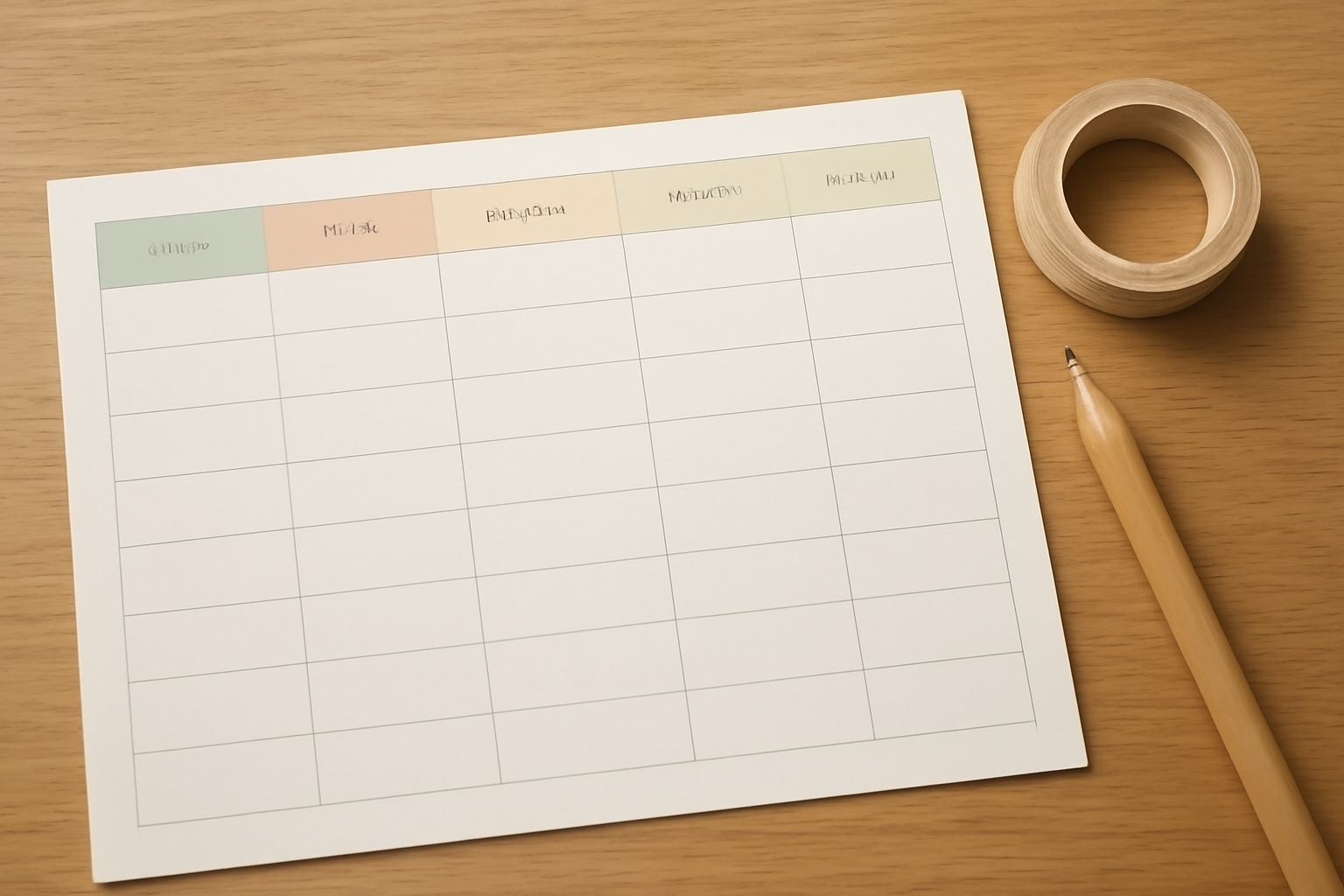
Switch to the Week tab. Tick the days you want (you must pick at least one), choose Number of rows from 1 to 27, and use Shorten labels if your columns are narrow. A seven-day table with 8 to 10 rows works well as a weekly to-do page; a Monday to Friday table with 12 to 15 rows works as a work schedule. Match the colors to the monthly pages, then click Add to design and duplicate that page as often as you need. Because the week table has no dates, the same page can be printed all year. For more ways to use the Week tab see weekly schedule and countdown calendar ideas.
Step 5: Add a goals or notes page #
Not everything needs a calendar generator. Add a blank page in Canva for yearly goals, a habit tracker or notes, using your same two fonts. For a decorative edge use Border Art Maker or a photo frame from Frames Lab so the page matches the cover.
Step 6: Design the cover #
Make a simple cover with the year as the largest element. If you want a photo on it, an Image to Frame shape (a circle, arch or leaf, for example) gives it a more designed look than a plain rectangle. Keep the cover colors the same as the inside pages.
Step 7: Save the setup so you can reuse it #
Before you add anything, tick Save settings after adding successfully. Calendar Maker then stores your configuration (year, style, fonts and colors) under Your saved setups on each tab, so next year you restore it and change only the year. The app keeps roughly the 30 most recent setups per tab, saved locally on your device.
Step 8: Check, export and print #
Flip through all pages once: dates, fonts and margins. For home printing, download as PDF Print; for a print shop, ask whether they want bleed and crop marks. If you will hole-punch for a binder, leave about 1.5 cm of extra margin on the punched side. Print one page as a test before you print the full set.
Tips for a planner you will actually use #
- Leave room. Big daily boxes beat tiny perfect ones. If you write a lot, choose A4 or Letter.
- Limit colors. Two accent colors and a neutral keep a year of pages calm and readable.
- Make weekly pages undated. One undated weekly spread can be printed every week, so you never reprint the whole year if plans change.
- Check which day your week starts. Starting on Sunday or Monday changes every grid, so decide once.
- Print a month, then adjust. One test page catches font and margin problems before you waste a stack of paper.
When Canva's built-in tools are enough #
Canva has free planner templates and tables. If you want a one-page weekly sheet, a template plus a quick edit can be faster than any app. Calendar Maker earns its place when you want all twelve correctly dated months with a consistent style, many rows on the weekly page, or a setup you can restore next year. The app checks access when it starts; if you are not unlocked it shows an Unlock to use button instead of Add to design, and you restart the app after unlocking. For the comparison in detail, see Canva calendar templates vs Calendar Maker.
Ready to build? Open Calendar Maker in Canva, pick 2027 and start with the twelve monthly pages.
Frequently asked questions
In Calendar Maker's Month tab, choose the year 2027, switch on Add all months and Each month on its own page, then click Add to design. You get one page per month, named by month and year.
The Week tab lets you choose which weekdays appear and set 1 to 27 rows, so you can make anything from a simple seven-day strip to a tall to-do-per-day layout.
No for a basic one: Canva's own tables and free templates can make a simple planner. Calendar Maker checks access when it starts and shows Unlock to use if you are not unlocked, then you restart the app after unlocking.
Related products


More from QRdy Blog
Printify Mockup Generator vs Making Your Own Mockups: When to Use Each
Printify's built-in mockup generator is free and fast, but every seller on the same blank gets similar photos. Here is when to rely on it, when to make your own mockups from real product photos, and how to combine both.
What Is Die Cut? Meaning, Die Cut vs Kiss Cut, and How to Design One in Canva
Die cut means cutting paper, vinyl or card into a custom shape instead of a rectangle. Here is what it means, how it differs from kiss cut, and how to prepare a die cut file in Canva.
10 Photo Collage Ideas You Can Make in Canva (Grids, Arcs, Diagonals and More)
Ten photo collage ideas you can build in Canva, from classic grids and rainbow arcs to diagonal strips and sunburst layouts, with honest notes on when Canva's built-in grids are enough.