
Printify Mockup Generator vs Making Your Own Mockups: When to Use Each
Printify's built-in mockup generator is free and fast, but every seller on the same blank gets similar photos. Here is when to rely on it, when to make your own mockups from real product photos, and how to combine both.
Use Printify's mockup generator when you need fast, free, accurate photos of a new product, and make your own mockups when you want listings that look different from every other shop selling the same blank. Most successful sellers do both: Printify images for the basics, custom mockups from real product photos for the hero shot.
If you sell print-on-demand products through Printify (or Printful), you already have a mockup tool. It sits right inside the product creator, it costs nothing, and it shows your design on the exact item you are selling. So why do so many sellers still make their own?
This guide compares the two approaches honestly: what the built-in generator does well, where it falls short, and a simple workflow for adding custom mockups without spending hours in Photoshop. If you are new to the term, start with What Is a Mockup?
What the Printify mockup generator does well #
Printify's generator is designed for one job: show your design on a product from its catalog, right after you place the artwork. According to Printify's mockup generator page, it is free and includes scene options alongside the standard product shots.
Its strengths are real:
- It is free and built in. No extra software, no extra account, no files to manage.
- It matches the catalog item. The mockup reflects the product and print area you configured, so placement and proportions are close to what gets printed.
- Multiple views come automatically. Front, back and detail angles appear without extra work.
- It is fast for a single product. Place the design, pick the images, publish.
For testing a new design or launching a product quickly, that is hard to beat.
Where built-in mockups fall short #
The weakness is not quality. It is sameness.
- Everyone has the same photos. Thousands of shops sell the same popular blanks through the same providers. When shoppers scroll a search page, many listings show the same shirt, the same mug, on the same background. Your design is different; the photo is not.
- The scenes are not your brand. If your shop has a look (a cozy living room, a neutral studio, a specific color palette), generic scenes can break it.
- Sets and multi-area designs are fiddly. A set of three prints, matching front and back artwork, or the same design across several products often takes repeated manual setup.
- One design at a time. If you have 40 designs for one product, you repeat the same steps 40 times.
None of this makes the built-in tool bad. It just means it is best as a baseline, not as the thing that makes your listing stand out.
Side-by-side comparison #
| Printify / Printful built-in generator | Your own mockups from a product photo | |
|---|---|---|
| Cost | Free with your account | Free to low cost, depending on the tool |
| Starting point | Catalog product images | Any photo: supplier shot, stock photo, your own phone photo |
| Matches the printed item | Yes, catalog-accurate | Yes, if you use a photo of the same blank |
| Looks unique in search | Less so, shared by many shops | Yes, the photo is yours |
| Brand consistency across shop | Limited to available scenes | Full control over every photo |
| Many designs at once | One product setup at a time | Batch tools render designs × templates |
| Sets and front/back | Manual per product | Multiple print areas per template |
| Sends images to your store | Yes, automatically | No, you upload the images |
The honest verdict: the built-in generator wins on convenience and automatic store sync. Custom mockups win on uniqueness and scale when you have many designs.
When to use each #
Stick with the Printify generator when:
- You are testing a design and do not know yet whether it will sell.
- The product has few designs and a simple front print.
- You need a back view or a detail angle that you do not have a photo for.
Make your own mockups when:
- A listing is getting views but few clicks, and the main photo looks like everyone else's.
- You have a large design catalog for one product (20, 50, 100 designs on the same tote or pillow).
- You want every listing in your shop to share one look.
- You sell sets, such as three matching prints, or need consistent front and back images.
- You have a real photo of your blank that looks better than any stock scene.
A hybrid workflow that takes minutes, not hours #
You do not need to choose. Keep Printify's images for accuracy and add one or two custom photos as the first image in each listing. Here is how to do it from a single product photo with MockupPress, a free browser app:
- Get one good photo of the blank. Use your provider's product photo of the exact blank, a stock image of the same item, or a phone photo of a sample in soft daylight. Light-colored blanks with a clear print area work best.
- Drop the photo in and drag a box around the print area. The app cuts the product out of the background, snaps to its edges, picks a surface shape (flat, cylinder for mugs and caps, or a free grid for pillows and draped fabric) and measures the highlights and shadows so your design picks up the real folds.
- Fix anything the auto step missed. Edit has three tools: Grid to pull the design edges into place, Add / Subtract brush to remove hands, straps or seams from the print area, and Highlights / Shadows / Edge sliders.
- Save it as a template. Add a second area if you need a back print or a set of three.
- Render in bulk. Pick one or more templates, drop in all your designs, and render. Every design lands on every template.
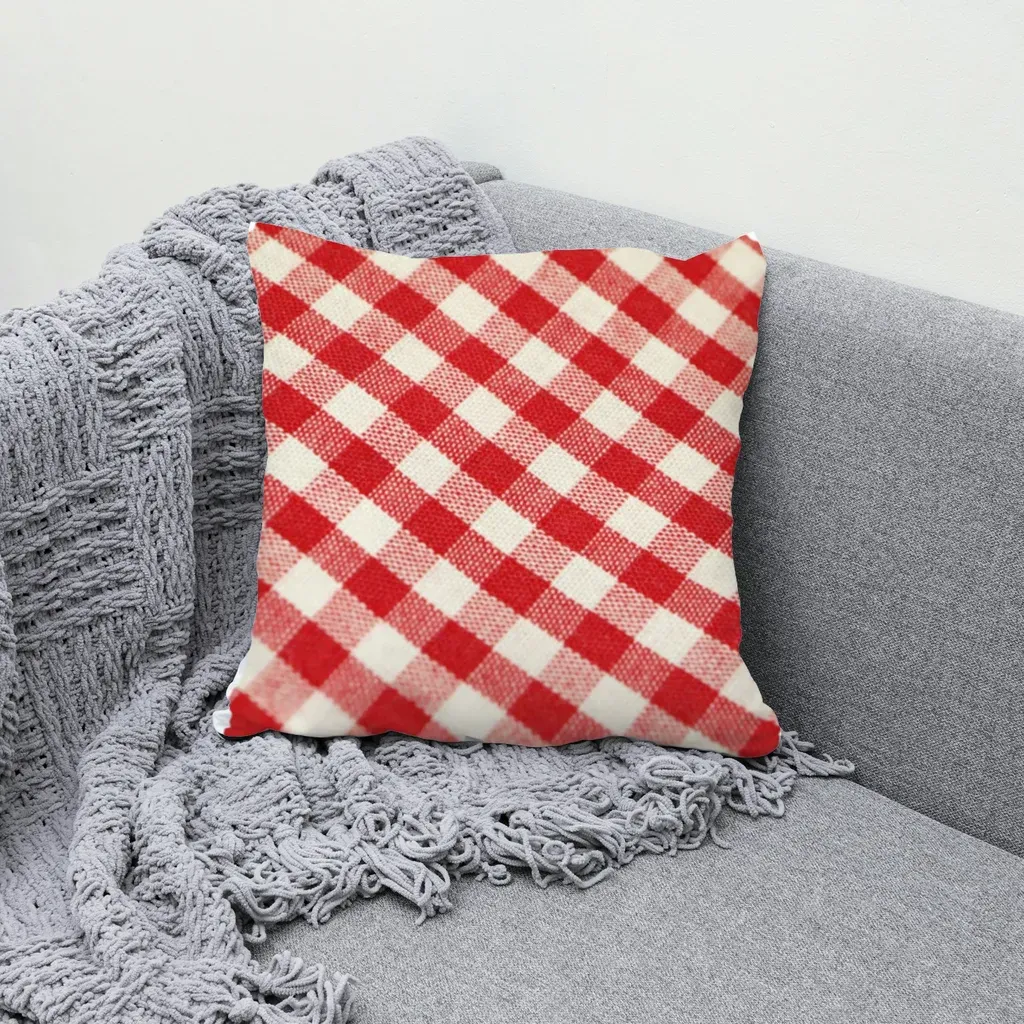
A real render from one stock pillow photo: the gingham lines bend with the cushion and keep the photo's shading.
The output is a ZIP of images (JPEG or PNG) plus a manifest.csv. Set the file name pattern to something like {design}/{design}_{template} and each design gets its own folder, so one folder equals one listing. Then upload those images to your Etsy or Shopify listing next to the ones Printify created.
Two things to know: MockupPress does not connect to Printify or Printful, so the upload step is yours. And it has no built-in mockup library; you always start from your own photo. In return, everything runs in your browser and your files are never uploaded to a server.
If your designs are ready and you have a photo of your blank, make custom mockups from your own product photo. It is free during the open beta, with no account, no watermark and no render limit.
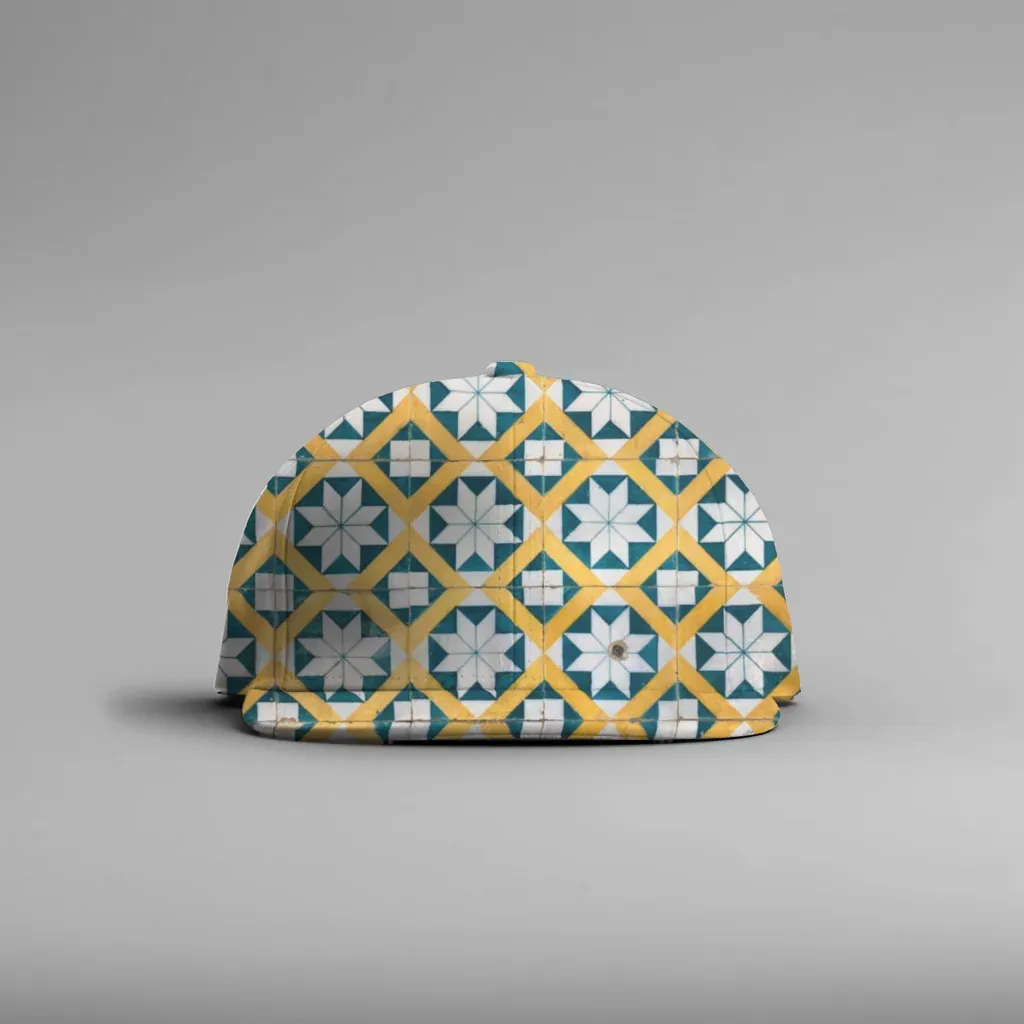
Curved products work too: the cap front is treated as a cylinder, so the pattern wraps around the panel.
Tips for mixing both kinds of mockups #
- Lead with the custom image. The first photo is the one shoppers see in search. Put your unique mockup there and keep the catalog images further down.
- Match the real product. Use a photo of the same blank and color your provider prints on. A mockup that shows a different shirt cut or mug shape sets up returns and bad reviews.
- One photo per color. MockupPress does not recolor products. For a white and a black version, use a photo of each. Name designs
name_lightandname_darkand the right version is picked for each background automatically. - Check contrast. A dark design on a dark blank disappears. The Contrast guard option flags weak combinations in the manifest so you can skip them.
- Know the size limit. Exports top out at 1536 px on the long edge. That is fine for listing photos, but keep the provider's images if you need something larger.
Bottom line #
Printify's mockup generator is the right tool to get a product live quickly and accurately, and it costs nothing. It is just not built to make your listing look different from the next shop's. Adding a few custom mockups from a real product photo, rendered for all your designs at once, is the simplest way to fix that. For a closer look at building those photos step by step, read How to Make Mockups for Etsy Without AI.
Frequently asked questions
Yes. Printify's mockup generator is built into its product creator and is free to use with your Printify account. It produces mockups of the catalog products you set up, so it is the quickest way to get first listing photos.
Yes. When you publish to a store such as Etsy or Shopify, you can add, remove and reorder listing photos in that store. Many sellers keep one or two Printify images and add custom mockups made from their own product photos.
No. MockupPress has no Printify or Printful integration. It exports a ZIP of images plus a manifest.csv, organized into one folder per listing if you want, and you upload those images to your listings yourself.
They match best when you start from a photo of the exact blank your provider uses, such as the supplier's product photo or a sample you photographed. That is one advantage of making your own: the mockup shows your real product, not a similar one.
Up to 1536 px on the long edge, which works for marketplace listing photos. It does not export 4K. It is free during the open beta, with no account, watermark or render limit, and everything runs in your browser.
More from QRdy Blog
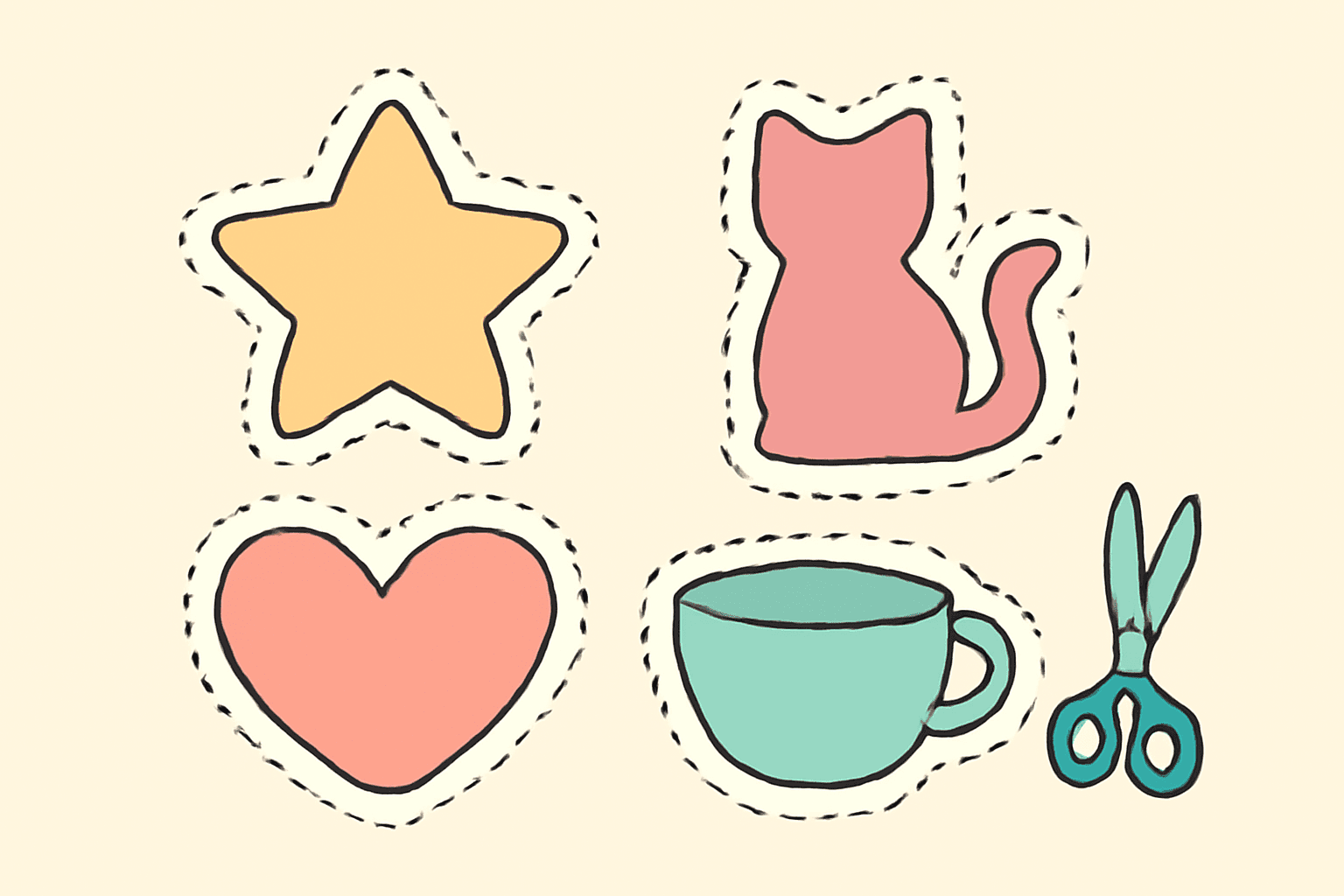
What Is Die Cut? Meaning, Die Cut vs Kiss Cut, and How to Design One in Canva
Die cut means cutting paper, vinyl or card into a custom shape instead of a rectangle. Here is what it means, how it differs from kiss cut, and how to prepare a die cut file in Canva.
10 Photo Collage Ideas You Can Make in Canva (Grids, Arcs, Diagonals and More)
Ten photo collage ideas you can build in Canva, from classic grids and rainbow arcs to diagonal strips and sunburst layouts, with honest notes on when Canva's built-in grids are enough.
Canva Monthly Calendar: Template vs Table vs Calendar Maker (Which Is Fastest?)
Three ways to make a monthly calendar in Canva: a ready-made template, a hand-built table, or the Calendar Maker app. We compare setup time, flexibility and 12-month projects, with a clear verdict.