
10 Weekly Schedule & Countdown Calendar Ideas You Can Make in Canva
Ten practical ideas for weekly schedules and countdown calendars in Canva: class timetables, chore charts, 30-day challenges, wedding and holiday countdowns, all built with Calendar Maker's Week and Custom tabs.
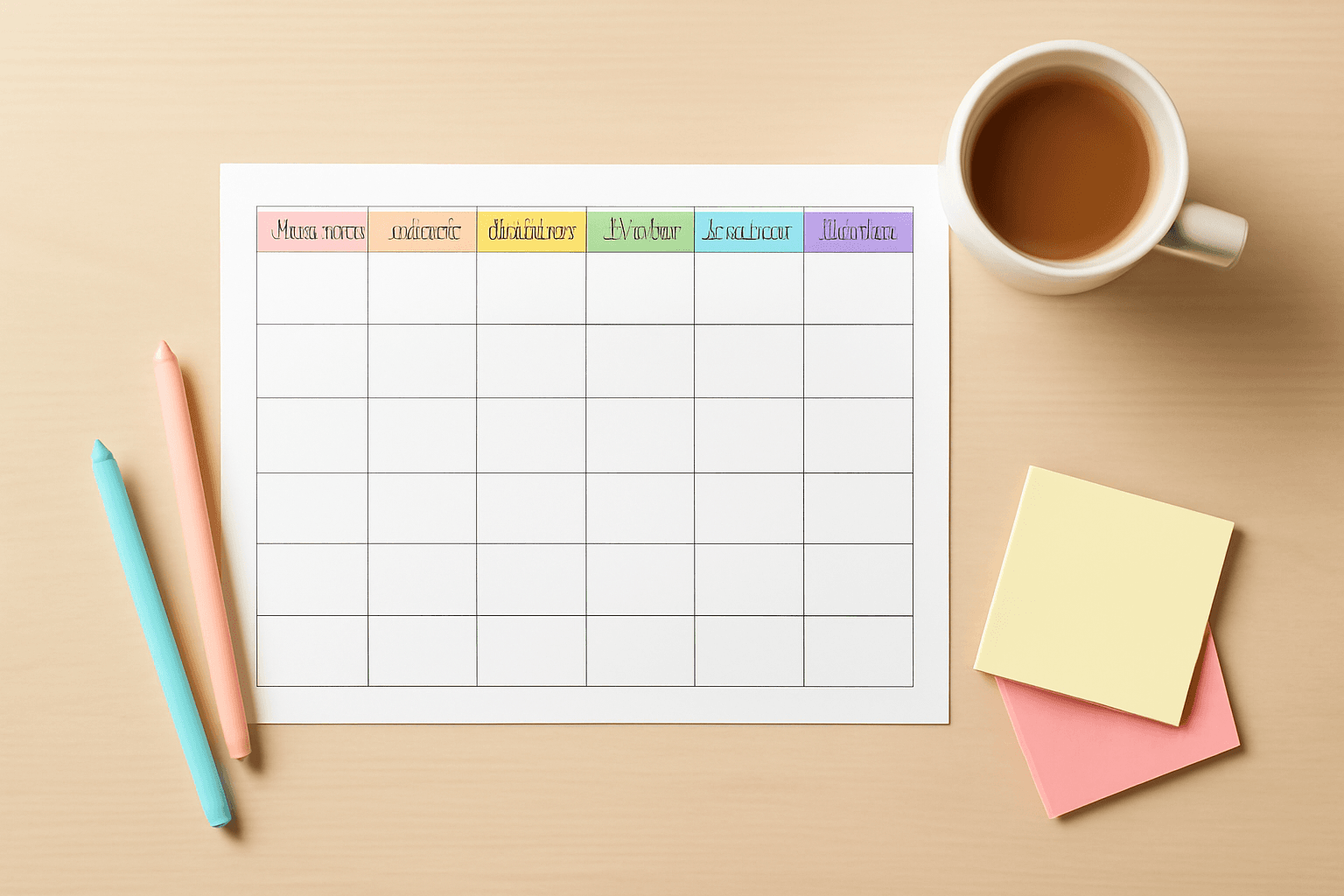
10 Weekly Schedule & Countdown Calendar Ideas You Can Make in Canva
A month grid is only one kind of calendar. Two of the most useful ones are the weekly schedule (a reusable table of days and rows) and the countdown calendar (a run of dates leading to one big day). Both are tedious to build by hand in Canva: you draw a table, type every number, and fix it when the layout shifts.
Calendar Maker does the grid for you. Its Week tab builds a weekday table with 1 to 27 rows, and its Custom tab builds a calendar between any two dates up to 150 days apart. Here are ten ideas for using them.
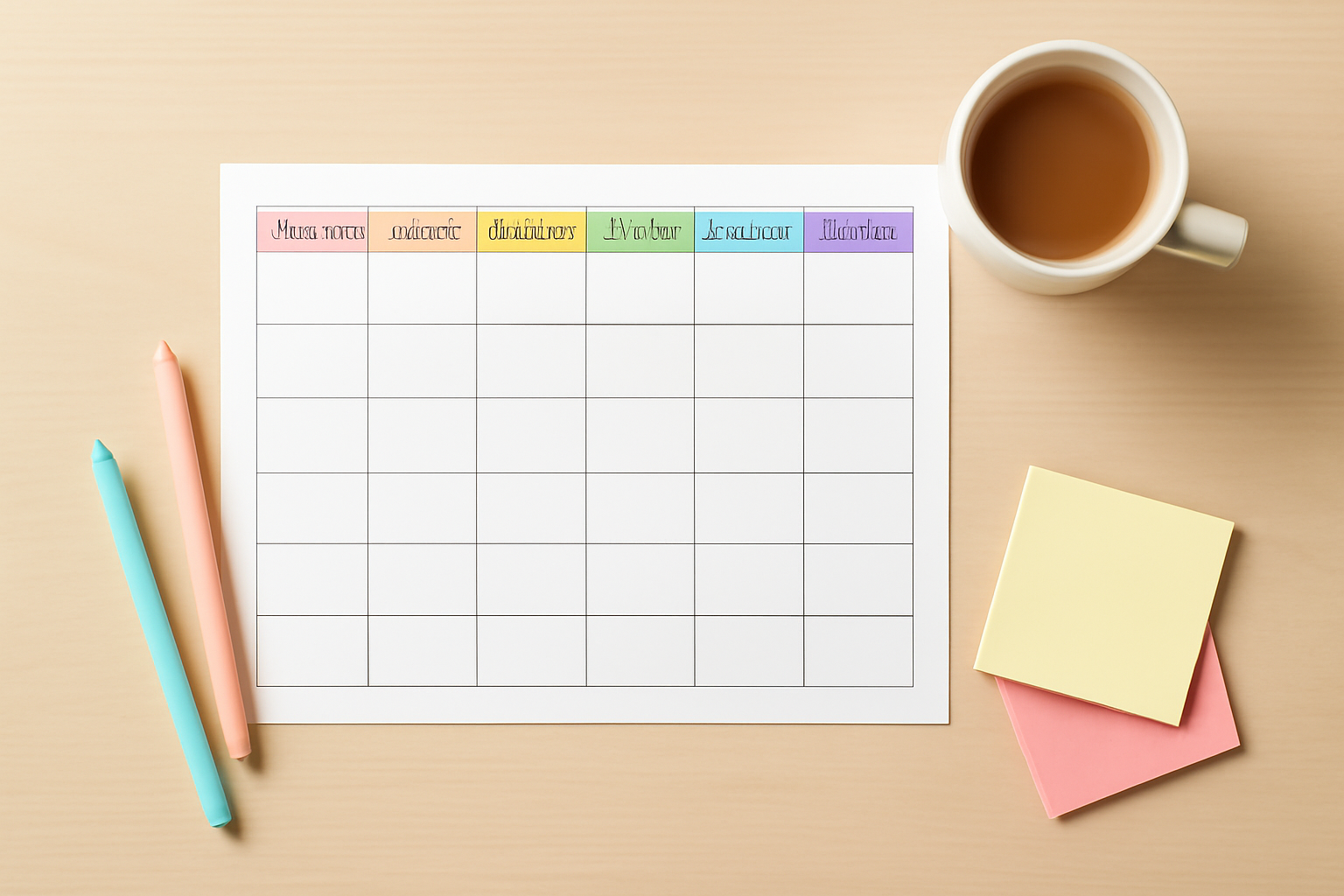
Weekly schedule ideas (Week tab) #
1. Class timetable #
Pick Monday to Friday, set the number of rows to match your periods, and use "Shorten labels" for Mon, Tue, and so on. Fill the cells with subjects and rooms. Great for students and teachers alike.
2. Chore chart for the family #
Choose all seven days, give each child a row, and color-code the header bar per person. Print it and stick it on the fridge.
3. Meal-prep planner #
Use seven days and three to five rows (breakfast, lunch, dinner, snack). Pick a soft palette from the 30+ built-in example styles so it looks good on a kitchen wall.
4. Content posting schedule #
Rows become channels (Instagram, TikTok, newsletter) and columns become days. It is a lighter cousin of a full content calendar.
5. Weekly workout split #
Show only the days you train, add rows for exercises, and bold the header font so the plan is readable from across the room.
Countdown calendar ideas (Custom tab) #
6. 30-day challenge tracker #
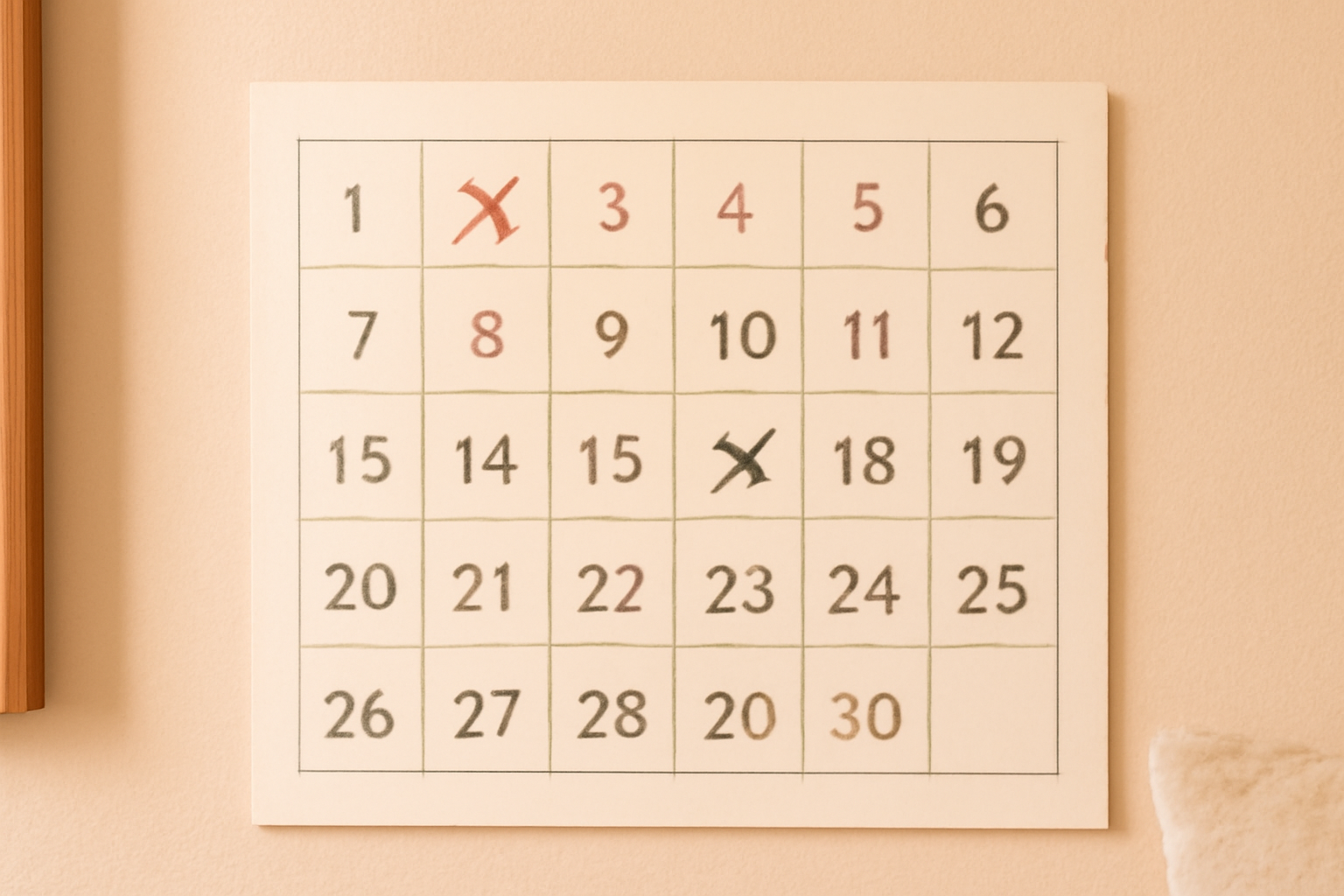
Set a start date and an end date 30 days later. Print it and cross off each day. Habit, writing, and fitness challenges all work.
7. Wedding or event countdown #
Count down the last 100 days to the big day. Add a photo frame beside the calendar for a save-the-date look.
8. Holiday countdown #
Christmas, Halloween, or a birthday: set the end date on the day itself and use a themed palette. (For door-style calendars see our advent calendar ideas.)
9. Exam or project sprint #
Enter today as the start and the deadline as the end. Because the range is capped at 150 days, it stays focused on a single push.
10. Trip or move-out countdown #
Turn the weeks before a trip into a visible countdown, then add a Qrdy Dynamic QR linking to the itinerary if you like.
How to build any of these #
- Open your design in Canva and launch Calendar Maker from Apps.
- Choose the Week tab (schedules) or Custom tab (countdowns).
- Set days, rows, or start and end dates.
- Pick a color style from the example palettes, then adjust fonts, alignment and header colors. The live preview updates as you go.
- Click Add to design, then keep styling in Canva.
- Optional: tick "Save settings after adding successfully" so you can restore the setup next time from Your saved setups.
Tips #
- Keep header text short with "Shorten labels" so narrow columns stay tidy.
- Use alternating row colors for tables with many rows; it makes long schedules easier to scan.
- Pair the calendar with a decorative border from Frames Lab for a finished, giftable look.
Honest note on Canva's built-in tools #
Canva's own tables can make a simple grid, and for a three-row schedule that is often enough. Calendar Maker earns its place when you need real dates, many rows, or a consistent style you can restore. The app checks access on start; if you are not unlocked, you will see an Unlock to use button instead of Add to design.
Ready to try it? Open Calendar Maker in Canva and start with idea number 6: a 30-day challenge takes about two minutes.
Frequently asked questions
The Custom tab accepts a start date and an end date up to 150 days apart. For anything longer, make two Custom calendars back to back.
Yes. The Week tab builds a table of weekdays (choose which days appear) with 1 to 27 rows, so it works as a timetable or planner that you can reuse every week.
Calendar Maker checks your access when it starts. If you are not unlocked, the app shows an Unlock to use button instead of Add to design; restart the app after unlocking. Canva's built-in tables work without it if you only need a quick grid.
Related products


More from QRdy Blog

Vector vs Raster: What's the Difference (and Which to Use)
Vector graphics are built from math paths that scale to any size; raster images are grids of pixels that don't. Here's the real difference, plus which one to reach for with logos, photos, and Canva frame shapes.

The Best Canva Apps for Graduation Announcements (2026)
Graduation announcements have to survive being shrunk to a five-by-seven and handled by fifty relatives. Here are the Canva apps that make a cap-shaped photo, a photo-filled headline, and a real four-year collage possible — plus an honest look at what Canva already covers for free.
How to Make Photo Christmas Cards in Canva (Step by Step)
A step-by-step guide to designing photo Christmas cards in Canva: shaped photo windows, multi-photo grids, and lettered greetings, plus the card sizes, bleed, and DPI you need for a clean print.