
Canva Grids vs Frames vs Gridlines: What's the Difference?
Canva has three different things that all get called "grid" — Grids, Frames, and gridlines. They do completely different jobs. Here's a plain comparison of all three, plus what to use when none of them is quite right.
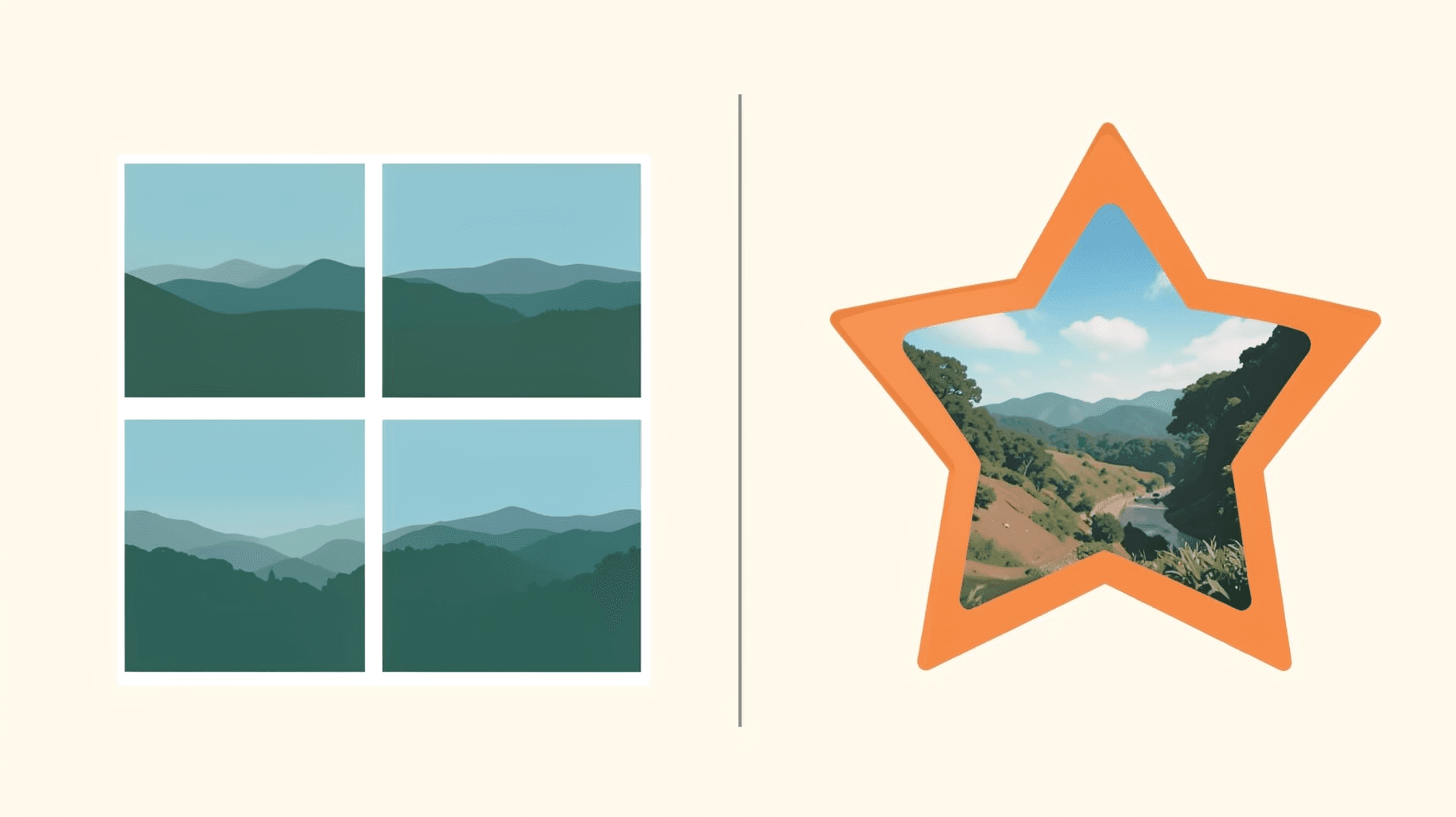
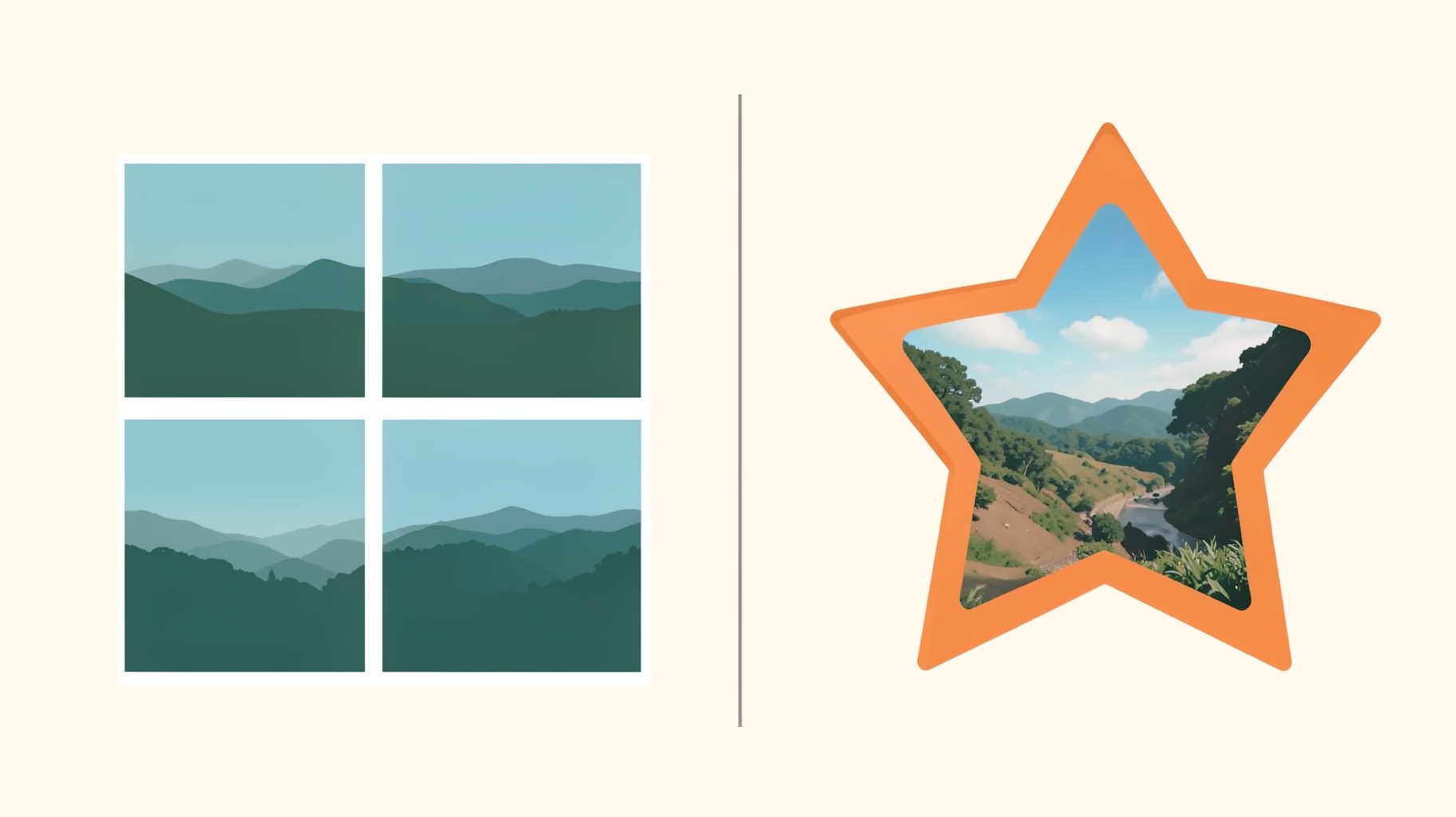
Ask three Canva users what a "grid" is and you will get three different answers. One means the photo-collage layout in the Elements tab. One means the faint blue guide lines that help you line things up. One means "frame" and does not realise those are a separate feature entirely.
They are three genuinely different things, and picking the wrong one is behind a surprising number of "why won't my photo go in?" problems. Here is what each one actually is, side by side.
Quick comparison #
| Grids | Frames | Gridlines | |
|---|---|---|---|
| What it is | A multi-cell layout that splits an area into several photo slots | A single container shaped like something — circle, heart, arch, letter | Non-printing guide lines for alignment |
| Holds a photo? | Yes, one per cell | Yes, one per frame | No — nothing goes inside them |
| Shape of the slot | Always rectangular | Any shape the frame is | N/A |
| Shows in your export? | Yes | Yes | Never |
| Where to find it | Elements → Grids | Elements → Frames | File → View settings |
| Best for | Collages, photo walls, moodboards, Instagram grid posts | One photo in a specific silhouette | Lining up elements neatly |
Grids: for arranging several photos at once #
A Grid is a layout. You drag one onto your page, it snaps to fill the area, and it arrives pre-divided into cells — 2 across, 3×3, one big one and two small ones, and so on. Drop a photo onto any cell and it fills that cell, cropped automatically.
The two things people love about Grids:
- They resize as a unit. Stretch the grid and every cell re-flows with it, gutters intact. You are not nudging eight separate rectangles.
- You can adjust the spacing. Select the grid and the toolbar gives you a spacing slider that changes every gutter at once.
The one thing that trips people up: grid cells are always rectangles. There is no such thing as a built-in Canva grid of circles or hexagons. If a tutorial shows you a honeycomb photo layout, it was not made with Grids.
Grids are also what most Canva collage templates are built from — so when you swap photos into a template and they crop themselves, that is a Grid doing its job.
Frames: for one photo in a specific shape #
A Frame is a single container with a silhouette. Circle, heart, arch, speech bubble, film strip, letter. Drop a photo on it and the photo is cropped to that outline, with the parts outside the shape simply hidden — the original photo is untouched, and you can double-click to reposition what shows through.
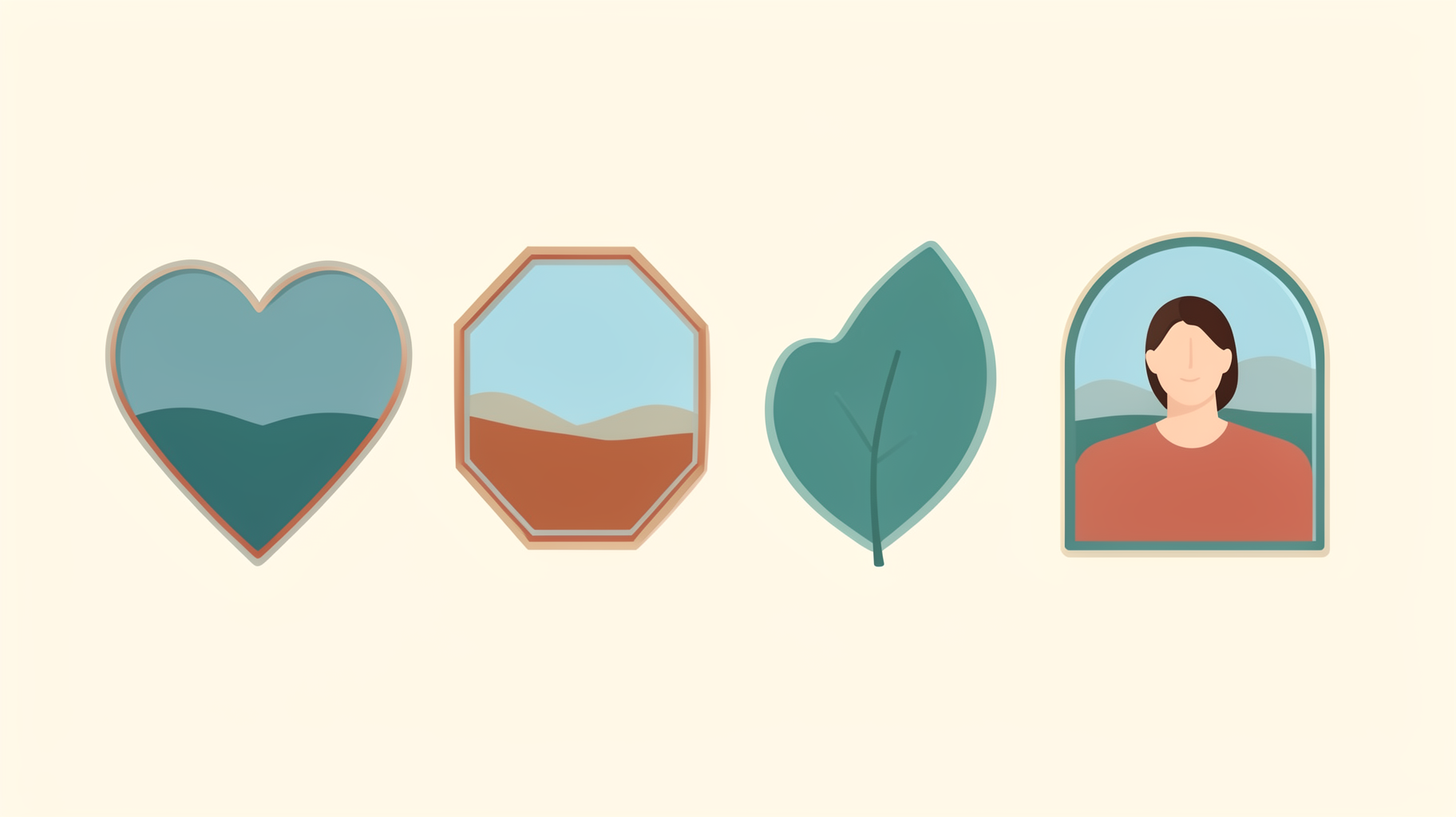
Frames are the right choice when the shape is the point: a circular team headshot, an arch-shaped wedding invite photo, a heart for a Valentine's card.
The limit is Canva's frame library. It is large, but it is a fixed set. There is no built-in way to say "make a frame out of this shape" — your logo, a hand-drawn outline, a specific leaf silhouette.
That gap is exactly what our Canva apps fill:
- Image to Frame — upload a PNG, SVG or JPG (up to 5MB) and it becomes a working Canva frame that matches the image's outline. One tip that decides everything: remove the background first. If the image still has a white background, the frame comes out as a rectangle, because a rectangle is the outline. You can also pick an image already on your page, or export a whole page as a transparent PNG to turn a composed arrangement into one frame. Border thickness and colour are adjustable, and there is a Frame Store of ready-made shapes if you would rather not make your own.
- Frames Lab — a toolbox for generating frame sets: arc, grid, polygon, burst and diagonal layouts, plus SVG-to-frame conversion. This is the closest thing to "a grid, but not rectangular".
- AI Frames — describe the frame you want in words and it draws one, with a large library of free frames alongside.
- Frame Collage — a toggleable cell grid from 8×8 up to 32×32, where every cell is a real frame. Useful when you want a mosaic-style arrangement that Canva's Grids cannot produce.
- Clipping Mask — a different route to the same idea: crop a photo to text, a shape, or a custom design.
Fair note: for a plain circle, a plain arch, or a simple grid collage, Canva's built-in Grids and Frames are perfectly good and cost you nothing. Reach for an app when the shape you need is not in the library.
Gridlines: not a design element at all #
Gridlines are the third meaning, and the odd one out — they are guides, not content. Thin overlay lines across your canvas that help you align things by eye and snap elements into position. Nothing goes inside them. They never appear in a download or a print.
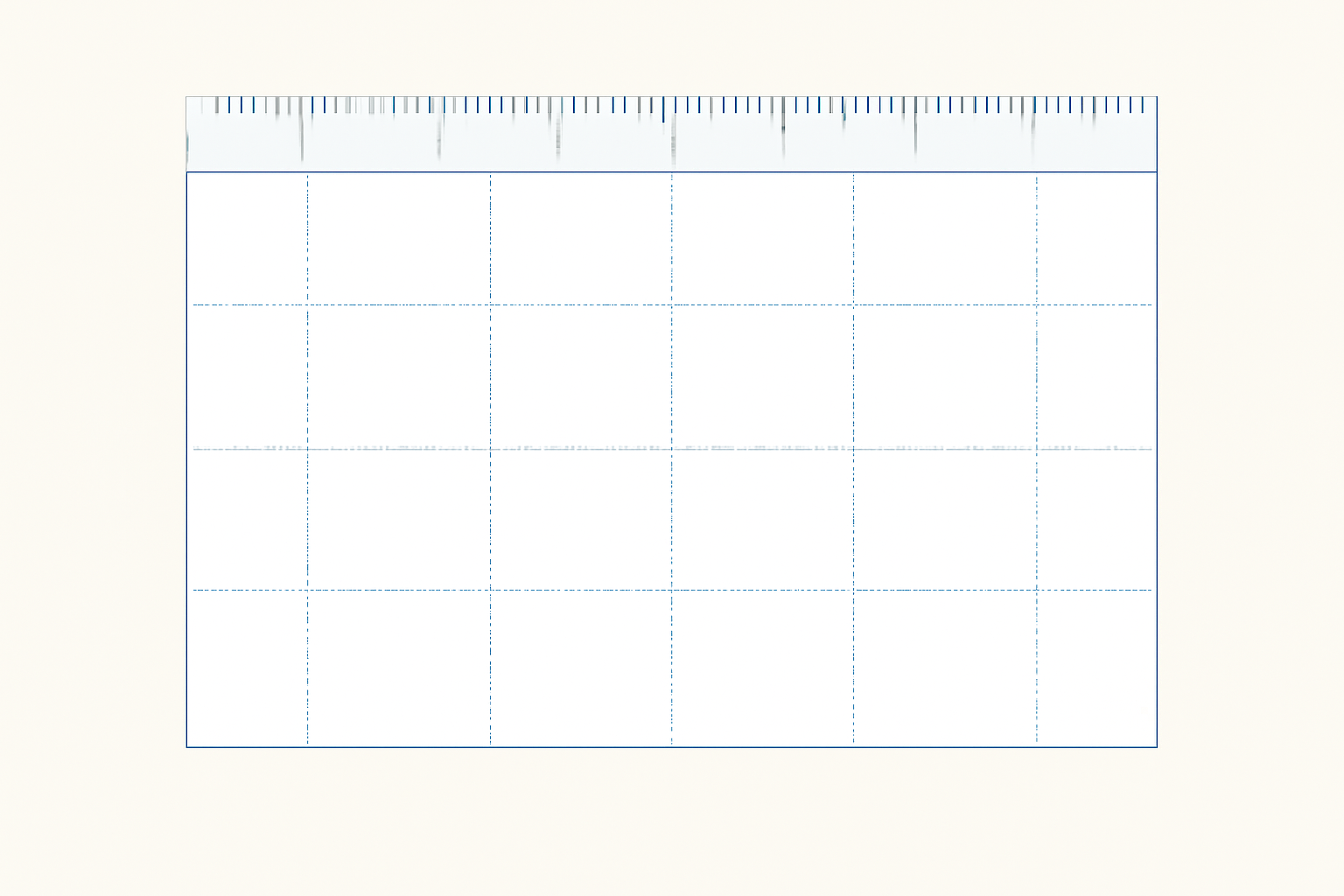
You toggle them from the File menu, under View settings, in the same group as rulers, margins and print bleed. Turn them off the same way.
Two quick diagnostics:
- "My gridlines are printing." They are not gridlines. You have a Grid element with visible gutters, or a table, or a shape with a stroke.
- "My gridlines disappeared." Check View settings — they are a per-design toggle and it is easy to switch off by accident.
How to tell what you have selected #
When something on your page is behaving unexpectedly, click it once and look at the toolbar and the layers panel:
- Toolbar shows a spacing slider → it is a Grid.
- Toolbar shows crop and border options, and the element has a non-rectangular outline → it is a Frame.
- Element accepts a dragged photo but the photo lands on top rather than inside → it is a shape, not a frame. Shapes look like frames but do not hold photos.
- You cannot select it at all → gridlines or margins.
The verdict #
Use Grids when you need several photos arranged neatly and you want them to resize together — collages, photo walls, moodboards, Instagram grid posts. Rectangles only.
Use Frames when the silhouette matters and there is one photo per shape. Start with Canva's built-in library; if your shape is not in there, Image to Frame turns any transparent PNG or SVG into a real frame, and Frames Lab handles arc, polygon and non-rectangular grid layouts.
Use gridlines when you are aligning, not designing. They are a ruler, not a container.
Most of the frustration around this topic comes from reaching for a Grid when the job needed a Frame — or from expecting a Grid to produce a shape it structurally cannot. Once the three are separated in your head, the choice takes about a second.
Related reading #
- What Is a Frame in Canva? — how frames work under the hood
- Canva Grids vs Frames Lab — when built-in Grids run out of road
- How to Make a Photo Collage in Canva — step by step
- Canva Frame Not Working? — nine fixes for common frame problems
Frequently asked questions
No. A Grid is a multi-cell layout that divides an area into several photo slots at once, and it stretches to fill the space you drop it into. A Frame is a single container in a specific shape — a circle, a heart, an arch — that crops one photo to that outline. Grids are for arrangement; Frames are for shape.
Gridlines are non-printing guide lines that help you align elements. They are not a design element at all — nothing goes inside them and they never appear in your export. You toggle them from the File menu under View settings, alongside rulers and margins. If your gridlines are showing up in your download, you are almost certainly looking at a Grid element, not gridlines.
Not with the built-in Grids — Canva's grid cells are always rectangles. If you want cells shaped like circles, hexagons or anything else, you need frames instead: Frames Lab can generate arc, polygon and grid-style frame sets, and Image to Frame turns any PNG or SVG outline into a working Canva frame.
Usually because the element on your page is not actually a Grid or a Frame — it is a shape, or a picture with a border. Only Grids and Frames accept a drag-and-drop photo. Check the element name in the layers panel, and if it is a shape, replace it with a real frame.
Related products


More from QRdy Blog
How to Make a Hat Mockup From a Photo (So the Design Curves With the Cap)
Turn one photo of a blank cap into realistic hat mockups: drag a box around the front panel, let the design wrap the curve with the photo's real shading, then render all your designs at once in your browser.
The Best Canva Apps for Family Reunions (2026): Invites, Banners, Photo Walls and Calendars
Planning a family reunion in Canva? Here are the five Qrdy apps that actually help: shaped photo invitations, photo-letter banners, photo-wall grids, a countdown calendar and a QR link that can change after printing.
How to Make a Birthday Calendar in Canva (Family Birthday Tracker, Step by Step)
Build a printable family birthday calendar in Canva: 12 months, one page each, with names added in minutes. A step-by-step tutorial using Calendar Maker, plus honest notes on what Canva does on its own.