
How to Make a Hat Mockup From a Photo (So the Design Curves With the Cap)
Turn one photo of a blank cap into realistic hat mockups: drag a box around the front panel, let the design wrap the curve with the photo's real shading, then render all your designs at once in your browser.
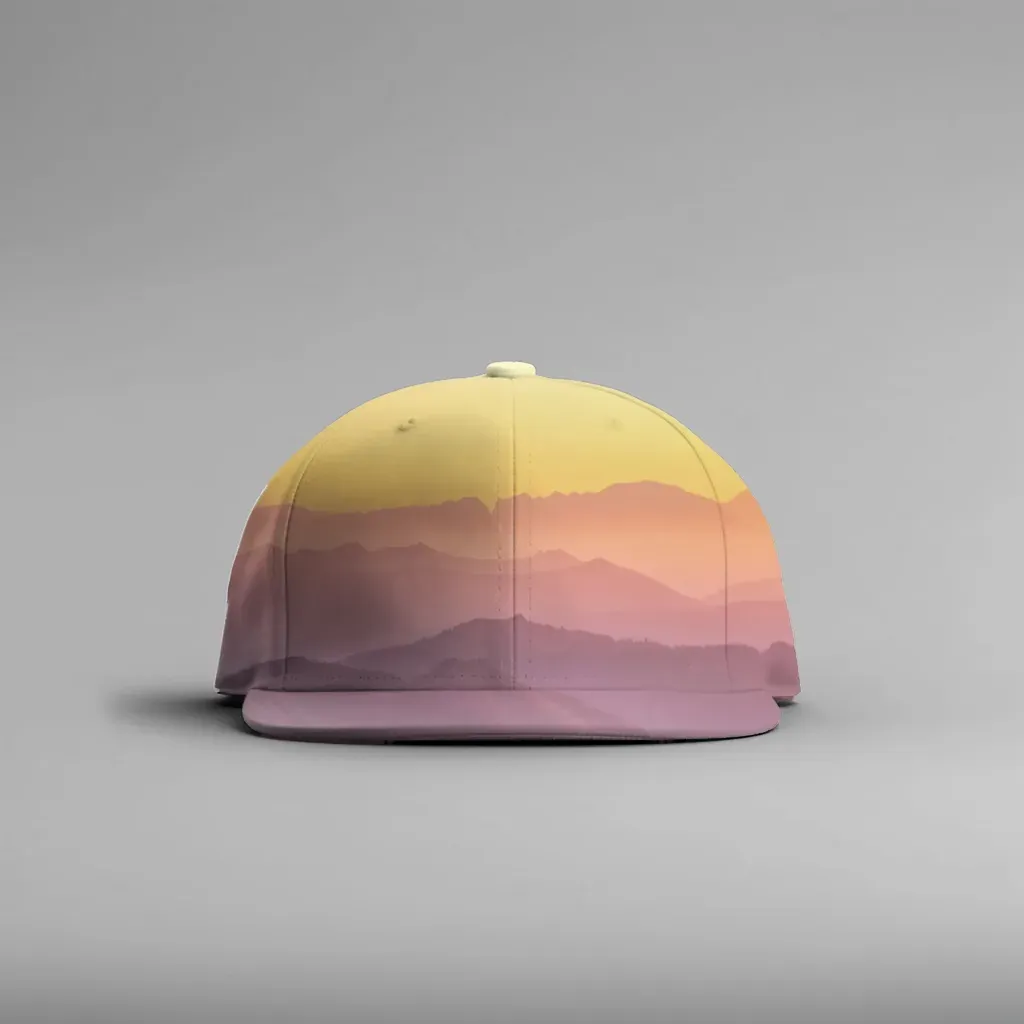
To make a hat mockup from a photo, start with a clear shot of a blank cap, drag a box around the front panel, and let the tool treat that panel as a curved, cylinder-like surface so your design wraps around it instead of sitting flat. Fix the edges, save the photo as a template, then render all your designs onto it in one batch.
A cap is one of the hardest products to fake. The front panel curves left to right, often tilts back, has a seam down the middle on many styles, and catches light very differently from a T-shirt. Paste a flat design on it and it looks like a sticker floating in front of the hat. This guide shows how to get the curve right from any cap photo, without a PSD, and how to turn one photo into dozens of listing images.
If you have never built a photo-based mockup before, How to Make a Mockup Without Photoshop covers the general workflow. This article goes deeper on caps.
Why hat mockups look fake (and what fixes it) #
Most bad hat mockups fail in one of three ways:
- The design stays flat. Real print on a cap bends with the crown. The left and right sides of the design should get narrower and slightly darker as they turn away from the camera.
- The lighting does not match. A cap photographed in soft daylight has a gentle highlight on the front and shadow near the brim. A design without that shading looks pasted on.
- The design spills over the edges. Without a clean cut-out, artwork bleeds onto the brim, the background or the eyelets.
A good hat mockup solves all three: it maps the design to a curved surface, borrows the shading from the photo, and clips the design to the front panel only.
What you need #
- One clear photo of a blank cap, ideally white or a light color, shot from the front or a slight three-quarter angle. A supplier photo, a stock image or your own phone picture all work.
- Your designs as PNG files, transparent background preferred, so only the artwork lands on the hat.
- A desktop browser with WebGL2 (any recent Chrome, Edge, Firefox or Safari).
Step by step: make a hat mockup from any photo #
These steps use MockupPress, a free web app that runs in your browser. Your photo and designs stay on your computer the whole time.
1. Drop in your cap photo #
Open the Photos page and drop in the JPG or PNG of your blank cap. One photo opens straight into template editing. The image is resized to a maximum of 1536 px on the long edge and stored in your browser, not uploaded anywhere.
2. Drag a box around the front panel #
Draw a rectangle around the area where the design will print, which for most caps is the front panel above the brim. Keep the box on the panel itself, not the whole hat.
In about a second, the tool cuts the cap out of the background, snaps to the edges of the panel, and picks a surface shape. For a cap front it chooses Cylinder, the same model used for mugs and tumblers, because the panel curves around a vertical axis. It also measures the highlights and shadows in your photo so the design inherits them.
A live preview shows a labeled grid on the panel. On a well-detected cap, the grid squares get narrower toward the sides, exactly the way a printed design should.
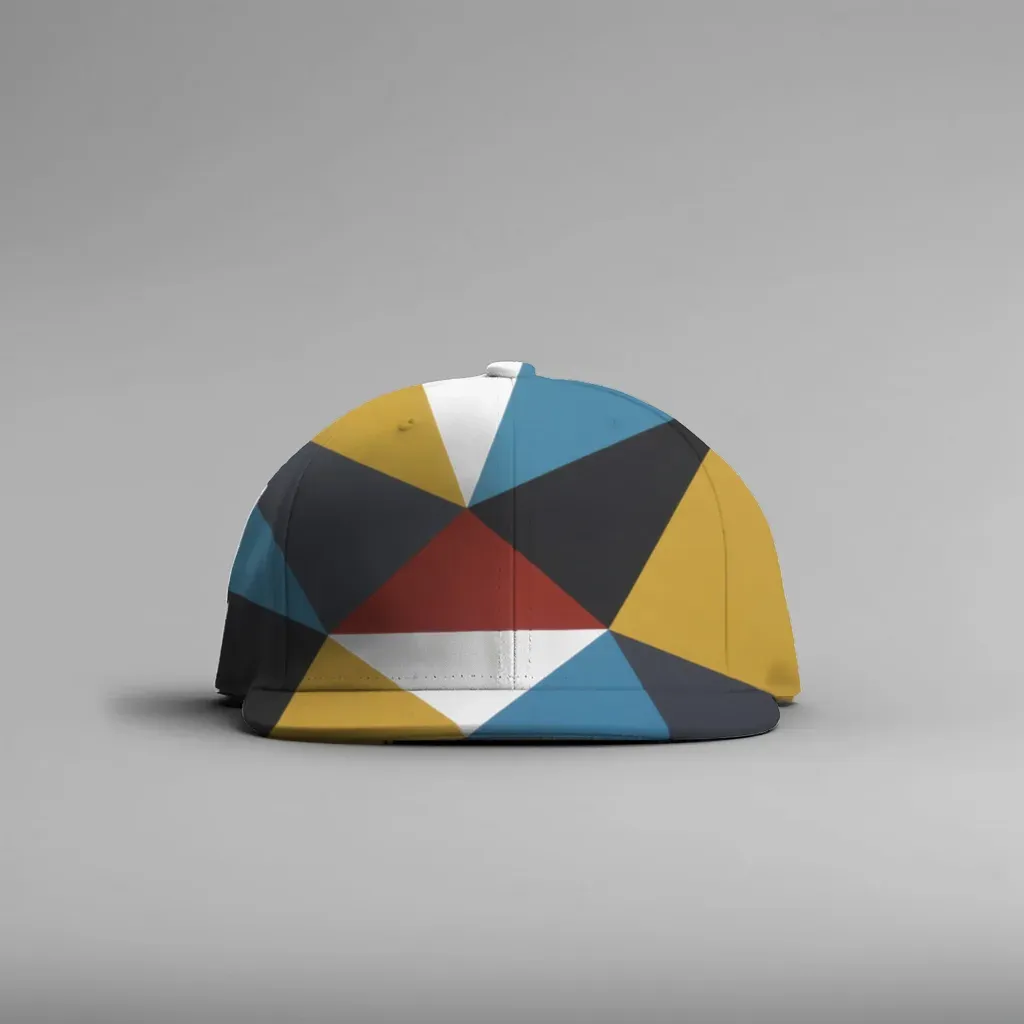
A real render: the triangle pattern compresses toward the sides of the panel because it was mapped to a curved surface, not pasted flat.
3. Fine-tune the edges #
Caps have more edge details than most products, so expect to spend a few seconds here. The Edit panel has three tools:
- Grid: drag grid points so they hug the panel outline. This is the fix when the design looks slightly off-center or the curve does not follow the seams. Points snap to edges; hold Alt to turn snapping off.
- Add / Subtract brush: paint out anything the design should not cover, like the brim edge, an eyelet, a strap or a finger holding the hat.
- Highlights / Shadows / Edge: control how much of the photo's shading shows through the design, and grow or shrink the print area by a few pixels if the artwork stops short of the panel edge or bleeds past it.
Switch the preview to one of your own designs to check the result with real artwork before saving.
4. Save the cap as a template #
Click Save. The template takes the photo's file name, and you can rename it on the Templates page. There you also choose how designs fit the panel: Cover (fill and crop, the default), Fit inside (keep the whole design visible, useful for logos and text), or Stretch. The template card shows a recommended design ratio and size, which is handy when you prepare artwork for caps.
5. Render all your designs in bulk #
On the Bulk page, select your cap template (and any others, such as a second cap color), drop in your designs and click Render. Every design lands on every selected template. In a real test run, 23 designs on 2 templates (a white cap and a sofa pillow) produced 46 images at 1536 × 1536 in under a minute on a laptop.
You get a ZIP with every image plus a manifest.csv listing each file, its template and design. You control the file names with a pattern such as {design}_{template}, and a / in the pattern creates folders, so each folder can hold the photos for one listing.
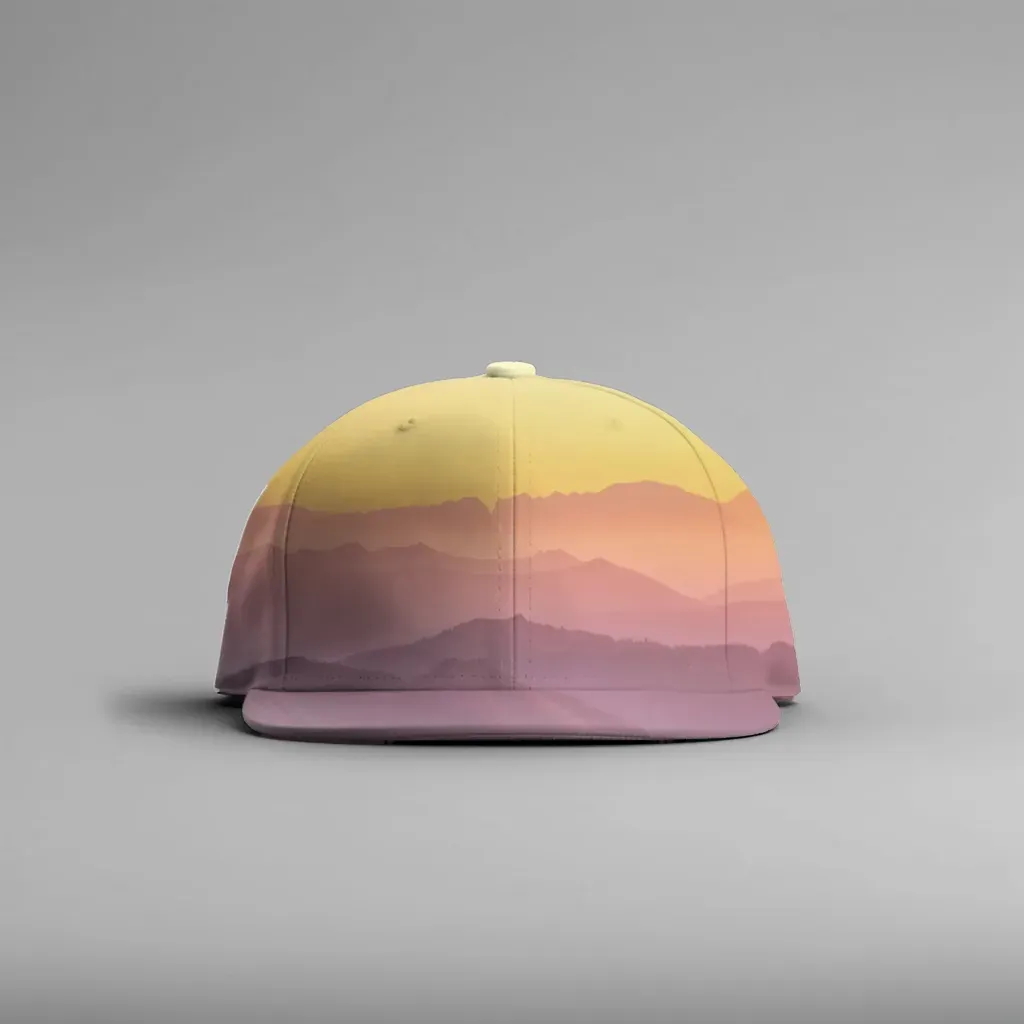
Same cap photo, different design: the shading on the crown and the shadow near the brim come from the original photo.
Want to try it on your own blank cap? Turn your cap photo into a curved hat mockup. It is free during the open beta, with no account, no watermark and no render limit.
Tips for better cap mockups #
- Shoot the front, not the side. A straight-on or slight three-quarter view gives the cleanest curve. A steep side angle hides half the panel and needs more grid work.
- Use soft, even light. Window light or an overcast day keeps the shading gentle. Hard sun creates a bright hotspot that can wash out light designs.
- Size the design for a cap, not a shirt. The front panel of a typical cap is much wider than it is tall. Wide, short artwork reads better than a tall square design that gets cropped.
- Use Fit inside for logos and text. Cover crops to fill the panel, which is great for all-over patterns but can trim the edges of a wordmark.
- Mind the center seam. Many six-panel caps have a seam down the middle of the front. The mockup will follow the photo, seam included, which is realistic but worth keeping in mind for designs with a key detail in the center. Structured caps with a seamless front panel are easier to work with.
- One photo per cap color. The tool does not recolor products. If you sell the same design on white, black and khaki caps, use a photo of each and save three templates. Name your files
name_lightandname_darkand the bulk renderer will pick the right version for light and dark caps automatically.
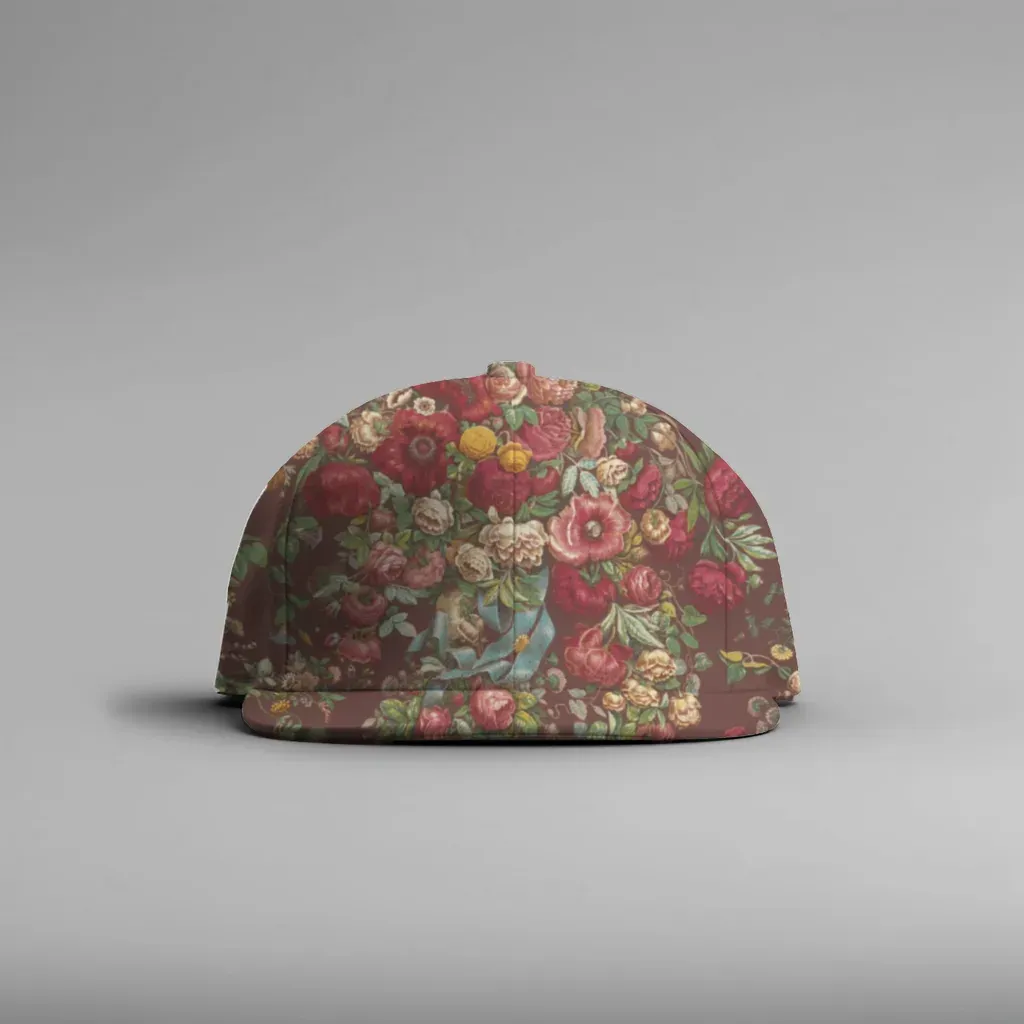
An all-over pattern with Cover fit: the roses fill the whole front panel and are clipped cleanly at the seams and brim.
Honest limits for hat mockups #
- It shows print, not embroidery. The design is mapped onto the fabric with the photo's shading, so it looks like a printed or sublimated cap. It does not simulate raised stitches. If you sell embroidered hats, a photo of a real sample still sells better than any mockup.
- No built-in hat library. You bring the cap photo. That keeps your listings from looking like every other shop using the same stock template, but you do need a decent photo to start.
- Output tops out at 1536 px on the long edge, which suits marketplace listing photos but not large print previews.
- Your work lives in your browser. Templates and designs are stored locally. Clearing browser data or switching computers means rebuilding the template.
- Caps that already carry a logo will have your design placed on top of it, so start from a blank.
Downloadable hat PSDs vs. making your own from a photo #
| Downloadable hat PSD | Your own cap photo in the browser | |
|---|---|---|
| Starting point | A PSD someone else built | Any photo of your blank cap |
| Software | Photoshop or a compatible editor | A web browser |
| Curve and shading | Built by the PSD author, usually excellent | Detected from your photo, adjustable |
| Matches your real product | Only if the PSD uses the same cap model | Yes, it is your cap |
| Many designs at once | Needs actions or a plugin | Built in (designs × templates) |
| Max size | As large as the PSD | 1536 px long edge |
A good PSD still gives you the most control and the highest resolution. If you already own one for your exact cap, keep using it. Making your own from a photo makes sense when your supplier's cap does not match any PSD you can find, or when you have dozens of designs to put on it. For more on why your own photos help listings feel genuine, see How to Make Mockups for Etsy Without AI.
The short version #
Take one clear photo of a blank cap, drag a box around the front panel, check that the grid curves with it, save, and render every design in one batch. The result is a set of hat mockups that bend with the crown and carry the real light from your photo.
Frequently asked questions
Start from a clear photo of a blank cap, open it in a browser-based tool like MockupPress, drag a box around the front panel and let it map the design to a curved surface. Fix the edges if needed, save it as a template and render your designs in bulk.
Usually because the design was pasted flat instead of wrapped around the curved front panel, or because it lacks the photo's highlights and shadows. Mapping the design to a cylinder-like surface and borrowing the shading from the photo fixes both.
Not from one photo. MockupPress does not recolor products, so use one photo per cap color and save a template for each. Light and dark design versions named name_light and name_dark are picked automatically.
No. The design is rendered as print on the fabric with the photo's shading. It does not simulate raised stitches, so for embroidered hats a photo of a real sample is still the best listing image.
It is free during the open beta with no account, watermark or render limit. Everything runs in your browser, so your cap photos and designs are never uploaded to a server. Output is up to 1536 px on the long edge.
More from QRdy Blog
The Best Canva Apps for Family Reunions (2026): Invites, Banners, Photo Walls and Calendars
Planning a family reunion in Canva? Here are the five Qrdy apps that actually help: shaped photo invitations, photo-letter banners, photo-wall grids, a countdown calendar and a QR link that can change after printing.
How to Make a Birthday Calendar in Canva (Family Birthday Tracker, Step by Step)
Build a printable family birthday calendar in Canva: 12 months, one page each, with names added in minutes. A step-by-step tutorial using Calendar Maker, plus honest notes on what Canva does on its own.
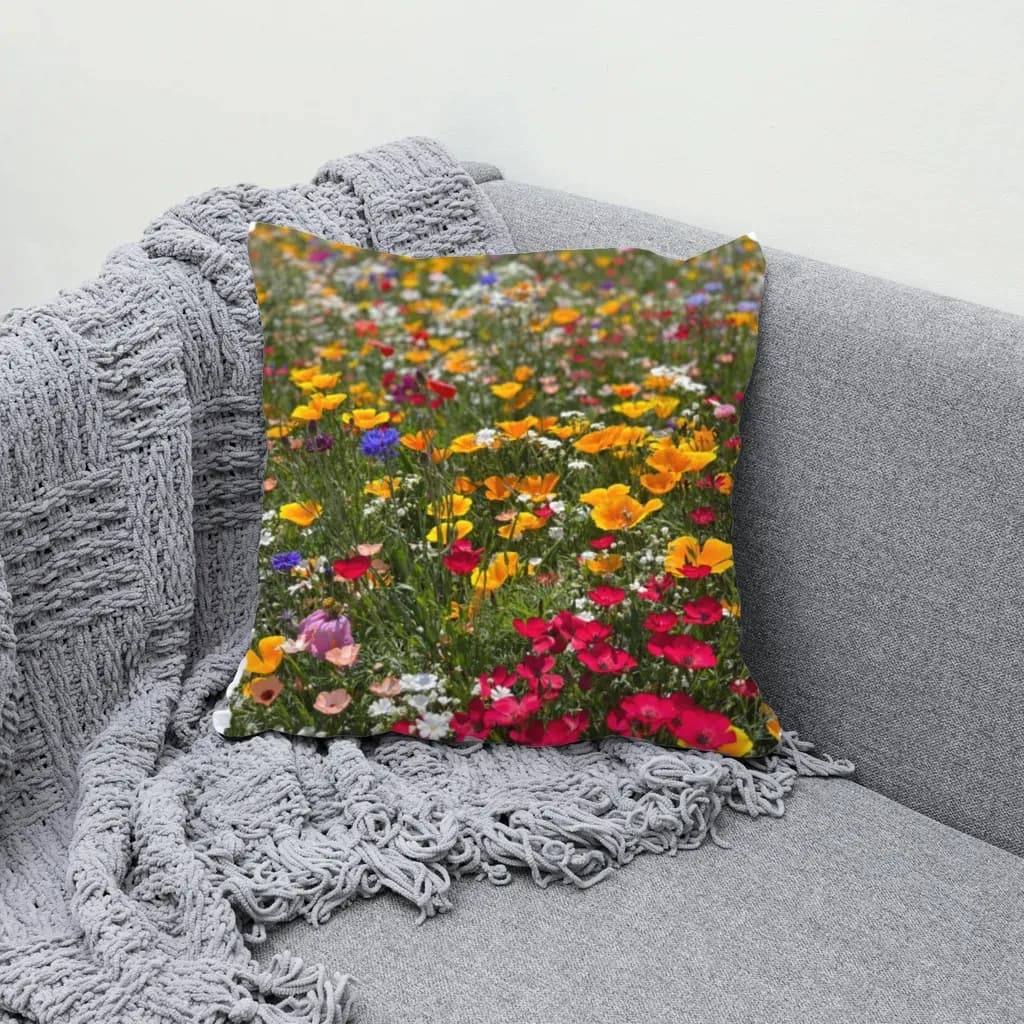
How to Make Mockups for Etsy Without AI (Using Your Own Product Photos)
Make Etsy mockups from real photos of your own blanks instead of AI-generated scenes: photograph or source a blank, drag one box around the print area, save a template and render every design in one batch, all in your browser.