
How to Make a Birthday Calendar in Canva (Family Birthday Tracker, Step by Step)
Build a printable family birthday calendar in Canva: 12 months, one page each, with names added in minutes. A step-by-step tutorial using Calendar Maker, plus honest notes on what Canva does on its own.
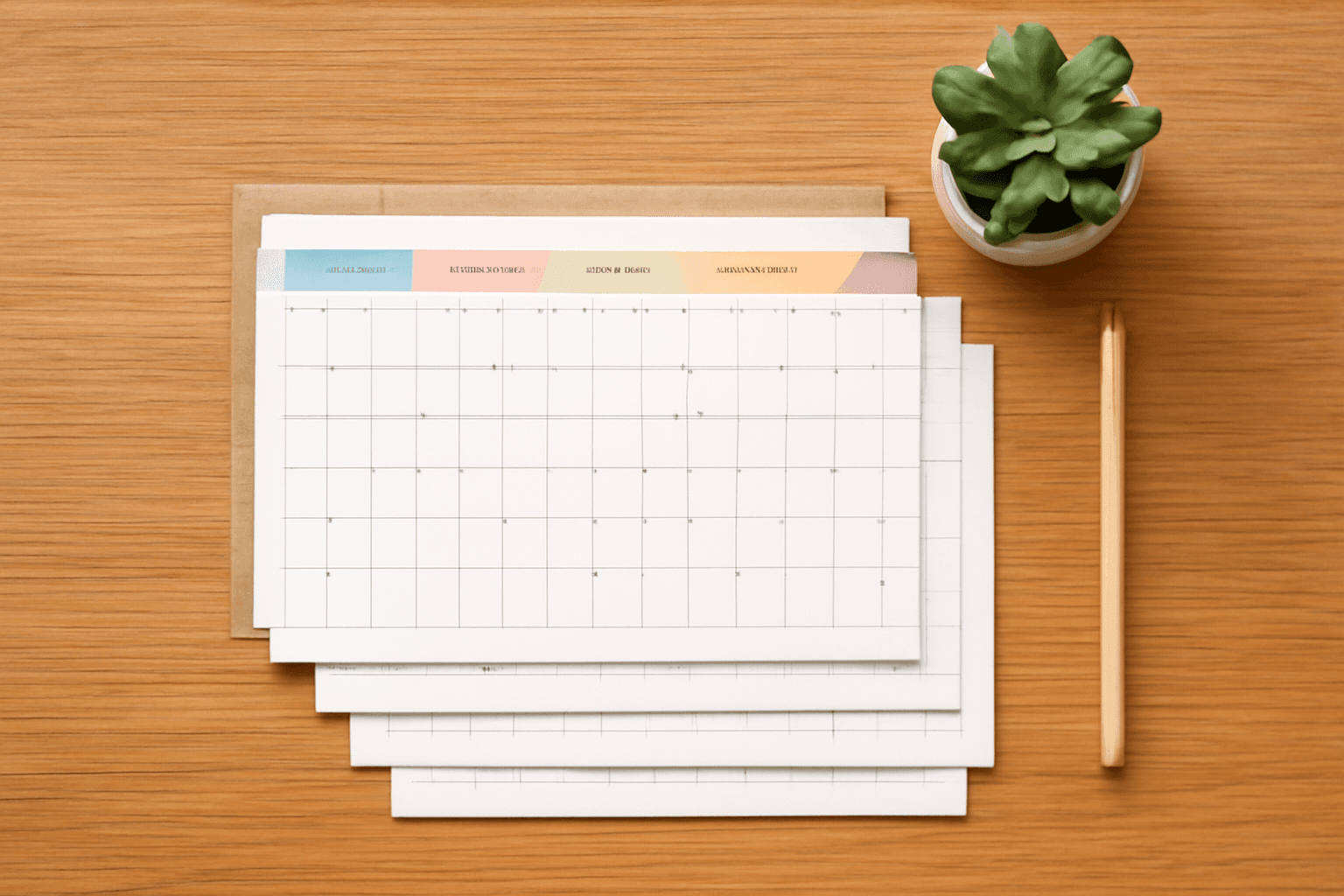
A birthday calendar is the simplest way to stop forgetting your sister's birthday, and it's a lovely gift for grandparents who like seeing the whole family on the wall. Searches for "birthday calendar" hold steady around 6,600 a month, mostly from people who want something printable rather than another app notification. This tutorial walks through building one in Canva in about 20 minutes, using Calendar Maker to generate the twelve month grids so you don't type a single date.
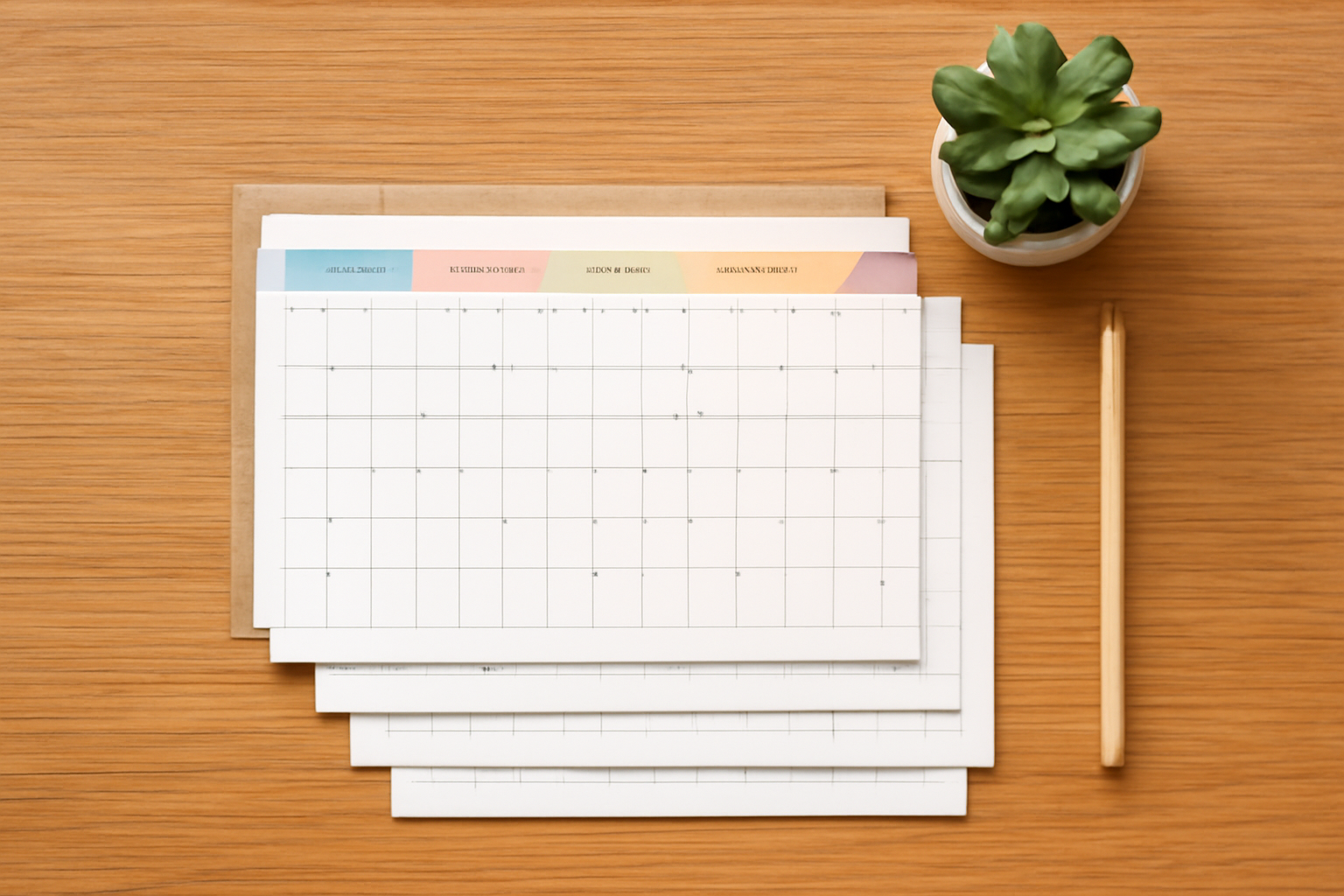
Before you start: what Canva does on its own #
Canva has free calendar templates, and a table plus text boxes will get you a birthday calendar with no extra app. If you only need one page with a dozen names, do that. The catch is that a full 12-month calendar means building twelve grids, aligning every weekday, and fixing each one when you change a font. That repetitive part is what Calendar Maker removes. It does not know anyone's birthday, so the names still go in by hand.
Step 1: Pick the size and the layout #
Create a new design. For a wall calendar, Letter or A4 portrait works well; for a fridge or desk version, try a half-letter landscape page. Decide now whether you want one month per page (best for a wall or fridge) or all twelve on one poster (best for a small birthday-only reference sheet).
Step 2: Open Calendar Maker and choose the Month tab #
Open Apps, search for Calendar Maker, and launch it. The app has three tabs: Month, Week and Custom. For a birthday calendar you want Month. Pick the year you are making it for.
Step 3: Turn on Add all months and one page per month #
Switch on Add all months so you get January to December in one go. Then turn on the option that puts each month on its own page, so every page is named by month and year. Choose Sunday or Monday as the first day of the week to match how your family reads a calendar.
Step 4: Style it so names stay readable #
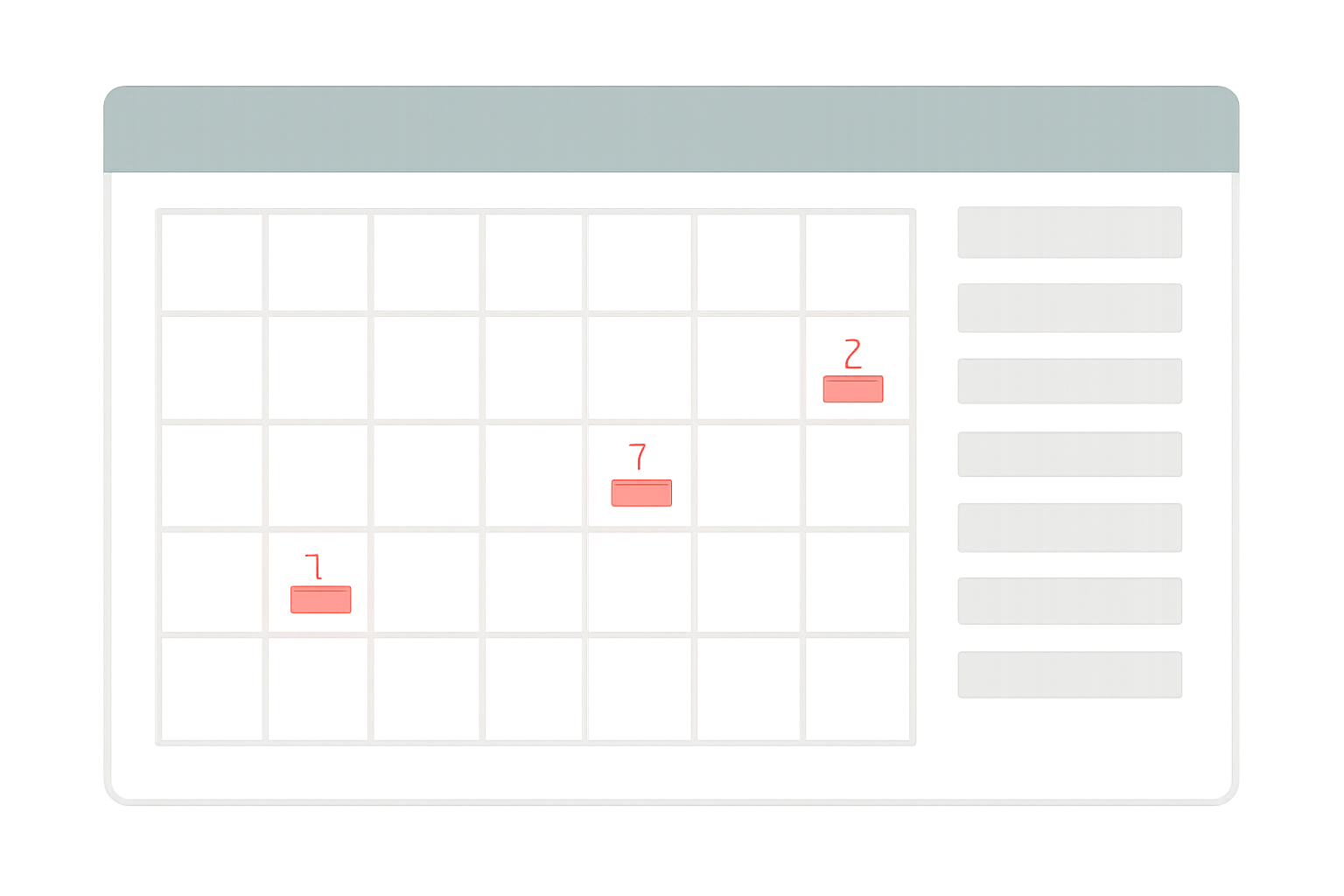
Birthdays mean writing inside the date cells, so legibility matters more than decoration. In the style sections, raise the date number size a little, keep the number color a soft grey so a name written beneath it stands out, and choose a bold header bar color. Calendar Maker also ships a library of over 30 ready-made color sets, so you can click one and then adjust, instead of picking colors from scratch. Use the live preview to check contrast before you add anything to the design.
Step 5: Add the calendar to your design #
Press Add to design. Calendar Maker inserts the twelve pages; on a large run it paces the requests, so give it a moment rather than clicking again. Adding calendars needs the Pro unlock, which the app prompts you for. If you tick the option to save settings after adding successfully, your style comes back next time, which is handy when you redo this each year.
Step 6: Type the birthdays into the date cells #
Click a date cell, add a text box under the number, and type the name, for example "Mia 7". Keep names short and use one text style for every entry. A quick trick: type the first name, copy it, and paste it into the other cells before editing the text, so alignment and font stay consistent. Mark milestone birthdays with a small colored dot or a different text color.
Step 7: Add faces or a cover #
A birthday calendar feels personal when the family is on it. Use a photo at the top of each page, or a themed cover. Frames Lab can turn photos into an arc or a tidy grid so each month carries a different relative; Image to Frame gives you a shaped window such as a heart or a cake silhouette; Text to Frames can fill a big "FAMILY" title with photos on the cover. These are optional, and the calendar works fine without them.
Step 8: Print or share #
For printing, download as PDF Print at 300 DPI, leave a safe margin for hole-punching or binding, and print on slightly heavier paper if you will write on it with pens. For a digital copy, export a PDF and send it to the family group chat. Test one page first, especially if you use a dark header bar.
Keeping it up to date #
Each January, duplicate the design, regenerate the grids for the new year with your saved setup, and paste your name text boxes across. The dates move, but the birthdays do not, so the only real work is repositioning names under the right weekday. If you would rather never redo it, our guide to the perpetual calendar covers a year-less layout. For more layouts, see the family planner calendar ideas.
Quick tips #
- Put a name list down the side of each page so you can see who is next at a glance.
- Use a different dot color for family, friends and coworkers.
- Add a small gift or card reminder one week ahead of important dates.
- Print a second copy for the grandparents; it makes a good gift.
Try Calendar Maker in Canva to generate all twelve months at once.
Frequently asked questions
Yes, you can build one by hand with Canva's free tables and text boxes, or start from a free template. Calendar Maker generates the monthly grids for you, but adding calendars to a design requires its Pro unlock, so the free route is the manual one.
Calendar Maker generates real dates for the year you pick, so a birthday calendar built with it is tied to that year. For a year-less version, see our perpetual calendar guide, which uses blank date cells you number yourself.
No. It builds the monthly grids and styling. You type the names into the date cells inside Canva, then duplicate the finished design each year and only change the weekdays if they shift.
Related products


More from QRdy Blog
How to Make Mockups for Etsy Without AI (Using Your Own Product Photos)
Make Etsy mockups from real photos of your own blanks instead of AI-generated scenes: photograph or source a blank, drag one box around the print area, save a template and render every design in one batch, all in your browser.
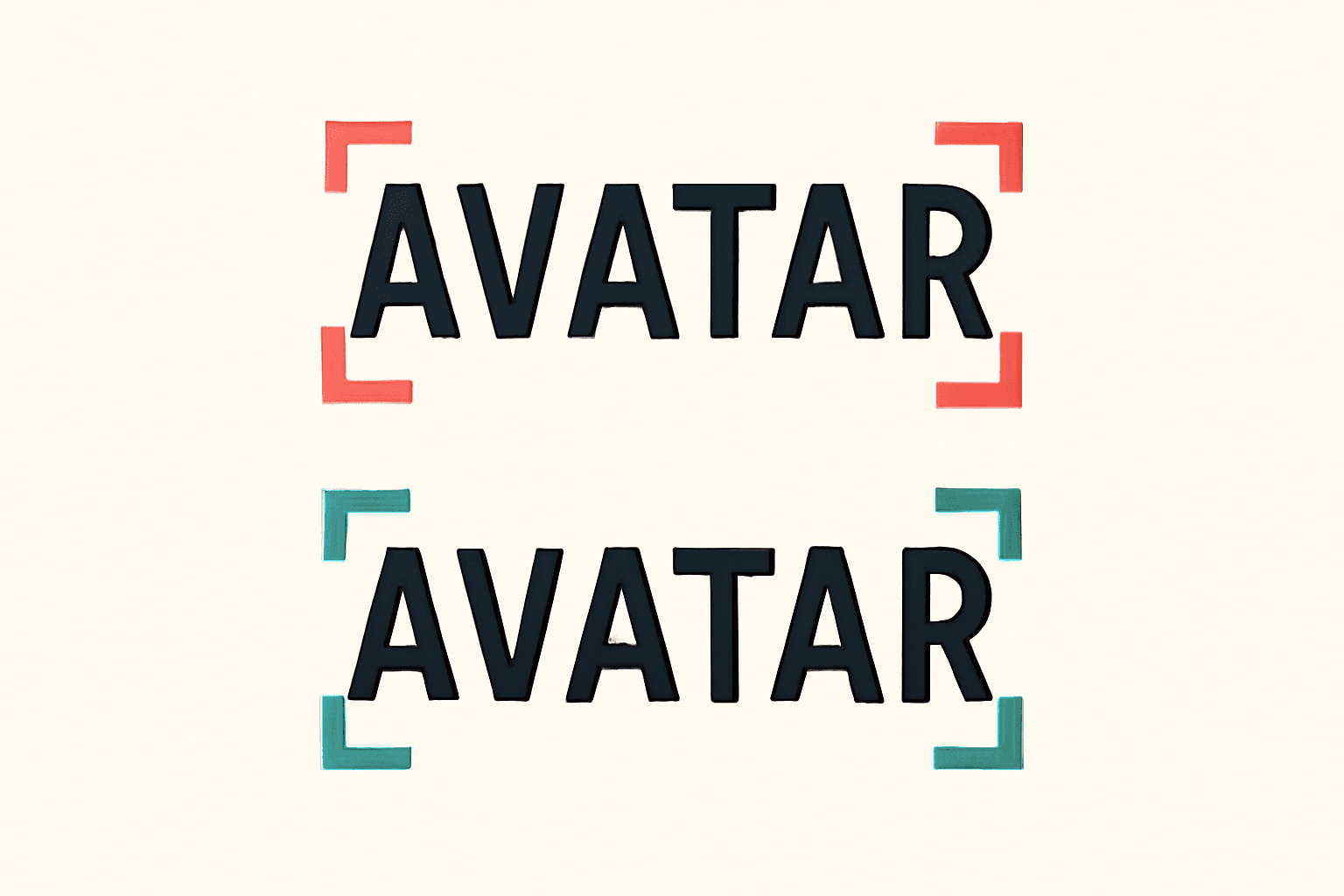
What Is Kerning? Meaning, Examples, and How to Space Photo Letters in Canva
Kerning is the adjustment of space between one pair of letters so gaps look even. Learn how it differs from tracking, which pairs need it, and how to space photo-filled letters in Canva.

10 Photo Letter Banner and Name Sign Ideas You Can Make in Canva
Ten printable letter banner, name banner and family name sign ideas where every letter is a Canva frame filled with its own photo, built with Text to Frames.