
Canva Grids vs Frames Lab: Which Is Better for Photo Collages?
Canva's built-in Grids are fast and free, but they only do straight rectangles. Frames Lab adds arc, burst, diagonal and wavy grids. Here's an honest side-by-side so you know which one to reach for.
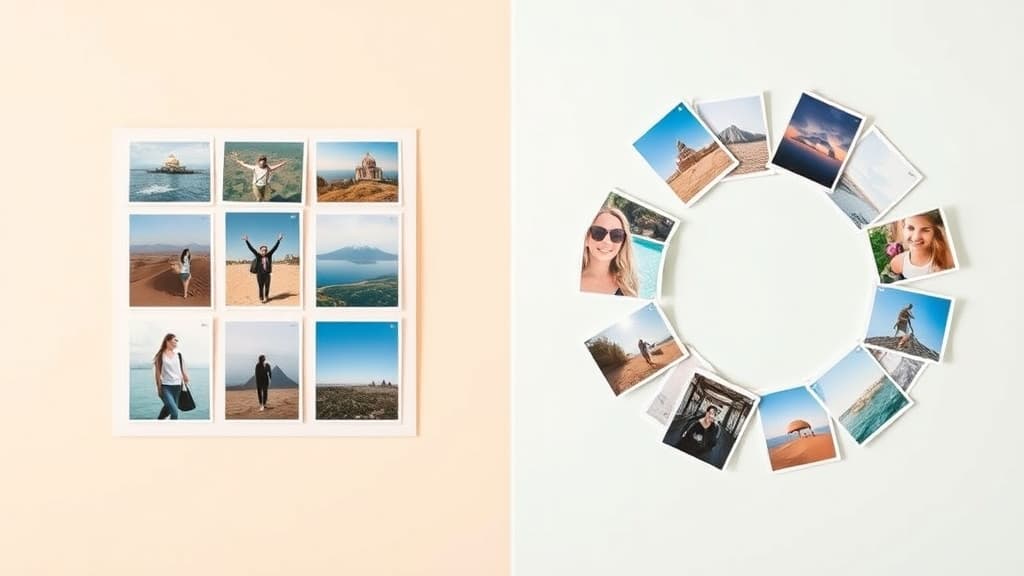
Canva Grids vs Frames Lab: Which Is Better for Photo Collages?
If you've ever built a photo collage in Canva, you've probably used Grids — the built-in layouts under Elements that let you drop photos into neat cells. They're free, they're fast, and for a lot of designs they're all you need.
But the moment you want something that isn't a straight rectangle — a curved arc of photos, a sunburst, a diagonal strip, a grid with a gentle wave — plain Grids run out of road. That's the gap Frames Lab, a QRdy Canva app, is built to fill.
Here's an honest, side-by-side look at both so you know exactly which one to reach for.
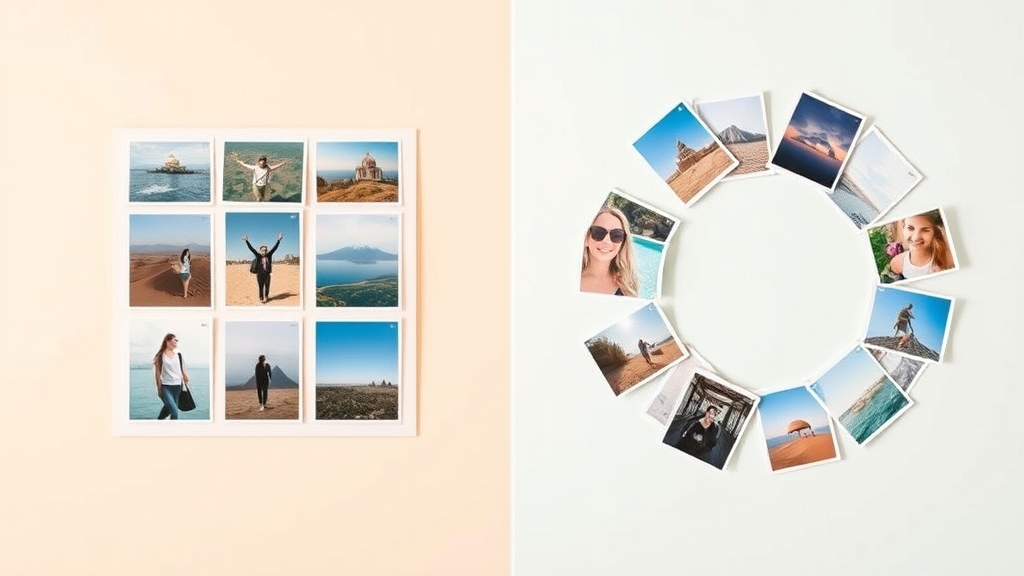
The short version #
Use Canva Grids when you want a quick, clean, rectangular collage and don't need any custom shape. It's built in, free, and takes two clicks.
Use Frames Lab when you want a collage grid Canva can't make on its own — an arc, a burst, a diagonal layout, a wavy grid, or a grid where you control the exact number of rows, columns, gap and border. It's a parametric "frame factory" that lives in the Canva sidebar.
They're not really enemies. Grids handle the everyday rectangle; Frames Lab handles everything with a curve or a custom parameter.
What Canva Grids actually does #
Grids are a native Canva feature. You find them under Elements → Grids, pick a layout (2-up, 3-up, a 3×3, etc.), and it drops onto your page. Then you drag a photo into each cell and it snaps to fit.
What's good about Grids:
- Free and built in — nothing to install, works on desktop and mobile.
- Instant — pick a layout, drag photos, done.
- Adjustable gaps — drag the white lines between cells to change spacing.
- Reliable — it's core Canva, so it just works.
Where Grids stops:
- Rectangles only. Every cell is a straight-edged box. There's no arc, no curve, no sunburst.
- Fixed layouts. You choose from Canva's preset grids; you can't dial in "7 columns, 3 rows, 12px gap" precisely.
- No wave, no diagonal, no polygon. If your idea isn't a straight grid, Grids can't build it.
For a tidy Instagram carousel or a simple photo wall, that's totally fine. For anything more expressive, you'll hit the wall quickly.
What Frames Lab actually does #
Frames Lab is a QRdy Canva app — it runs in a panel inside the Canva editor. Instead of picking a fixed layout, you generate a frame (a shape you drop photos into) with real parameters. Any frame it makes auto-resizes to fit the design you have open, so you don't fiddle with sizing.
It opens with three tabs:
- Create — build a new frame from scratch.
- Explore — grab a ready-made frame from a collection, no tweaking needed.
- Style — reuse a frame you just added and layer on effects.
Inside Create there are five modes:
- Shape — turn any Canva shape or graphic already in your design into a fillable frame.
- Burst — randomized sunburst / firework frames (new).
- Grid — a multi-cell collage grid, with control over rows, columns, gap, and even a wave effect that makes the grid lines ripple.
- Arc — a curved / semi-circle frame (set the arc size in degrees and where it starts).
- Diagonal — a grid where the strips run on an angle you set.
For collages specifically, the Grid, Diagonal, and Arc modes are the stars — they do the things native Grids can't. And the Style tab lets you add Blur, Border, or Inner Shadow to a frame you've already used.
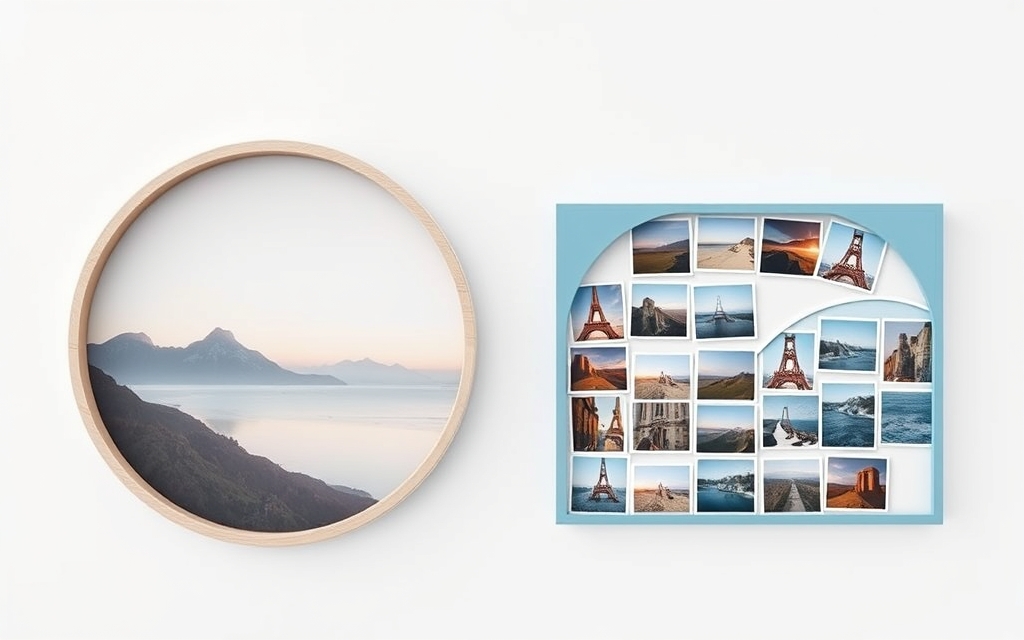
Side-by-side comparison #
| Canva Grids (built-in) | Frames Lab (QRdy app) | |
|---|---|---|
| Where it lives | Elements → Grids | App panel in the Canva sidebar |
| Cost | Free | Free with an add limit; Pro removes the cap |
| Shapes | Straight rectangles only | Grid, Diagonal, Arc, Burst, Shape |
| Wave / curve | ❌ | ✅ (wave on grids, true arcs) |
| Precise control | Preset layouts, drag gaps | Set rows, columns, gap, angle, border |
| Auto-fit to page | Grid fills the page | Frame auto-resizes to your design |
| Extra effects | ❌ | Blur, Border, Inner Shadow (Style tab) |
| Ready-made picks | Preset grid options | Explore tab collections |
| Mobile | ✅ | Desktop editor panel |
| How you fill it | Drag a photo into each cell | Drag a photo into each frame cell |
When to use each one #
Reach for Canva Grids if:
- You want a plain rectangular collage and you want it now.
- You're on the Canva mobile app.
- You don't need any curve, angle, or precise parameter.
- You'd rather not install anything.
Reach for Frames Lab if:
- You want an arc of photos across the top of a design.
- You want a diagonal or wavy grid instead of a rigid box.
- You need exact control — a specific number of rows and columns, gap, and border.
- You want a burst frame for a highlight or badge.
- You want to add Blur / Border / Inner Shadow to your collage frames.
The honest take #
Canva Grids aren't "worse" — they're the right tool for the most common job, and they're free and native. If your collage is a rectangle, don't overthink it: use Grids.
Frames Lab earns its place when your idea has a shape. Arcs, bursts, diagonals, wavy grids, and precise custom grids are exactly what the built-in Grids can't do, and Frames Lab makes them in a few clicks — then lets you drop photos in the same drag-and-fill way you already know. Many designers keep both: Grids for the quick rectangle, Frames Lab for everything with a curve.
If you want to explore the shaped-frame side, Frames Lab is the QRdy app to start with. And if you're comparing tools, it's worth knowing Frame Collage (a big toggleable photo grid), Image to Frame (turn a PNG into a frame), and Clipping Mask (mask one photo to a shape or word) sit right alongside it for related jobs.
FAQ #
Frequently asked questions
No. Canva Grids only produce straight-edged rectangular cells. For an arc, curve, diagonal, or wavy grid you need a tool like Frames Lab, which generates those shapes as fillable frames that you drop photos into the same way you fill a grid cell.
Frames Lab has a free tier with a limit on how many frames you can add. When you hit the cap, the app invites you to upgrade to Pro, which removes the limit. Canva Grids, by contrast, are completely free and built into Canva.
Yes. Once a Frames Lab frame is on your page, you drag a photo (or video) into it and it snaps to fit the shape — exactly like dragging a photo into a native Canva grid cell. The difference is the shape of the frame, not how you fill it.
For a plain rectangular collage, use Canva Grids — it's free, native, works on mobile, and takes two clicks. Switch to Frames Lab when you want an arc, burst, diagonal, wavy grid, precise row/column control, or effects like blur and inner shadow.
Related products


More from QRdy Blog
Can You Still Use Mockups on Etsy? What the New AI Photo Rules Mean for Print-on-Demand Sellers
Etsy's new listing image rules require one unedited photo for most items, but print-on-demand sellers may use authorized stock photo mockups. Here is what Etsy actually says, which mockups fit, and how to order your listing photos now.
The Best Canva Apps for Name Tags (2026): Photo Initials, Shaped Badges and Batch Sheets
Name tags are one of the easiest things to make in Canva. These apps add the parts Canva does not: photo-filled initials, shaped badge windows, photo-grid tags, and batch QR tags.

How to Make a 2026-2027 School Year Calendar in Canva (Semester by Semester)
Build a printable 2026-2027 school year calendar in Canva: generate each month or semester with Calendar Maker, mark breaks and exam weeks, and print or share it as a PDF.