
The Best Canva Apps for Name Tags (2026): Photo Initials, Shaped Badges and Batch Sheets
Name tags are one of the easiest things to make in Canva. These apps add the parts Canva does not: photo-filled initials, shaped badge windows, photo-grid tags, and batch QR tags.
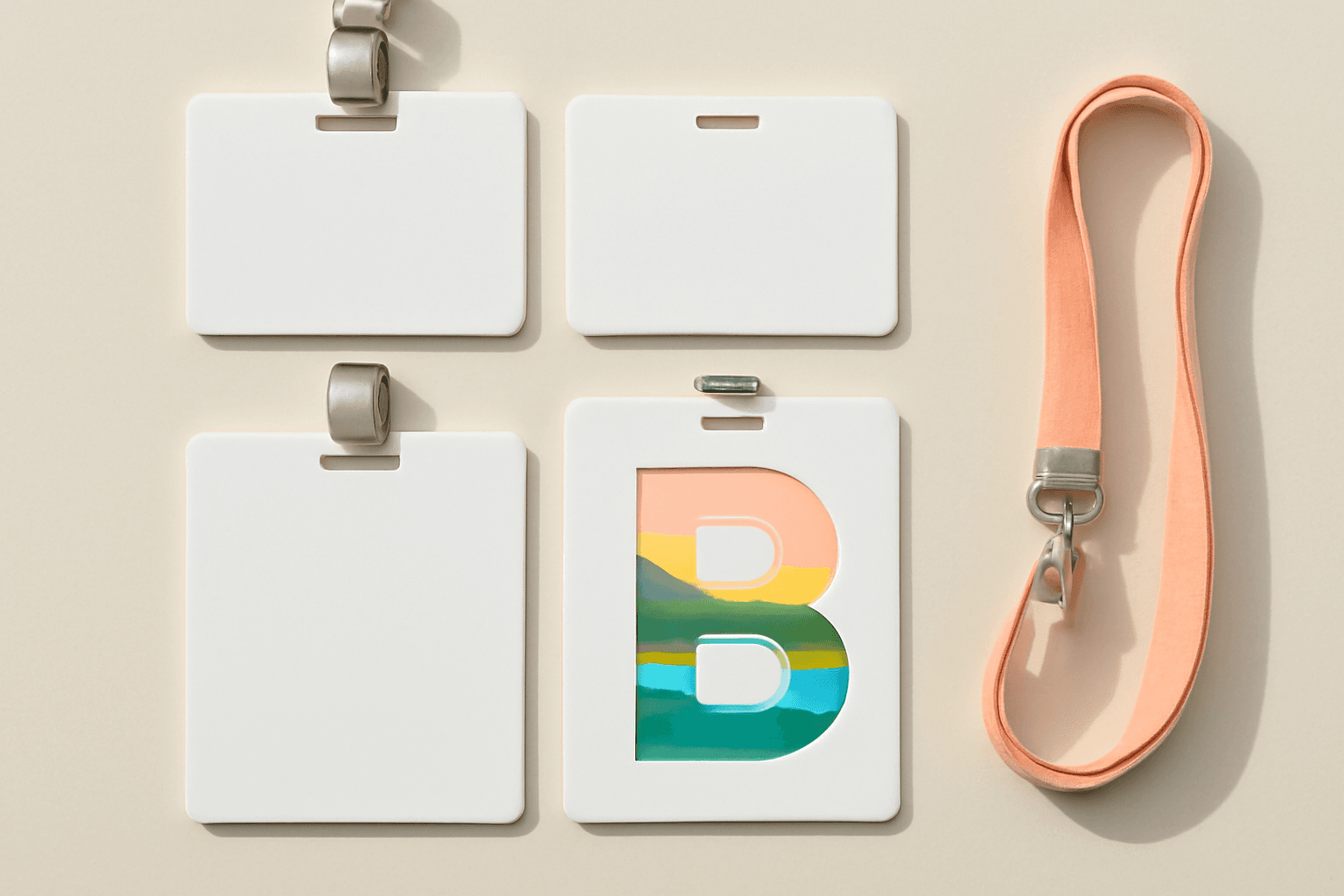
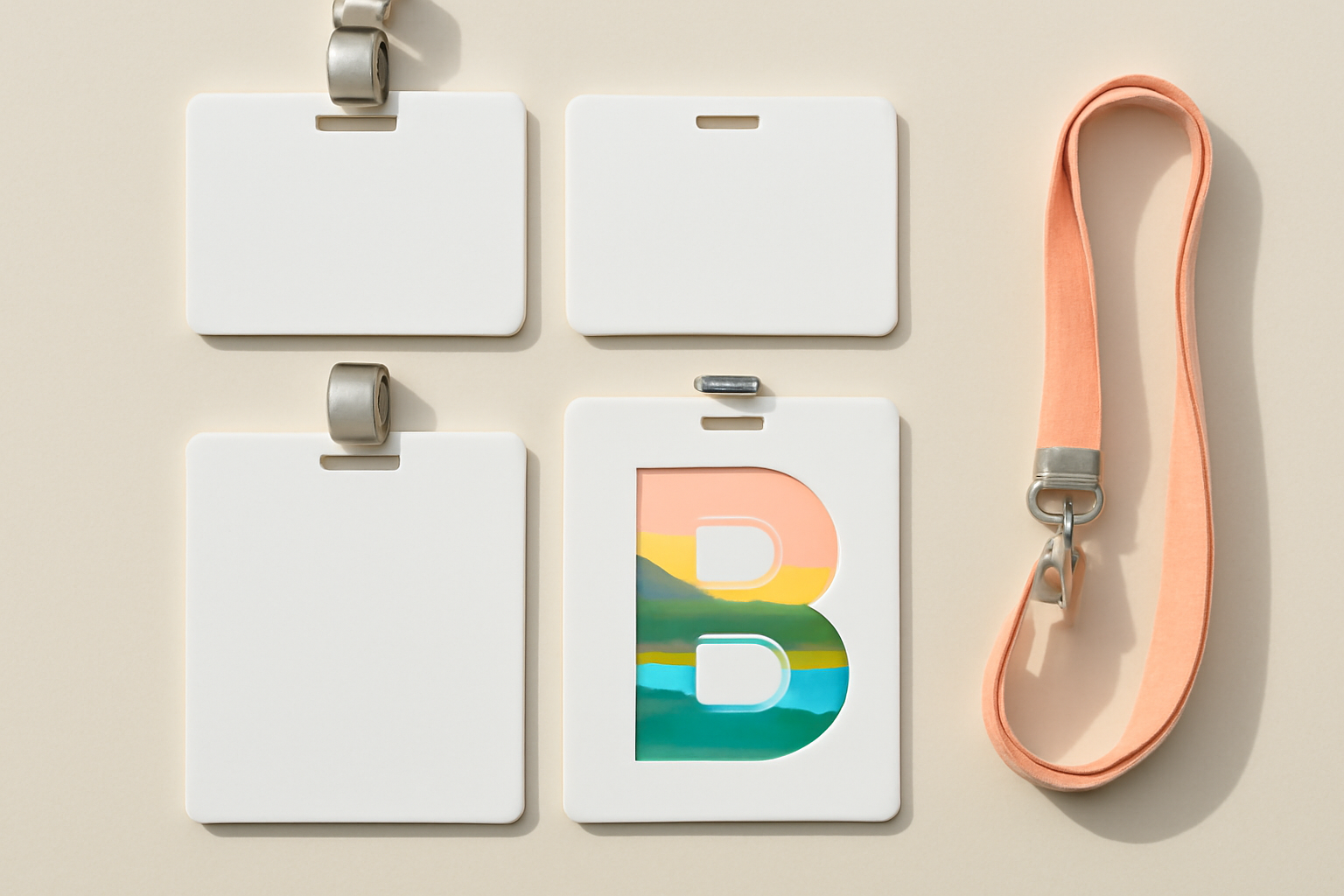
Name tags look like the simplest design job there is: a rectangle, a name, a lanyard hole. Search interest says otherwise. People look up "name tags" about 40,000 times a month and "name tag template" another 4,400, and the peak is every August to October, when classrooms, clubs and conferences all start up at once.
Canva already handles the basics well, so this guide is honest about where you do not need anything extra. Then it covers the five Qrdy apps that add what Canva does not: photo-filled initials, tags shaped like a star or a leaf, photo-grid tags, and batch QR tags. Nothing here is a replacement for Canva. Every app runs inside it.
What Canva already does well #
Search "name tag" in Canva templates and you get hundreds of free layouts. Custom sizes, text, shapes, free frames and grids are all built in, and Bulk Create can fill a spreadsheet of names into one template. For a plain printed badge with a name and a role, stop there. You do not need an app.
Apps start to earn their place when you want the tag to look unlike every other template: a photo showing through the first letter, a shaped window, or a whole sheet of tags that each link somewhere different.
Quick-pick table #
| If you want... | Use | Cost note |
|---|---|---|
| A photo showing through the initial or a short name | Text to Frames | 5 free fonts, Pro for 100+ and effects |
| A star, leaf, or logo-shaped photo window | Image to Frame | Free for students and teachers, Pro otherwise |
| A mini photo grid on the tag | Frames Lab | Free adds are limited, Pro unlocks more |
| A decorative dotted or icon edge | Border Art Maker | See the app listing in Canva |
| Many tags that each carry a QR code | Bulk QR | Static QR codes are free |
1. Text to Frames: photo-filled initials and names #
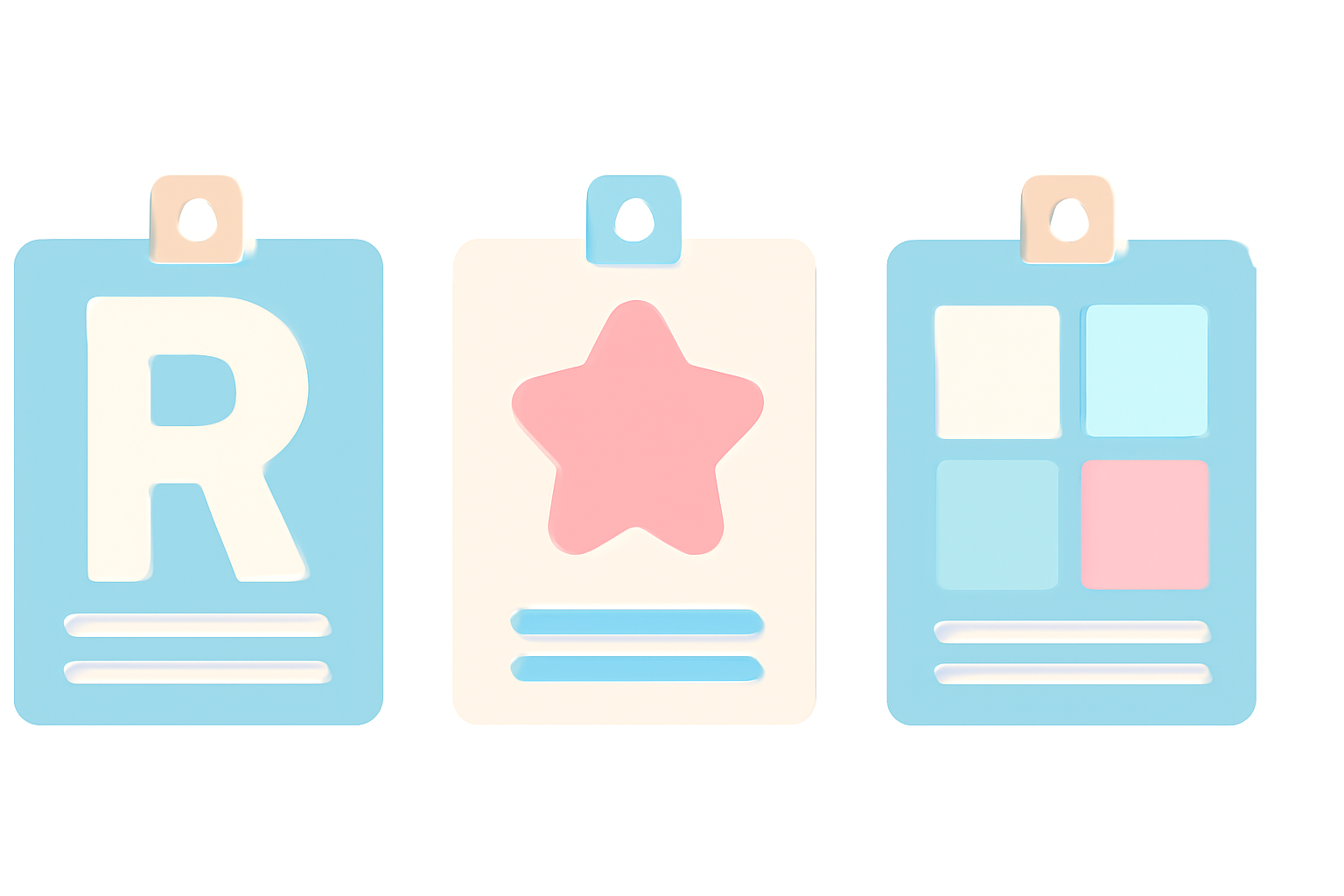
This is the best fit when a tag should feel personal. Text to Frames turns text into real Canva frames, so each letter becomes a window you can drop a photo into. A big first initial with the person's name in plain text underneath is the cleanest layout, and it works for kids' name tags, team badges and party favors.
How to do it:
- Open Apps in Canva and launch Text to Frames.
- Type one letter or a short name (the cap is 200 characters, but short is better for a badge).
- Pick a heavy sans-serif font. Thin fonts leave too little area for the photo.
- Switch on Split into letters if you want a different photo in every letter.
- Press Add to design, then drag photos into the frames.
Honest limits: the free tier has 5 fonts (Roboto, Open Sans, Lato, Playfair Display and Pacifico), and the Border, Blur and Inner shadow effects are Pro. Some Canva design types refuse frames, and the app tells you so. Open it in a Poster or Presentation design instead.
For a bigger version of the same idea, see photo letter banner ideas.
2. Image to Frame: shaped badge windows #
A rectangle tag is fine, but a tag with a star, leaf or paw-print window for the photo is what kids remember. Image to Frame converts a PNG, SVG or JPG (up to 5 MB) into a valid Canva frame, so any shape you can find or draw becomes a photo window.
One tip decides the result: use an image with a transparent background. A shape on a white background produces a rectangle frame, because the white is treated as part of the image. Very intricate outlines can fail to convert, and the app then points you to its Frame Store. The border only shows after you add the frame to the design.
For the idea behind this, read what is a stencil.
3. Frames Lab: tags with a mini photo grid #
Conference and club badges often carry a few small photos: a team member, a pet, a favorite place. Frames Lab builds a Grid frame from columns, rows and gap size, and the grid scales to fit your page automatically. A 2 by 2 grid on a portrait tag reads well at badge size.
Keep it small. Grids above roughly 30 cells get blocked, and on a 3 by 4 inch tag anything past 2 by 3 is too busy to see. Free accounts have a limit on frame additions, and Pro removes it.
4. Border Art Maker: the finishing edge #
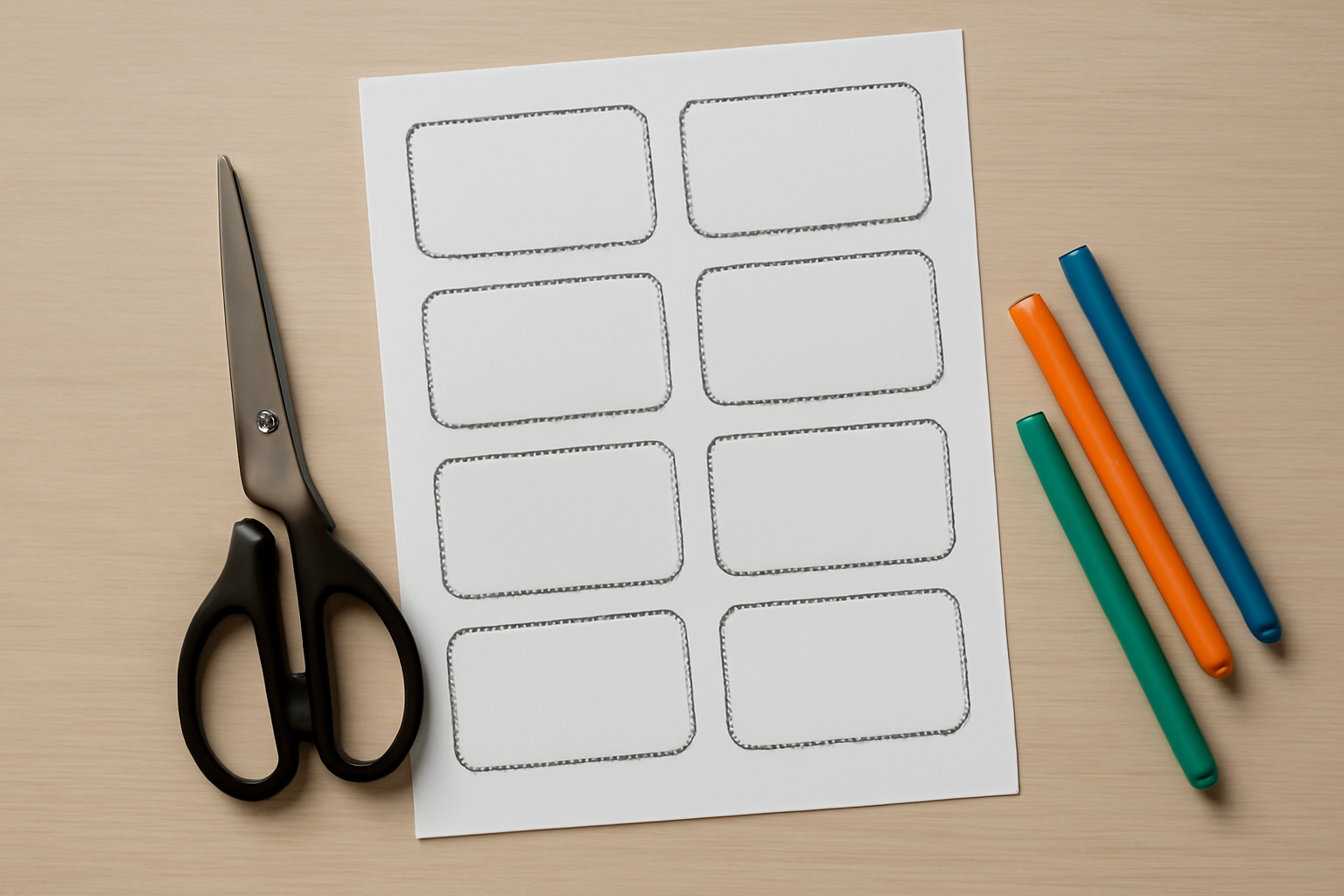
A repeating dotted or icon border makes a plain tag look designed, and it doubles as a cutting guide for scissors. Border Art Maker spaces the repeating pattern evenly around the tag and lets you adjust spacing and rotation. Add it last, after the layout is final, and lock the border layer so it does not shift while you move content.
5. Bulk QR: one sheet, many different QR codes #
If every tag needs a link (a profile, a schedule, a WiFi code), generating codes one at a time is slow. Bulk QR takes a pasted list and generates all the codes at once, for links, text, email, SMS, WiFi and contact cards. These are static codes, so the destination cannot change after printing. Test one with a phone before you print the full run.
A 10-minute workflow for a full set #
- Set a custom size first: 3 x 4 inches portrait for a lanyard badge, or 3.5 x 2.25 inches for a sticker.
- Build one tag completely, including the photo initial, border and any QR code.
- Duplicate the page and swap names and photos. Use Canva Bulk Create if you only change text.
- On a Letter or A4 sheet, fit 4 to 8 tags with a small gap between them.
- Print one test sheet on plain paper, then print the real run on 200 to 300 gsm cardstock.
Print checklist #
- Resolution: export at 300 DPI so small text stays sharp. See what is DPI.
- Bleed: if a tag has a colored background that reaches the edge, add bleed. See what is bleed in printing.
- Hole position: keep the lanyard slot area at least 5 mm clear of text.
- Contrast: dark text on a light photo area, or add a Border to the letters.
For tags that hang off presents rather than lanyards, see the best Canva apps for gift tags, and for table seating, place card ideas.
Which one should you start with? #
Start with Text to Frames if you want one change that makes a tag look custom. Add Image to Frame if the shape matters more than the letters. Use Frames Lab or Bulk QR only when the tag has a specific job, a photo set or a scannable link. For a plain name-and-role badge, Canva's own templates are all you need.
Frequently asked questions
A common badge size is 3 x 4 inches (portrait, fits a standard lanyard holder) or 4 x 3 inches landscape. Sticker name tags are usually 3.5 x 2.25 inches. Set the custom size first, then fit 4 to 8 tags on one Letter or A4 page for printing.
Yes. Text to Frames turns each letter into a real Canva frame, so you can drop a photo into an initial or a short name. Use a heavy, bold font so the photo stays visible, and keep the name short.
Canva's own name tag templates, frames and grids are free to use. Text to Frames has 5 free fonts and a Pro tier for 100+ fonts and effects like Border. Image to Frame has a free-for-students-and-teachers offer and a Pro tier with the Frame Store.
Related products


More from QRdy Blog

How to Make a 2026-2027 School Year Calendar in Canva (Semester by Semester)
Build a printable 2026-2027 school year calendar in Canva: generate each month or semester with Calendar Maker, mark breaks and exam weeks, and print or share it as a PDF.
What Is a Stencil? Meaning, Types, and How to Turn a Stencil Shape into a Canva Frame
A stencil is a cut-out template that lets paint or ink pass through only where you want it. Learn how stencils work, the main types, and how to turn a stencil shape into a photo frame in Canva.
Throw Pillow Mockup Ideas for Etsy Home Decor Shops (7 Real Examples)
Seven throw pillow mockup ideas for Etsy home decor shops, from florals to gingham to photo prints, each with a real render made from one plain pillow photo in a single batch, plus tips on fit, folds and listing workflow.