
The Best Canva Apps for Gift Tags (2026)
Gift tag season starts earlier than you think. Here are five Canva apps that make custom photo tags, decorative borders, name tags and QR tags faster than building each one by hand — plus what Canva already does well on its own.
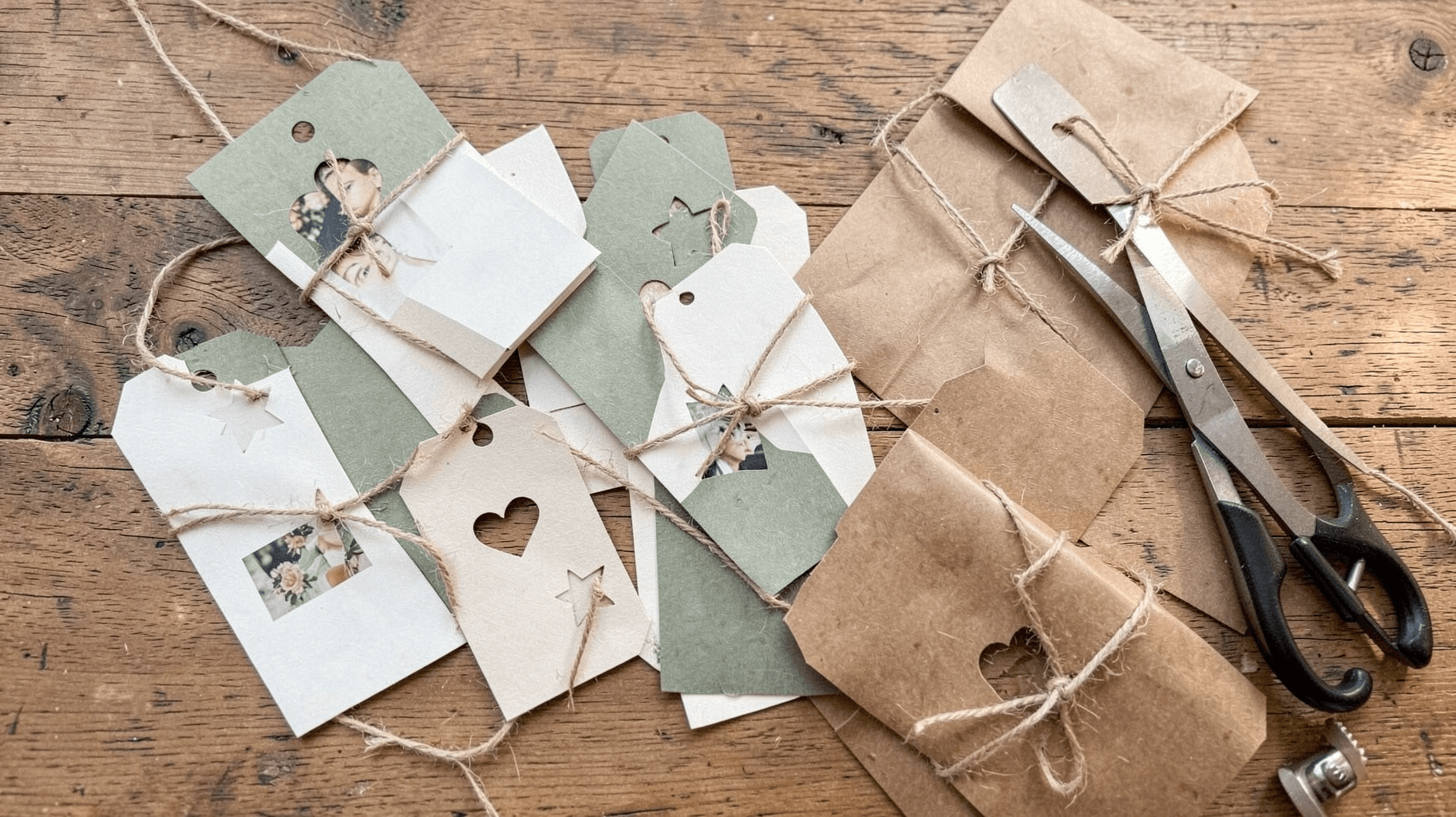
Gift tag searches start climbing in mid-September and peak the week before Christmas. If you sell on Etsy, run a small shop, or just want your presents to look like someone thought about them, now is the sensible time to build your tag set — not December 20th.
The good news: a gift tag is one of the easiest things to design well. It's small, it's mostly blank space, and the whole job is one shape, one edge treatment, and a name. The bad news: doing twenty of them by hand in Canva is tedious, and the fiddly parts (cropping a photo to a tag silhouette, drawing an even decorative border, generating a QR per tag) are exactly where Canva's built-in tools stop.
Here are the five Canva apps that remove the tedious parts — and an honest note on when you don't need any of them.
Quick pick #
| If you want… | Use | Why |
|---|---|---|
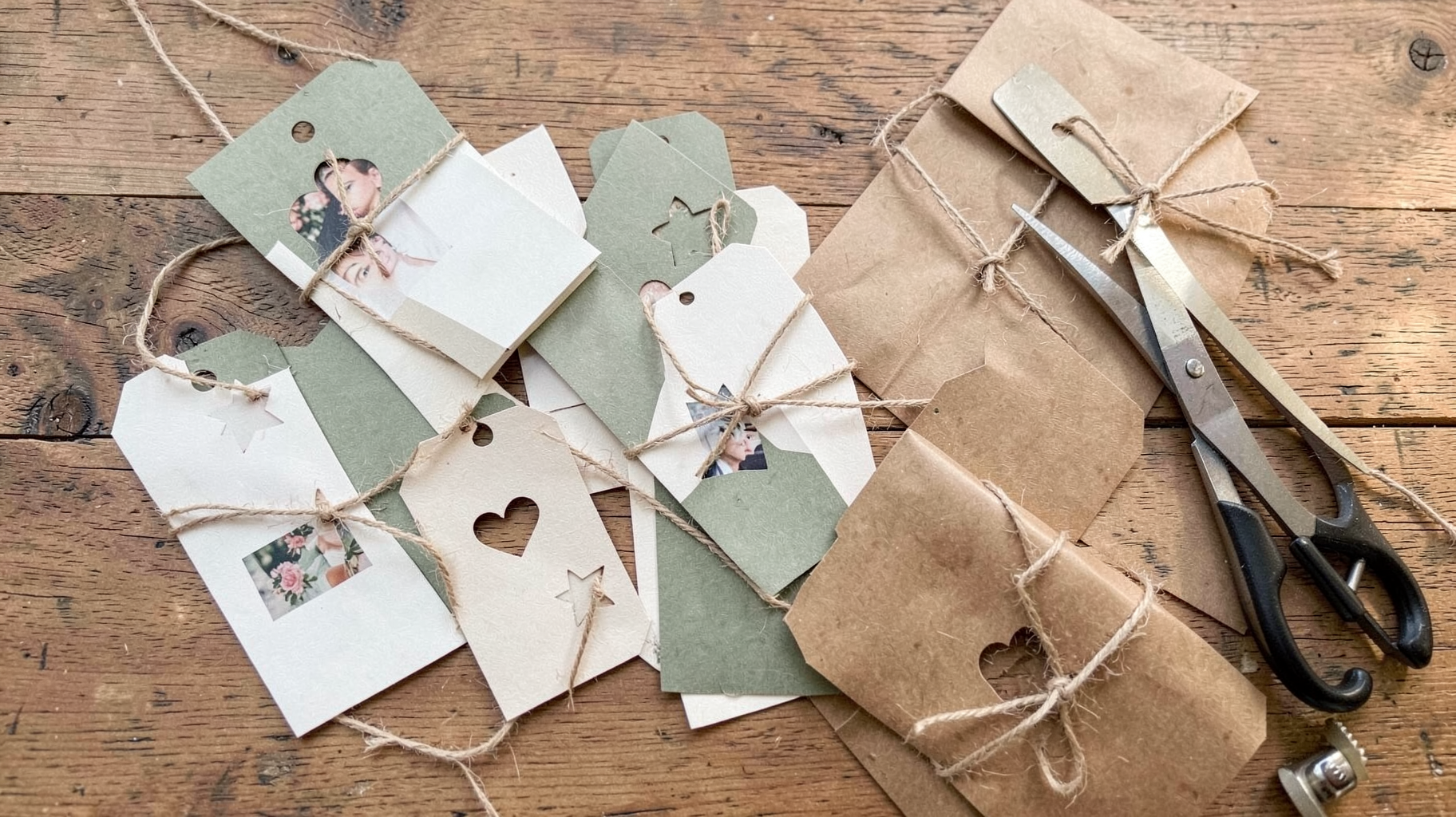
| A photo cropped to a tag, star, or ornament shape | Image to Frame | Turns any transparent PNG/SVG into a real Canva frame you drop photos into |
| A decorative repeating edge around the tag | Border Art Maker | Spaces dots, icons or your own image evenly along the border — no copy-pasting |
| The recipient's name with photos inside the letters | Text to Frames | Each letter becomes its own frame, so every letter can hold a different photo |
| A QR code on every tag (care instructions, a video message, a shop link) | Bulk QR | Generates dozens of static QR codes from one pasted list, free |
| A hand-drawn or odd tag outline | Trace to Frame | Click points around a shape and it becomes a frame — straight lines only |
1. Image to Frame — the one you'll actually reach for #
Most custom gift tags come down to one idea: a photo, cropped to a shape that isn't a rectangle. A tag outline. A star. A bauble. A gingerbread man. Canva's built-in Frames cover circles, hearts and a handful of other shapes, but they're a fixed library — if the shape you want isn't there, you're stuck.
Image to Frame closes that gap. You give it a shape as a PNG, SVG or JPG (up to 5 MB), and it converts that shape into a genuine Canva frame — the same kind Canva uses natively, so you drag a photo in and it fills the outline, and you can reposition and zoom the photo inside it afterwards.
There are three ways to feed it a shape: upload a file, select an image already sitting on your Canva page, or export the current page as a transparent PNG (handy when you've assembled a tag outline from several Canva shapes and want the whole thing to become one frame).

The one tip that decides whether this works: remove the background first. If your shape file still has a white or coloured background, the app has no outline to follow and you'll get a rectangular frame. Transparent PNGs give clean, shape-accurate frames every time. Simple SVG line art works well too; very intricate curves sometimes fail to convert, and the app will tell you and point you at its Frame Store instead.
There's a border control as well — thickness 0-50 and a colour picker — which is genuinely useful for tags, since a 2-3 px border reads as a printed edge and helps the tag stay visible against wrapping paper. Note that the border only appears once the frame is added to your design, not in the preview.
Best for: photo tags in any shape you can find or draw. This is the app that makes "a picture of the dog, cropped to a bone shape" a two-minute job.
2. Border Art Maker — the edge treatment #
The difference between a tag that looks homemade and one that looks handmade is usually the border. A thin repeating run of dots, stars or tiny sprigs around the edge does most of the work.
Doing that manually means placing one element, duplicating it, and nudging it around four sides — and it never comes out even. Border Art Maker builds the run for you from dots, a library of icons (stars, hearts, flowers, geometric shapes), or an image you upload, and distributes them evenly with controls for spacing and rotation.
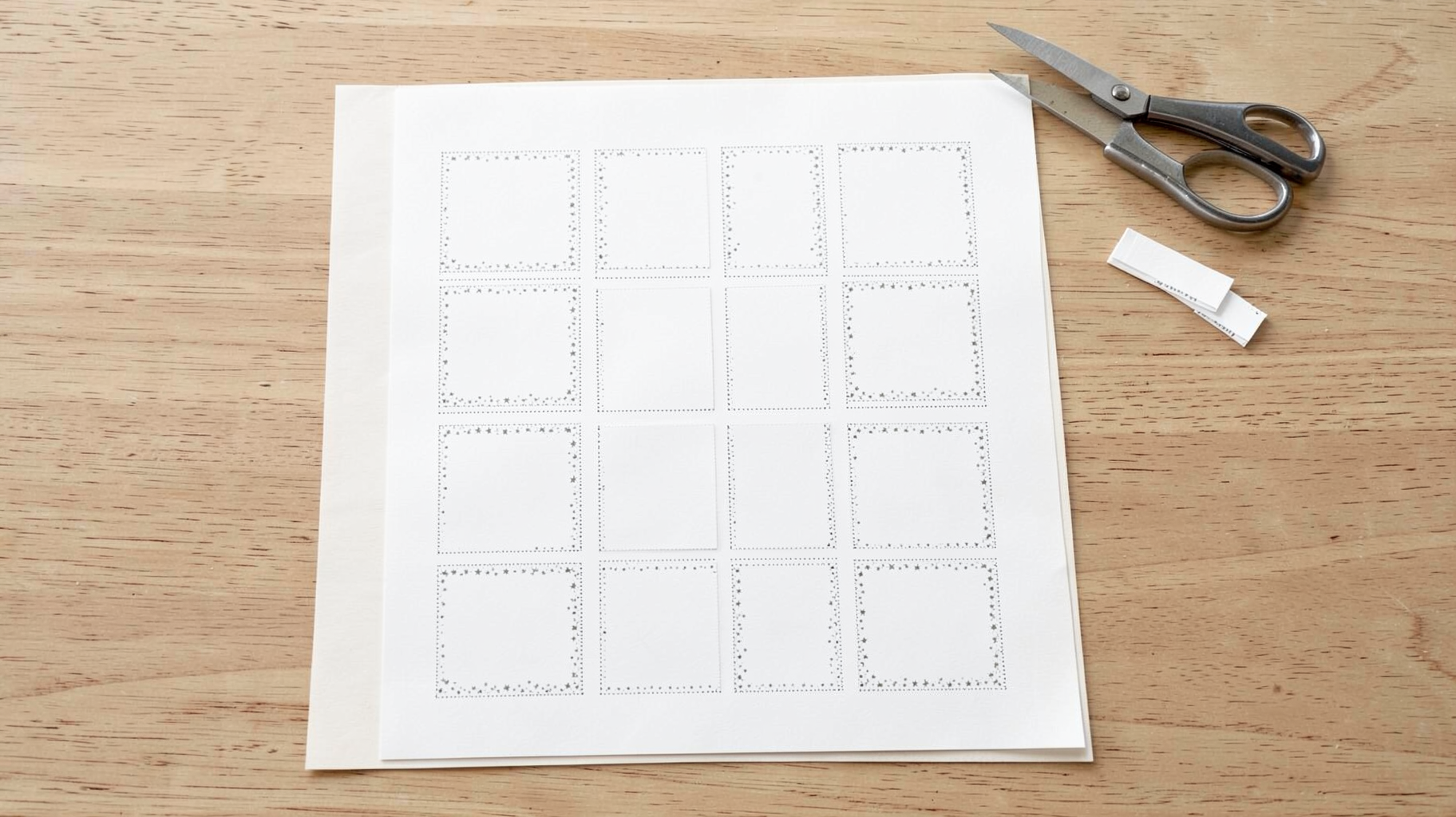
For tags specifically, two settings matter. Keep the elements small — anything over about 8 pt eats the tiny writing area. And use rotation sparingly: a slight per-element rotation makes a hand-stamped look, while a heavy one turns into visual noise at tag size.
Best for: a consistent decorative edge across a whole set of tags, and for turning a plain rectangle into something that looks intentional without adding clipart.
3. Text to Frames — name tags with the photo inside the letters #
This is the showpiece option. Instead of printing "EMMA" in a nice font, each letter becomes its own Canva frame and holds its own photo — so E, M, M and A can each be a different picture. On a gift tag it's a lot of personality in a very small space, and it works especially well for family gifts and teacher presents.
You type up to 200 characters, pick a font, and switch on Split into letters to get one frame per character. The preview updates as you go and matches the final result exactly. The free tier gives you five fonts (Roboto, Open Sans, Lato, Playfair Display, Pacifico); Pro unlocks 100+ and three effects — blur, border and inner shadow — each with its own colour.
The border effect is the one worth knowing for tags: when a busy photo sits inside a letter, the letter shape gets lost. A thin border traces each letter and pulls it back out of the image.
A practical caution: at gift-tag size, only short names work. Four or five letters at most, and skip photos with lots of detail — a face inside a 6 mm letter is just texture. Solid colours and close-up textures (knitted wool, wrapping paper, a single flower) read far better small.
Best for: short names, initials, and "TO"/"FROM" panels with a photographic fill.
4. Bulk QR — the one nobody expects on a gift tag #
A QR code on a gift tag sounds like overkill until you have a use for it: a video message from the family, a care-instructions page for a handmade item, a Spotify playlist, a wedding-favour thank-you page, or a shop link on product tags.
Bulk QR generates static QR codes in batches from a pasted list — links, plain text, email, SMS, WiFi credentials, or MeCard contact details — and drops them into your design. It's free with no cap on how many static codes you make, which is what makes it sensible for a run of fifty product tags.
Two things to know. First, these are static codes: the destination is fixed once printed. If you need to change where the code points after the tags are printed, or want scan analytics, that's Qrdy Dynamic QR instead. Second, print size — keep the code at least 2 × 2 cm on the tag and leave clear white space around it, or phone cameras will struggle.
Best for: product tags, wedding and party favours, and any tag where the physical card is a doorway to something online.
5. Trace to Frame — for the shape you drew yourself #
Sometimes the tag shape you want doesn't exist as a file. A scalloped edge, an odd angular pennant, a shape you sketched on paper and photographed.
Trace to Frame lets you click points around an outline — minimum three — and turns the enclosed shape into a Canva frame. You can trace over an uploaded reference image or free-draw, and drag points afterwards to adjust.
Be aware of the limits, because they're real: it only draws straight lines between points (no Bézier curves), and it can't make shapes with holes inside them. For a scalloped or rounded tag, use Image to Frame with an SVG, or AI Frames, instead. For an angular pennant or a polygon tag, Trace to Frame is faster than anything else.
Best for: angular and polygon tag shapes, and quick freeform crops.
What Canva already does well — use these first #
None of the above replaces what's built in, and for a lot of tag projects the built-in tools are enough:
- Templates. Search "gift tag" in Canva templates. If one is close to what you want, editing it beats starting blank.
- Frames (Elements → Frames). Circles, hearts, arches, rounded rectangles. If your photo fits one of these, you don't need Image to Frame at all.
- Bulk Create. This is the big one for tags. Paste a list of names, connect them to a text field, and Canva generates one page per name automatically. If your only variable is the name, Bulk Create does the whole set in one pass.
- Custom size + Grid view. Build one letter/A4 page, lay out 8-12 tags with Canva's ruler guides, and print full sheets.
A reasonable workflow is: start from a template or a blank custom size, use Bulk Create for the names, and pull in an app only for the specific thing Canva can't do — the shaped photo crop, the repeating border, the per-letter photo fill, or the QR batch.
A 10-minute tag set #
- New design → Custom size → 2.5 × 4.5 in (or letter size if you're laying out a full sheet).
- Drop in your tag shape. Built-in Frames if it's a standard shape; Image to Frame if it's a silhouette you're supplying.
- Fill the frame with your photo, then reposition and zoom the photo inside the frame.
- Add the edge with Border Art Maker — small elements, even spacing.
- Add the name: plain text for legibility, or Text to Frames if you want photos inside the letters.
- Optional: a QR from Bulk QR in the lower corner.
- Duplicate to fill a sheet, or use Bulk Create for a list of names.
- Download as PDF Print, 300 DPI, and print on 200-300 gsm cardstock.
Punch the hole at least 5 mm in from the top edge, and reinforce it with a small sticker or reinforcement ring if the tags are going on parcels that will be handled a lot.
The short version #
If you install one app for gift tags, install Image to Frame — shaped photo tags are the single biggest upgrade over a plain printed rectangle, and it's the thing Canva genuinely can't do on its own. Add Border Art Maker when you want a whole set to feel coordinated, and Bulk QR if your tags need to link somewhere. Text to Frames is the flourish for short names, and Trace to Frame is the escape hatch for shapes nobody has made yet.
And if all you need is twenty tags with twenty different names in a shape Canva already has — Bulk Create, ten minutes, no apps required. That's the honest answer.
Frequently asked questions
Most printable gift tags land between 2 × 3.5 in (about the size of a business card) and 2.5 × 4.5 in for a classic luggage-tag shape. Set up a custom-size Canva design at the tag size, or make one page at letter/A4 size and lay out 8-12 tags on it so you print a full sheet at once. Add a few millimetres of margin inside the cut line so nothing important gets trimmed off, and punch the hole at least 5 mm from the top edge so the paper doesn't tear.
Cardstock between 200 and 300 gsm (roughly 80-110 lb cover). Regular printer paper is too floppy to survive being tied to a parcel, and anything heavier than about 300 gsm may not feed through a home inkjet. Matte cardstock is the safer choice if you plan to handwrite names on the tags — glossy stock resists most pens.
Yes. Canva has tag templates, Elements shapes, built-in Frames for photos, and Bulk Create for filling many tags with different names. The apps in this post are for the parts Canva doesn't cover: cropping a photo to a tag or ornament silhouette you supply, building a repeating decorative border along the edge, filling individual letters with photos, and generating dozens of QR codes at once.
Related products


More from QRdy Blog

How to Take Product Photos for Etsy With Your Phone (That Also Work as Mockup Templates)
Window light, rear camera at 1x, a clean print area and one untouched shot: an 8-step phone photo routine for Etsy sellers, plus how to shoot blank products so the same photos become reusable mockup templates.
How to Outline Text in Canva (3 Ways, Including Outlined Photo Letters)
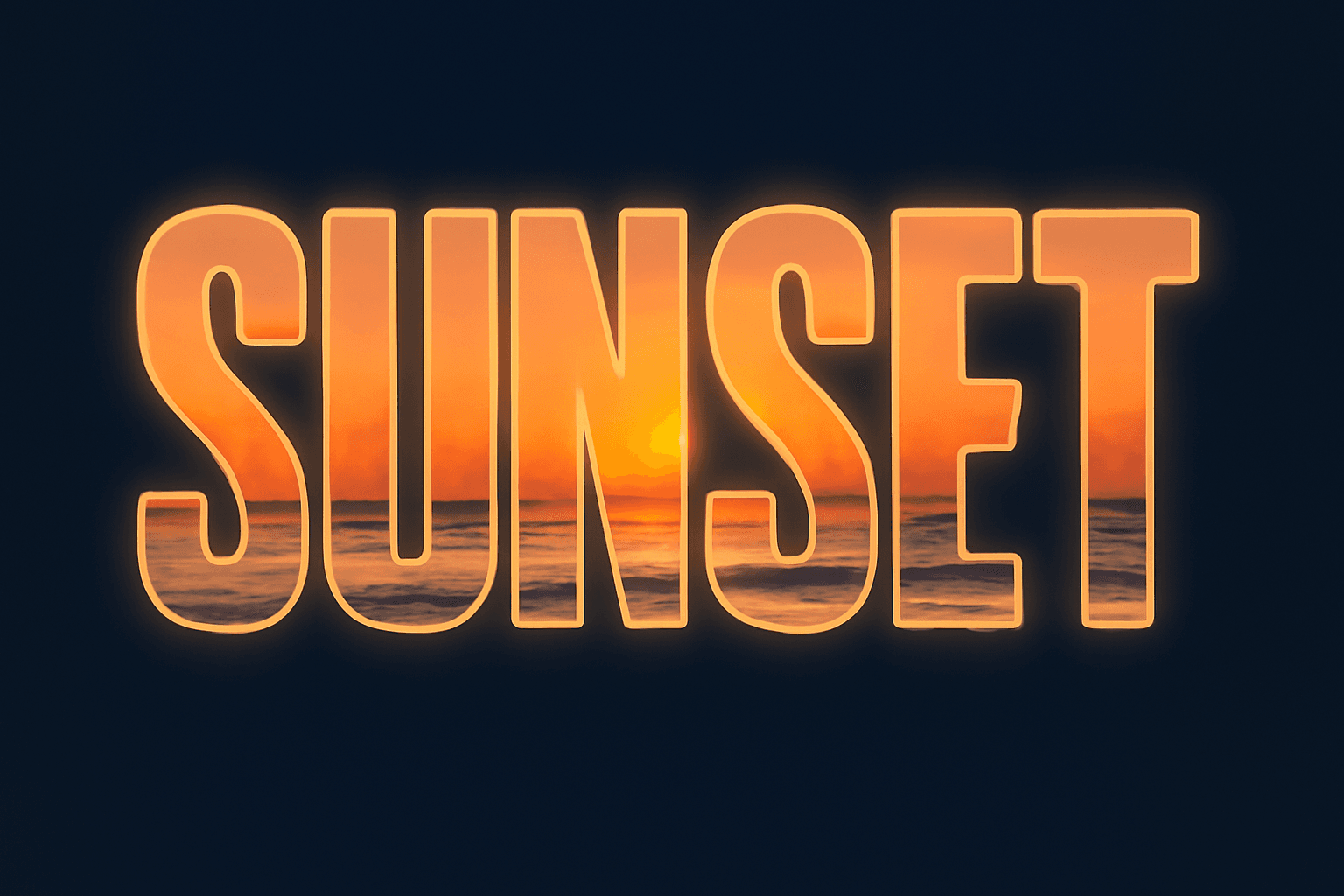
Learn how to outline text in Canva with the built-in Outline effect, a stacked-copy trick for thick borders, and Text to Frames for outlined letters filled with photos.

What Is an Alpha Channel? Meaning, File Formats, and Why It Matters for Canva Frames
An alpha channel stores how opaque each pixel is. Learn how it works, which formats support it (PNG, WebP, not JPG), and why it lets a Canva frame follow your real shape.