
10 Photo Letter Banner and Name Sign Ideas You Can Make in Canva
Ten printable letter banner, name banner and family name sign ideas where every letter is a Canva frame filled with its own photo, built with Text to Frames.
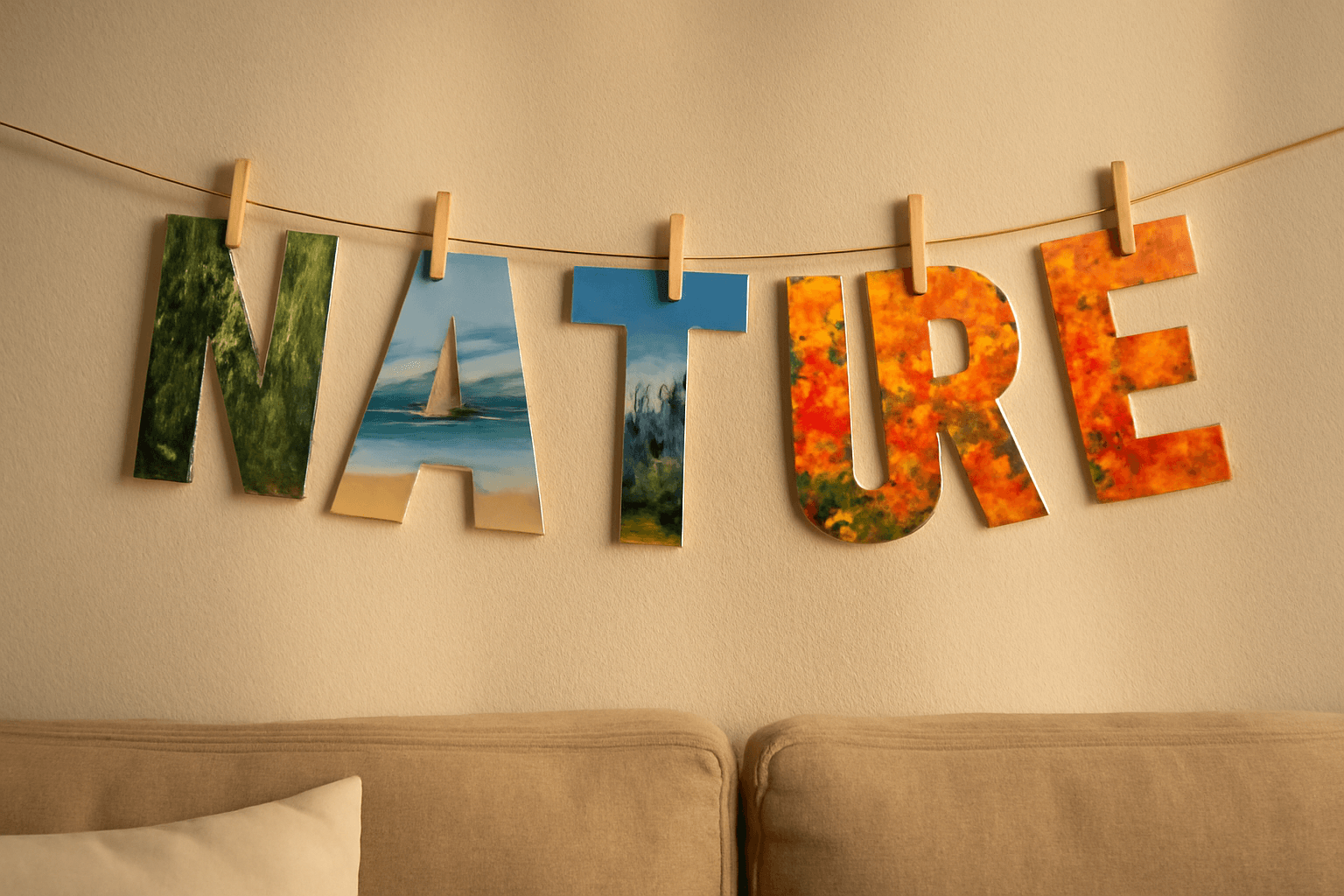
A letter banner with a different photo inside every letter is one of those projects that looks like it took an evening of scissors and glue, and then turns out to take ten minutes on a screen. This post collects ten ideas for photo letter banners, name banners and family name signs, all built the same way: each letter is a real Canva frame, and you drop a photo into each one.
Where Canva's built-ins are enough #
Canva already ships banner and bunting templates, plus free Frames and Grids. If you want a plain colored banner with printed text, use those and stop there. Reach for an app only when you want the letters themselves to hold photos, one photo per letter. Canva does not do that on its own: its text effects fill a whole word with one image at best.
That is the gap Text to Frames fills. You type a word, turn on Split into letters, and each character becomes its own frame you can fill, drag and zoom like any other Canva frame. The text limit is 200 characters, five fonts are free, and 100+ fonts plus the Border, Blur and Inner shadow effects are Pro.
Quick-pick table #
| Idea | Best for | Letters |
|---|---|---|
| Family name sign | Entryway, gift | 5-10 |
| Birthday name banner | Party wall | 4-8 |
| Hanging word garland | Bedroom, nursery | 4-6 |
| Welcome home banner | Porch, airport pickup | 7 |
| Season word banner | Mantel | 3-6 |
| Team name banner | Game day | 5-12 |
| Travel destination sign | Gallery wall | 4-10 |
| Month banner | Calendar corner | 3-9 |
| Memorial or tribute word | Keepsake | 4-8 |
| One word headline poster | Wall art | 1 word |
1. Family name sign #
Type the surname in a heavy sans font, turn on Split into letters, and fill each letter with a photo of one family member's hobby, pet or favorite place. Print one letter per page for a banner, or keep the whole word on one poster for a framed sign. It is the idea behind the 2,400-a-month search for family name sign, and it makes a good gift.
2. Birthday name banner #
Spell the birthday name and drop in one photo per year of life, or one photo per favorite thing. Keep the word short for little kids and use first names, not full names, so letters stay large.
3. Hanging word garland #
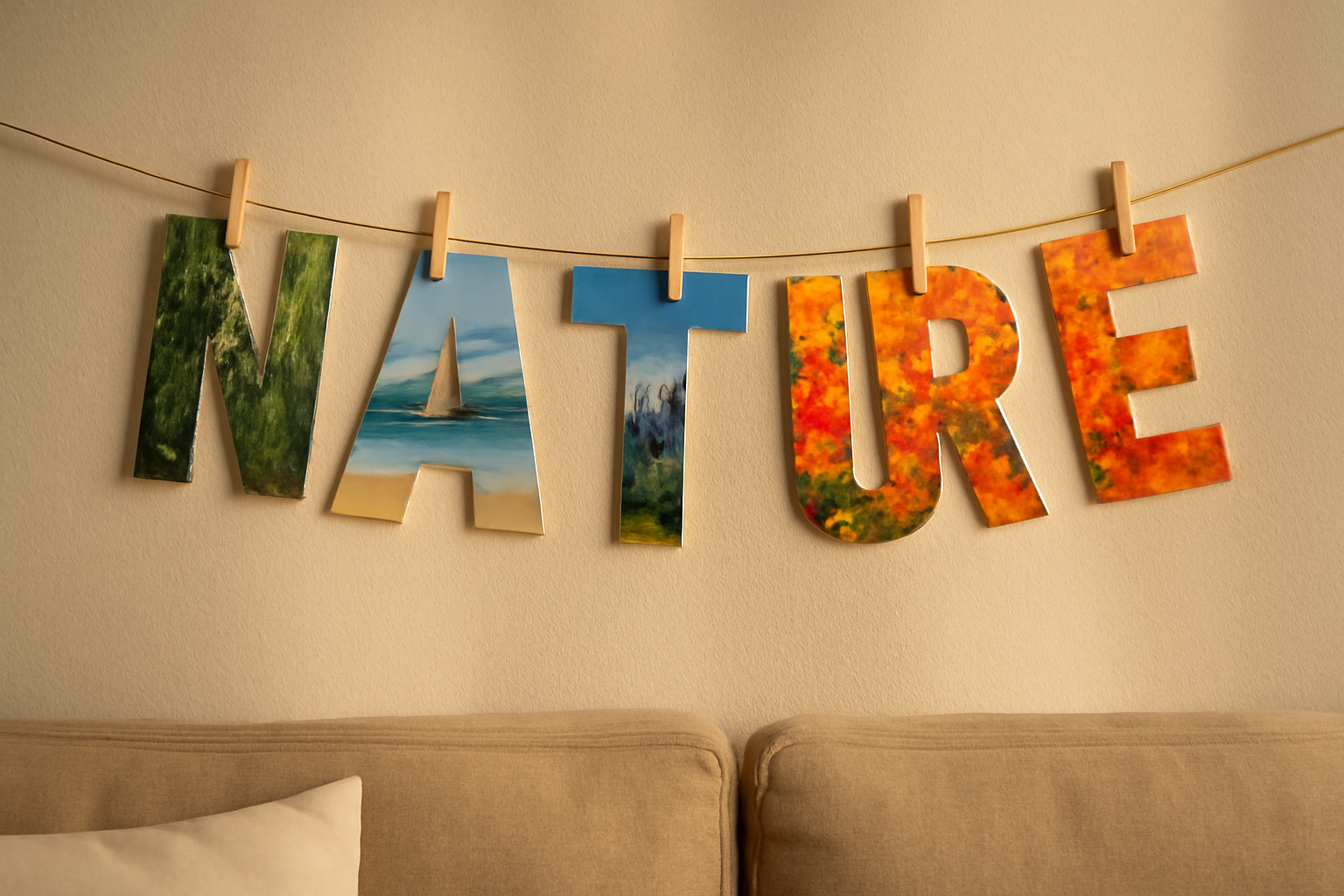
Pick a calm word like LOVE, HOME or DREAM, fill each letter from one photo set so the colors agree, and hang the letters on twine with clothespins. This is the layout in the photo at the top of this post.
4. Welcome home banner #
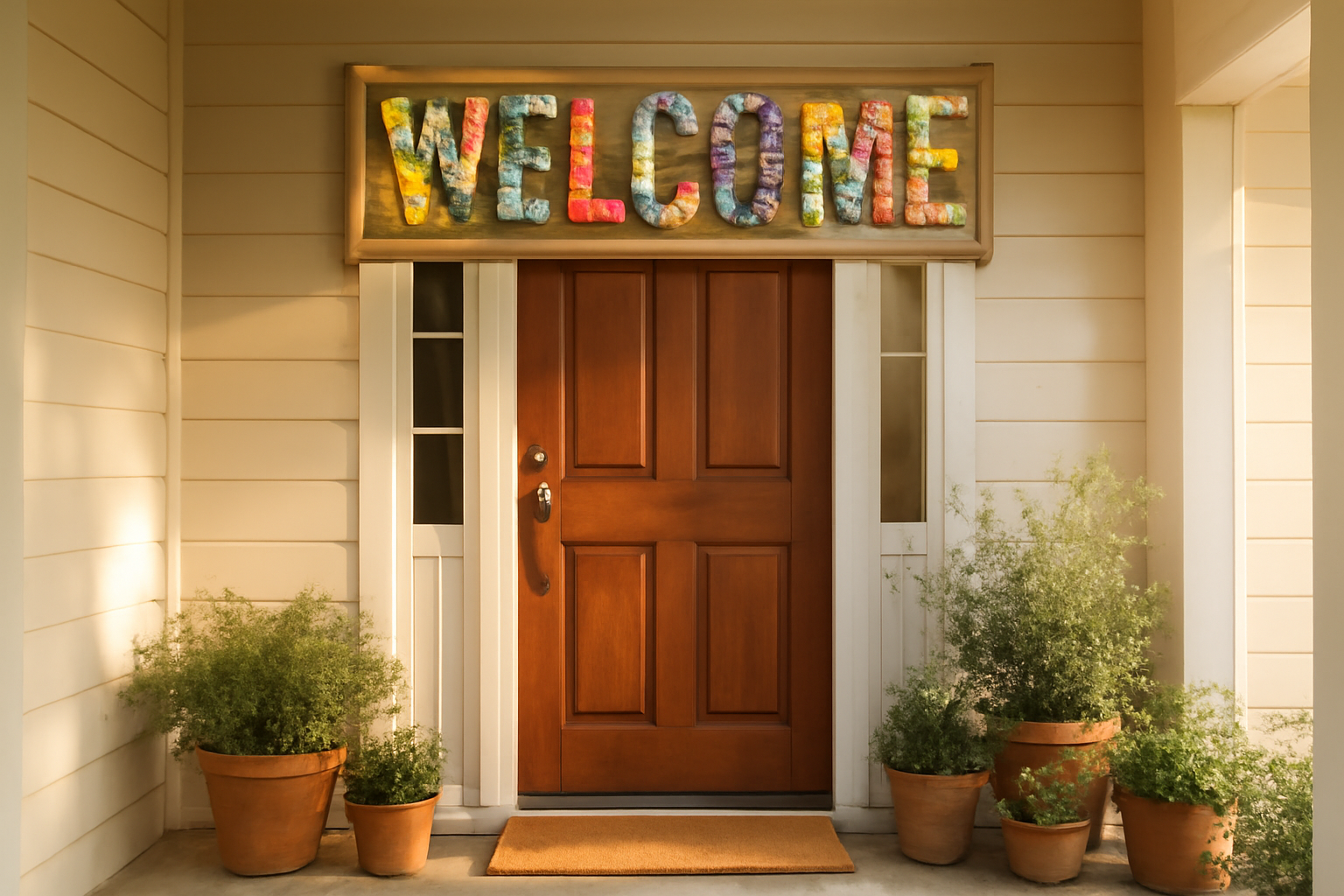
WELCOME is seven letters, so each one stays readable from the doorway. Use warm, matching photos or one theme: flowers, travel stamps, the kids' drawings photographed flat.
5. Season word banner #
JOY, NOEL, FALL, SPRING. Seasonal words are short, which means huge letters and plenty of room for a photo to read clearly. Match the photos to the season, such as leaves for fall or lights for December.
6. Team name banner #
Fill a team name with action shots and team-color backgrounds, then print one letter per sheet for a game-day wall. Check that the font is heavy: thin fonts leave too little room for a photo to show.
7. Travel destination sign #
PARIS, TOKYO, ITALY. One photo per letter from the same trip gives a quick, framed summary of a holiday. Pair it with a small map or ticket stub on the poster.
8. Month banner #
Use Calendar Maker for the dates and Text to Frames for a photo-filled month name across the top. The calendar grid stays clean and the month word carries the photos.
9. Memorial or tribute word #
A single meaningful word, built from photos that matter to the family, can sit beside a printed frame. Keep the layout simple and the fonts classic.
10. One word headline poster #
Skip Split into letters and use one photo behind the entire word for a bold wall poster. The difference between the two modes is the one decision to make before you start.
Which layout to choose #
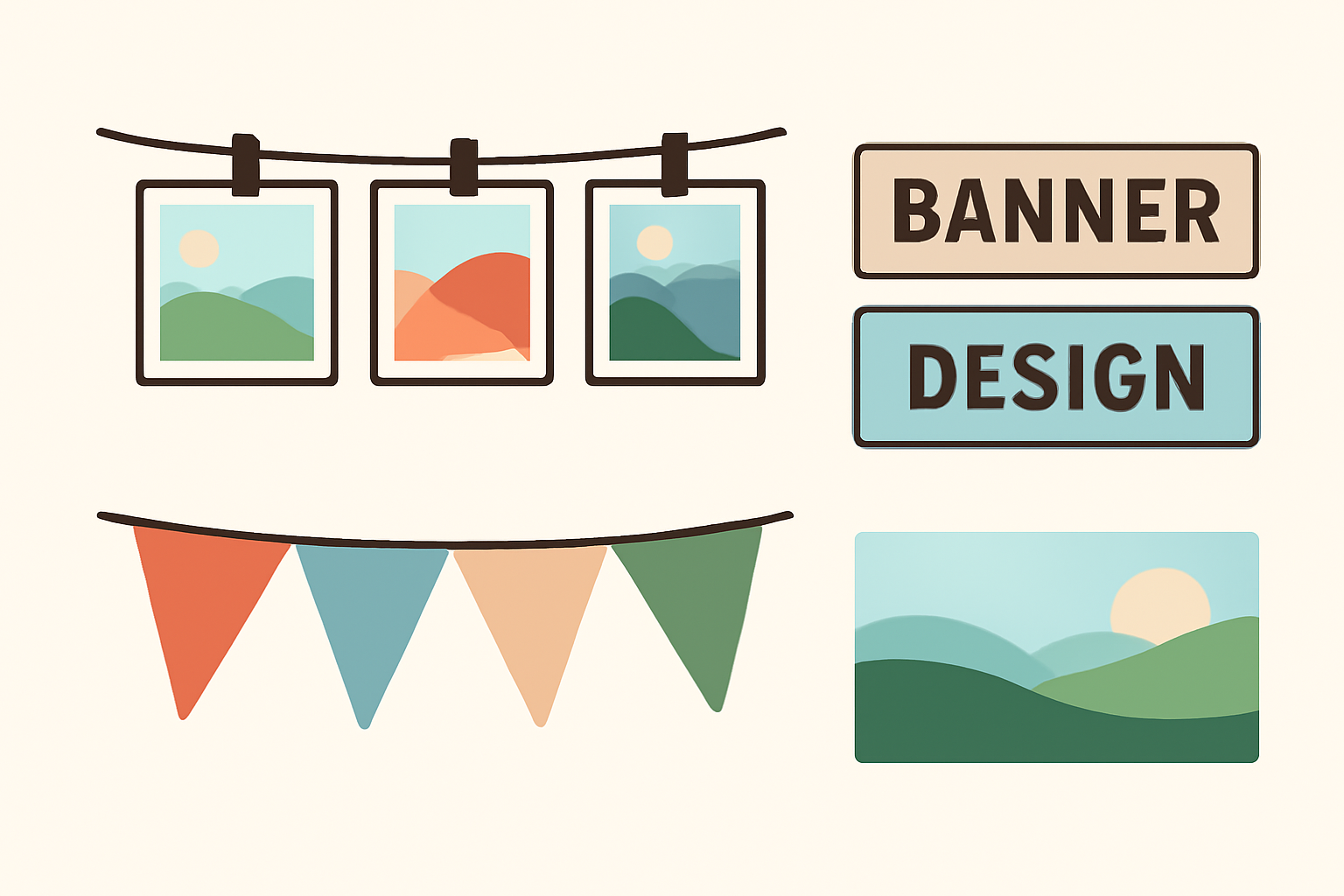
Use a string-and-clothespin layout for rooms, a pennant row for parties, and a single-line poster when you want one clean headline. Letters, not decorations, should be the loudest thing on the page.
How to build any of them in Canva #
- Create a design at the final printed size, such as A4 or US Letter, and decide whether each letter gets its own page.
- Open Apps, then Text to Frames, and type your word.
- Choose a heavy font. Roboto and Open Sans are free and work well. Thin script fonts leave too little room for photos.
- Turn on Split into letters if each letter should hold its own photo.
- Press Add to design, then drag a photo into each letter and drag inside the letter to reposition it.
- Optionally add a Border in Pro to separate the letter from the background.
Print and hang tips #
- Download as PDF Print at 300 DPI, and test print one letter before running the whole set.
- Matte cardstock hides fingerprints better than glossy paper.
- Cut slightly outside the letter edge if you want a thin white border, or exactly on the edge for a clean cut.
- Use twine, ribbon or small clips; avoid tape on painted walls.
Related guides #
If you want the broader idea of photos inside letters, read What Are Photo Letters and How to Fill Each Letter with a Different Photo in Canva. For more name-based projects see 10 Photo Name Art Ideas, and for choosing a font see Serif vs Sans Serif.
Frequently asked questions
Open Text to Frames, type your word, turn on Split into letters, and add it to your design. Each letter becomes its own Canva frame, so you can drag a different photo into every one.
Yes. Build each word at its final size, download as PDF Print at 300 DPI, print on matte cardstock, cut around the letters and hang them on twine or ribbon.
No for the basics. Text to Frames has five free fonts. Pro unlocks 100+ fonts and the Border, Blur and Inner shadow effects, which are nice but not required.
Related products


More from QRdy Blog

How to Make a Mockup Without Photoshop (From Any Product Photo)
Make a realistic product mockup from any plain photo, no PSD or Photoshop needed: drag one box around the print area, fix what the auto pass missed, save a template and render all your designs at once in your browser.
Photo Collage vs Photo Montage vs Photo Mosaic: What's the Difference?
Collage, montage and mosaic get used as if they mean the same thing. They don't. Here is how each one works, a side-by-side table, and which to build in Canva for your photos.
The Best Canva Apps for Save the Dates (2026): Photo Cards, Calendars & QR
Making a save the date in Canva? Here are five Canva apps that add what templates lack: arch and heart photo frames, a monogram, a mini calendar with the date circled, and a QR code.