
Word Calendar Template vs Canva Calendar Maker: Which Should You Use?
Microsoft Word calendar templates are fast and familiar; Canva's Calendar Maker app is built for good-looking, printable calendars. Here is an honest side-by-side, with a clear verdict for each use case.
If you search for a "word calendar template", you are usually trying to get a printable monthly calendar on paper as quickly as possible. Microsoft Word can do that. So can Canva, and so can the Calendar Maker app inside Canva. They are good at different things, so this guide compares them honestly and tells you which to pick.
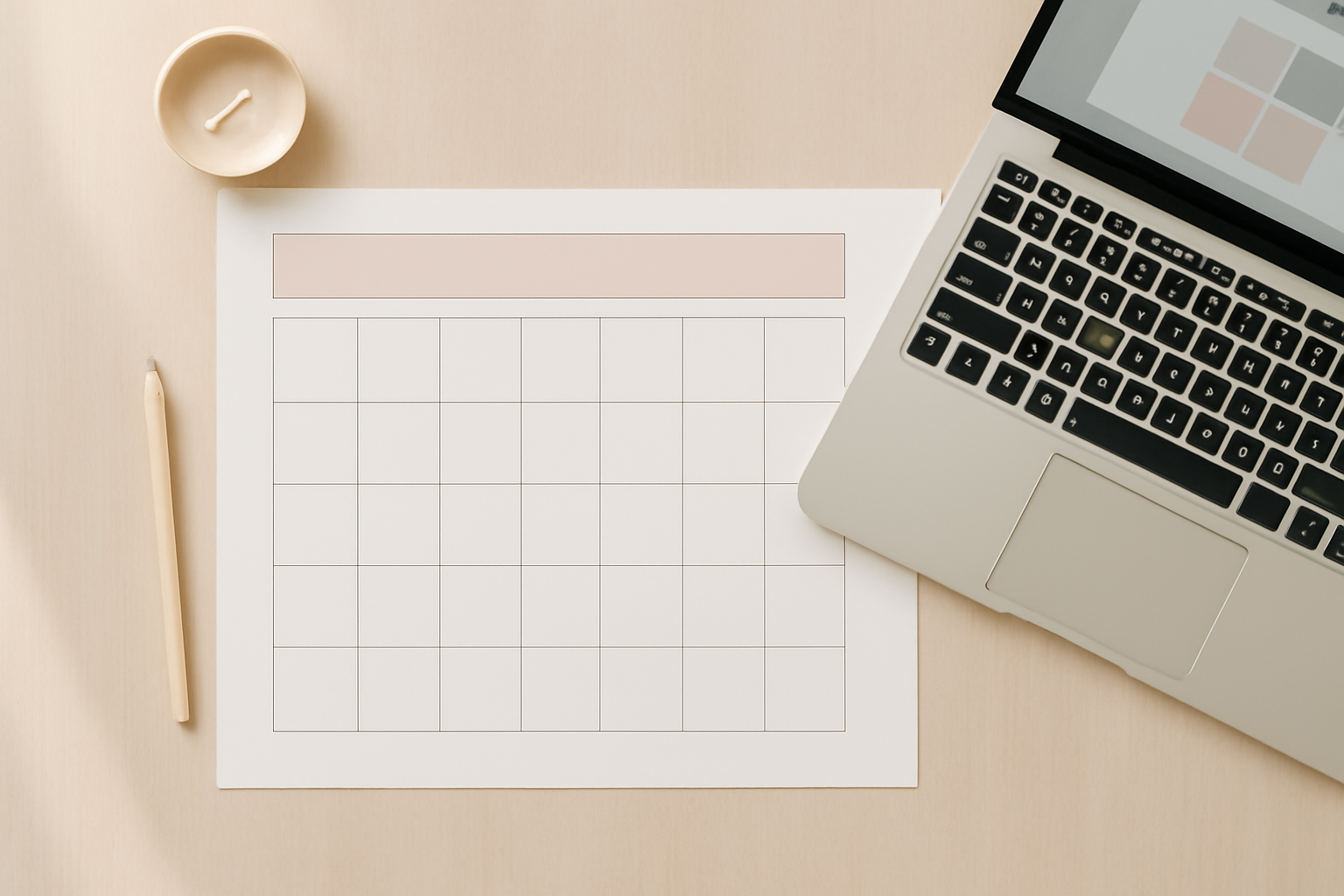
Quick comparison #
| Word calendar template | Canva Calendar Maker (QRdy app) | |
|---|---|---|
| Best for | Plain, functional calendars for the office or school | Designed calendars: gifts, wall calendars, planners, social posts |
| Setup | Pick a template, fill in the year | Pick month, year or date range, click Add to design |
| Styling | Fonts and shading, but limited decoration | Fonts, header and row colors, 30+ color palettes, ~14 decorated page templates |
| 12 months at once | Template-dependent, often one page per sheet | "Add all months" with each month on its own page |
| Week or custom range | Separate templates | Week tab and a Custom tab (up to 150 days) |
| Photos and graphics | Possible, but fiddly | Native Canva: drop photos, stickers and frames around the grid |
| Export | Print or PDF | PNG, PDF, print and more from Canva |
| Cost | Included with Word | Needs Canva; the app itself has a Pro unlock |
Where Word wins #
Be fair to Word. It is the better choice when:
- You need a calendar in the next five minutes and do not care how it looks.
- Your whole team already lives in Microsoft 365 and edits files in Word.
- You need a table you can type event details into directly, with spell-check and track changes.
Word's built-in templates are reliable, free if you already own Word, and they print cleanly on standard paper.
Where Canva Calendar Maker wins #
Calendar Maker generates the date grid for you, then lets you style everything the way you would style any other Canva design.
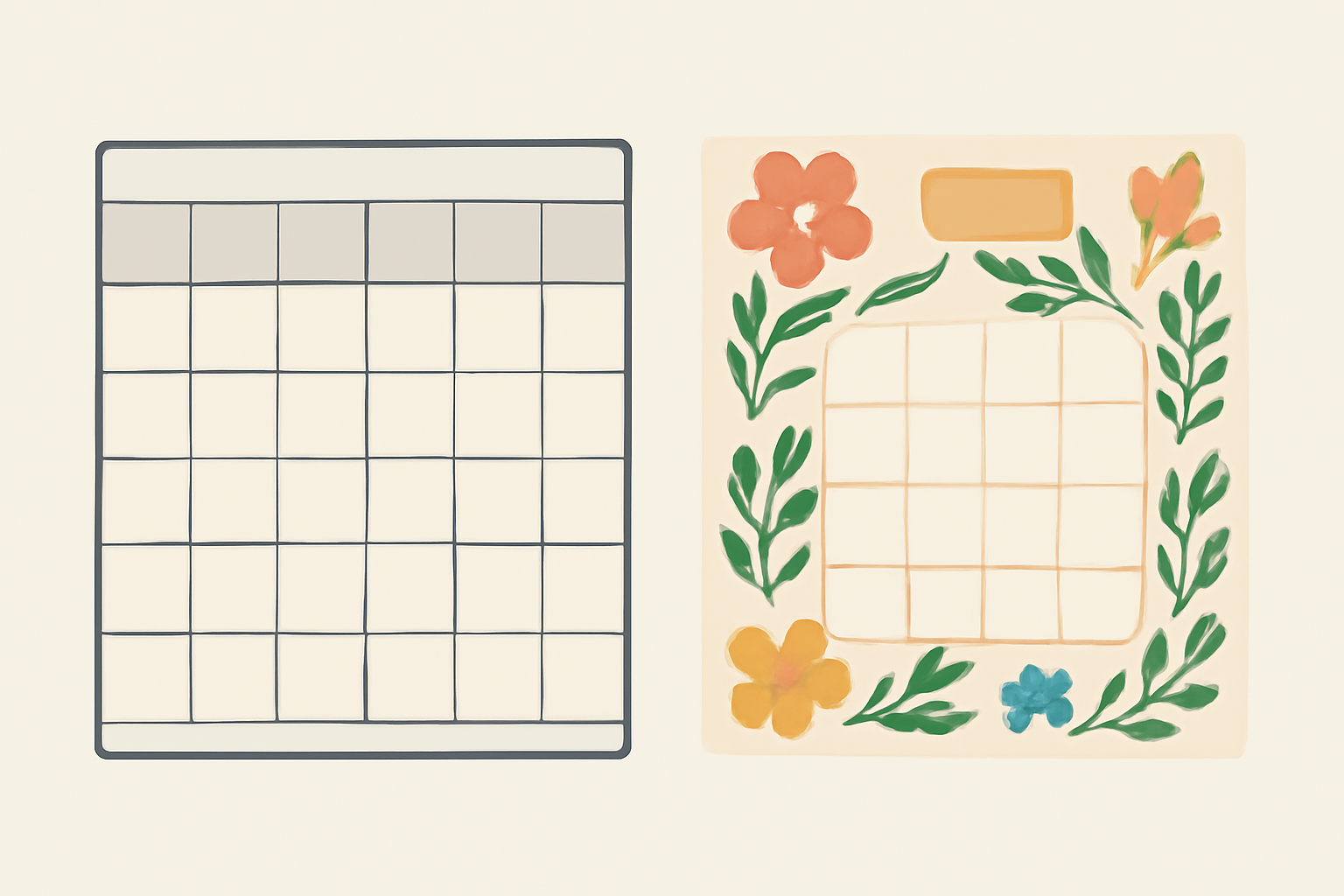
- It looks designed. Choose from 30+ ready color palettes and about 14 decorated page templates (botanical, watercolor, Scandi minimal, midcentury and more).
- Three modes. Month, Week (good for schedules and timetables) and Custom (any range up to 150 days, like a 90-day challenge).
- All 12 months in one go. Toggle "Add all months" and each month lands on its own page, ready for a wall calendar.
- Photos belong here. A photo calendar is much easier in Canva, where you can put pictures into custom shapes with apps like Image to Frame around the grid.
- Week starts where you want. Switch between Monday and Sunday starts.
How to make a calendar with Calendar Maker #
- Open a design in Canva (A4, US Letter, or a poster size).
- Open the Calendar Maker app and choose the Month tab.
- Pick the month and year, or turn on Add all months for a full year.
- Choose a color palette or page template, and set the header and number fonts.
- Check the live preview, then click Add to design.
- Add photos, stickers, and holiday notes in Canva, then download as PDF for printing.
Tip: turn on "Save settings after adding successfully" so next year's calendar is a two-click job.
Honest limits of each #
- Word: styling is basic, and a decorated or photo calendar takes real effort.
- Calendar Maker: it works inside Canva, so you need a Canva account, and the app asks you to unlock Pro before it will add a calendar to your design. If you only ever need one plain calendar, Word is cheaper.
- Both: remember to check your printer margins, and print a test page before running a stack.
The verdict #
- Choose Word for a plain office calendar you will fill in by hand or by keyboard.
- Choose Calendar Maker for anything people will hang on a wall, give as a gift, post online, or want to look good.
- Use both: build the pretty version in Canva, and keep a Word copy as a text-friendly backup for team edits.
If you want the full workflow, see our guide to making a calendar in Canva by hand vs Calendar Maker, and for spreadsheet users Google Sheets vs Calendar Maker.
Frequently asked questions
Word's built-in calendar templates are included if you already have Microsoft Word or a Microsoft 365 subscription, so there is no extra cost for the template itself.
Yes. Turn on Add all months in the Month tab and each month is added on its own page, which works well for a printable wall calendar.
The app runs inside Canva and asks you to unlock its own Pro access before adding a calendar to your design. Check the current terms in the app.
Related products


More from QRdy Blog
The Best Canva Apps for Invitations (2026): Birthday, Baby Shower & Party
Canva's invitation templates get you 80% of the way. These Canva apps cover the rest: custom photo shapes, monogram letters, borders, palettes and RSVP QR codes.

How to Put a Photo in a Heart Shape in Canva (3 Easy Ways)
Want a heart-shaped photo in Canva? Use the built-in heart frame, turn any heart graphic into a custom frame with Image to Frame or Frames Lab, or build a heart collage. Step-by-step for each.

What Is a Silhouette? Meaning, Examples, and How to Use One in Canva
A silhouette is a solid, single-color outline of a shape with no inner detail. Here is what it means, how it works, the main types, and how to turn one into a photo frame in Canva.