
What Is Kerning? Meaning, Examples, and How to Space Photo Letters in Canva
Kerning is the adjustment of space between one pair of letters so gaps look even. Learn how it differs from tracking, which pairs need it, and how to space photo-filled letters in Canva.
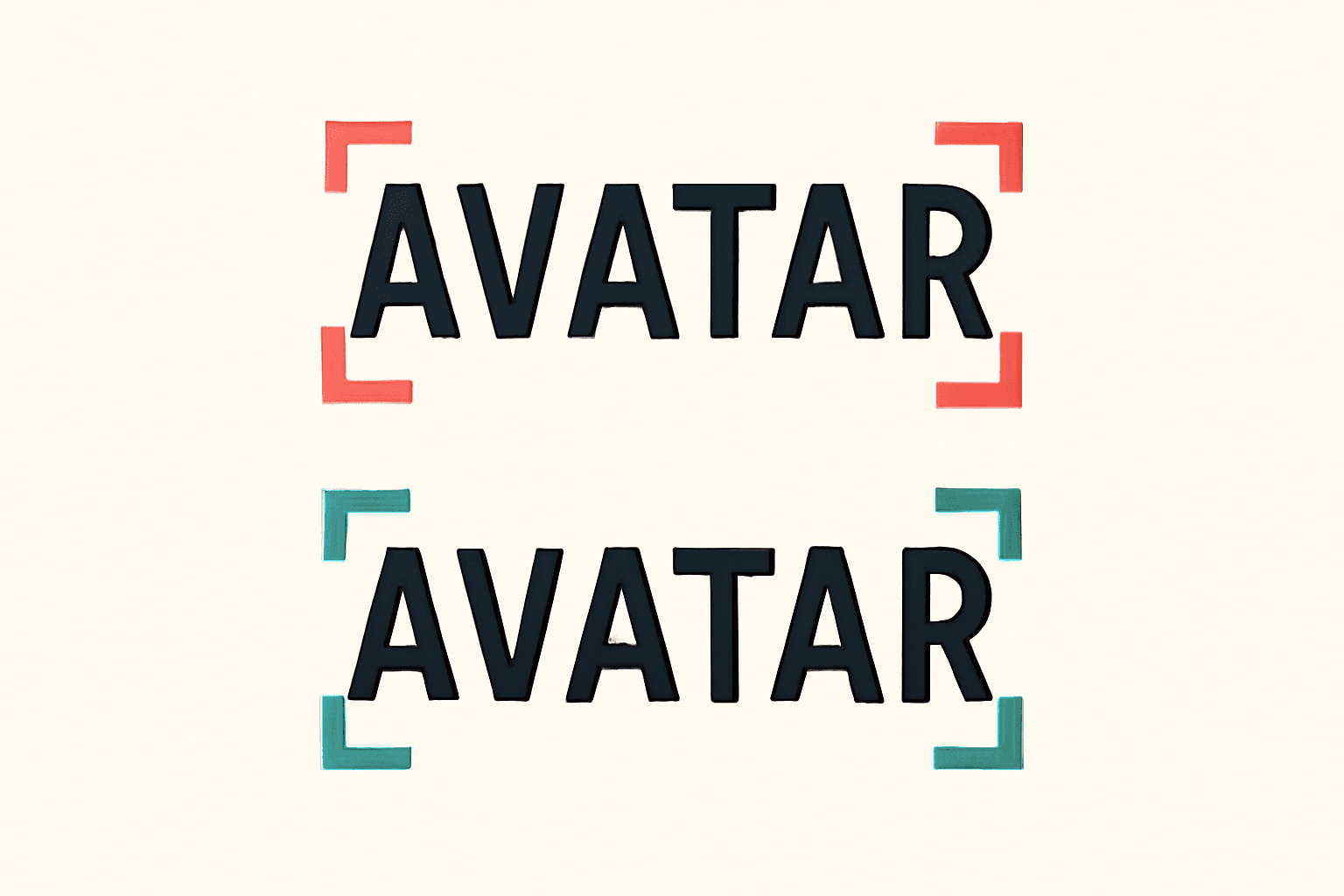
Kerning is the adjustment of the space between one specific pair of letters so the gaps look even to the eye. It is not the same as letter spacing, which changes every gap in a word by the same amount. If a headline looks "off" even though every letter is perfectly aligned, uneven kerning is usually why.
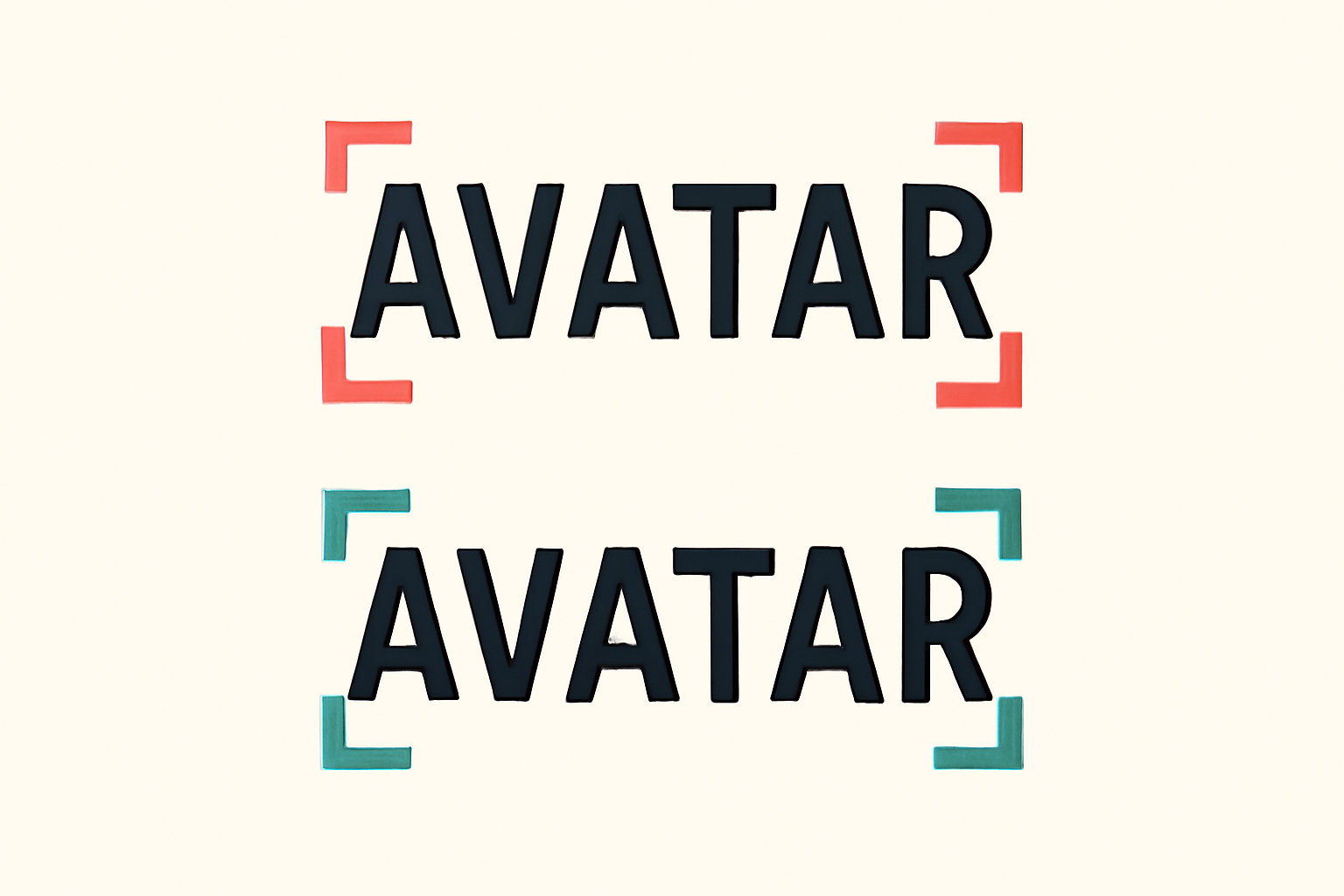
Why kerning exists #
Fonts give every letter a rectangular "box" with a little padding on each side. Put two boxes next to each other and straight letters like H and I sit comfortably. Letters with diagonals or overhangs do not: an A next to a V leaves a triangle of empty space between them, while an L next to a T leaves a hole under the T's arm. The boxes are evenly spaced, but the visible white space is not.
Kerning fixes that by pulling certain pairs closer together (or, more rarely, pushing them apart) until the white space between the shapes looks consistent.
Kerning vs tracking vs leading #
These three words get mixed up constantly, so here is the short version:
| Term | What it adjusts | Applies to |
|---|---|---|
| Kerning | Space between one pair of letters | A single pair, such as A and V |
| Tracking (letter spacing) | Space between all letters | A whole word, line or paragraph |
| Leading (line spacing) | Space between lines | Rows of text |
In Canva's text toolbar, the spacing control is the tracking and leading kind: it moves everything you have selected by the same amount. That is fine for body text, and it is why "letter spacing" is the setting most people actually use.
Pairs that usually need kerning #
Most good fonts ship with built-in kerning tables that handle the common problem pairs automatically, so you rarely need to fix much by hand in running text. The trouble shows up in large display type (posters, titles, logos) where every gap is visible, and wherever kerning gets switched off, for example when letters are separated into individual objects.
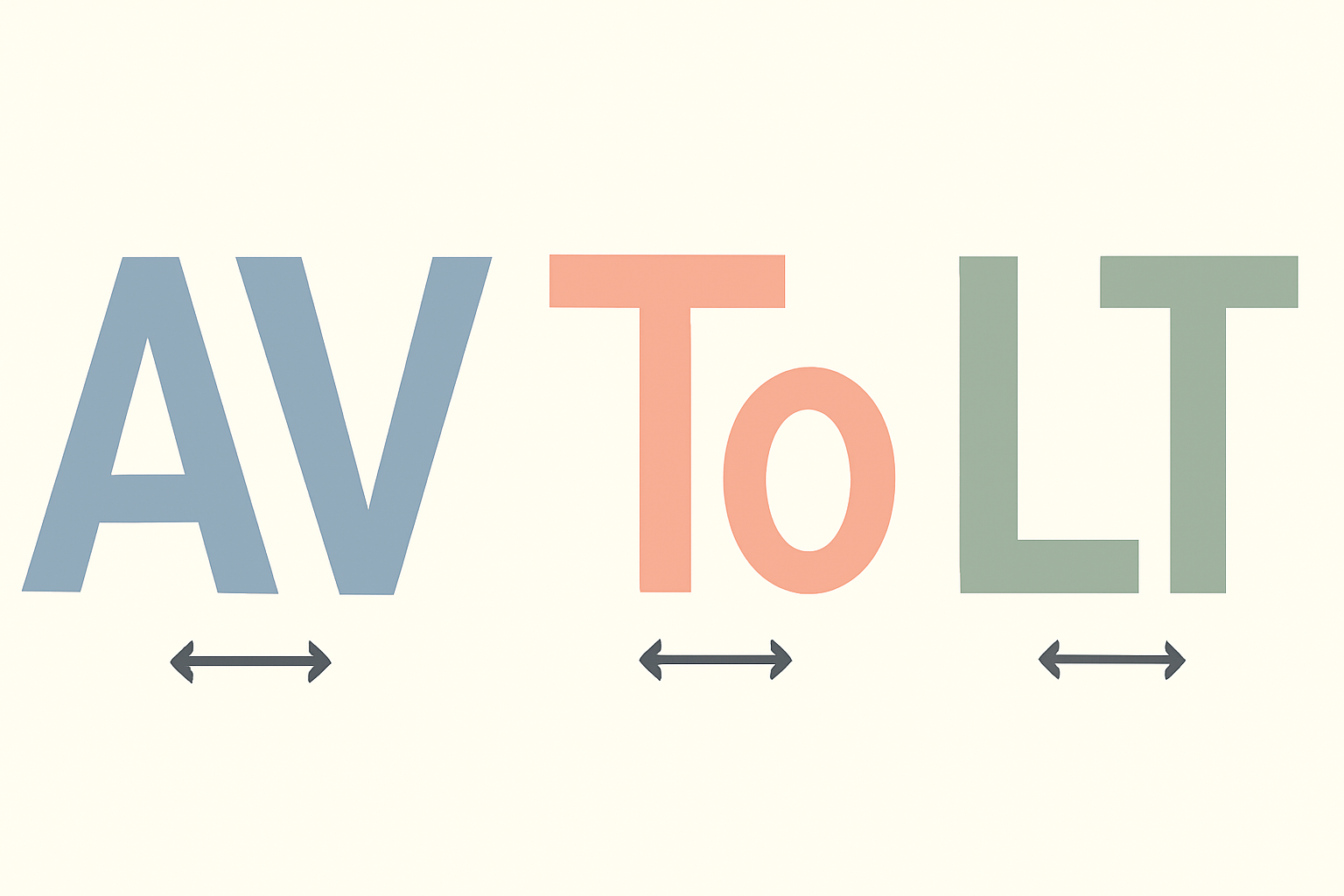
The classic offenders:
- A with V, W, Y or T: diagonal against diagonal leaves a wedge of white space.
- T, V, W, Y with a lowercase letter: the overhanging arm leaves a hole beneath it, as in "To" or "Ty".
- L with T, V, W or Y: the short foot of the L leaves a big gap before the next letter.
- Two round letters in a row: O next to O or C can look tighter than straight letters, so they often want a touch more room.
How to judge kerning by eye #
You do not need a font editor to check your work, just a few habits:
- Squint or blur. Half-close your eyes or zoom out. Dark clumps and bright holes between letters show up immediately.
- Think in white space, not distance. The goal is equal area of white between shapes, not equal millimetres between edges.
- Flip it. Turn the design upside down or mirror it. Without the meaning of the word getting in the way, uneven gaps are easier to spot.
- Check at the final size. Gaps that look fine on a big monitor can close up or open out when the title is small on a printed card.
Kerning when letters hold photos #
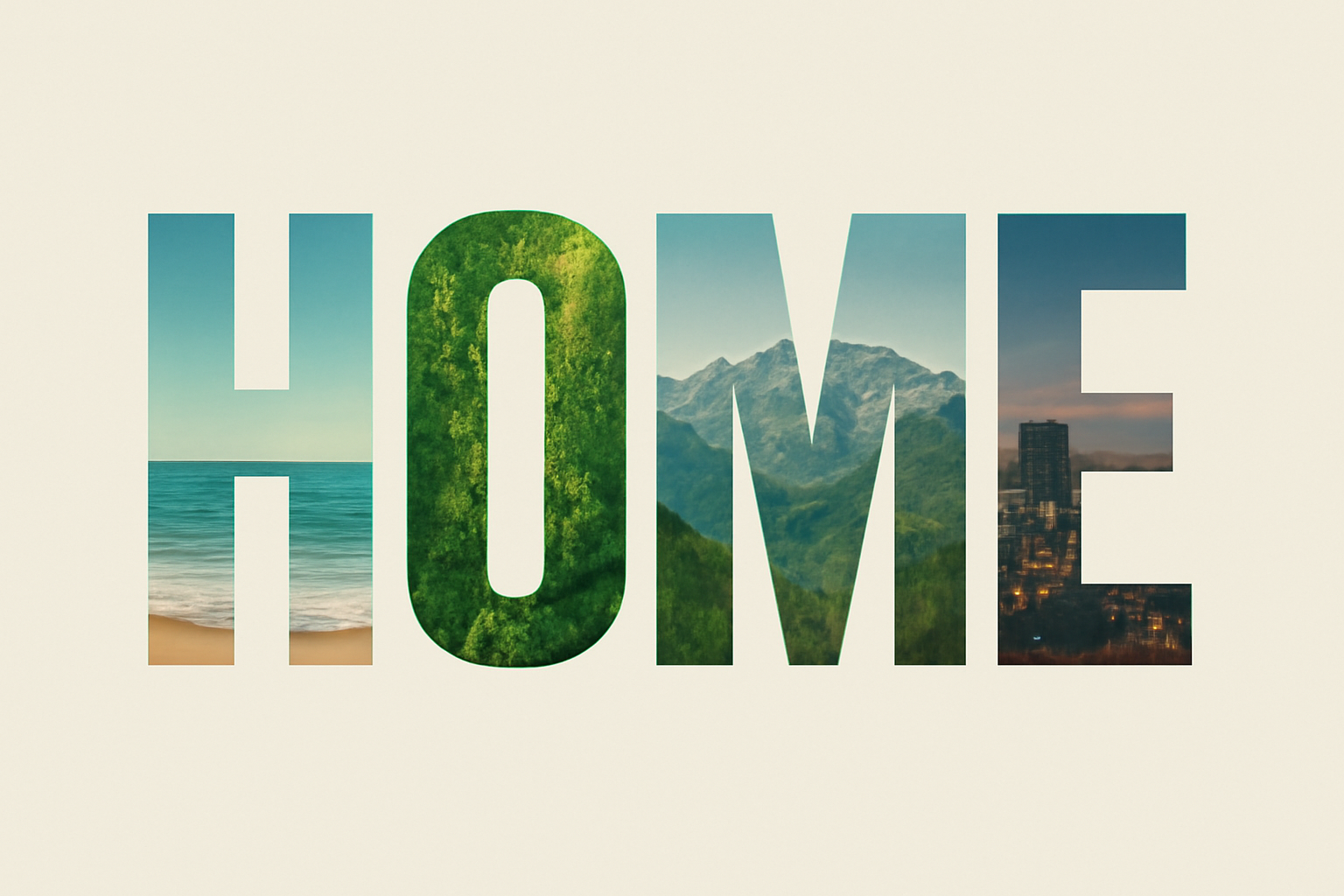
This is where kerning matters most for photo typography. When each letter is filled with a different photo (see what photo letters are and how to fill each letter with a different photo), the letters are no longer plain text. They carry texture and colour, so an uneven gap is far more noticeable than in solid black type, and a wedge between an A and a V can look like a mistake in the layout.
The Text to Frames Canva app turns typed text into real Canva frames, with a Letter spacing slider that runs from -100 to 100 and a Split into letters switch that makes each character its own frame for a different photo. To be upfront about the limit: that slider moves every gap by the same amount, so it works like tracking, not like pair-by-pair kerning. Here is how to get a good result anyway:
- Pick the letter spacing first. Type the word, choose a heavy font, and tune the Letter spacing slider while watching the Preview until the average gap looks right. What you see in the Preview is what is added to your design.
- Prefer words without problem pairs. Names like HOME or JOY have no A-V or L-T wedges, so even tracking looks natural. Words full of A, V, T and Y need more care.
- Pull awkward pairs together by hand. With Split into letters on, every character is a separate frame on the page, so you can drag a single letter a few pixels closer to its neighbour to do manual kerning on the pairs that need it.
- Keep photo edges away from the gap. Pick photos with a calm area near the letter edges so the white space between frames reads clearly.
- Heavy fonts forgive more. Thin fonts expose every spacing flaw; bold sans-serif letters hide small errors. If you are still choosing a typeface, serif vs sans serif covers which one holds up better when filled with a photo.
For more projects where spacing matters, see photo letter banner and name sign ideas and what a monogram is.
What Canva already does for you #
Canva's built-in text does the basics well: fonts include their own kerning tables, and the spacing control adjusts tracking across whatever you have selected. For ordinary headlines and body copy that is plenty, and you do not need an extra app. The Text to Frames route earns its place only when you want photos or video inside the letters, because then you are working with frames rather than text.
Quick kerning checklist #
- Set tracking first, then fix individual pairs.
- Check A-V, T-o, L-T and Y-a style pairs before anything else.
- Squint, flip or zoom out to find the uneven gaps.
- For photo-filled letters, drag individual frames closer where the gap looks wide.
- Re-check at print size before you export.
Frequently asked questions
Kerning adjusts the space between one specific pair of letters, such as A and V. Letter spacing (tracking) changes every gap in the selected text by the same amount.
Canva fonts carry their own built-in kerning, and its spacing control adjusts letter spacing across a selection. It is a tracking-style control rather than a per-pair kerning tool.
Text to Frames has a Letter spacing slider from -100 to 100 that moves all gaps equally. With Split into letters on, each character is its own frame, so you can drag individual letters closer by hand.
Related products


More from QRdy Blog
How to Make Mockups for Etsy Without AI (Using Your Own Product Photos)
Make Etsy mockups from real photos of your own blanks instead of AI-generated scenes: photograph or source a blank, drag one box around the print area, save a template and render every design in one batch, all in your browser.

10 Photo Letter Banner and Name Sign Ideas You Can Make in Canva
Ten printable letter banner, name banner and family name sign ideas where every letter is a Canva frame filled with its own photo, built with Text to Frames.
How to Make a Mockup Without Photoshop (From Any Product Photo)
Make a realistic product mockup from any plain photo, no PSD or Photoshop needed: drag one box around the print area, fix what the auto pass missed, save a template and render all your designs at once in your browser.