
What Are Photo Letters? Definition, Ideas, and How to Make Them in Canva
Photo letters are individual letters, each filled with its own photo, to spell a name or word. Here's what they are, how they differ from knockout text, and how to make them in Canva.
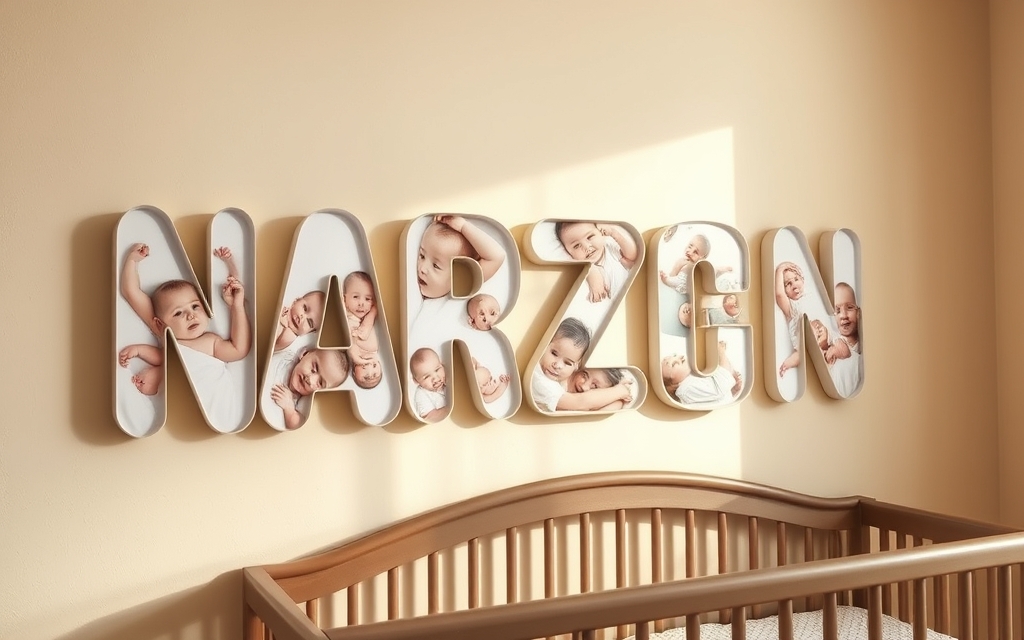
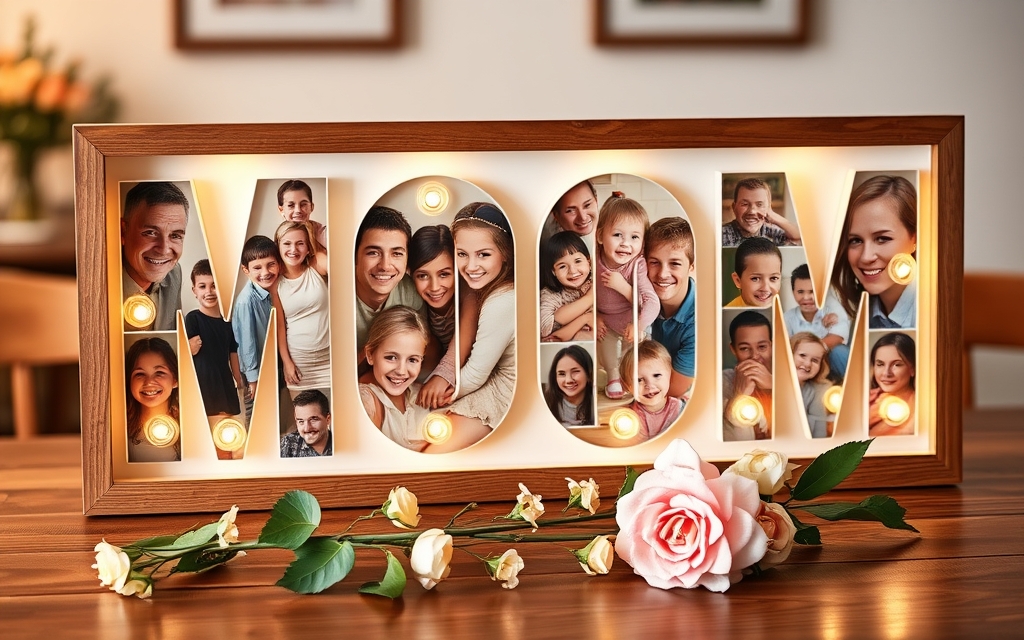
You have probably seen a nursery name sign where every letter of the baby's name holds a different photo, or a "MOM" gift frame where each letter is packed with family snapshots. That effect has a name: photo letters. This guide explains what photo letters are, how they differ from a plain "photo inside text" effect, the common types, and exactly how to make them in Canva.
What are photo letters? #
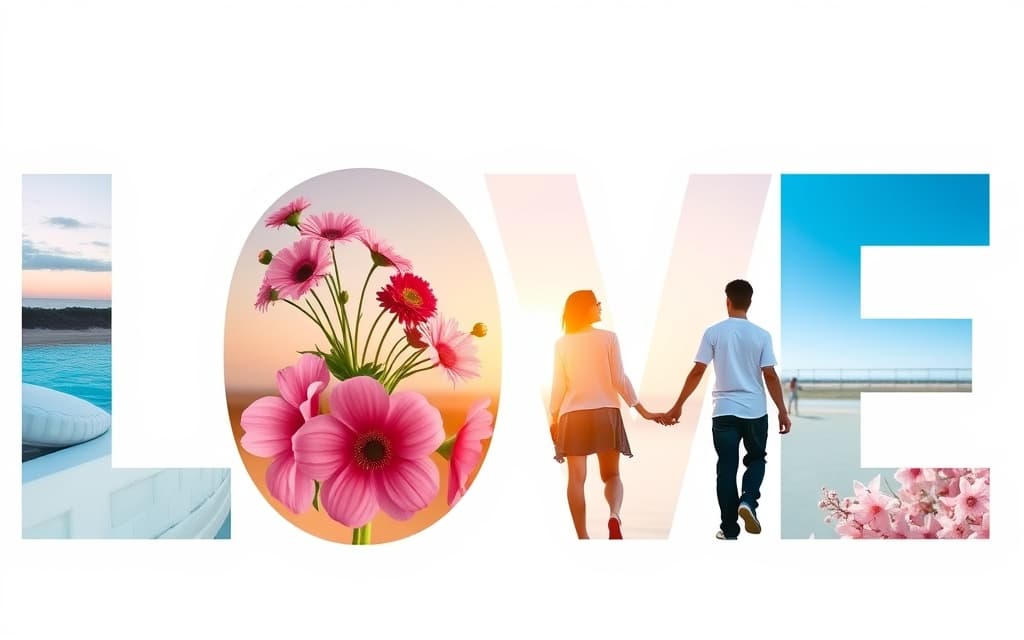
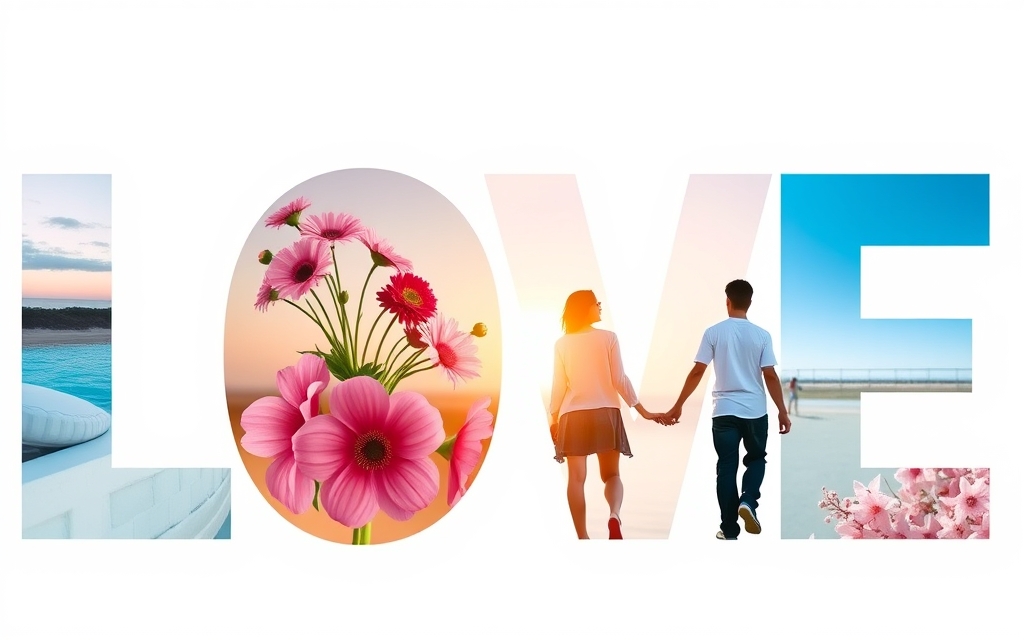
Photo letters are individual alphabet letters, each filled with its own photo, arranged to spell a name or word. The key idea is one photo per letter. Spell "LOVE" and the L can hold a beach shot, the O a bouquet, the V a couple, the E a bright sky — four different pictures in one word.
That is what separates photo letters from a single image simply showing through text. With photo letters, the finished word becomes a tiny photo collage in the shape of letters. It is used most often for keepsakes and decor: name signs, monograms, anniversary art, and personalized gifts.
Photo letters vs. knockout text (they are not the same) #
People mix these up, so here is the clean distinction:
- Knockout text (also called image-in-text) puts one single image behind the whole word. The same photo shows through every letter at once. It is a text effect.
- Photo letters give each letter its own separate photo. The word becomes a set of independent picture-filled letters. It is a keepsake object more than an effect.
Both look great, but they solve different jobs. If you want one clean landscape flowing across "SUMMER," that is knockout text. If you want each letter of a child's name to hold a different milestone photo, that is photo letters.
Types of photo letters #
| Type | What it is | Great for |
|---|---|---|
| Name letters | Each letter of a person's name holds a different photo | Nursery signs, birthday decor, dorm posters |
| Monogram | One to three initials, each filled with a photo or texture | Wedding stationery, logos, tote bags |
| Word keepsakes | A meaningful word (MOM, LOVE, HOME) as photo letters | Mother's Day gifts, anniversary art |
| Number letters | A big age or year number filled with photos | Milestone birthdays, "2026" recaps |
| Video letters | Letters filled with short clips instead of stills | Social covers, title cards, reels |
How photo letters work (the simple version) #
To fill a letter with a photo, that letter has to be a frame — an empty letter-shaped container that a photo drops into and fills exactly. Canva frames are the same thing it uses for rounded avatars and shaped photo placeholders. For photo letters you need each letter to be its own frame so you can put a different photo in every one.
Canva does not have a built-in button that turns a typed word into separate letter frames. A regular text box is text, not a frame, so you cannot drop a photo into it. That is the gap the Text to Frames Canva app fills: it converts your typed word into real Canva letter frames, and its Split into letters option makes each letter its own frame so you can fill them independently.
How to make photo letters in Canva #
- Open the app. In Canva, open a design, go to Apps in the side panel, and open Text to Frames.
- Type your word. Enter the name or word (up to 200 characters).
- Pick a bold font. Thick, chunky fonts show the photo best — thin letters leave little room for the image. Free plans include 5 fonts; Pro unlocks 100+.
- Turn on Split into letters. This is the step that makes photo letters possible: it separates the word so each letter becomes its own frame.
- Check the preview and add to design. The live preview matches the final result exactly. Hit Add to design to drop the letter frames onto your page.
- Drop a different photo into each letter. Drag a photo onto a letter and it fills that letter's shape. Because the letters are split, you can put a different image in every one, then drag or zoom each photo inside its letter to frame it nicely.
- Polish (optional). Pro effects — Blur, Border, and Inner shadow, each with color control — help letters stand out when the photos inside are busy.
Honest note: Frames cannot be added to every Canva design type. If you see "Frames can't be added to this design type," open the app inside a Presentation, Poster, or Instagram Post design instead. And if you only want one image across the whole word (not a different photo per letter), you do not need photo letters at all — use Clipping Mask or Canva's own letter frames for that single-image look.
When to use photo letters (and when not to) #
Reach for photo letters when the point is showing multiple photos at once inside a name or word — gifts, keepsakes, decor, milestone recaps. They pack a lot of memories into a small, readable shape.
Skip them when you want a single clean image flowing edge to edge through text (that is knockout text), or when you are filling a shape rather than letters — for a heart, star, or logo silhouette, **Image to Frame or **Frames Lab is the better fit. Photo letters are specifically about letters, each with its own picture.
The takeaway #
Photo letters spell a name or word with a different photo tucked into each letter — a keepsake-style effect distinct from knockout text's single-image look. The trick is making every letter its own frame, which Canva does not do natively but the Text to Frames app handles with one Split into letters toggle. Type a word, split it, and drop your favorite photos in.
Frequently asked questions
Photo letters are individual alphabet letters where each letter is filled with its own photo, arranged to spell a name or word. Instead of one image showing through a whole word, every letter can hold a different picture — for example, a family photo in each letter of MOM or a baby photo in each letter of a nursery name sign.
Knockout text puts one single image behind the whole word so the same photo shows through every letter at once. Photo letters give each letter its own separate photo, so the word becomes a little collage of different pictures. Photo letters need each letter to be its own frame, which is what an app like Text to Frames does with its Split into letters option.
Yes. The Text to Frames app has a free tier with 5 fonts and the Split into letters feature included, so you can turn a word into per-letter frames and drop a different photo into each one at no cost. The 100+ font library and the Blur, Border, and Inner shadow effects are Pro features.
Related products


More from QRdy Blog
Can You Still Use Mockups on Etsy? What the New AI Photo Rules Mean for Print-on-Demand Sellers
Etsy's new listing image rules require one unedited photo for most items, but print-on-demand sellers may use authorized stock photo mockups. Here is what Etsy actually says, which mockups fit, and how to order your listing photos now.
The Best Canva Apps for Name Tags (2026): Photo Initials, Shaped Badges and Batch Sheets
Name tags are one of the easiest things to make in Canva. These apps add the parts Canva does not: photo-filled initials, shaped badge windows, photo-grid tags, and batch QR tags.
How to Make a 2026-2027 School Year Calendar in Canva (Semester by Semester)
Build a printable 2026-2027 school year calendar in Canva: generate each month or semester with Calendar Maker, mark breaks and exam weeks, and print or share it as a PDF.