
How to Make Mockups for Etsy Without AI (Using Your Own Product Photos)
Make Etsy mockups from real photos of your own blanks instead of AI-generated scenes: photograph or source a blank, drag one box around the print area, save a template and render every design in one batch, all in your browser.
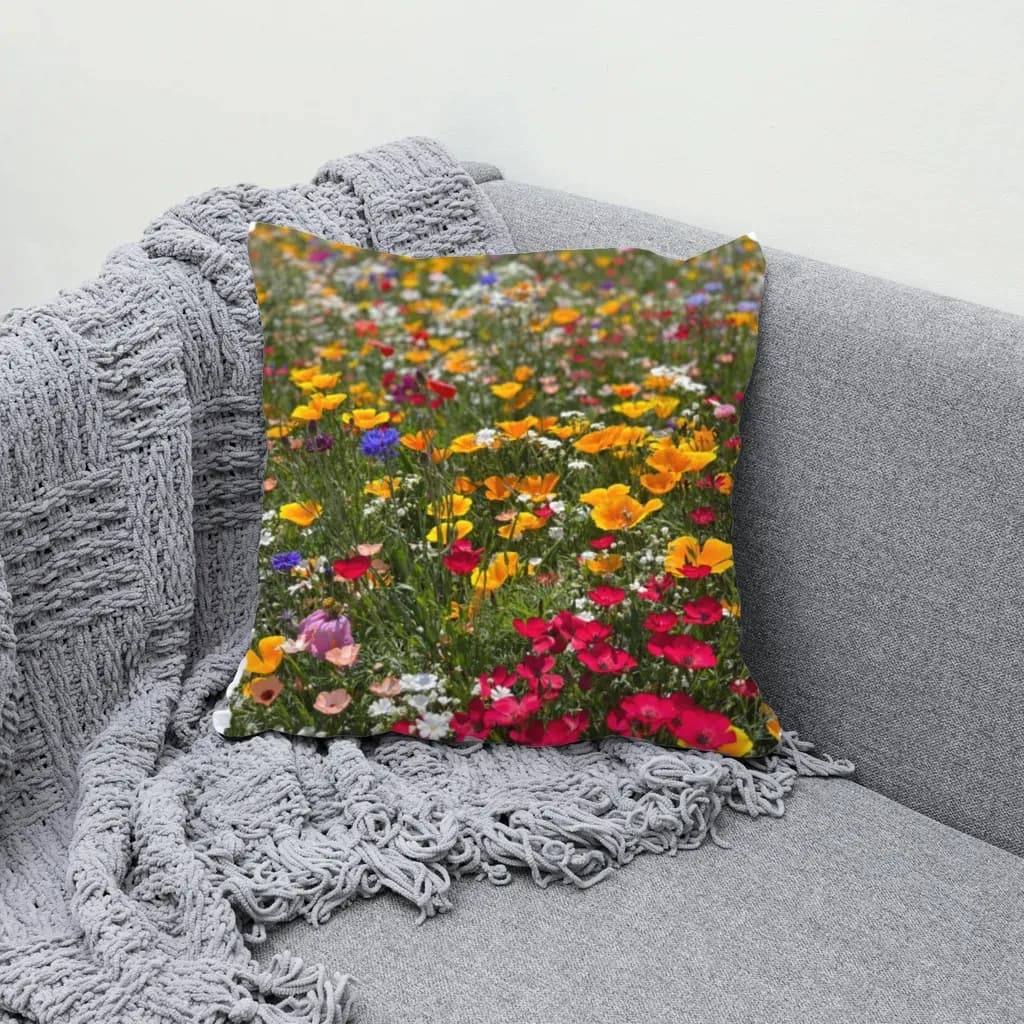
To make Etsy mockups without AI, start from a real photo of the blank product you actually sell (your own phone shot or your supplier's photo), place your design onto its print area with a photo-to-mockup tool, then batch-render every design and upload one folder per listing. Nothing in the picture is generated except your artwork on the surface.
That matters more this year than it used to. Buyers have become quick at spotting AI-made product scenes: hands with odd fingers, fabric that folds the wrong way, a mug handle that melts into the table. Sellers on Reddit openly debate whether AI mockups are worth the trust they cost, and some now add notes to their listings explaining which photos are AI-generated. If you would rather not be in that conversation at all, the simplest fix is to make sure the product, the room and the light in your photos are real.
New to the term? Read What Is a Mockup? first.
What "without AI" really means here #
It helps to be precise, because "AI" covers a lot of things.
- AI-generated mockups create the scene from a prompt or a reference: the shirt, the model, the sofa, the lighting. The result can look great, but none of it existed.
- A photo-based mockup keeps a real photo and only maps your design onto the print area, using the folds and shading that are already in that photo.
The workflow below is the second kind. One honest note: the tool used here, MockupPress, does use a small segmentation model (a type of machine learning) to find the outline of the product so your design does not spill onto the background. It runs locally in your browser and does not generate or change any pixels of the product or scene. If you want zero machine learning at all, you can skip the auto cut-out and adjust the print area by hand with the grid.
As for Etsy's own position, read the source rather than a summary: Etsy's House Rules and Creativity Standards describe how it treats items and content made with different tools, and the wording does change over time.
Step-by-step: real-photo mockups for your Etsy shop #
1. Get a real photo of your blank #
You have two good sources:
- Your own photo. Order one blank of each product and color you sell and shoot it at home. A phone is enough. Use soft window light, a plain or lightly styled background, and keep the print area fully visible.
- Your supplier's photo. Most print-on-demand providers publish photos of their blanks. These match the exact product the customer receives, which is the whole point.
Avoid photos of products that already carry a print, since your design will be placed on top of it.
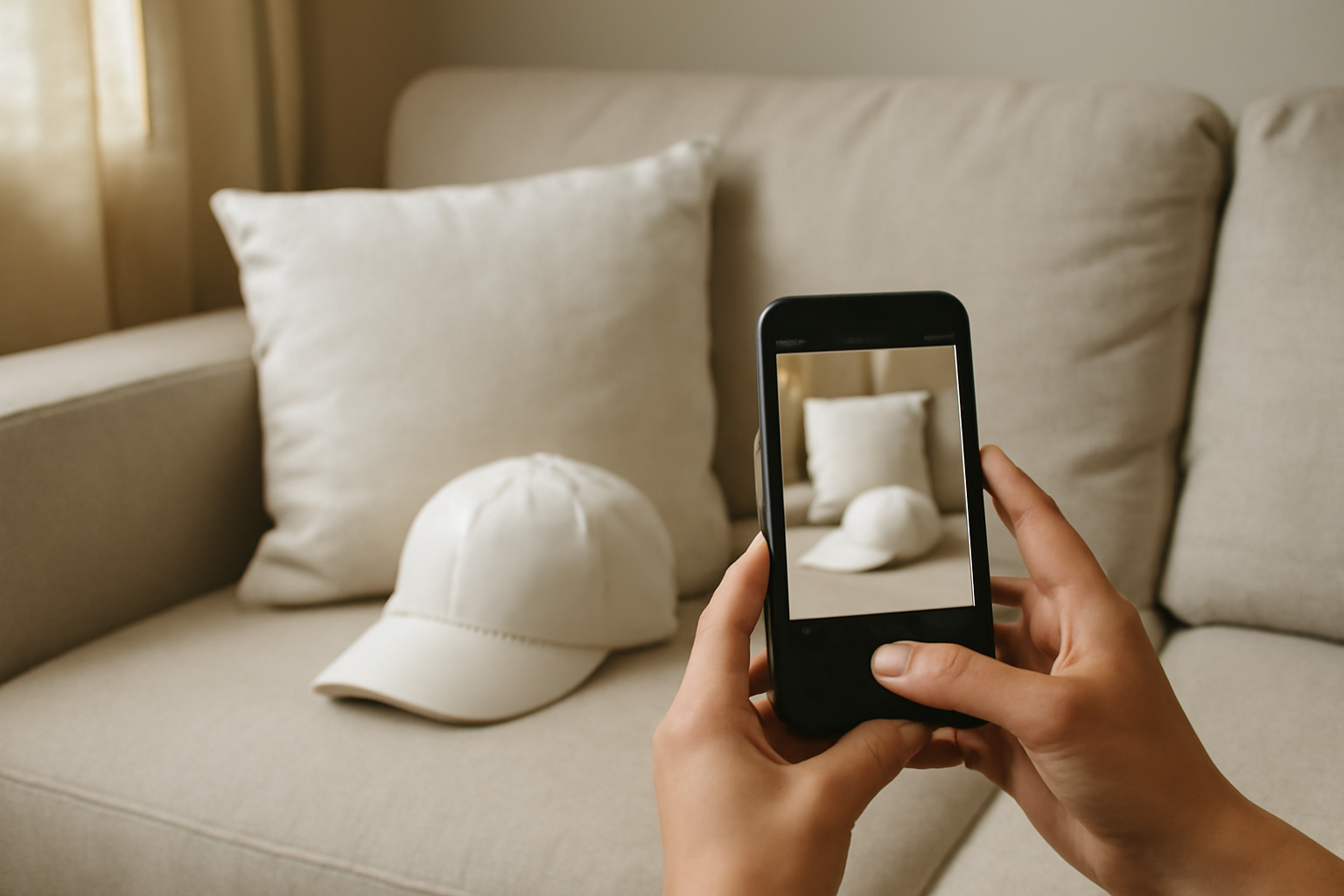
Illustration: a quick phone photo of your blanks in soft daylight is a perfectly good starting point.
2. Drop the photo in and drag one box #
Open MockupPress in a desktop browser and drop the photo on the Photos page. It is resized to at most 1536 px on the long edge and stored in your browser. It is not uploaded anywhere.
Then drag a box around where the design will print: the front panel of a cap, the face of a pillow, the chest of a shirt. In about a second the tool cuts out the product, snaps to the edges, picks a surface shape (Flat, Cylinder for caps and mugs, or a free-form mesh for fabric) and measures the light and folds from your photo. A labeled grid preview shows exactly how a design will bend.
3. Fix anything that looks off #
Auto detection is a starting point. A hand, a strap or a busy background usually needs a touch-up, and there are only three tools:
- Grid: drag points so the mesh hugs the edges; click an edge to add a line, double-click to remove a point.
- Add / Subtract brush: paint the print area in or out, for example around a mug handle or fingers.
- Highlights / Shadows / Edge: control how much of the photo's real lighting shows through, and nudge the print area a few pixels in or out.
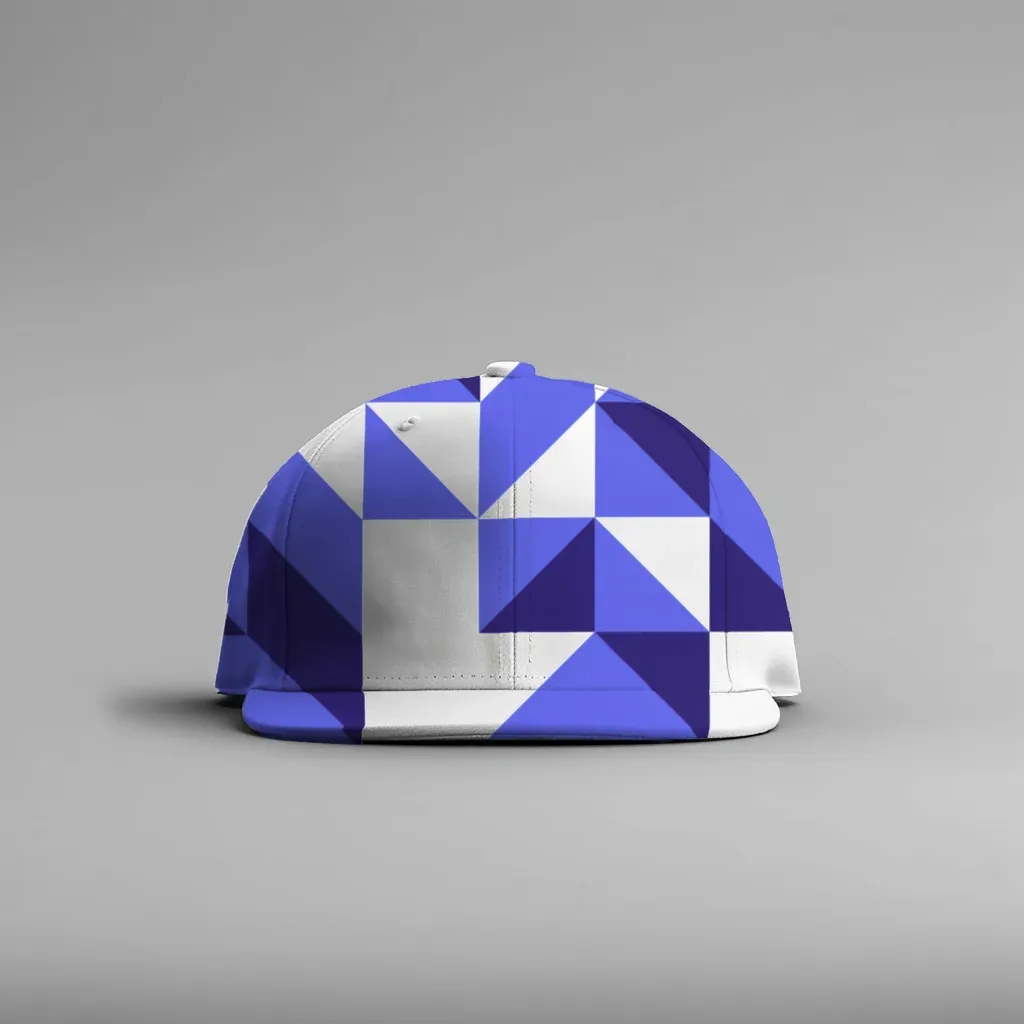
A real render from a plain cap photo. The curve, stitching and shading come from the photo itself.
4. Save it as a template #
Click Save. The template takes the photo's file name. On the Templates page choose how designs fit: Cover (fill and crop), Fit inside, or Stretch. Each template also shows a recommended design ratio and pixel size, which is handy when you export artwork.
5. Render all your designs and sort them by listing #
On the Bulk page, pick one or more templates and drop in your designs (transparent PNGs look most natural). Click Render. Every design lands on every selected template: in a real test, 23 designs on 2 templates produced 46 images at 1536 × 1536 in under a minute on a laptop.
Two details make the Etsy upload easier:
- File name pattern. Use tokens like
{design}/{template}. The/creates folders, so each design gets its own folder, which means one folder equals one listing. - manifest.csv. The ZIP includes a spreadsheet listing every file with its listing folder, template and design, so you can check nothing is missing before you upload.
In Chrome and Edge you can skip the ZIP and save straight to a folder on your computer.
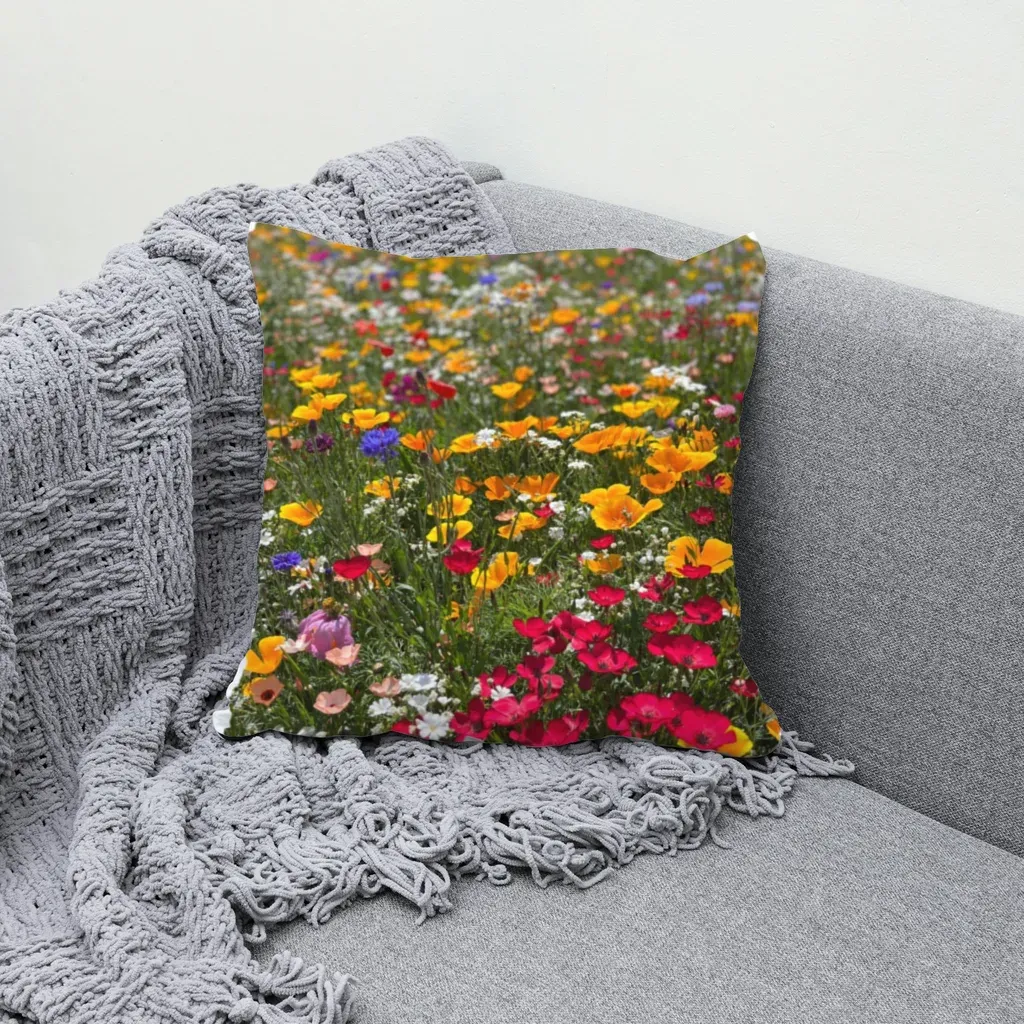
Same workflow, different product: the print follows the pillow's folds because the shading is measured from the original photo.
If you have a folder of real product photos and a pile of designs, you can turn your own product photos into Etsy mockups in your browser. It is free during the open beta, with no account, no watermark and no render limit.
Tips for mockups that look like the real thing #
- Shoot the exact blank you ship. Same brand, same color, same stitching. This is the strongest argument for real-photo mockups: what the buyer sees is what arrives.
- One photo per color. MockupPress does not recolor products, so photograph or source each color separately. It also keeps colors honest.
- Keep light and dark design versions. Name files
name_lightandname_darkand the bulk renderer picks the right one for light or dark blanks. - Mix in one unedited photo. A plain shot of the physical product, or a close-up of the fabric, next to your mockups builds trust fast.
- Add a one-line note. Something like "Photos show the design on the actual blank; colors may vary slightly by screen" sets expectations without sounding defensive.
- Reuse templates when you add designs. Templates stay in your browser, so next month's designs take one render, not a new photoshoot.
Honest limits #
- No built-in mockup library. You bring the photos. That is what keeps your shop from looking like every other shop, but it does mean a little photo work up front.
- Output tops out at 1536 px on the long edge. Check Etsy Help for the current listing photo recommendations and decide if that suits you.
- Data lives only on your device. Photos, templates and designs are stored in the browser. Clearing browser data or switching computers means rebuilding templates, and there is no sync.
- Desktop works best. Dragging boxes and grid points on a phone is possible but fiddly.
- No product recoloring and no generated scenes. If you want a lifestyle model or a room you do not have, you will need a real photo of it (stock or your own) or a different kind of tool.
AI-generated vs. real-photo mockups at a glance #
| AI-generated scene | Real-photo mockup | |
|---|---|---|
| Where the product comes from | Generated from a prompt or reference | Your photo or your supplier's photo |
| Matches the item the buyer receives | Not guaranteed | Yes, if you shoot the blank you ship |
| Lifestyle scenes you do not own | Easy | Needs a real photo |
| Folds and shading | Invented | Measured from the photo |
| Speed for many designs | Varies by tool | Batch render, designs × templates |
| Where your files go | Usually a server | Stay on your computer |
AI tools are genuinely faster when you need a scene you could never shoot. Real-photo mockups win when trust and accuracy matter more than variety, which for most small Etsy shops is most of the time.
The short version #
Photograph or source the real blank, drag one box, fix what looks off, save a template and render every design into one folder per listing. Your buyers see the product they will actually get, and you never have to explain an AI-generated hand.
Frequently asked questions
Yes. Start from a real photo of a blank product (your own shot or your supplier's), place your design on its print area with a photo-to-mockup tool or a Photoshop PSD, and export. No part of the product or scene has to be generated.
It uses one small segmentation model, running locally in your browser, to find the outline of the product in your photo. It does not generate or invent any pixels. The product, the room and the lighting all come from your real photo; only your design is mapped onto it.
Rules can change, so read Etsy's own House Rules and Creativity Standards for the current wording. Independently of the rules, many sellers add a short line such as 'photos are mockups of the actual product' because it sets honest expectations and reduces surprise when the item arrives.
A blank, evenly lit product with the print area fully visible: your own phone photo of the exact blank you ship, or the photo your print-on-demand supplier provides for that blank. One photo per product color, since the tool does not recolor products.
Images export at up to 1536 px on the long edge. Check Etsy's current listing photo recommendations in Etsy Help and decide whether that fits your needs; the tool cannot export larger than your photo after resizing, and it does not produce 4K images.
More from QRdy Blog
What Is Kerning? Meaning, Examples, and How to Space Photo Letters in Canva
Kerning is the adjustment of space between one pair of letters so gaps look even. Learn how it differs from tracking, which pairs need it, and how to space photo-filled letters in Canva.
10 Photo Letter Banner and Name Sign Ideas You Can Make in Canva
Ten printable letter banner, name banner and family name sign ideas where every letter is a Canva frame filled with its own photo, built with Text to Frames.
How to Make a Mockup Without Photoshop (From Any Product Photo)
Make a realistic product mockup from any plain photo, no PSD or Photoshop needed: drag one box around the print area, fix what the auto pass missed, save a template and render all your designs at once in your browser.