
What Is a Habit Tracker? Definition, Types, and How to Make One in Canva
A habit tracker is a simple grid where you tick off a habit each day so you can see your streak at a glance. Here is what one actually is, the five common types, and how to build a printable habit tracker in Canva without drawing a single box by hand.

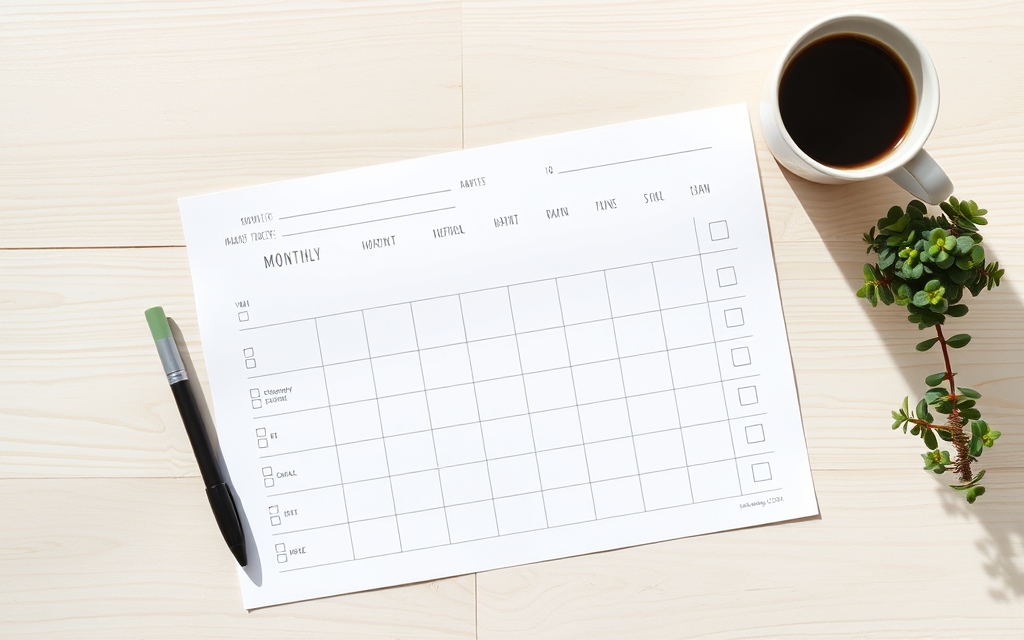
A habit tracker is a grid where each row is a habit and each column is a day, and you mark a box every time you do the thing. That's it. There is no clever mechanism hiding underneath — the whole value is that after two weeks you can look at one sheet of paper and see, without remembering anything, which habits you actually kept.
It gets confused with a to-do list, a planner, and a content calendar all the time. This piece sorts out what a habit tracker actually is, the five formats people use, and how to build one in Canva without drawing thirty-one boxes by hand.
Definition #
A habit tracker is a visual record of whether you performed a chosen behaviour on a given day, laid out as a grid so that the pattern — not the individual day — is what you notice.
Two words in that definition are doing the work.
Record, not plan. A habit tracker is backward-looking. You fill it in after the fact. A planner tells you what you intend to do; a habit tracker tells you what you did.
Pattern, not day. A single ticked box means almost nothing. Eleven ticked boxes in a row means something, and so does a gap of four. The grid layout exists so your eye picks up runs and holes automatically, which a list of dates never does.
How a habit tracker works #
Every habit tracker, paper or digital, is built from the same three parts.
1. The habit list. One row per behaviour, written as something you can answer yes or no to. "Read 10 pages" works. "Read more" does not — you'll argue with yourself about whether it counts, and an argument every night is how trackers die.
2. The time grid. One column per unit of time. Days across a month is the most common; days across a week is the friendliest for beginners.
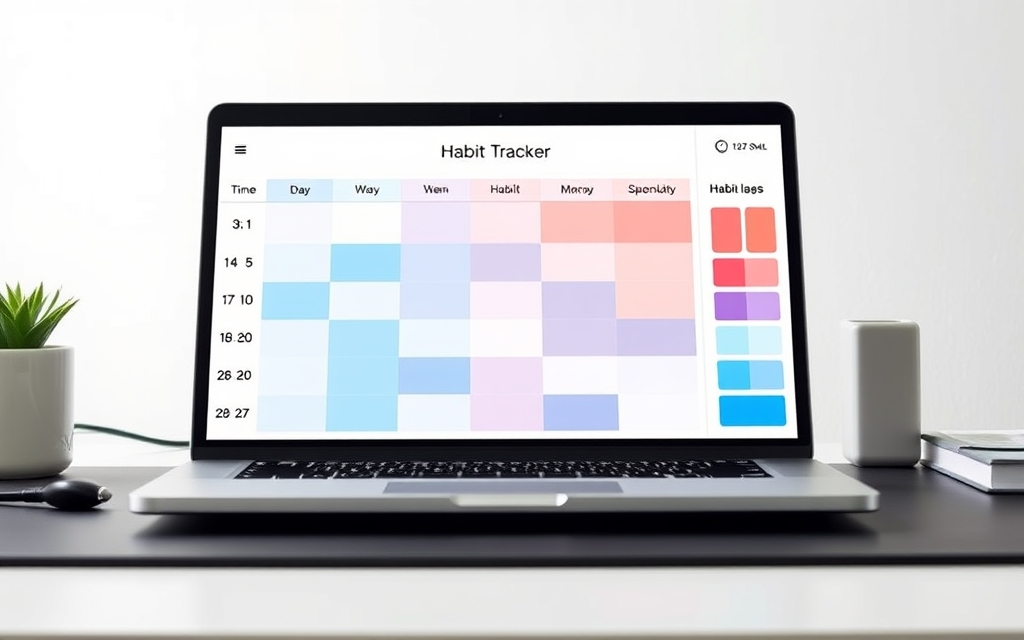
3. The marking system. A tick, a filled square, a colour block, an X. Filled colour blocks are the most readable at a glance because streaks become solid bars you can see from across the room.
The behavioural bit people talk about — "don't break the chain" — is really just what happens when part 3 is visual enough that a gap looks wrong.
The five common types #
| Type | Layout | Best for |
|---|---|---|
| Monthly grid | Habits down the side, days 1–31 across the top | The default. Seeing a whole month of behaviour on one page |
| Weekly tracker | Mon–Sun columns, a few habit rows, lots of white space | Starting out, or habits with room for a note ("ran 3km") |
| Single-habit chain | One habit, a big calendar of boxes | One thing that really matters — quitting something, daily practice |
| Mood or scale tracker | Same grid, but you colour by intensity instead of yes/no | Sleep quality, energy, mood — things that aren't binary |
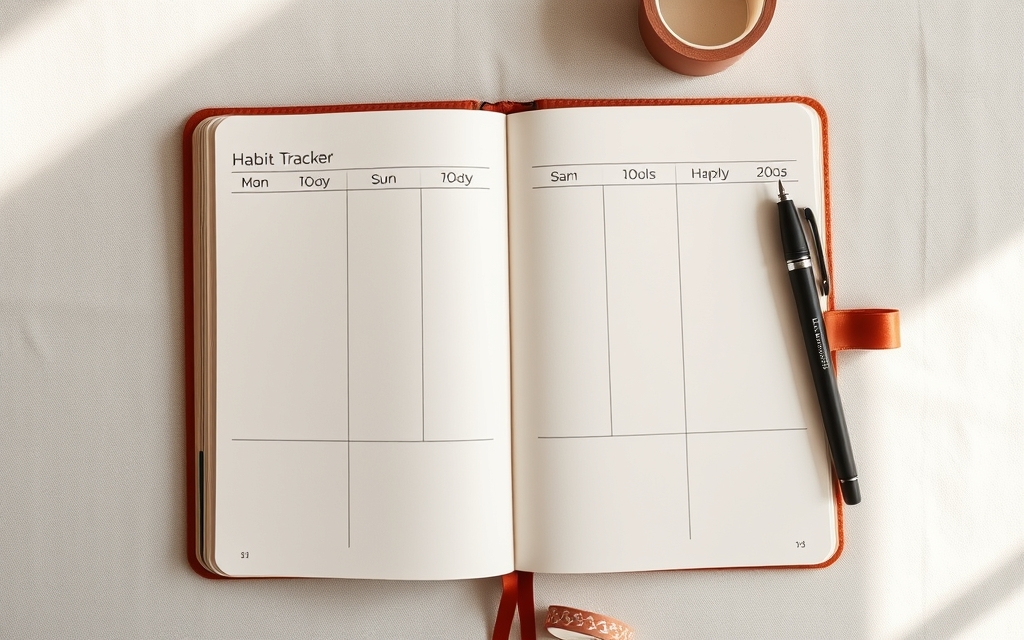
| Bullet-journal spread | Hand-drawn grid inside a notebook, often decorated | People for whom the drawing is part of the ritual |
Most people start with a weekly tracker, get bored of rewriting it, and move to a monthly grid. That's the usual path.
Habit tracker vs to-do list vs content calendar #
These three get mixed up because they all look like grids with dates.
- A to-do list holds tasks that end. You finish them and they disappear.
- A content calendar holds planned, dated deliverables — a forward-looking schedule for what gets published when. We covered that one separately in What Is a Content Calendar?.
- A habit tracker holds repeating behaviour that never ends, recorded after the fact.
If a row on your sheet can ever be "done forever", it belongs on a to-do list, not in a tracker.
How to make a habit tracker in Canva #
Here's the honest starting point: Canva has habit tracker templates in its library, and it has a Table element you can build a grid with. For a one-off weekly sheet, that's genuinely enough — grab a template, retype the habits, print it.
Where it gets tedious is anything repeating. A monthly grid means typing 31 numbered columns. A year means doing that twelve times, and getting the dates right for each month. Canva has no built-in generator that produces a dated calendar grid for you, which is the gap Calendar Maker fills — it generates the grid from a month, a week, or a date range and drops it straight into your open design.
Step by step #
- Set your page size first. A4 or US Letter if you'll print it. Doing this after you build the grid means resizing everything.
- Pick the tab that matches your layout. Calendar Maker opens with three: Month, Week, and Custom.
- Week gives you a table of weekday columns — tick which days appear, and set Number of rows (1 to 27) to create the empty rows your habits will sit in. This is the fastest route to a weekly tracker.
- Month gives you the classic dated grid for a chosen month and year (anywhere from ten years back to ten years ahead).
- Custom builds a grid for any date range you like — a 30-day challenge, a 90-day block. The maximum span is 150 days.
- Choose your week start. There's a Start week with Sunday toggle on all three tabs; the app guesses your regional default, but check it.
- Style it before you insert. Header text and day numbers each have their own font, bold/italic/underline, alignment, size (1–100) and colour controls. Background has a header-bar colour plus two alternating row colours — that striping is what makes a wide grid readable. There are 30+ preset palettes in a carousel if you'd rather click once, and a live preview showing the result as you go.
- Click Add to design. The grid lands in your Canva design as an editable element. (Add to design is a Pro feature — free users see an Unlock to use button instead.)
- Add your habit rows. Put your habit names in a text column down the left, aligned with the grid rows. Keep it to three to five.
- Decorate, lightly. Border Art Maker for a repeating edge, Frames Lab or Image to Frame if you want a photo or a shaped motivational image at the top. A tracker you like looking at gets filled in more often than a plain one — but the grid is the product, not the decoration.
- Export. PDF Print for printing, PNG for a phone wallpaper or a digital planner.
The trick for a full year #
If you want all twelve months, the Month tab has an Add all months checkbox, plus Each month on its own page so every month lands on its own page named for the month and year. Twelve trackers, one click, dates already correct.
And tick Save settings after adding successfully below the button. Your fonts, colours and layout get stored as a reusable setup you can restore from a carousel next time — which is the difference between rebuilding your tracker every January and reprinting it.
A few things worth knowing #
- Print it and put it somewhere you can't avoid. A tracker in a folder is a tracker you fill in on the 3rd and never again. Fridge, desk, inside the wardrobe door.
- Mark it at a fixed time. Same moment every day — after brushing your teeth, before closing the laptop. The marking is itself a habit, and it needs a trigger like any other.
- Leave a "why" line at the bottom. One sentence about what you're actually after. It reads as sentimental until the second week, when it's the only thing keeping the sheet on the wall.
- A missed day is a missed day. Not a reason to redo the sheet. The gaps are data — they usually cluster around the same weekday, and that's the useful part.
The short version #
A habit tracker is a grid of habits against days that you mark after doing the thing, and its value is entirely in the pattern you can see at a glance. Five formats cover almost every use: monthly grid, weekly tracker, single-habit chain, mood scale, and the hand-drawn journal spread.
Canva's templates handle a one-off sheet fine. The moment you want real dates, a whole month, or the same design reprinted every month, generating the grid beats drawing it — that's the case for Calendar Maker.
Frequently asked questions
A to-do list is about one-off tasks you finish and delete. A habit tracker is about repeated behaviour you never finish — you tick the same row again tomorrow. The point of the tracker is not the task, it is the pattern you can see after two or three weeks: where the streaks are, and where they break.
Three to five is the usual advice, and it holds up in practice. A grid with fifteen rows looks impressive on day one and gets abandoned by day nine, because you fail some of them every day and the sheet starts to feel like a scoreboard you are losing. Start with three, add a fourth only when the first three feel automatic.
Yes. Canva's Table element or a duplicated row of squares will get you a grid, and there are ready-made habit tracker templates in the template library. That is fine for a one-off. Calendar Maker is worth it when you want the real dates in the header, a whole month or a full year generated at once, or the same styling reused every month — its Add to design button is a Pro feature.
Printable wins for daily use, because a sheet on the wall or in a notebook is visible without unlocking anything, and physically marking a box is part of what makes it stick. Digital wins if you want to reuse it, share it with a team, or sell it. If you print, set your Canva design to A4 or US Letter before you build the grid, and export as PDF Print.
Related products


More from QRdy Blog
10 Bulletin Board Ideas You Can Make in Canva (Fall, Classroom and Calendar Boards)
10 printable bulletin board ideas for fall and the classroom: monthly calendar boards, photo-filled headline letters, Meet the Class grids, leaf photos, countdowns and more, all designed in Canva.

Serif vs Sans Serif: What's the Difference, and Which Font Should You Use?
Serif fonts have small strokes at the ends of their letters; sans serif fonts don't. Here's what that changes for readability, print, screens and pairing — and why heavy sans serifs win when you put photos inside letters.
The Best Canva Apps for Gift Tags (2026)
Gift tag season starts earlier than you think. Here are five Canva apps that make custom photo tags, decorative borders, name tags and QR tags faster than building each one by hand — plus what Canva already does well on its own.