
The Best Canva Apps for Planners (2026)
Building a planner in Canva? Here are the best Canva apps for calendars, weekly schedules, habit trackers, decorative borders, and photo covers — plus where Canva's built-in tools are enough.
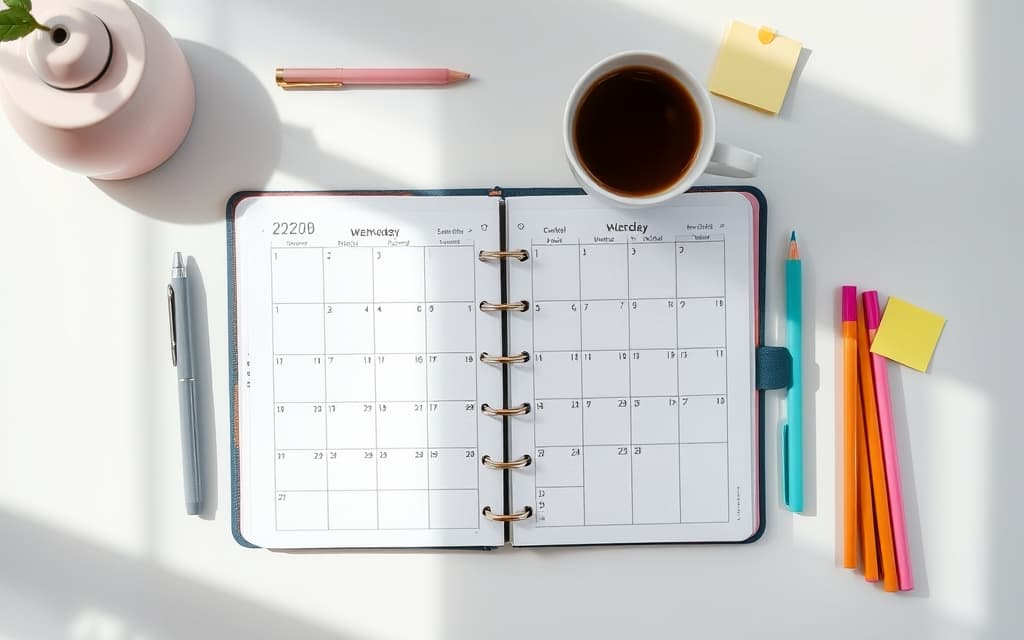
Canva is a great place to build a planner — daily, weekly, monthly, or a full custom one — but the built-in editor leaves you drawing calendar grids by hand and hunting for matching page borders. These Canva apps take the tedious parts off your plate so you can spend your time on the layout, not the busywork.
Here are the best Canva apps for planners in 2026, what each one is for, and where Canva's native tools already do the job.
Quick-pick table #
| App | Best for | Why it's on the list |
|---|---|---|
| Calendar Maker | Calendar grids & weekly schedules | Generates month/week/custom-range layouts instantly — no hand-drawn tables |
| Border Art Maker | Decorative page borders | Repeating dot, icon and image borders that space themselves evenly |
| Frames Lab | Vision boards & photo sections | Grid, arc and diagonal photo frames for goal pages and mood boards |
| Image to Frame | Shaped photo covers & dividers | Turns any shape into a photo frame for cover pages and section tabs |
| Text to Frames | Photo-filled cover titles | Fills planner title letters with a photo for a custom cover |
| Color Harmony | A cohesive palette | Generates matching color schemes so every page looks like one set |
1. Calendar Maker — the core of any planner #
If you're making a planner, the calendar is the part you'll rebuild the most, and Calendar Maker is built exactly for it. It generates month, week, or custom date-range layouts and drops them straight into your open design — no drawing tables or typing dates cell by cell.
The three tabs cover almost every planner page you'll need. The Month tab makes classic monthly grids (one month or all twelve, each on its own page). The Week tab builds weekly spreads and timetables where you pick which days show and set the number of blank rows for notes. The Custom tab handles any date range up to 150 days — handy for a project planner or a 90-day challenge. You can restyle the header and number fonts, colors and alignment, and there are 30+ ready-made color schemes plus ~14 decorative page templates (Botanical, Scandi, Coastal and more).
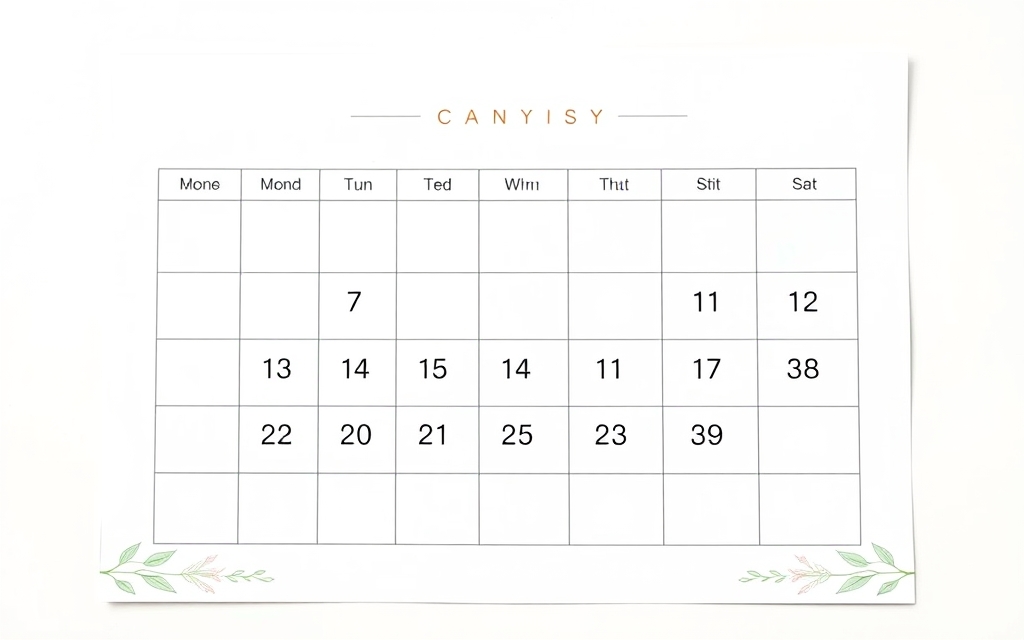
Best for: monthly calendars, weekly schedules, habit-tracker grids, content calendars.
2. Border Art Maker — frame every page #
A planner looks polished when the pages share a consistent decorative edge. Border Art Maker builds repeating borders from dots, icons or small images and distributes them evenly around your page, with control over spacing and rotation. It's far faster than manually copying an element around the margins, and it keeps cover pages, dividers and monthly spreads visually consistent.
Best for: cover pages, monthly dividers, framed weekly spreads.
3. Frames Lab — vision boards and photo sections #
Goal pages, vision boards and "year in review" spreads look best when photos aren't just plain rectangles. Frames Lab is a full frame toolbox: Grid for tidy collage sections, Arc for a curved banner of photos, Diagonal for dynamic strips, and Burst for a focal highlight. Every frame auto-fits your page, then you drag photos in.
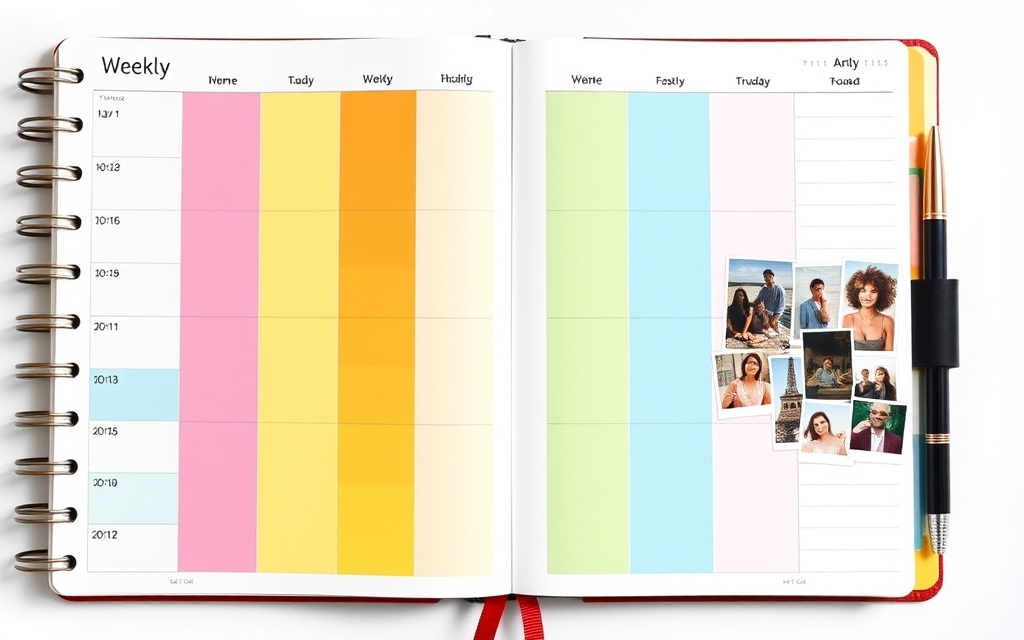
Best for: vision boards, memory pages, multi-photo goal spreads.
4. Image to Frame — shaped covers and tabs #
For a cover photo cut to a heart, arch or custom silhouette — or shaped section tabs — Image to Frame turns any PNG/SVG/JPG into a proper Canva frame you can drop photos into and swap later. Great for a personalized planner cover or themed monthly dividers.
Best for: cover photos, section tabs, shaped photo dividers.
5. Text to Frames — a photo-filled cover title #
Want your planner's title (a name, a year, "2026 GOALS") filled with a photo instead of a flat color? Text to Frames turns each letter into its own frame so you can pour a photo through the whole word. It's the quickest way to a custom, personal cover.
Best for: cover titles, monogram initials, themed section headers.
6. Color Harmony — keep it all cohesive #
A planner with clashing colors looks unfinished. Color Harmony generates harmonious palettes (complementary, triadic and more) and applies them across your design in a click, so calendars, borders and trackers all share one look.
Best for: a consistent color scheme across every page.
Where Canva's built-in tools are enough #
Be fair to Canva here: for a simple planner you may not need any add-ons. Canva has thousands of planner and calendar templates, native Grids for basic photo layouts, and you can add a plain rectangle border in seconds. The apps above earn their place when you want a specific calendar (an exact week layout, a custom date range, all 12 months at once), repeating decorative borders, or shaped photo frames that Canva's stock templates don't offer. Start with a template; reach for these when it can't do what you have in mind.
Putting it together #
A clean workflow: build your grids with Calendar Maker, wrap pages in Border Art Maker, add photo sections with Frames Lab or Image to Frame, top the cover with Text to Frames, and tie it together with Color Harmony. Most of these have a free tier, so you can test the fit before committing to Pro.
Frequently asked questions
Yes. Canva has thousands of planner and calendar templates plus native Grids and borders, which is enough for a simple planner. Apps like Calendar Maker or Frames Lab help when you need a specific calendar layout, a custom date range, repeating decorative borders, or shaped photo frames that stock templates don't include.
Calendar Maker is the strongest for planner grids. It generates monthly, weekly and custom date-range layouts and inserts them straight into your design, with font, color and 30+ preset style options, so you never have to draw a table or type dates by hand.
Most offer a free tier with limits and a Pro upgrade for unlimited use. You can build and test a planner on the free tiers first, then upgrade the specific app you rely on most.
Related products


More from QRdy Blog
How to Make a Hat Mockup From a Photo (So the Design Curves With the Cap)
Turn one photo of a blank cap into realistic hat mockups: drag a box around the front panel, let the design wrap the curve with the photo's real shading, then render all your designs at once in your browser.
The Best Canva Apps for Family Reunions (2026): Invites, Banners, Photo Walls and Calendars
Planning a family reunion in Canva? Here are the five Qrdy apps that actually help: shaped photo invitations, photo-letter banners, photo-wall grids, a countdown calendar and a QR link that can change after printing.
How to Make a Birthday Calendar in Canva (Family Birthday Tracker, Step by Step)
Build a printable family birthday calendar in Canva: 12 months, one page each, with names added in minutes. A step-by-step tutorial using Calendar Maker, plus honest notes on what Canva does on its own.