
Adobe Express Calendar vs Canva Calendar Maker: Which Is Easier for a Printable Calendar?
Adobe Express has a free calendar maker; Canva has the Calendar Maker app. Here is how they compare on setup, full-year output, styling, custom date ranges and printing, plus who should pick which.
If you search for a way to make a printable calendar, two names keep coming up: the Adobe Express calendar maker and, if you already live in Canva, the Calendar Maker app. They solve the same problem in different ways. This comparison sticks to what each tool is built to do, so you can pick one in five minutes instead of testing both for an afternoon.
Quick answer #
| Adobe Express calendar maker | Canva Calendar Maker (Qrdy app) | |
|---|---|---|
| Where it runs | Adobe Express, in the browser | Inside Canva, as an app in the Apps panel |
| How you start | Pick a template, then choose month and year | Pick Month, Week or Custom tab, then Add to design |
| Whole year in one go | Per template; check the template you pick | Yes: Add all months, optional one page per month |
| Custom date range | Not a headline feature | Yes: Custom tab, up to 150 days |
| Styling | Size, text, colors and backgrounds | Header and number fonts, sizes, colors, striped rows, 30+ color themes |
| Reuse your setup | Save and reuse as a design | Saved setups per tab (about 30 most recent) |
| Cost | Free plan available | Needs Canva Pro to Add to design |
Short verdict: if you want a quick one-off calendar from a template and you are already in Adobe's ecosystem, Adobe Express is a perfectly good free option. If you build many calendars (12 months, school terms, planners) and want the dates generated for you inside the Canva editor, Calendar Maker saves more clicks.
What the Adobe Express calendar maker does well #
Adobe describes its flow in three steps: get inspired by a template, customize it by choosing the month and year and updating the size, text, colors and backgrounds, then save and share. That is a friendly, template-first approach.
- Low barrier. Adobe says its free plan includes thousands of templates, photo editing and effects, and 2GB of storage, so you can start without paying.
- Template-first. You begin with a finished design and adjust it, which suits people who want to see the end result right away.
- Sharing. Saving and sharing a calendar with friends or colleagues is part of the pitch.
Where it is less suited: if you want the grid itself generated (a different month every page, a weekly timetable, a 90-day term), you are leaning on whichever template you chose rather than on a generator.
What Calendar Maker does well #
Calendar Maker is a generator, not a template library. You open it from the Apps panel in any Canva design and pick one of three tabs.
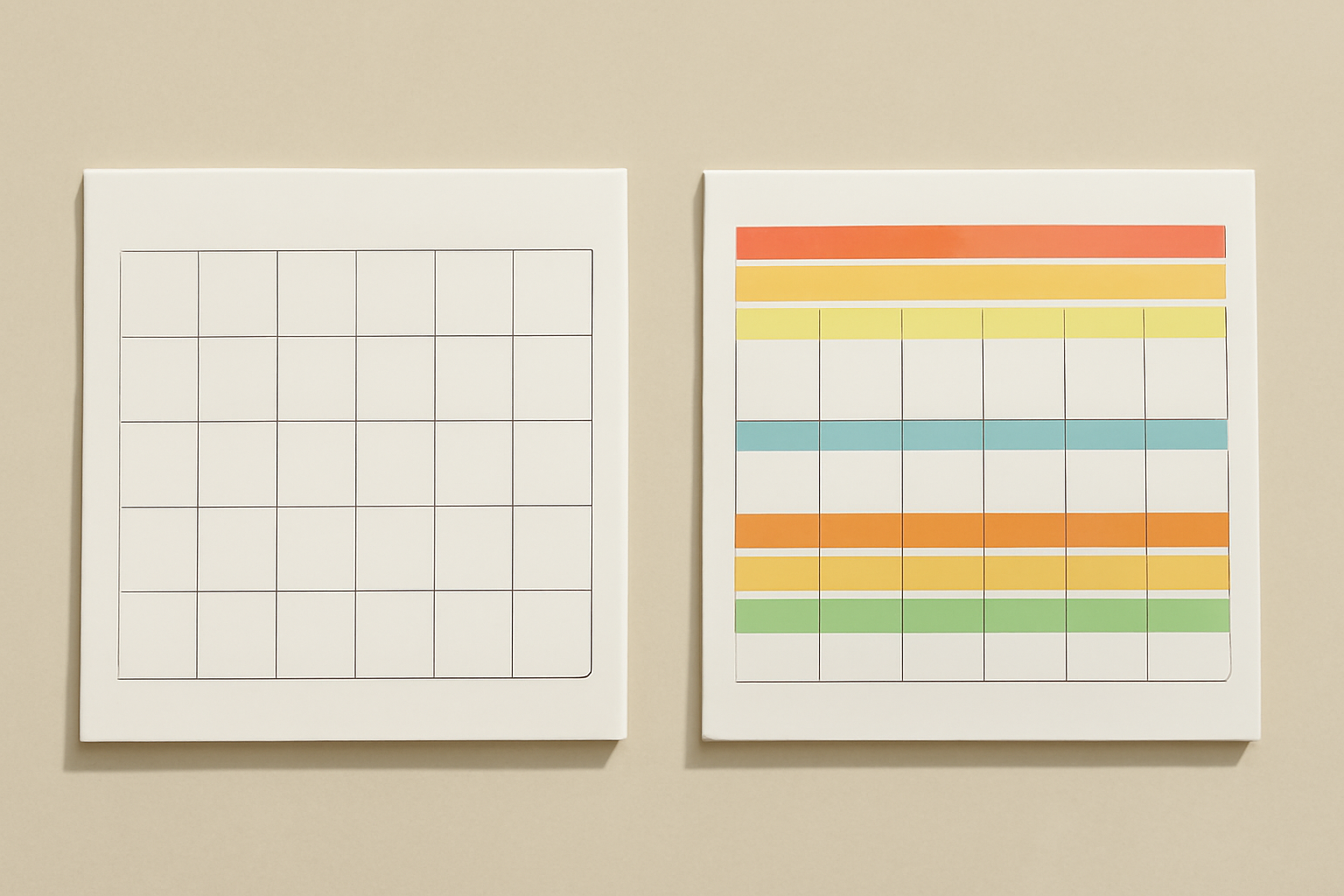
- Month tab. Choose month and year (10 years either side of today), toggle Add all months for a full year, and Each month on its own page to get twelve auto-named pages. You can also place the calendar on a decorated page template (about 14 themes, such as Botanical, Watercolor and Scandi Minimal).
- Week tab. Choose which weekdays appear and set 1 to 27 blank rows under each day. This is the quick way to a class timetable or weekly planner.
- Custom tab. Set a start and end date for any span up to 150 days, for a school term, a project timeline or a season.
- Styling. Header and number text each get font, bold/italic/underline, alignment, size and color. Header and alternating row colors give the striped look, and 30+ preset color themes apply a whole palette in one tap, with a live preview.
- Saved setups. Turn on Save settings after adding successfully and each tab keeps your recent configurations, so next month's calendar matches this month's.
- Languages. Month and weekday names follow your language, and the week start (Monday or Sunday) is guessed from your region.
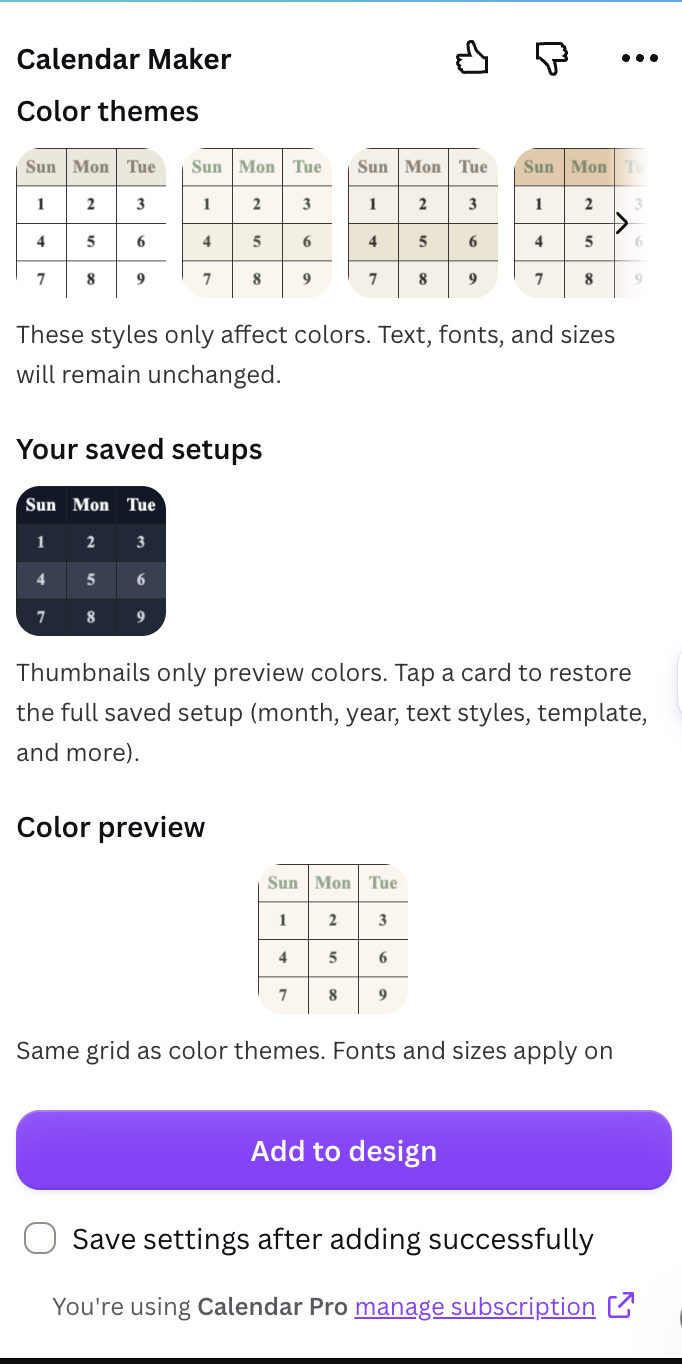
The trade-off: the app needs Canva Pro to use Add to design. Without Pro you will see Unlock to use instead.
Head-to-head on the things that matter #
1. Speed to a first calendar #
Adobe Express is faster if a template already looks right: pick, set month and year, edit. Calendar Maker is faster when you do not want to hunt for a template, because you choose Month, Week or Custom and the grid appears.
2. A full 12-month year #
This is where a generator pulls ahead. In Calendar Maker, one toggle produces all 12 months, and a second puts each on its own page. With a template-first tool you generally work month by month or page by page.
3. Non-standard ranges #
A 12-week term or a 6-week sprint is awkward on a standard month template. Calendar Maker's Custom tab is built for it (150-day limit).
4. Design freedom #
Both let you change colors and text. In Canva you also keep the whole Canva toolbox around the calendar: drop photos into shaped frames, add borders, change the palette. Our posts on Frames Lab and photo calendars show that workflow.
5. Printing #
Calendar Maker's output is a normal Canva design, so you download it as PDF Print and print at home or order prints. Adobe Express exports from its own editor. Either way, check bleed and margins before ordering prints from a service.
Which should you choose? #
Choose Adobe Express if:
- You want a free, template-first calendar and do not need many of them.
- You already work in Adobe Express and prefer to stay there.
- A single decorated page is all you need.
Choose Canva Calendar Maker if:
- You make calendars repeatedly (monthly, yearly, school terms).
- You want 12 months or a custom range generated for you.
- You want the calendar to live in the same Canva file as your photos, frames and planners.
- You are happy with Canva Pro.
Tips for a good printable calendar in either tool #
- Start from your page size first (A4 or Letter), then build the calendar.
- Keep dates large enough to read from a wall; try 24 pt or more for numbers.
- Use two alternating row colors for readability, not decoration.
- Add holidays and birthdays last, so you do not move text twice.
- Export a PDF and print a test page before committing to a full run.
Want the step-by-step version for Canva? See our guides to the 2027 planner and the Word template comparison.
Frequently asked questions
Adobe says its free plan covers core features such as thousands of templates, photo editing and 2GB of storage, and its calendar page is marketed as a free online calendar maker. Check Adobe's pricing page for what is included on your plan today.
Yes. On the Month tab, turn on Add all months to generate all 12 months, and optionally Each month on its own page so every month gets a separate, auto-named page.
The Add to design button is for Pro users. Without Pro you see Unlock to use; after upgrading, click Restart app to refresh your status.
Calendar Maker has a Custom tab that builds a calendar for any start and end date, up to a 150-day span, which suits terms, seasons and project timelines.
Related products


More from QRdy Blog
How to Use a Displacement Map in Photoshop (So Your Design Follows Fabric Folds)
Make a grayscale displacement map from your product photo, apply Filter > Distort > Displace, and blend with Multiply so your design bends with real fabric folds. Includes fixes for maps that "do nothing."
How to Add a Border to a Frame in Canva (Even When the Border Option Is Missing)
Built-in Canva frames take a border in two clicks. Custom frames often don't show the option at all. Here is the native method, plus how to bake a border into custom shape, grid and letter frames.
What Is Word Art? Meaning, Types, and How to Make Photo Word Art in Canva
Word art is text styled to work as a graphic: outlined, 3D, curved, glowing or photo-filled letters. Learn the main types, what Canva's Effects already do, and how to fill letters with photos.