
What Is a Photo Calendar? Definition, Types, and How to Make One in Canva
A photo calendar pairs your own pictures with a date grid — part keepsake, part planner. Here's what a photo calendar is, the main types, and how to make a printable one in Canva with Calendar Maker and Image to Frame.
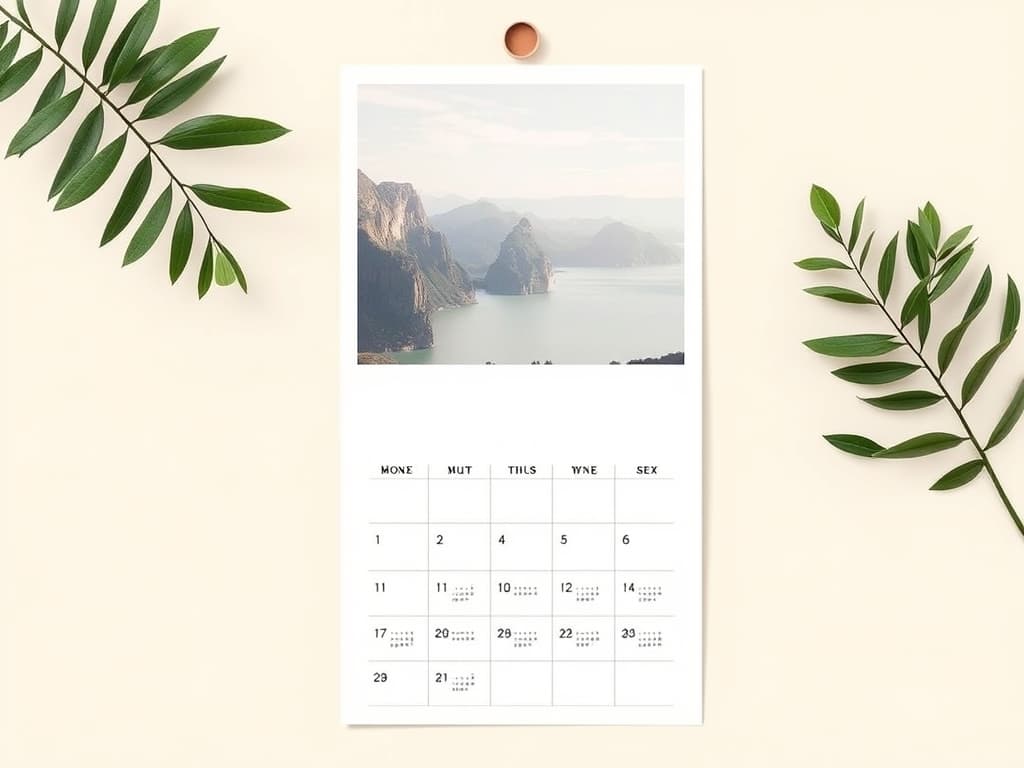
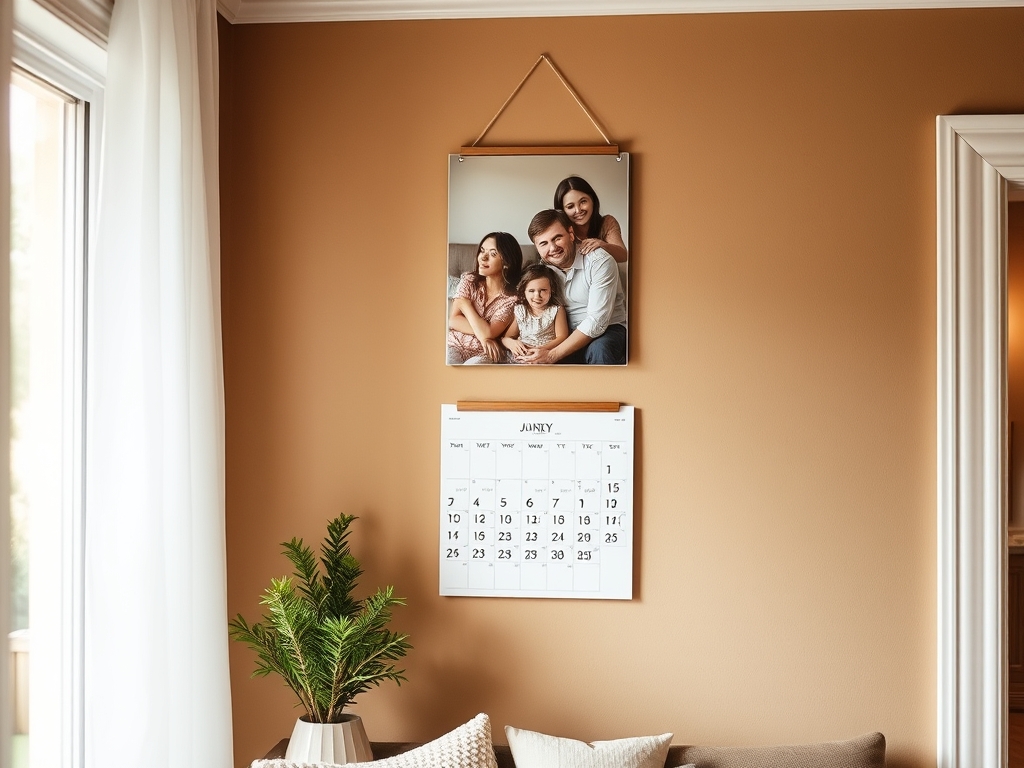
A photo calendar is a calendar that pairs your own pictures with a date grid — a family portrait above July, a beach shot above August, a pet photo above December. It's part keepsake and part planner: you still get squares to write in, but every month is topped with an image that means something to you.
That's the key difference from a plain wall calendar (which is really just a grid) and from a content calendar (a planning tool for scheduling posts). A photo calendar's whole point is the photos. It's the thing you hang in the kitchen, gift to grandparents, or sell as a printable — because it looks good on the wall, not because it helps you plan a marketing campaign.
How a photo calendar works #
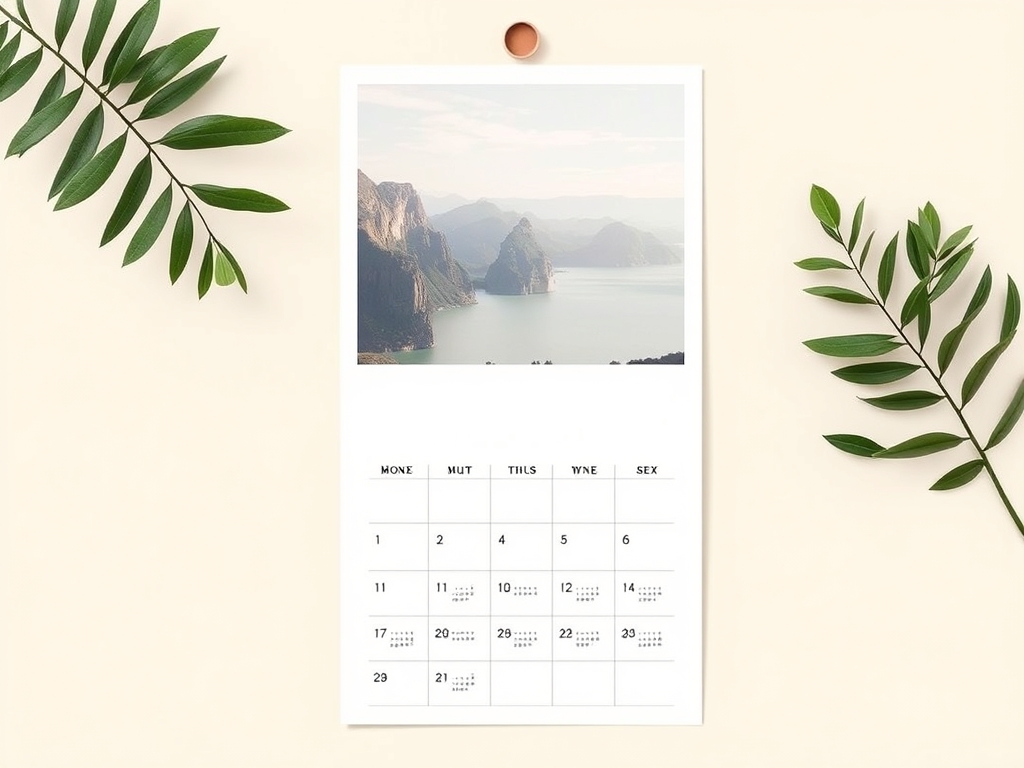
Under the hood, every photo calendar is just two layers stacked together:
- A date grid — the month laid out as rows of weekdays and numbered day cells. This is the "calendar" part.
- A photo area — usually a large image above the grid, though photos can also fill individual day cells, sit in a border, or form a collage.
Build those two layers well and you have a photo calendar. The date grid needs to be accurate (correct weekday-to-date alignment for the year), and the photo needs to be sized and cropped to fit its space cleanly. Everything else — fonts, colors, decorative borders — is styling on top.
The reason photo calendars used to be a hassle is that building an accurate grid by hand is tedious: you draw a table, then type in every date and make sure it lines up with the right weekday. Tools like Calendar Maker remove that step by generating the grid for you, so you can spend your time on the part that matters — the photos.
Types of photo calendars #
| Type | What it is | Best for |
|---|---|---|
| Wall calendar | One large photo above the month grid, one page per month, hung on a wall | Family keepsakes, gifts, home decor |
| Desk calendar | Small standing calendar, one photo + a compact grid per page or week | Office desks, small spaces |
| Photo-collage calendar | Multiple photos arranged in a grid or shaped layout above/around the dates | Highlight reels, "year in review" gifts |
| Themed / branded calendar | Photos tied to one theme (travel, pets, product shots) with matching colors | Creators, small businesses, portfolios |
| Printable / digital | A PDF or image you print at home, send to a print shop, or sell as a template | Etsy sellers, print-on-demand, DIY gifts |
Most people start with a classic 12-page wall calendar — one photo per month — because it's the most giftable format. From there it's easy to branch into desk versions, collage layouts, or a themed set you sell.
How to make a photo calendar in Canva #
Canva doesn't have a built-in tool that generates an accurate date grid — you either drop in a pre-made template (and hope it's the year and layout you want) or build the grid by hand. The faster route is to generate the grid with an app, then add your photos. Here's the workflow:
- Set up your page. Start a design at your print size — US Letter or A4 for a printable, or a custom size for a desk stand. Leave the top half for a photo and the bottom half for dates.
- Generate the date grid. Open Calendar Maker, pick the Month tab, choose your month and year, and click Add to design. Want the full year? Turn on "Add all months" and "Each month on its own page" to get a 12-page set in one go, with each page named by month. Pick a start-of-week (Monday or Sunday) and style the header and number fonts to match your look.
- Style the grid. Use one of the 30+ built-in color palettes — minimalist Scandi, botanical, pastel, dark mode — or set your own header and alternating-row colors so the grid matches your photos.
- Add your photos. Drop a photo into the space above the grid. For a plain rectangular photo, just place and crop it. For something more creative, turn a shape or PNG into a frame with Image to Frame so your photo sits inside a heart, an arch, a monogram, or your logo — then swap photos freely without re-cropping.
- Build a collage month (optional). For a "best of the year" page, use Frames Lab to make a grid or arc layout and drop several photos in at once, or use Clipping Mask to cut a photo into a word or shape as an accent.
- Decorate the edges (optional). Add a repeating Border Art Maker frame — dots, leaves, confetti — around the page for a finished, printed-product look.
- Export. Download as a PDF (use PDF Print for home printing or a print shop) or as images for a digital calendar.
A quick honesty note: Calendar Maker's "Add to design" is a Pro feature, and Canva's own frames only cover a fixed set of built-in shapes — for custom photo shapes you'll want Image to Frame or Frames Lab. But the grid itself is the hard part, and generating it beats drawing a table by hand every time.
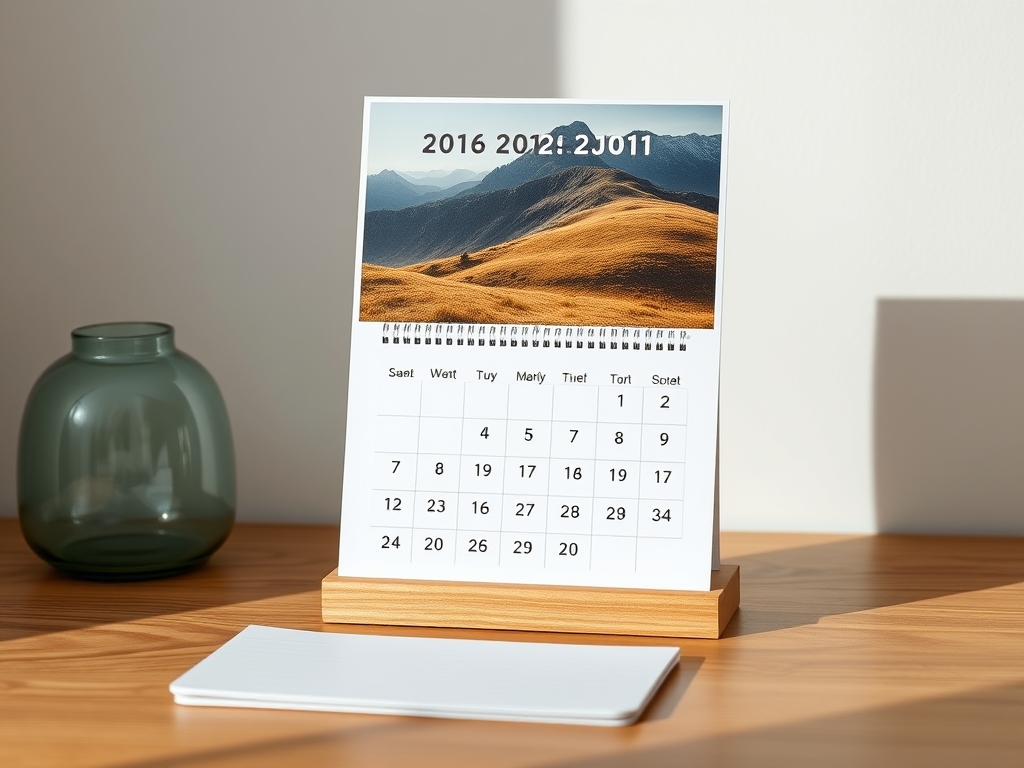
Photo calendar vs. content calendar #
These sound similar but solve opposite problems. A photo calendar is a finished, decorative product — a keepsake or gift built around images. A content calendar is a working planning tool for scheduling social posts, blogs, or campaigns; the "content" is text and dates, not personal photos. If you're making something to hang on a wall or give away, you want a photo calendar. If you're planning what to publish and when, you want a content calendar.
The takeaway #
A photo calendar is simply a date grid dressed up with your own pictures — a wall or desk piece that's equal parts useful and sentimental. The two ingredients are an accurate grid and well-placed photos; generate the grid with Calendar Maker so it's correct for the year, then make the photos shine with frames, collages, and borders. It's one of the easiest personalized gifts (and best-selling printables) you can make in Canva.
Frequently asked questions
A photo calendar is a calendar that combines your own photos with a date grid — typically one large image above each month. It works as both a keepsake or gift and a functional planner, unlike a plain wall calendar (just a grid) or a content calendar (a scheduling tool for posts).
Set up your page at print size, then use Calendar Maker to generate an accurate month grid (turn on 'Add all months' for a full 12-page set). Style the grid with a built-in palette, add your photos above the dates — using Image to Frame or Frames Lab for custom photo shapes — and export as a PDF or images.
A photo calendar is a decorative, finished product built around personal images — something to hang, gift, or sell. A content calendar is a planning tool for scheduling social posts, blogs, or campaigns. One is a keepsake; the other is a workflow tool.
Related products


More from QRdy Blog
Can You Still Use Mockups on Etsy? What the New AI Photo Rules Mean for Print-on-Demand Sellers
Etsy's new listing image rules require one unedited photo for most items, but print-on-demand sellers may use authorized stock photo mockups. Here is what Etsy actually says, which mockups fit, and how to order your listing photos now.
The Best Canva Apps for Name Tags (2026): Photo Initials, Shaped Badges and Batch Sheets
Name tags are one of the easiest things to make in Canva. These apps add the parts Canva does not: photo-filled initials, shaped badge windows, photo-grid tags, and batch QR tags.

How to Make a 2026-2027 School Year Calendar in Canva (Semester by Semester)
Build a printable 2026-2027 school year calendar in Canva: generate each month or semester with Calendar Maker, mark breaks and exam weeks, and print or share it as a PDF.