
Smartmockups Shut Down: Where to Make Product Mockups From Your Own Photos Now
Smartmockups.com closed on September 27, 2024 and its tools moved into Canva. Here are the 5 types of Smartmockups alternatives, who each one suits, and how to make mockups from your own product photos.
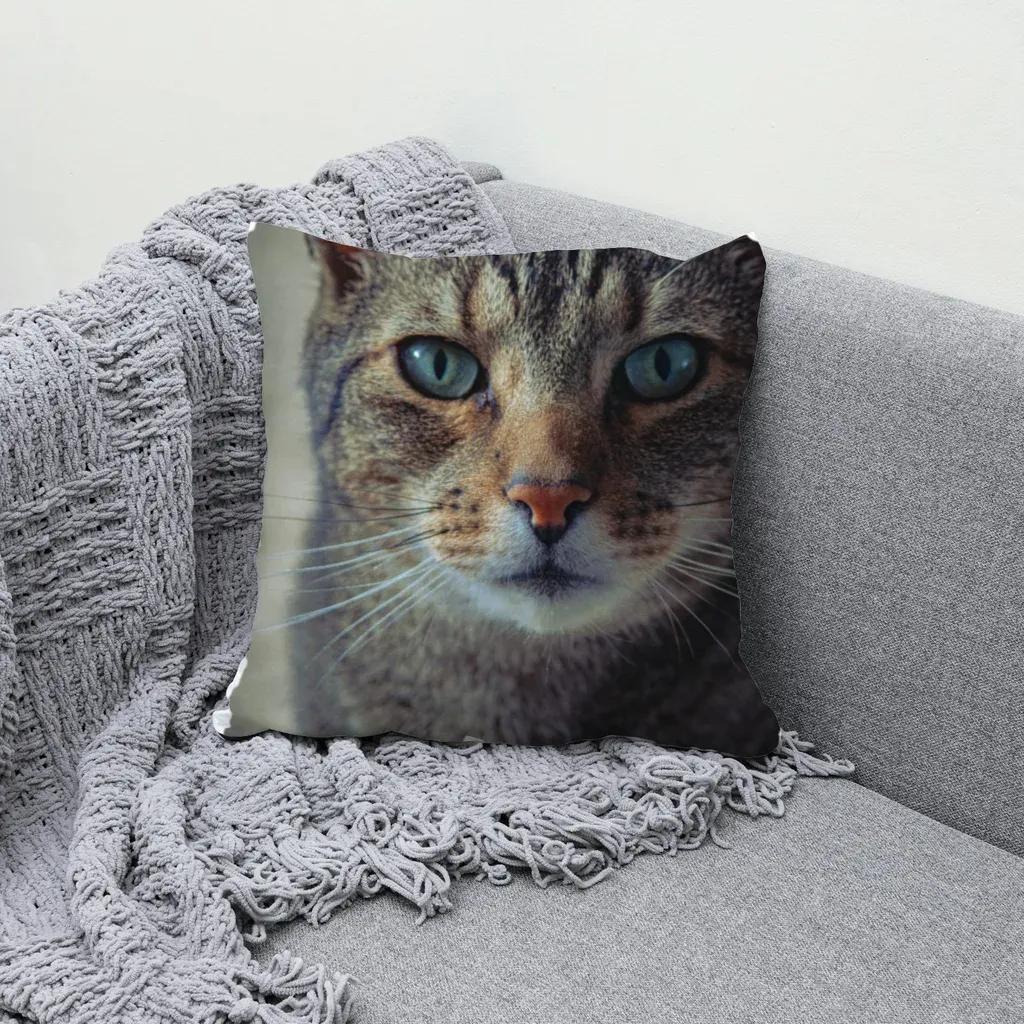
Smartmockups.com closed for good on September 27, 2024, and its mockup tools now live inside Canva. If you used it to put designs on product photos, your options today are Canva's built-in mockups, Photoshop PSD templates, credit-based mockup sites, your print-on-demand supplier's generator, or a tool that turns your own product photos into reusable templates.
Below is what actually happened to Smartmockups, what each type of replacement is good at, and how to pick one based on how you sell.
What happened to Smartmockups? #
Smartmockups was a browser-based mockup tool that Canva acquired. According to the official Smartmockups closure notice, the standalone site at smartmockups.com stayed operational until September 27, 2024, then shut down. The timeline in that notice:
- Yearly PRO renewals stopped on September 27, 2023.
- Monthly PRO renewals were accepted until July 31, 2024.
- Free and remaining users kept access until September 27, 2024.
- Users were told to download saved mockups before their account closed.
The same notice points former users to Canva, where mockup tools with similar functionality are available. So "Smartmockups" today effectively means "mockups inside Canva."
If you only made a handful of mockups a month and already use Canva, that may be all you need. But a lot of sellers searching for a Smartmockups alternative want something different: their own product photos, many designs at once, or a workflow outside a design editor.
The 5 types of Smartmockups alternatives #
Instead of a ranked list of brand names, here are the five kinds of tools sellers actually switch to. Each one is a good fit for someone.
| Option | Where the product photo comes from | Best for | Watch out for |
|---|---|---|---|
| Mockups inside Canva | Canva's mockup scenes | Canva users making a few mockups per listing or social post | One design at a time; scenes are shared with every other Canva user |
| PSD templates + Photoshop | Paid or free PSD files | Designers who already own Photoshop and want full control | Needs a smart-object PSD for every product; slow for large catalogs |
| Credit-based mockup sites | The site's own template library | Sellers who want polished lifestyle scenes without shooting anything | Per-image or subscription cost (check each site's published pricing); your own photos often need a PSD |
| Your POD supplier's generator | Supplier's flat or model shots | Printify/Printful sellers who just need clean catalog images fast | Same images every other shop on that supplier uses |
| Mockups from your own photos | Your sample photos, supplier blanks or stock photos | Sellers with many designs who want a consistent, unique shop look | You bring the photo; no ready-made scene library |
1. Mockups inside Canva #
This is the official successor. If your design already lives in Canva, you can place it on a mockup without exporting anything. It is quick for one-off listing images, Pinterest pins and social posts.
The trade-off is that you work one design at a time, inside the editor, using scenes that anyone else on Canva can also pick.
2. PSD templates with Photoshop #
The classic route: buy or download a PSD with a smart object, paste your design in, save. Done well, results look excellent because the PSD author already built the shadows and folds.
It gets painful at scale: one PSD per product, one export per design, and you are stuck with whatever photo the PSD author shot. We walk through the full smart-object process in How to Make a Mockup in Photoshop.
3. Credit-based online mockup generators #
These sites offer big libraries of lifestyle scenes (models, flat lays, rooms) and charge per image or by subscription. Some also offer bulk rendering and API access.
They are a good pick when you want variety without a camera. The catch: you pay as you go, and if you want to use your own product photo, many of them still ask for a PSD.
4. Your print-on-demand supplier's mockup generator #
Printify, Printful and similar suppliers include a free generator tied to their catalog. It is the fastest way to get correct, on-spec images for a new product.
The downside is sameness: thousands of shops sell the same blank from the same supplier and show the same photos. We compared this route in detail in Printify Mockup Generator vs Making Your Own Mockups.
5. Tools that make mockups from your own photos #
The last group skips template libraries entirely. You start from a plain product photo (a sample you ordered, a supplier blank you have rights to, or a stock photo), mark where the print goes, and the tool turns that photo into a reusable template.
This is the category MockupPress belongs to.
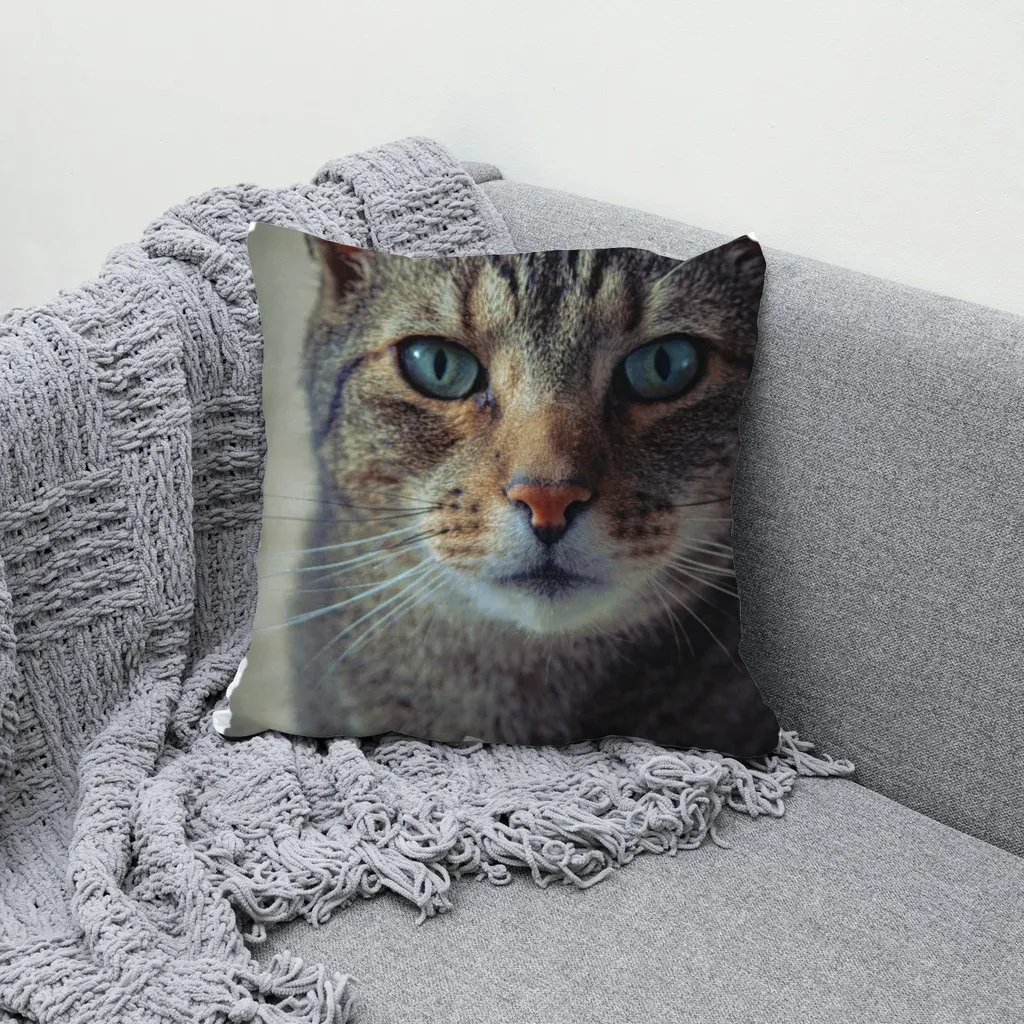
How MockupPress works (and where it fits) #
MockupPress is a free web app from Qrdy for print-on-demand sellers. The workflow is four steps:
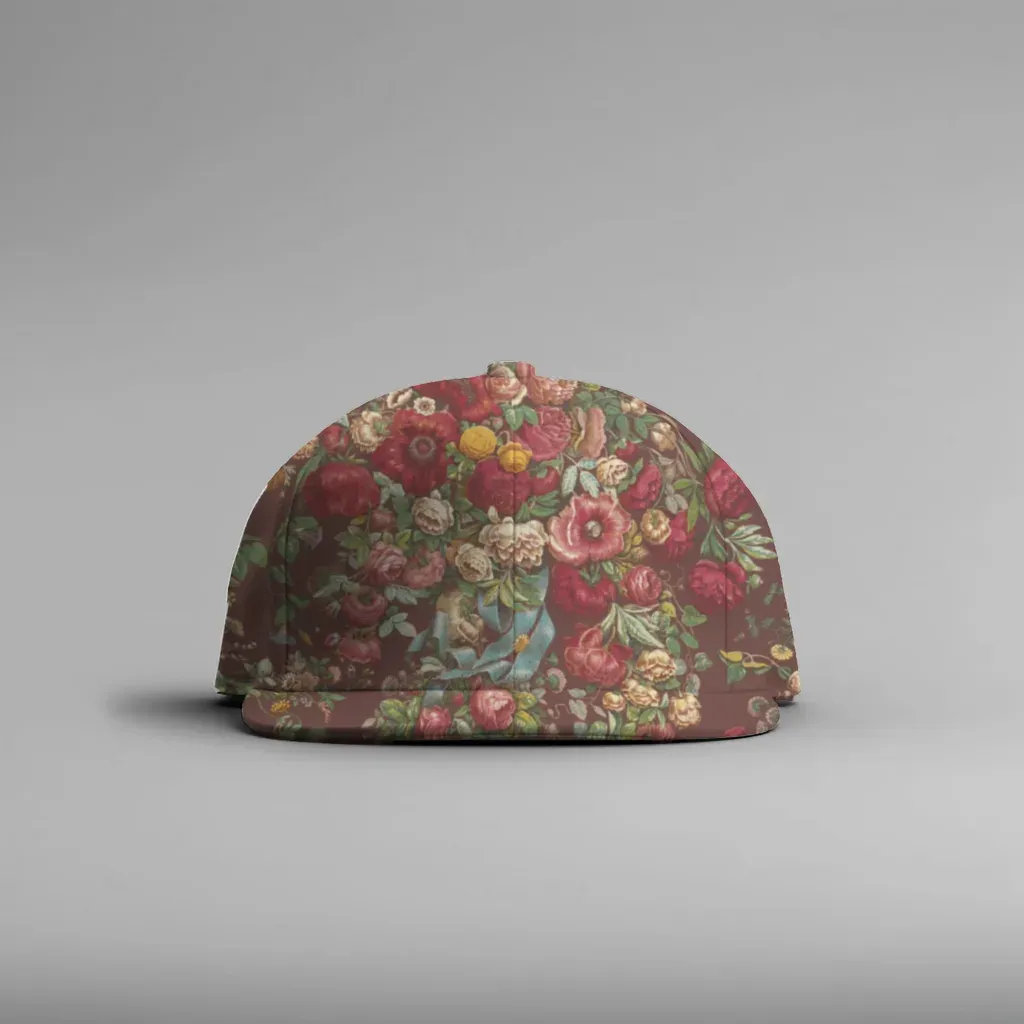
- Drop a photo. Any JPG or PNG of your product: a white cap, a pillow on a sofa, a mug.
- Drag a box around where the design will print. The app cuts the product out of the background, snaps to its edges, picks a flat, cylinder or free-form surface, and measures the highlights, shadows and fabric folds from the photo itself.
- Save the template. If the automatic result needs a tweak, Edit gives you three tools: a Grid to pull mesh points to the edges, an Add/Subtract brush to remove hands, hair or straps from the print area, and Highlights/Shadows/Edge sliders.
- Render in bulk. Pick one or more templates, select your designs, and render every combination at once. You get a ZIP of images plus a
manifest.csvlisting every file.
In a demo run, 2 templates × 23 designs produced 46 images at 1536 × 1536 px in under a minute on a laptop.
What MockupPress does well compared with Smartmockups-style tools #
- Your photo, not a shared scene. Your listings look like your shop, not like every other shop using the same library image.
- Real folds and curves. Designs wrap around caps and mugs and follow pillow creases because lighting is measured from your photo.
- Bulk by default. N designs × M templates in one click, organized into folders by design.
- Runs in your browser. Templates and renders are processed on your device; your photos and designs are not uploaded.
- Free during open beta. No account needed, no watermark, unlimited renders in the browser.
Where other options are a better fit #
Being honest about limits saves you time:
- No mockup library. MockupPress has no ready-made scenes. If you don't have a product photo, Canva or a credit-based site will get you started faster.
- No product color changes. One photo is one color. For five shirt colors you need five photos.
- Max 1536 px on the long edge. That covers Etsy listing photos comfortably, but not large print materials.
- No Canva app or Photoshop plugin. You export images and upload them wherever you sell.
- Data stays on your device. Clearing browser data or switching computers means re-creating templates (an optional account can sync up to 10 templates for use with AI agents via MCP).
Which Smartmockups alternative should you choose? #
A quick way to decide:
- You make a few mockups a month and live in Canva: use Canva's mockups.
- You own Photoshop and love fine control: stick with PSD templates.
- You want lots of lifestyle scenes and don't mind paying per image: a credit-based generator.
- You just launched a product on a POD supplier: start with the supplier's generator.
- You have dozens of designs and want a unique, consistent look: make mockups from your own product photos with MockupPress, free while it's in open beta.
Many sellers combine two: supplier images for the first listing photo, then their own photo-based mockups for the rest. If you sell on Etsy, it is also worth reading what Etsy's AI photo rules mean for mockups before you pick a workflow.
Tips for moving off Smartmockups #
- Find your old downloads. The closure notice asked users to download saved mockups before their accounts closed; check your downloads folder and cloud drives before redoing work.
- Re-shoot one hero photo per product. A clean phone photo of a sample in good light becomes a template you can reuse for every future design.
- Keep design files as transparent PNGs. They drop into any of the five options above.
- Name files consistently. With a bulk tool, a pattern like
design/templategives you one folder per listing.
Ready to try the photo-based route? Open the MockupPress app, drop in one product photo, and see your first template in about a minute.
Frequently asked questions
No. The standalone site smartmockups.com was operational until September 27, 2024, then closed. According to the official closure notice, its mockup tools are now available inside Canva.
It depends on how you work. Canva's mockups suit occasional one-off images, PSD templates suit Photoshop users, credit-based sites suit sellers who want ready-made lifestyle scenes, and photo-based tools like MockupPress suit sellers with many designs who want mockups made from their own product photos.
Yes. With MockupPress you drop a plain product photo, drag a box around the print area and save it as a template. The app measures folds and lighting from the photo, then renders all your designs onto it in bulk, right in your browser.
Yes, MockupPress is free during its open beta: no account, no watermark and unlimited renders in the browser. Images export at up to 1536 px on the long edge as a ZIP with a manifest.csv.
No. MockupPress has no ready-made scene library. You bring your own product photo, such as a sample you ordered, a supplier blank you have rights to, or a stock photo, and turn it into a reusable template.
More from QRdy Blog
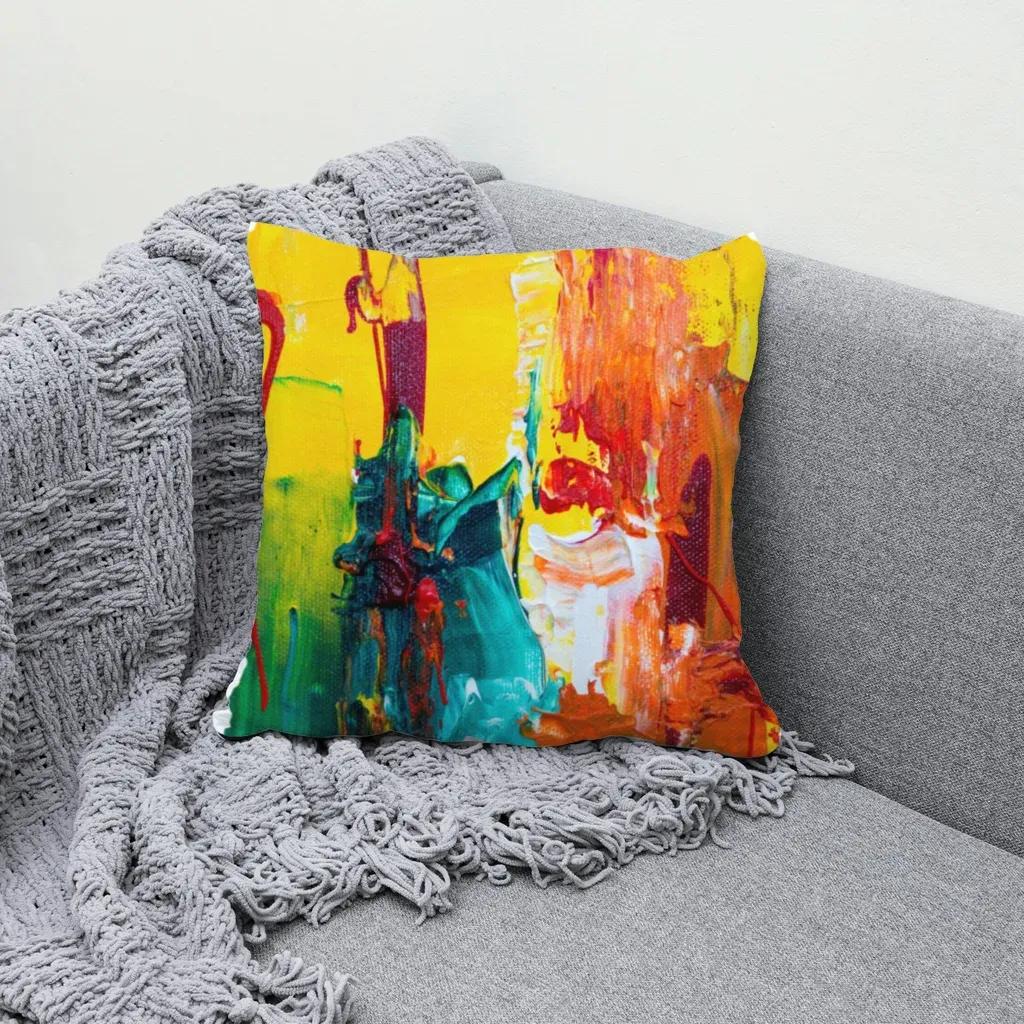
How to Use a Displacement Map in Photoshop (So Your Design Follows Fabric Folds)
Make a grayscale displacement map from your product photo, apply Filter > Distort > Displace, and blend with Multiply so your design bends with real fabric folds. Includes fixes for maps that "do nothing."

How to Add a Border to a Frame in Canva (Even When the Border Option Is Missing)
Built-in Canva frames take a border in two clicks. Custom frames often don't show the option at all. Here is the native method, plus how to bake a border into custom shape, grid and letter frames.
What Is Word Art? Meaning, Types, and How to Make Photo Word Art in Canva
Word art is text styled to work as a graphic: outlined, 3D, curved, glowing or photo-filled letters. Learn the main types, what Canva's Effects already do, and how to fill letters with photos.