
Canva Monthly Calendar: Template vs Table vs Calendar Maker (Which Is Fastest?)
Three ways to make a monthly calendar in Canva: a ready-made template, a hand-built table, or the Calendar Maker app. We compare setup time, flexibility and 12-month projects, with a clear verdict.
There are really three ways to get a monthly calendar into Canva: start from a template, build your own table, or generate the grid with the Calendar Maker app. They are not equal. Which one wins depends on how many months you need, how much you want to restyle, and how much typing you are willing to do.
Quick comparison #
| Canva template | Hand-built table | Calendar Maker app | |
|---|---|---|---|
| Setup time (1 month) | 2-5 min | 15-25 min | Under 2 min |
| Dates filled for you | Only for the template's year | No, you type every number | Yes, pick month + year |
| 12 months at once | Duplicate and edit each page | Duplicate and retype each page | "Add all months" toggle, one page each |
| Restyling | Limited by template layout | Full control, manual | Fonts, colors, 30+ color themes |
| Week starts on Sunday/Monday | Fixed by template | You decide | One checkbox |
| Best for | A one-off decorated page | Unusual layouts | Repeatable, accurate calendars |
Option 1: A Canva calendar template #
Searching "calendar" in Canva gives you designed pages that are quick to adopt. The upside is looks: someone already chose the fonts and decoration. The downside is the dates. A template is built for one specific month and year, so if the numbers do not match the month you need, you are editing each date by hand. Re-using last year's template is the classic trap: the 1st lands on the wrong weekday.
Choose a template when you want a single decorated page and the template already matches your month.
Option 2: Build the grid with a Canva table #
Canva lets you insert a table and fill it in. It works, and it gives you total layout freedom: merged cells, extra note columns, a tall box for goals.
The cost is time and risk. You size the table, label seven columns, then type every date and check weekdays against a real calendar. Twelve months means twelve rounds of that.
Choose a table when your calendar is not a standard grid, for example a custom habit or meal layout where the dates are secondary.
Option 3: Calendar Maker #
Calendar Maker is a Canva app by QRdy that generates the grid and inserts it into your open design.
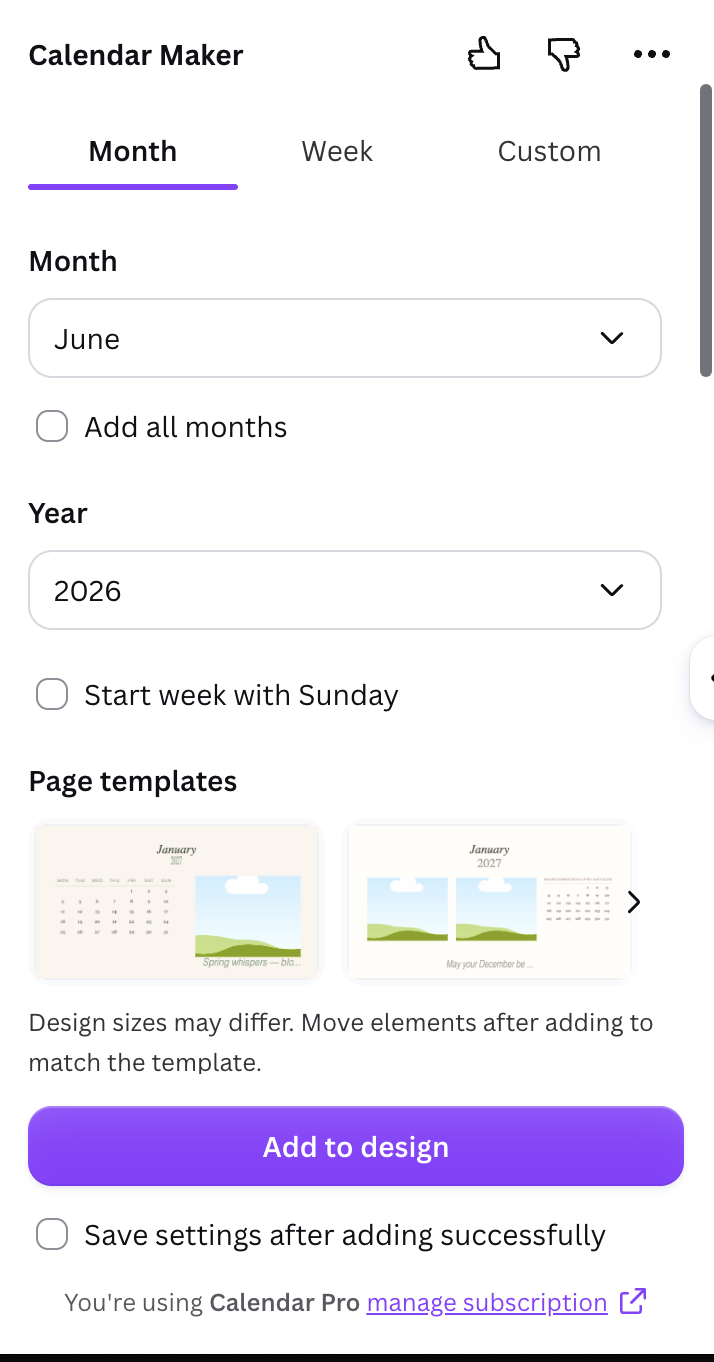
How it works on the Month tab:
- Open Apps in Canva and search for Calendar Maker.
- Pick the month and year.
- Optional: tick Start week with Sunday, or Add all months to generate all 12.
- Optional: with all 12, tick Each month on its own page so every month gets its own page.
- Style it: font, bold/italic/underline, alignment, size and color for headers and date numbers, plus header and alternating-row background colors.
- Click Add to design.
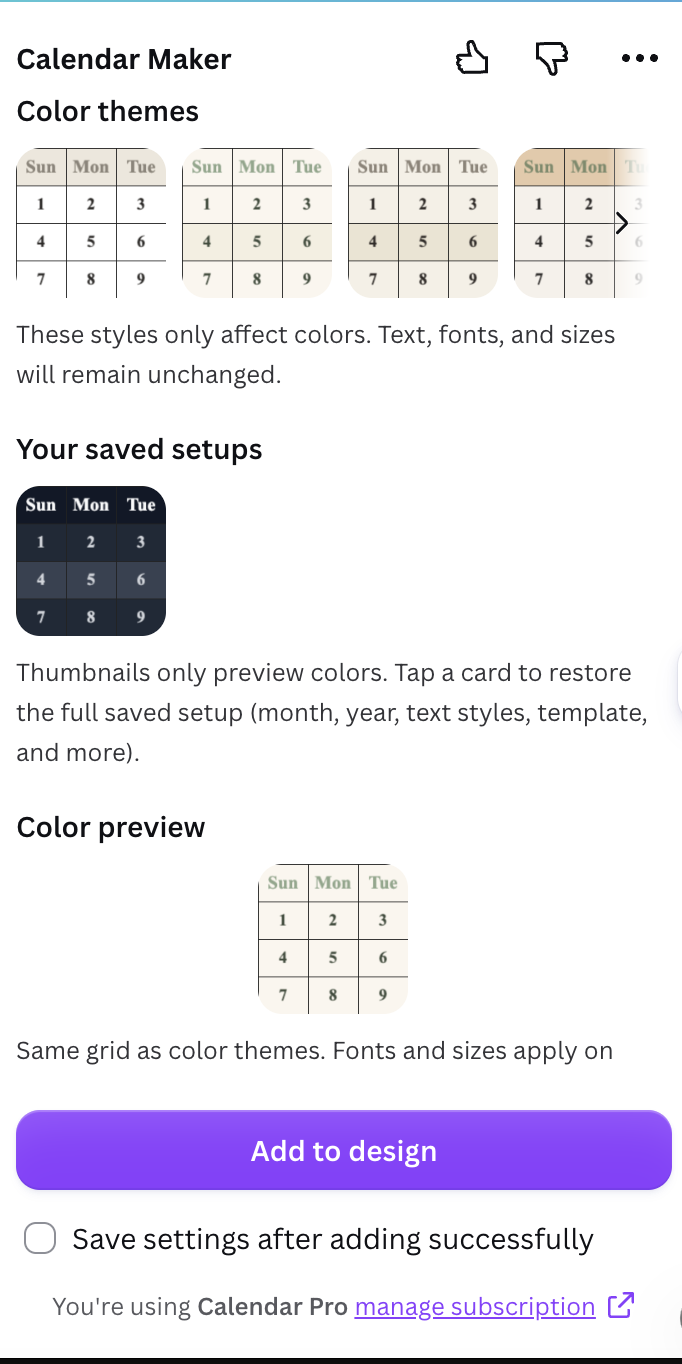
There are over 30 ready-made color themes, and about 14 decorated page templates (botanical, watercolor, Scandi minimal and others) if you want a designed look. It can also save your setups, so next month you restore your style in one click. There are also Week and Custom tabs, the Custom tab covering any date range up to 150 days.
One honest caveat: adding the calendar to a design needs the Pro version of the app; free users see an "Unlock to use" button.
Choose Calendar Maker when you need correct dates fast, more than one month, or the same style every time.
Tips whichever method you use #
- Check the first weekday. Compare the 1st against a real calendar before you print.
- Pick Monday or Sunday start early. Changing it later shifts every row.
- Leave room. Date-number text should be small so cells have space to write.
- Print at the right size. Set the page size first (Letter or A4) before styling.
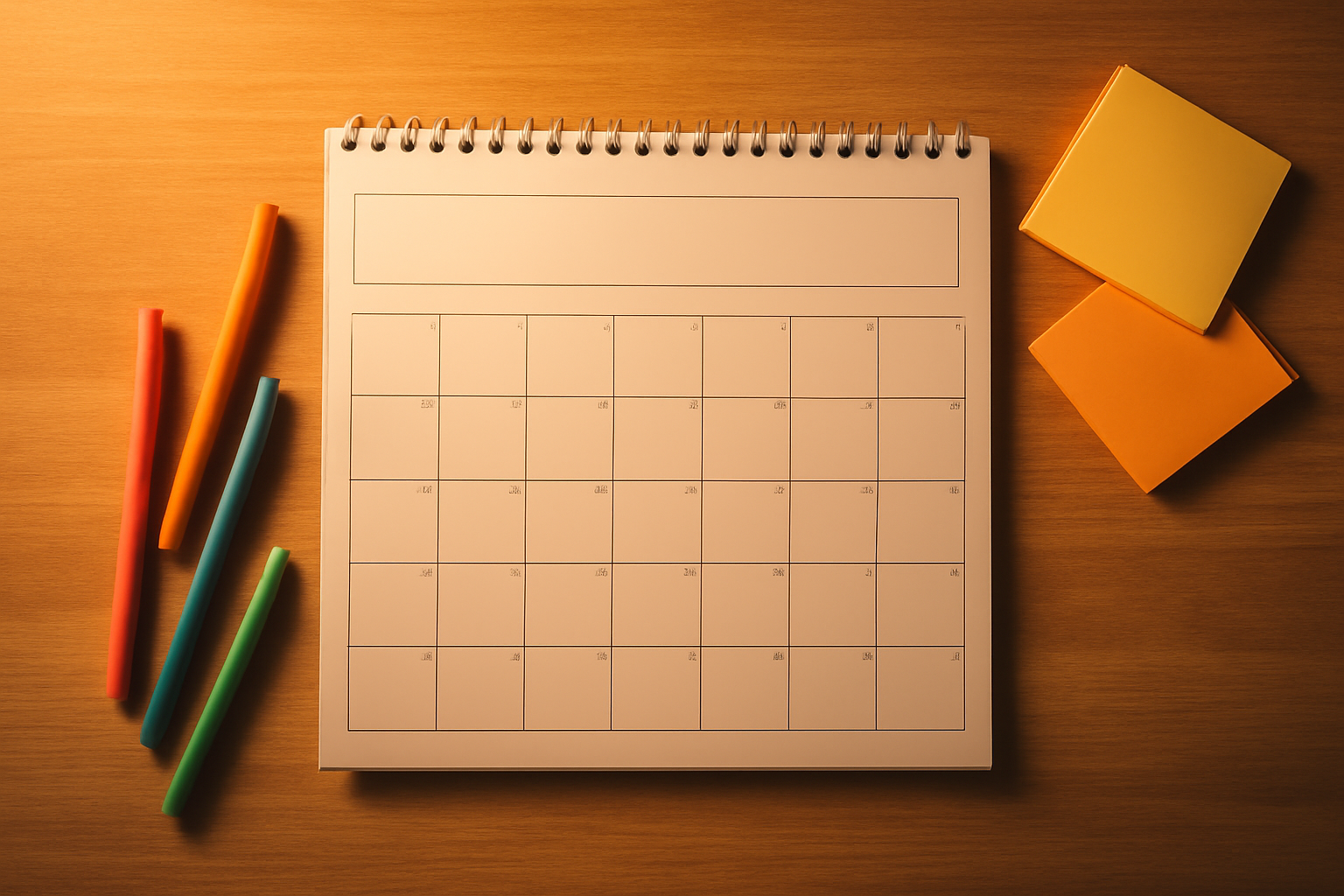
Verdict #
For a single decorated page, a Canva template is perfectly fine. For anything with unusual structure, build a table. For anything where dates must be right, or you need several months in the same style, Calendar Maker saves the most time, mainly because you never type a date.
Frequently asked questions
Using the Calendar Maker app: pick the month and year, style it and click Add to design. A hand-built table is the slowest because you type every date.
With Calendar Maker, turn on Add all months and Each month on its own page to get one page per month. With a template or table you duplicate and edit each page manually.
Adding calendars to a design requires the Pro version of the app; free users see an Unlock to use button.
Related products


More from QRdy Blog

How to Make a Hat Mockup From a Photo (So the Design Curves With the Cap)
Turn one photo of a blank cap into realistic hat mockups: drag a box around the front panel, let the design wrap the curve with the photo's real shading, then render all your designs at once in your browser.
The Best Canva Apps for Family Reunions (2026): Invites, Banners, Photo Walls and Calendars
Planning a family reunion in Canva? Here are the five Qrdy apps that actually help: shaped photo invitations, photo-letter banners, photo-wall grids, a countdown calendar and a QR link that can change after printing.
How to Make a Birthday Calendar in Canva (Family Birthday Tracker, Step by Step)
Build a printable family birthday calendar in Canva: 12 months, one page each, with names added in minutes. A step-by-step tutorial using Calendar Maker, plus honest notes on what Canva does on its own.