
The Best Canva Apps for Birth Announcements (2026)
Making a birth announcement in Canva? Here are the best Canva apps for it in 2026: custom photo shapes, name lettering, photo grids, borders, and a first-year calendar. Honest picks, with Canva's built-in tools included.
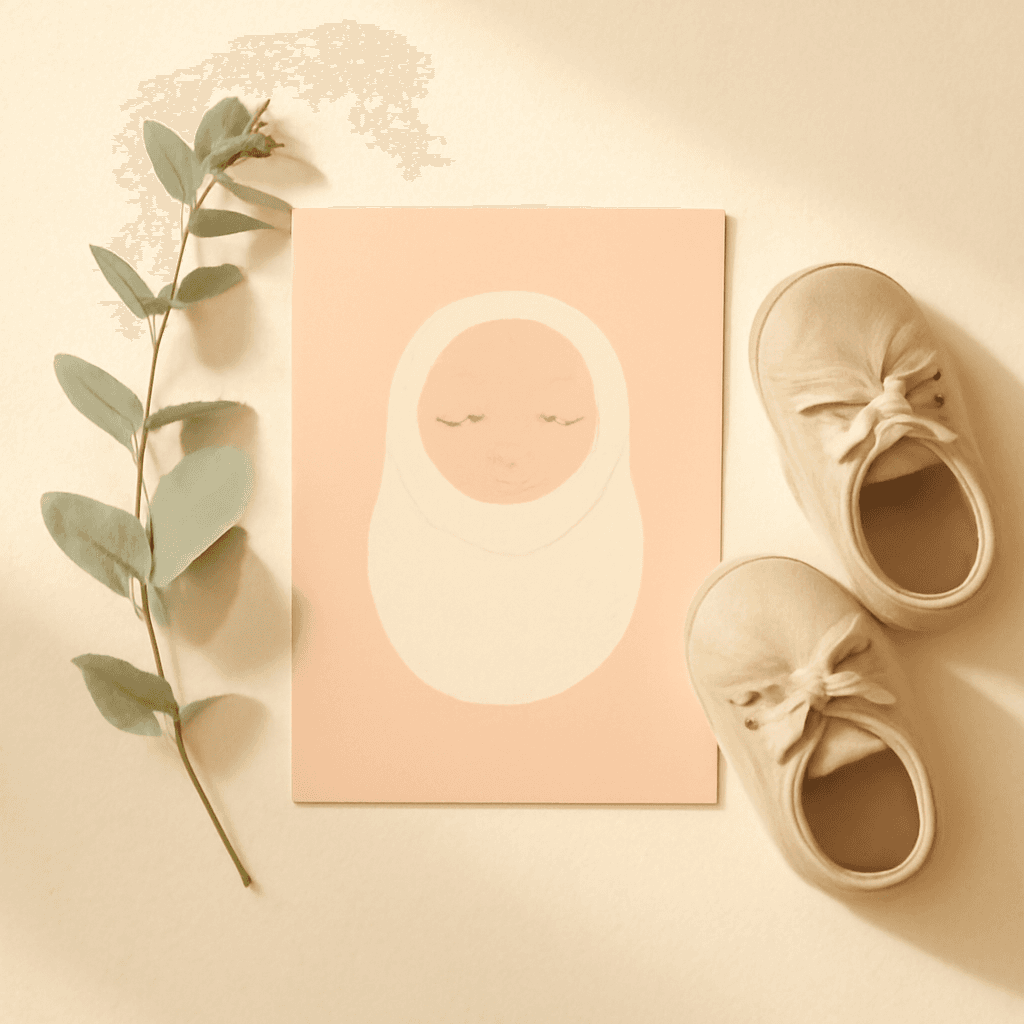
A birth announcement is one of the few designs you make once, send to everyone you love, and keep forever. Canva's templates get you 80% of the way there. The last 20% (a photo in a custom shape, the baby's name spelled out in photos, a first-year calendar) is where apps help.
Here are the Canva apps worth installing for birth announcements, ranked by how much they change the finished card. Canva's own tools are included where they are enough.
Quick picks #
| Goal | Best pick | Why |
|---|---|---|
| Photo in a custom shape (heart, footprint, teddy bear) | Image to Frame | Turns any PNG/SVG/JPG into a real Canva frame |
| Baby's name made of photos | Text to Frames | Each letter becomes its own photo frame |
| Arcs, grids and polygon layouts | Frames Lab | Frame toolbox plus AI shape and SVG-to-frame |
| Monthly milestone photo grid | Frame Collage | Toggle cells on a grid, each cell takes a photo |
| Decorative edges | Border Art Maker | Dotted, icon or image borders, evenly spaced |
| First-year keepsake calendar | Calendar Maker | Month, week or custom calendars inside your design |
| Simple card, no extras | Canva built-in | Templates and standard frames are plenty |
1. Image to Frame: for a photo in any shape #
Canva ships with heart, circle and a few other frames. A baby footprint or a teddy bear is not one of them. Image to Frame converts a PNG, SVG or JPG (up to 5 MB) into a valid Canva frame, so you can drop the newborn photo inside it like any other frame.
How to use it on an announcement:
- Find or make a simple silhouette (a footprint, bear, star or the baby's initial) as a PNG with a transparent background.
- Open Image to Frame in Canva, upload the file, and preview the frame.
- Click Add frame to design, then drag your photo into it.
Tip: remove the background first. If the image keeps a white or colored background, the frame comes out as a plain rectangle. Very intricate outlines may fail to convert, so keep shapes bold and simple.

2. Text to Frames: the name in photos #
Spell the baby's name with a different photo inside each letter. Text to Frames turns every character into its own frame, so you can fill each letter with a different picture (or the same one). It suits a hero card: a big name across the top, a birth date underneath.
Use a heavy, wide font. Thin fonts leave too little room for faces.
3. Frames Lab: arcs, grids and AI shapes #
Frames Lab is a toolbox for building frames: arcs, grids, polygons, plus an AI Shape option and SVG-to-frame conversion. It is handy when you want an arched window for the portrait or a tidy multi-photo layout and Canva's stock frames are too limited.
4. Frame Collage: a month-by-month grid #
If the announcement doubles as "twelve months in one picture," Frame Collage builds a grid from 8×8 up to 32×32 where you toggle cells on or off, and each active cell is a frame ready for a photo. Switch on twelve cells and you have a milestone grid.
5. Border Art Maker: finishing touches #
Border Art Maker lays dots, icons or a repeating image around the edge of a design, spaced evenly, with spacing and rotation you can adjust. Tiny stars or hearts around a card feel more custom than a plain stroke.
6. Calendar Maker: the first-year keepsake #
Many parents pair the announcement with a first-year calendar for grandparents. Calendar Maker generates monthly, weekly or custom calendars and inserts them straight into your design, so you can pair each month with a photo.

When Canva alone is enough #
If you want a clean card with one portrait, a name and a date, skip the apps. Canva's birth announcement templates, the standard circle or rounded frames, and the built-in fonts do the job quickly. Reach for an app only when the design needs a shape, lettering or layout Canva does not provide.
Quick checklist before you send #
- Export at 300 DPI (PDF Print) for printed cards, PNG for texting or email.
- Keep key text away from the edges (add bleed if you order prints).
- Check the name spelling twice.
Which one first? #
For most announcements, start with Image to Frame (custom shape) or Text to Frames (name in photos). Add a border or calendar only if the design wants it.
Frequently asked questions
Yes. Canva has free birth announcement templates and standard frames. Apps add custom shapes and layouts on top.
Use Image to Frame to convert a transparent-background PNG, SVG or JPG into a Canva frame, then drag the photo into it.
Use PDF Print at 300 DPI for printing, and PNG for sharing digitally.
Related products


More from QRdy Blog
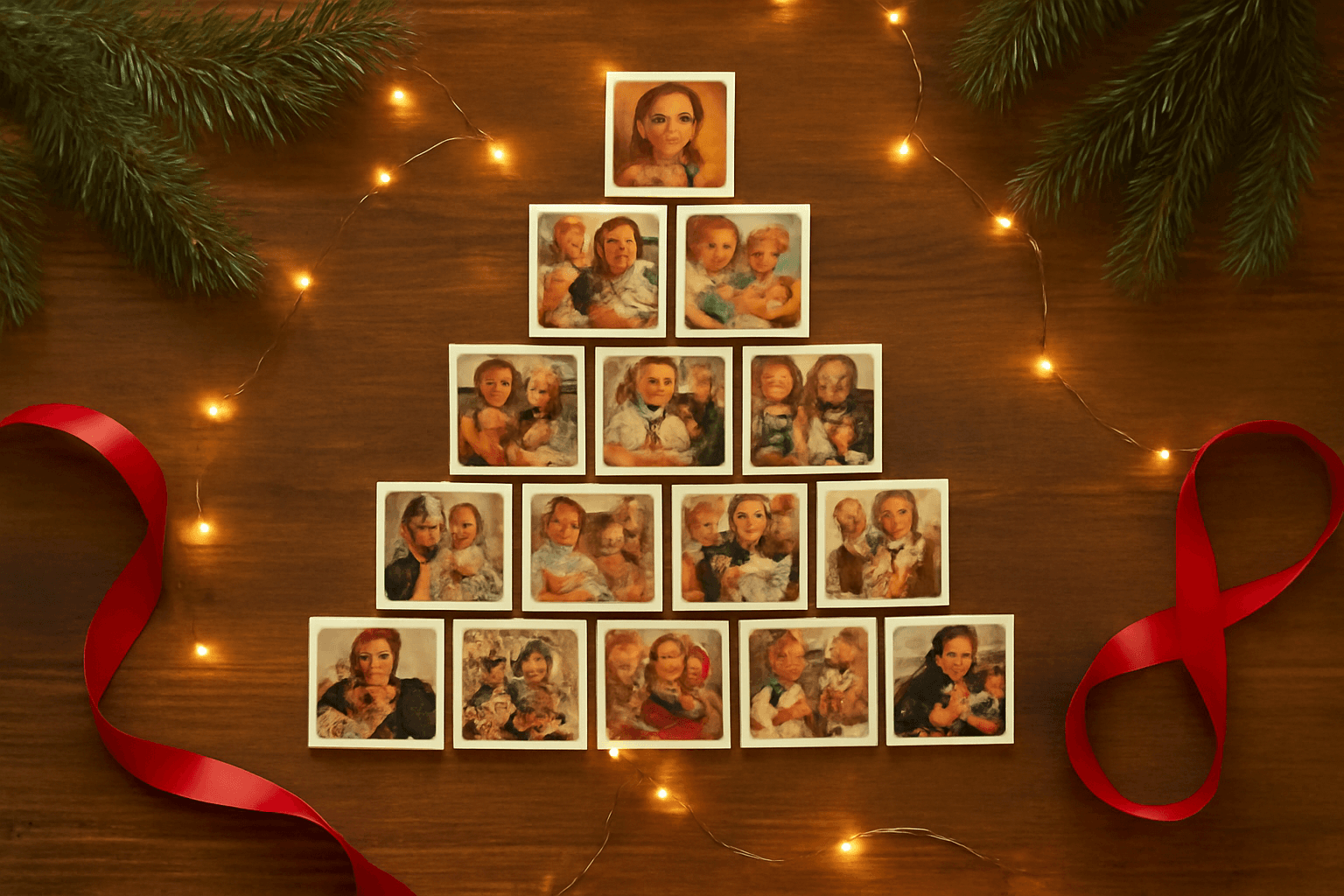
How to Make a Christmas Tree Photo Collage in Canva (Step by Step)
Turn your favorite family photos into a Christmas tree-shaped collage in Canva: two methods (a tree-shaped frame or a stacked grid), exact steps, print sizes, and tips so faces stay visible.
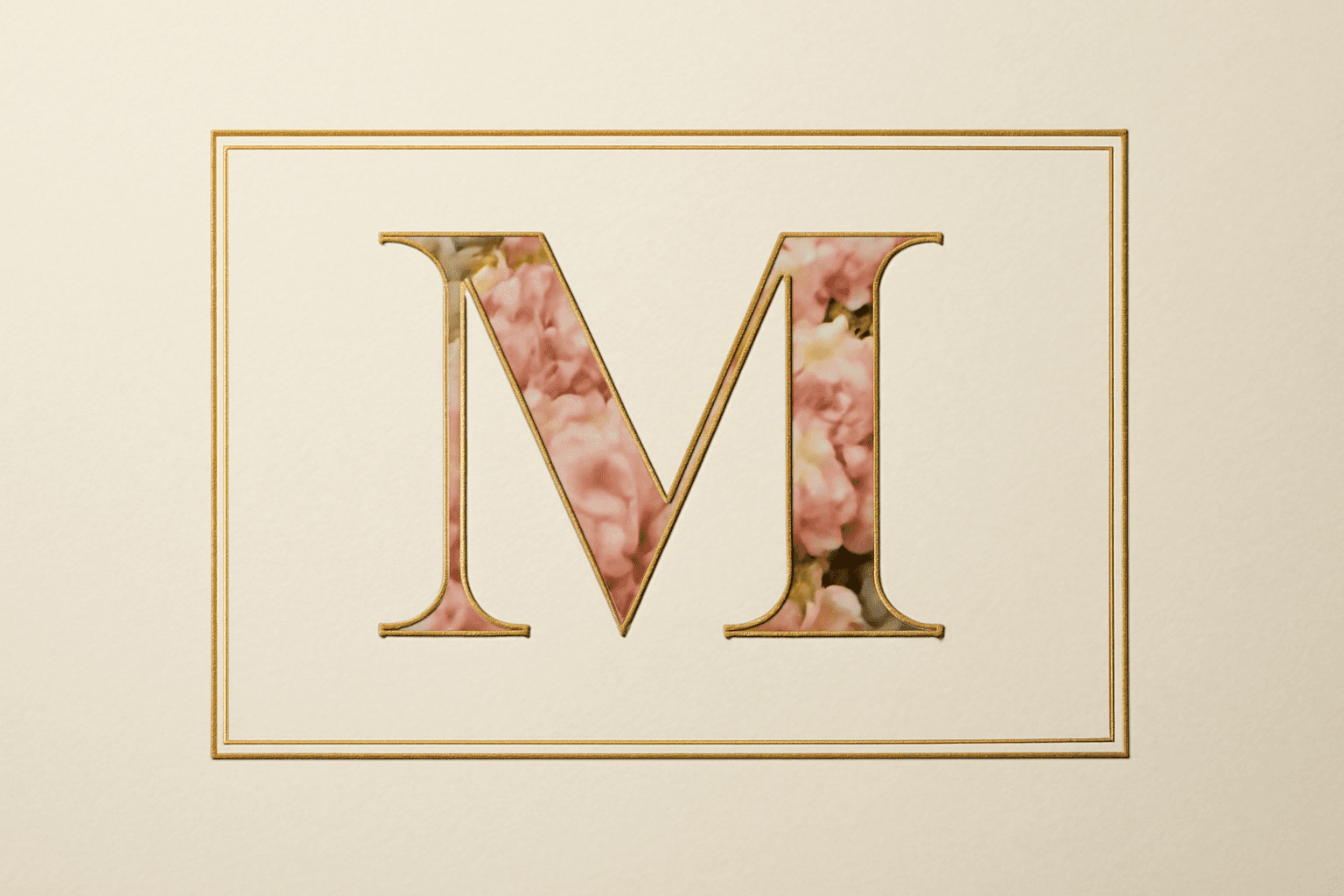
What Is a Monogram? Meaning, Styles, and How to Make a Photo Monogram in Canva
A monogram is a design built from one or more initials. Learn the definition, the classic three-letter order rule, the main styles, and how to make a photo-filled monogram in Canva with Text to Frames.
10 Ý tưởng quà Giáng sinh cho ông bà tự làm trong Canva (lịch ảnh, khung ảnh, thiệp)
10 ý tưởng quà Giáng sinh cho ông bà tự thiết kế trong Canva: lịch ảnh gia đình, khung ảnh hình trái tim, thiệp tên bằng ảnh các cháu, lịch đếm ngược. Rẻ, cá nhân hoá và in được ở nhà.