
What Is a Desk Calendar? Formats, Sizes, and How to Make Your Own
A desk calendar is a small calendar built to sit on a desk, not hang on a wall. Here's what counts as one, the four formats (tent, flip, pad, cube), the sizes people actually buy, and how to design your own in Canva instead of buying one.
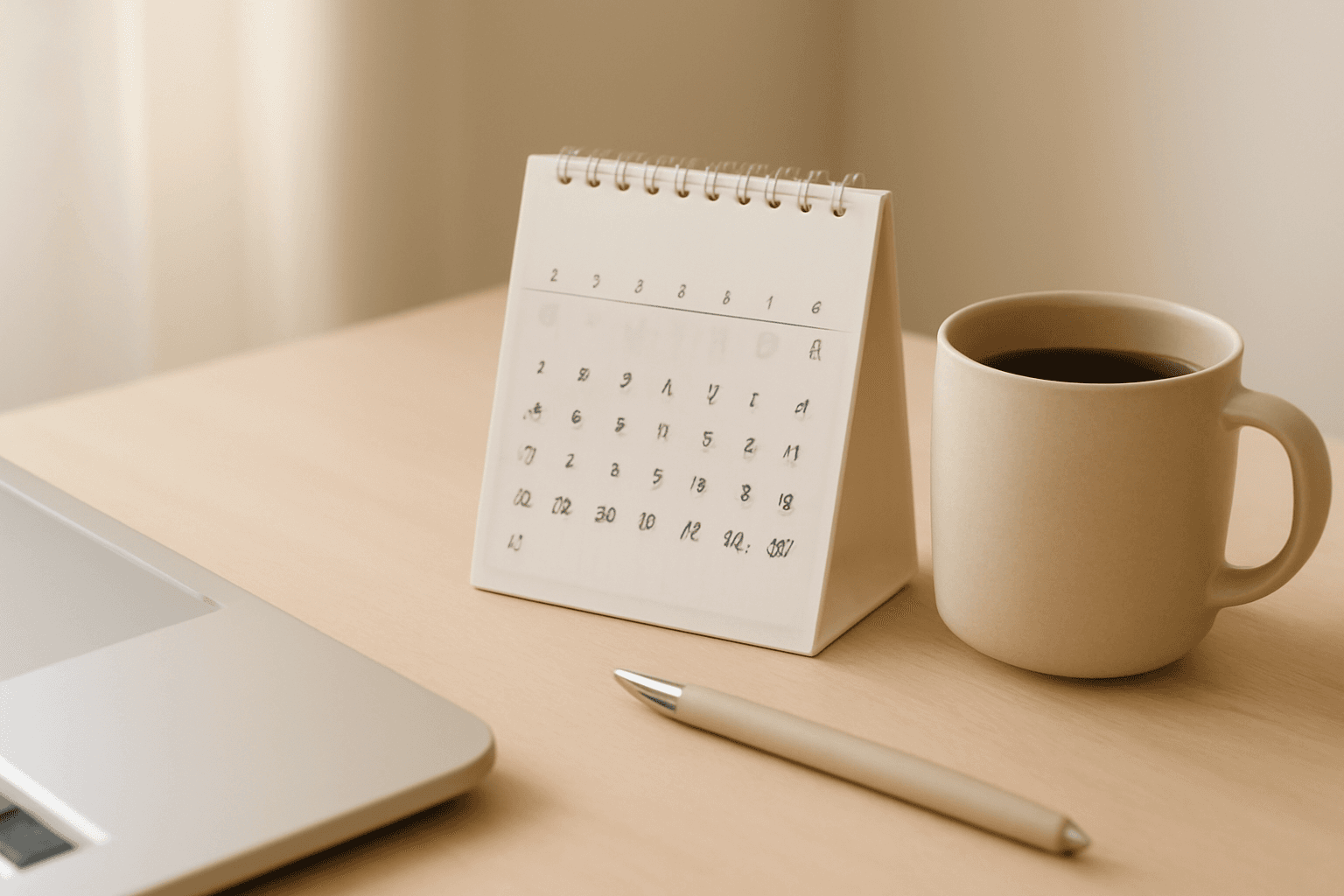
A desk calendar is one of those objects everyone recognises but nobody has ever really defined. You know it when you see it — the little folded card next to someone's monitor, the fat paper pad the whole keyboard sits on — but "desk calendar" covers at least four genuinely different products, at wildly different sizes, used for different things.
If you're about to buy one, or design one, it's worth knowing which is which.
The definition #
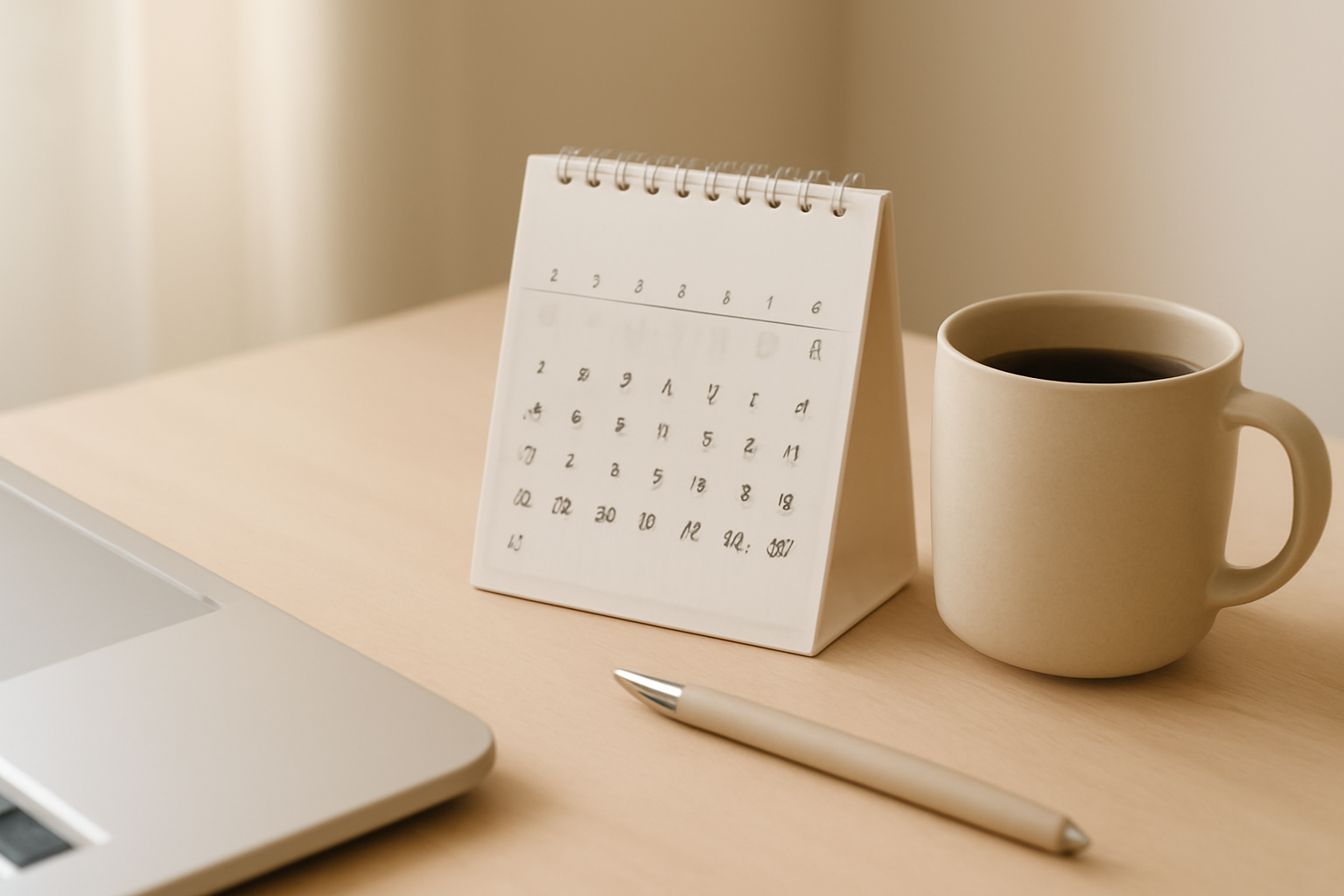
A desk calendar is a calendar designed to sit on a horizontal surface at arm's length, rather than hang on a wall.
That single constraint drives everything else about it:
- It has to stand up by itself, or lie flat without curling. So it needs a fold, a wire binding, an easel back, or enough paper weight to stay put.
- It's read from close up, so the date numbers don't need to be huge — which frees up space.
- It gets written on. This is the part people underestimate. A wall calendar is mostly looked at. A desk calendar is the one you scrawl "dentist 3pm" on, so blank writing space matters more than decoration.
- It competes for desk real estate, so it's either very small (tucked beside the monitor) or very large and doubling as a desk mat. There isn't much middle ground.
That last point explains why the sizes look so strange when you list them out.
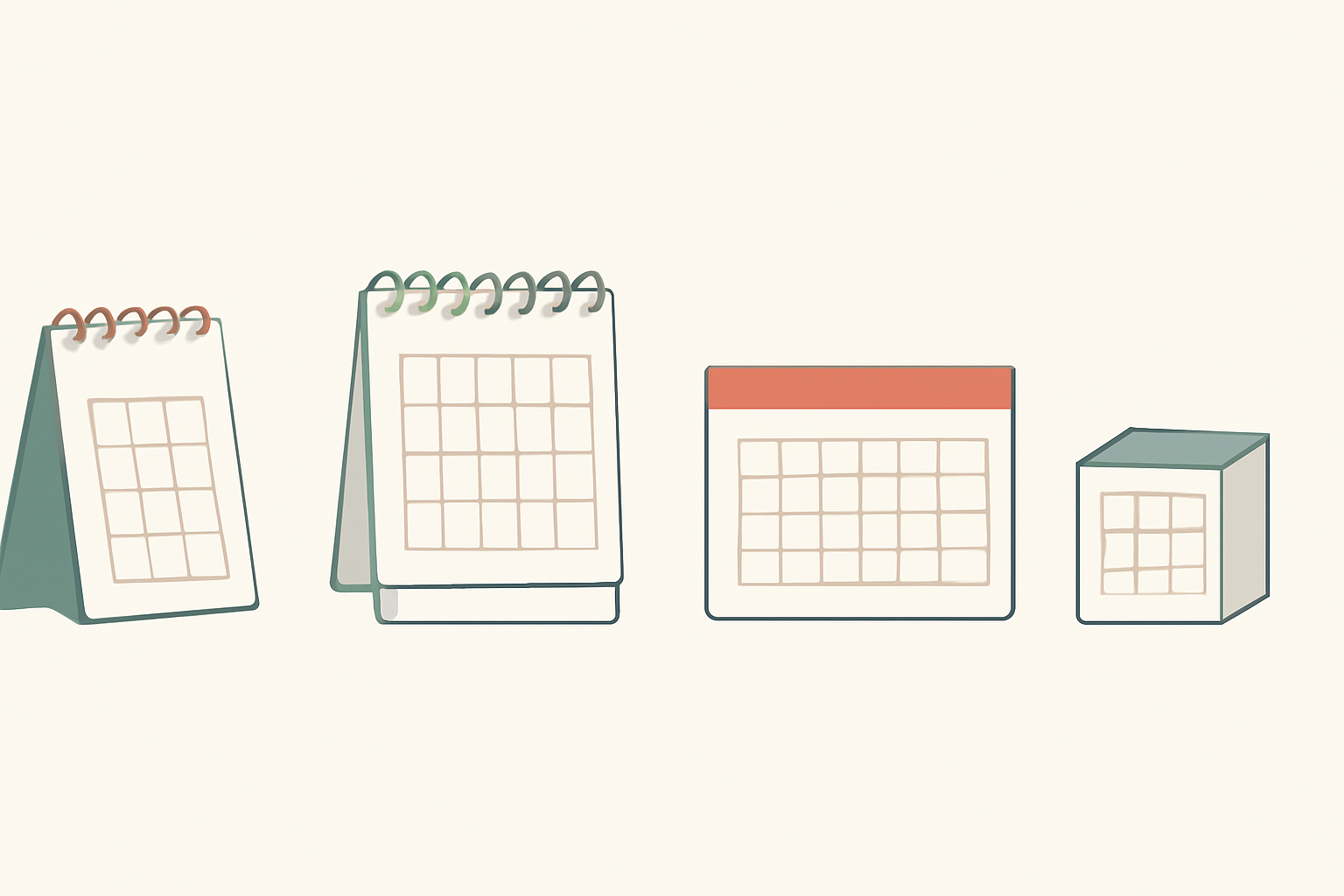
The four formats #
1. Tent calendar (A-frame) #
A folded card that props itself into a triangle. Usually one month per panel, often with a second panel facing the visitor side. Cheapest to produce, easiest to make yourself — it's a single sheet with two folds.
Best for: giveaways, branded gifts, small desks.
2. Flip calendar (spiral / easel-bound) #
Pages bound at the top with wire, standing on a small easel or its own stiff back. You flip a page each month, so the previous months stay attached. This is the format most "desk calendar 2027" products in shops actually are.
Best for: photo calendars, gifts, anything where you want 12 nice images.
3. Desk pad calendar #
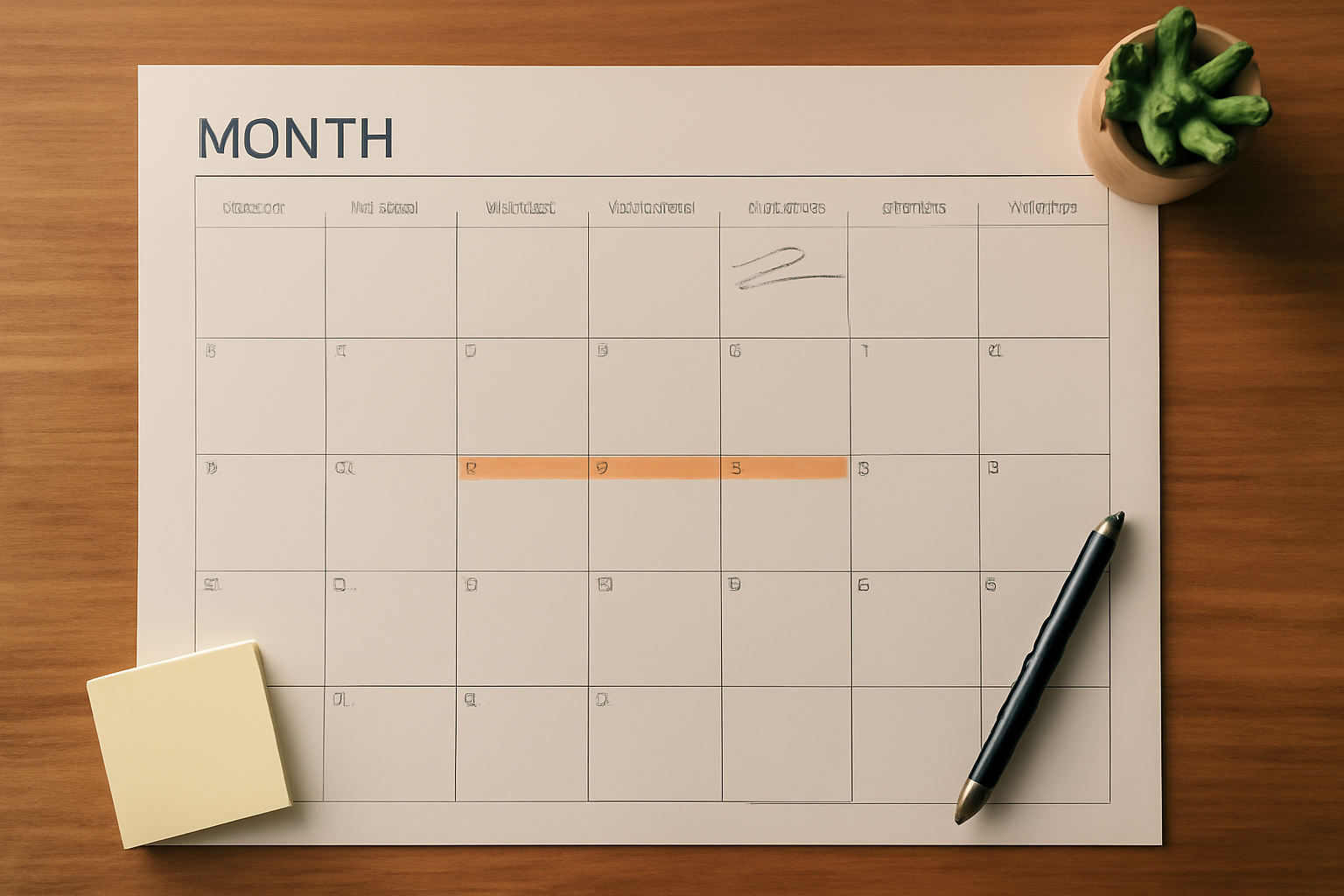
A large sheet of paper, roughly the width of a keyboard and then some, that lives permanently under your hands. One month per sheet, and you tear the sheet off at the end of the month. The whole appeal is space to write.
Best for: heavy planners, people who annotate constantly, shared team desks.
4. Cube or block calendar #
A small block showing one day at a time, sometimes with a quote, a word of the day or a puzzle. Strictly speaking these are usually perpetual or daily-tear formats rather than month grids — you don't see the month at all.
Best for: novelty, gifts, a daily prompt. Not for planning.
Sizes people actually use #
| Format | Typical size | Month view? | Writing space |
|---|---|---|---|
| Tent / A-frame | ~5×7 in to 8.5×6 in | Yes, one month per panel | Minimal |
| Flip / spiral | ~6×8 in to 9×6 in | Yes, one month per page | Small |
| Desk pad | ~17×11 in to 22×17 in | Yes, very large | Lots |
| Cube / block | ~3×3 in to 4×4 in | No — one day at a time | None |
These are ranges, not standards. There is no ISO desk calendar. If you're designing one, choose the exact size before you design anything else — a month grid that looked balanced at 8×6 in falls apart when you stretch it to 17×11 in.
Desk calendar vs wall calendar vs planner #
Three things get lumped together, and they answer three different questions:
- Wall calendar — "What does this month look like, from across the room?" Big numbers, one big image, minimal writing.
- Desk calendar — "What does this month look like, right now, while I'm working?" Smaller numbers, more writing space, always within reach.
- Planner — "What am I doing on Tuesday, hour by hour?" Bound book, week or day spreads, private.
A desk calendar sits between the other two. It's the month-at-a-glance view that also happens to be within pen's reach. If you want the full argument on the bound-book side of this, we compared digital planners vs printable planners separately.
Why make your own instead of buying one #
Buying is faster. Making your own wins on three things:
- Your dates. School terms, shift patterns, pay days, race season, a client's fiscal year. Shop calendars only know public holidays.
- Your photos. A photo desk calendar is one of the easiest personalised gifts there is — 12 photos, 12 months, done.
- Your size. If your desk has an odd gap, you can design to fit it. Nothing on a shelf will.
The catch has always been the grid. Drawing 12 month grids by hand — 12 tables, ~400 date cells, every one of which has to line up with the right weekday — is where most DIY calendar projects die.
How to make a desk calendar in Canva #
- Set the size first. Create a custom-size design at the finished dimensions of your calendar. For a tent calendar, design one panel; you'll duplicate and fold later. If you're getting it printed professionally, add bleed — here's what bleed means if that's new to you.
- Generate the month grid, don't draw it. Canva has editable calendar templates in its template library, which are fine if one happens to match your style. If you'd rather build your own layout, QRdy's **Calendar Maker** Canva app generates the date grid for you: pick a month and year and it drops a correct, styled grid straight into your open design.
The parts that matter for a desk calendar specifically:
- "Add all months" plus "Each month on its own page" builds all 12 months in one pass, each on its own page, named by month and year — which is exactly how a flip calendar is laid out.
- "Start week with Sunday" toggles the US layout. The app guesses from your region, but check it.
- Number of rows on the Week tab, if you'd rather make a weekly desk strip than a month grid.
- Fonts, sizes, alignment and colours are all adjustable before you insert, with a live preview, and there are 30-odd ready-made colour palettes if you don't want to pick.
- Leave room to write. This is the step people skip. Before you decorate, look at your date cells and ask whether "dentist 3pm" fits. On a tent calendar it usually won't — that's fine, tent calendars are for looking at. On a desk pad it absolutely must.
- Decorate around the grid, not on it. Calendar Maker's Month tab includes about 14 themed page templates (Botanical, Watercolour, Scandi Minimal, Coastal, Vintage Postcard and similar) that add decoration and adjust the grid's palette to match. For photos, Image to Frame turns any PNG or SVG shape into a Canva frame so your monthly photo can be an arch, a circle or anything else, and Border Art Maker builds a repeating border around the page.
- Export and print. PDF Print for anything going to a print shop, PNG if you're printing at home. For a tent calendar, print double-sided on card and score the folds before folding — card cracks if you fold it cold.
- Optional: add a QR code. If it's a team or event calendar, a QR linking to the shared digital calendar makes the paper version a doorway rather than a dead end. Qrdy — Dynamic QR codes can be re-pointed after printing, which matters when the link inevitably changes.
One honest caveat #
Calendar Maker is a paid app — free users can configure everything and see the live preview, but "Add to design" is behind the Pro unlock. If you only need one month, one time, Canva's own calendar templates or a hand-drawn table will get you there for nothing. The app earns its keep when you're producing all 12 months, or making calendars repeatedly — the saved-setups feature exists precisely because people who make one calendar tend to make several.
In short #
A desk calendar is defined by where it lives, not by what's printed on it. Pick the format based on how much you intend to write on it — tent for looking at, pad for writing on, flip for photos, cube for fun — lock the size before you design, and generate the grid rather than drawing it. The rest is decoration.
Frequently asked questions
There isn't one standard, but three sizes cover most of what you'll see. Tent and flip calendars are usually somewhere between about 5x7 in and 8.5x6 in. Mini or cube calendars sit around 3x3 in to 4x4 in. Desk pad calendars are much larger — roughly 17x11 in to 22x17 in — because they double as a writing surface. If you're designing your own, pick the size first, then build the page around it, because resizing a calendar afterwards is the part that goes wrong.
Distance and space. A wall calendar is read from across the room, so it uses big date numbers and usually one large image per month. A desk calendar is read from about arm's length, so the numbers can be smaller — but the writing space matters much more, because a desk calendar is the one you actually scribble on. Wall calendars are display pieces; desk calendars are working documents.
Yes. Set your design to the desk-calendar size you want, then generate the month grid rather than drawing it by hand. Canva has calendar templates you can edit, and QRdy's Calendar Maker app generates the actual date grid for any month, week or custom date range and drops it straight into your design — including all 12 months, each on its own page, in one go. Then export as a PDF and print.
For a lot of people, yes — the two do different jobs. A digital calendar is good at reminders, invitations and anything shared with other people. A paper desk calendar is good at showing you the whole month at once without unlocking anything, and at being written on quickly. Plenty of people run both: the digital one for appointments, the paper one for a visible overview of the month.
Related products


More from QRdy Blog
Canva Monthly Calendar: Template vs Table vs Calendar Maker (Which Is Fastest?)
Three ways to make a monthly calendar in Canva: a ready-made template, a hand-built table, or the Calendar Maker app. We compare setup time, flexibility and 12-month projects, with a clear verdict.
How to Make a Hat Mockup From a Photo (So the Design Curves With the Cap)
Turn one photo of a blank cap into realistic hat mockups: drag a box around the front panel, let the design wrap the curve with the photo's real shading, then render all your designs at once in your browser.
The Best Canva Apps for Family Reunions (2026): Invites, Banners, Photo Walls and Calendars
Planning a family reunion in Canva? Here are the five Qrdy apps that actually help: shaped photo invitations, photo-letter banners, photo-wall grids, a countdown calendar and a QR link that can change after printing.