
Print Google Calendar vs Canva Calendar Maker: Which Makes a Better Printable Calendar?
Google Calendar's print option is fast and pulls in your real events. Calendar Maker gives you a designed, decorated calendar in Canva. Here is a fair side-by-side and when to pick each one.
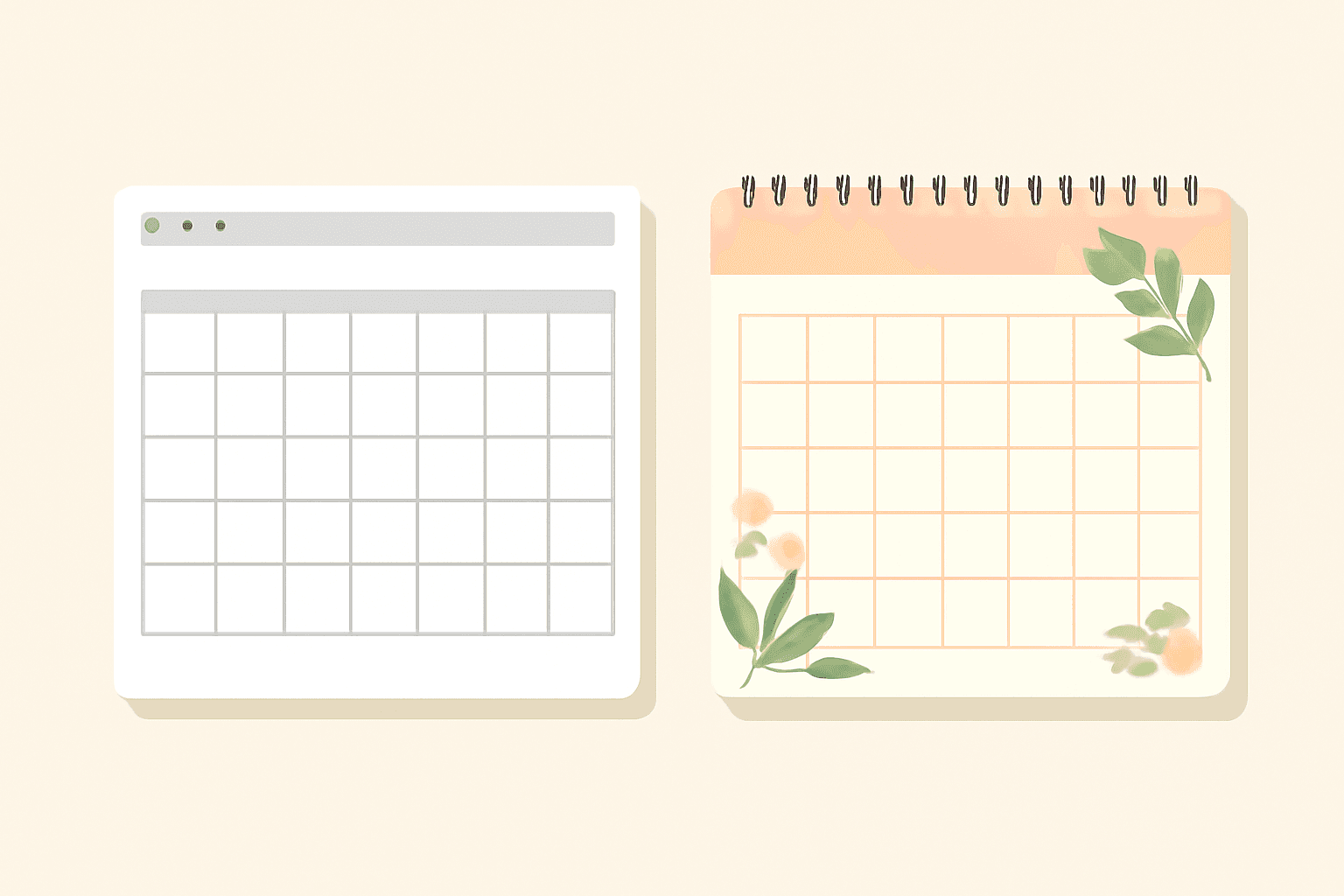
Searching "print Google Calendar" usually means one of two things: you want a paper copy of your real schedule, or you want a good-looking calendar to hang on a wall, give as a gift or put in a planner. Those are different jobs, and Google Calendar's built-in print and the Calendar Maker app for Canva are good at different ones. This is a fair side-by-side.
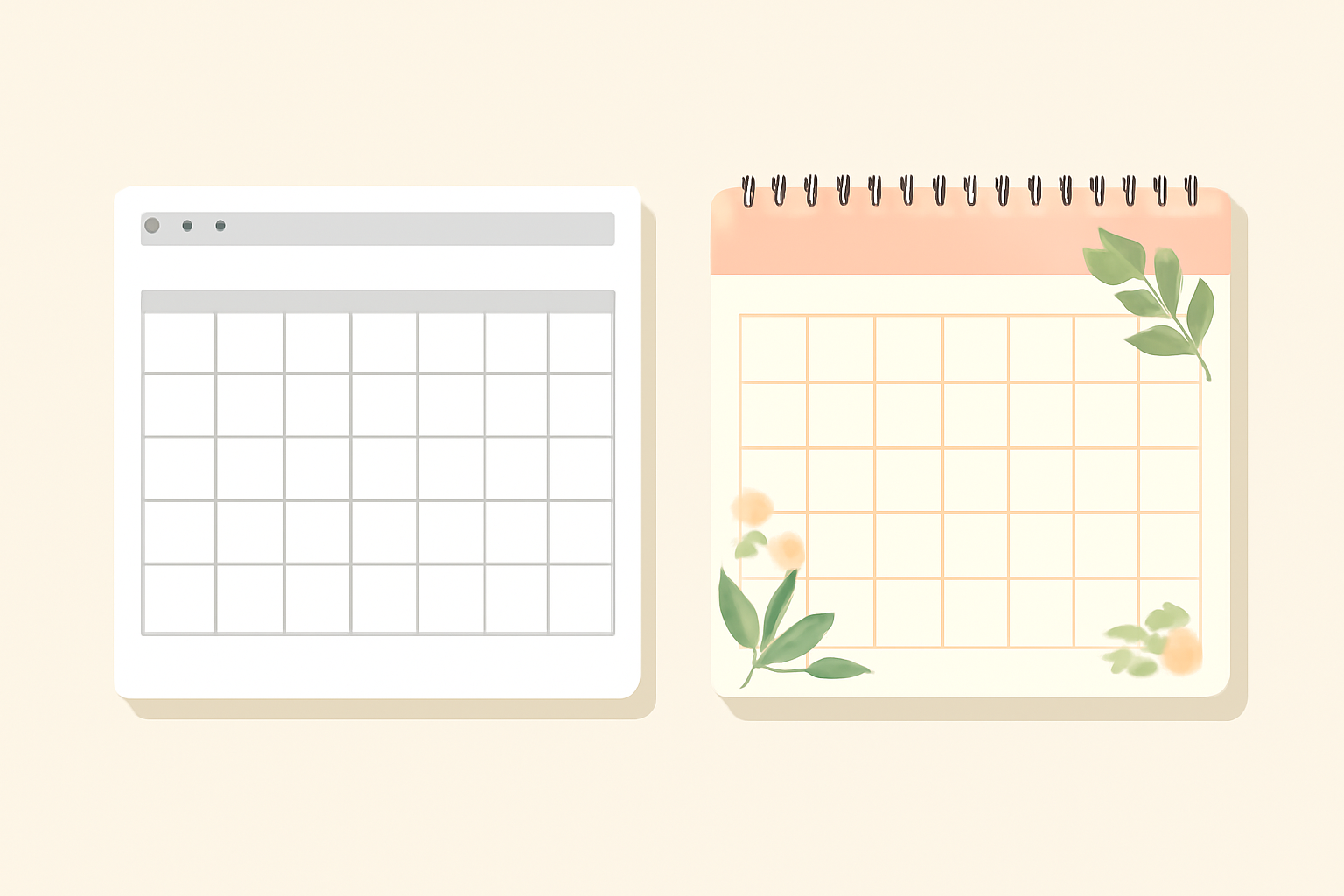
Quick answer #
| Google Calendar print | Canva + Calendar Maker | |
|---|---|---|
| Best for | Printing your real events and appointments | Designed wall, desk and gift calendars, planners, content calendars |
| Your events appear | Yes, pulled from your calendars | No, you add them yourself in Canva |
| Design control | Minimal (layout and font size options) | Full: fonts, colors, 30+ color palettes, ~14 page templates |
| Views | Day, week, month, schedule | Month (1 or all 12), week table, custom date range (up to 150 days) |
| Add photos, borders, QR codes | No | Yes, it is a normal Canva design |
| Setup time | About a minute | A few minutes for the first one, faster with saved setups |
| Cost | Free | Canva plus Calendar Maker (some features need Pro) |
Verdict: print from Google Calendar when the point is the information. Build in Canva when the point is the calendar as an object. Many people end up doing both: designed 12-month calendar on the wall, Google print for the week's real appointments.
Where Google Calendar's print wins #
- Your real events are already there. Meetings, birthdays, school pickups show up automatically, with no retyping.
- It is quick. Open the settings menu, choose Print, pick day, week, month or schedule view, and send it to your printer or save as PDF.
- It stays accurate. Reprint next week and the changes are included.
If you need a one-page copy of this month's commitments for the fridge, this is the right tool and you should not overthink it.
Where it falls short #
- Design options are very limited, so it looks like a printout, because it is one.
- You cannot add photos, decorative borders, themed pages or a custom layout.
- It does not make a 12-month wall calendar with one month per designed page.
- Gifts, classroom calendars and branded calendars for clients are not what it is for.
Where Calendar Maker wins #
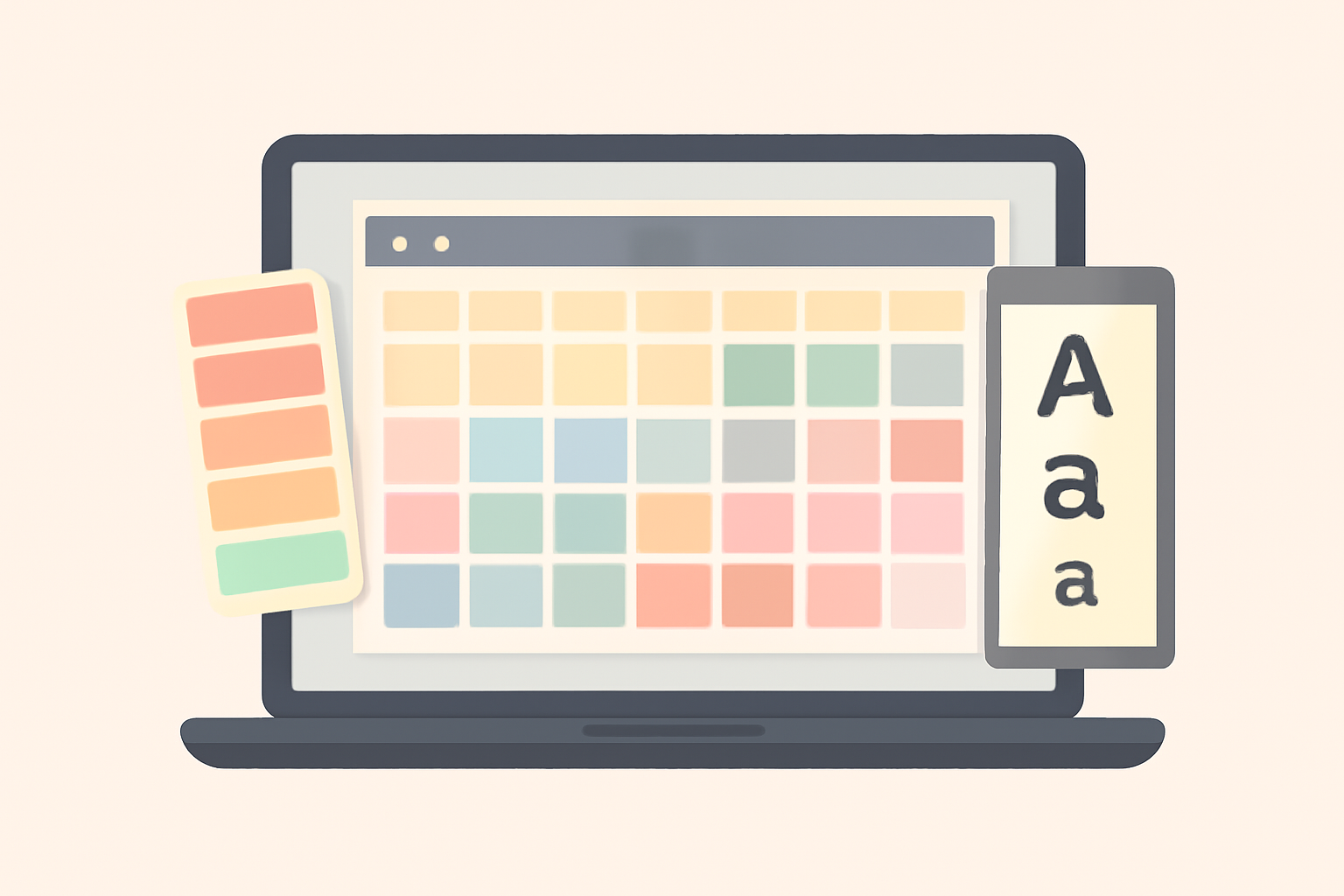
Calendar Maker generates the date grid inside the Canva design you already have open, so you skip drawing a table and typing 31 numbers per month.
- Three calendar types: a monthly grid, a weekly table (handy for timetables) and a custom range with a start and end date, up to 150 days.
- All 12 months at once, with an option to put each month on its own page named like "March - 2027".
- Real design control: choose any Canva font, bold/italic, alignment, size and color for headers and numbers, plus header-bar and alternating-row colors.
- 30+ ready-made color palettes and about 14 decorative page templates (botanical, watercolor, minimal Scandi, vintage postcard and more).
- Week starts Monday or Sunday, and month and weekday names follow your language.
- Saved setups: your style is remembered so the next calendar takes seconds.
Because the result is a regular Canva design, you can add photos, borders, stickers, a QR code or your logo and then print or download it like any other design.
Honest caveats #
- Calendar Maker does not import your Google Calendar events. You type events into the Canva design.
- Adding a calendar to a design needs the Pro unlock in the app, so factor that in if you only need one calendar.
- Page templates are sized for their own layouts, so after adding one you may need to nudge elements if your design size differs.
How to make a designed calendar in 5 steps #
- Open a new Canva design in the size you want (A4, Letter, or a wall calendar size).
- Open Calendar Maker from the Apps panel.
- On the Month tab pick the month and year, or switch on "Add all months".
- Choose a color palette and, if you like, a page template. Check the live preview.
- Click Add to design, then add photos, notes and holidays in Canva and print or download.
Which should you pick? #
- Fridge copy of this week's schedule: Google Calendar print.
- 12-month wall calendar or gift: Calendar Maker in Canva.
- Classroom, family or small-business calendar with branding: Calendar Maker.
- Meeting-heavy week on one page: Google Calendar print.
- Both: design the monthly calendar in Canva and write the important dates on it by hand, then print the weekly view from Google Calendar for the details.
Related: Canva monthly calendar: template vs table vs Calendar Maker and Google Sheets and Excel vs Calendar Maker.
Frequently asked questions
Yes. Google Calendar has a Print option in its settings menu with day, week, month and schedule views, and your real events are included.
No. Calendar Maker generates the date grid inside a Canva design; you add events and notes yourself in Canva.
Yes. Turn on Add all months, and optionally put each month on its own page, then print or download from Canva.
Related products


More from QRdy Blog
How to Take Product Photos for Etsy With Your Phone (That Also Work as Mockup Templates)
Window light, rear camera at 1x, a clean print area and one untouched shot: an 8-step phone photo routine for Etsy sellers, plus how to shoot blank products so the same photos become reusable mockup templates.

How to Outline Text in Canva (3 Ways, Including Outlined Photo Letters)
Learn how to outline text in Canva with the built-in Outline effect, a stacked-copy trick for thick borders, and Text to Frames for outlined letters filled with photos.

What Is an Alpha Channel? Meaning, File Formats, and Why It Matters for Canva Frames
An alpha channel stores how opaque each pixel is. Learn how it works, which formats support it (PNG, WebP, not JPG), and why it lets a Canva frame follow your real shape.