
The Best Canva Apps for Photo Books & Photo Albums (2026)
A photo book is 40 pages of the same three layouts unless you give yourself better tools. These are the Canva apps that actually speed up building a photo book or album — grid spreads, custom-shape pages, a photo-filled cover — plus what Canva already does well on its own.
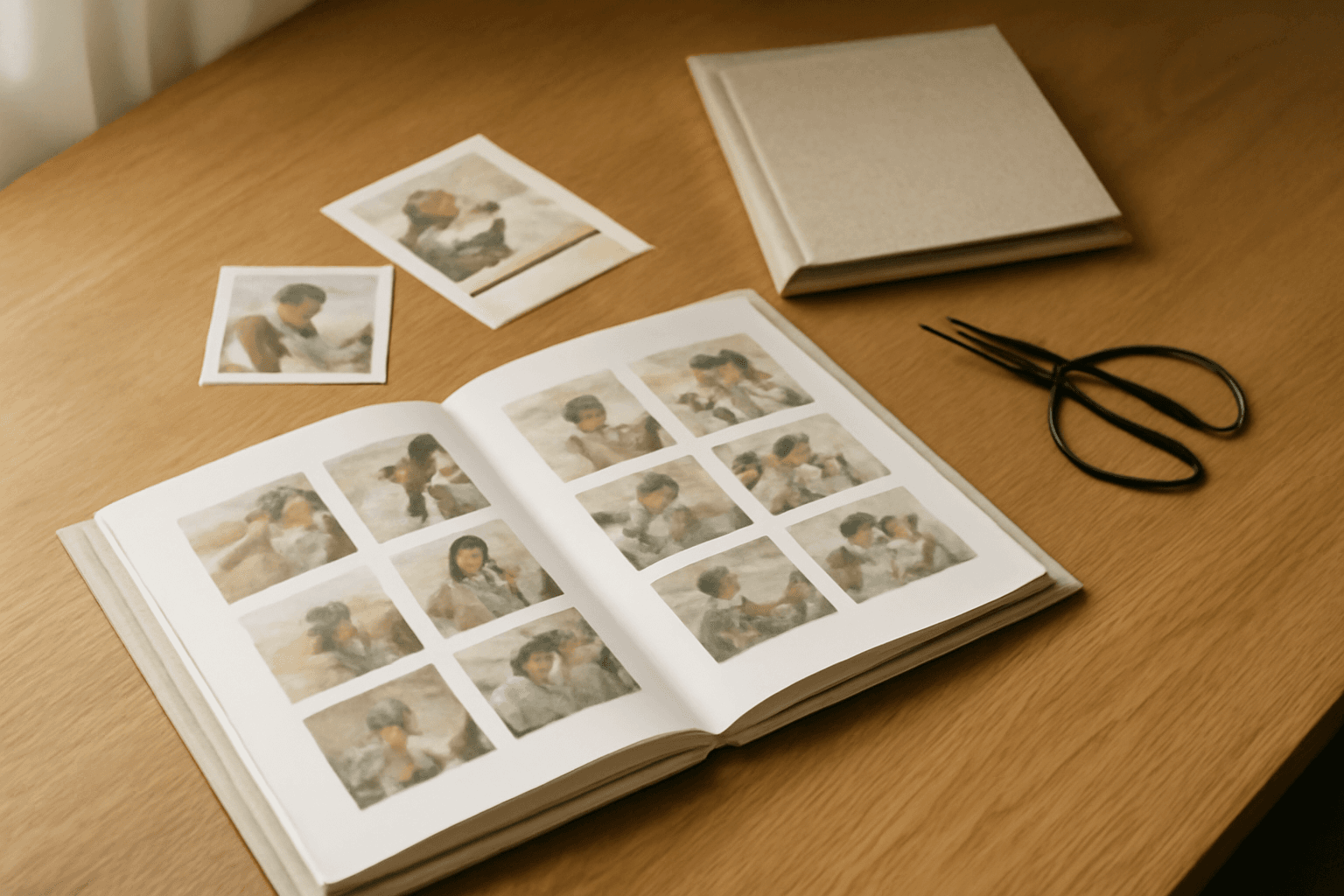
The Best Canva Apps for Photo Books & Photo Albums (2026)
Making a photo book in Canva starts easy and gets tedious around page nine. The first spread is fun. Then you realise you have 200 photos, 40 pages, and you are about to build the same 3x3 grid by hand thirty times.
Canva itself handles the hard parts — multi-page documents, templates, print ordering. What it does not do is generate layouts for you, or crop a photo into anything outside its built-in frame library. That is the gap these apps fill.
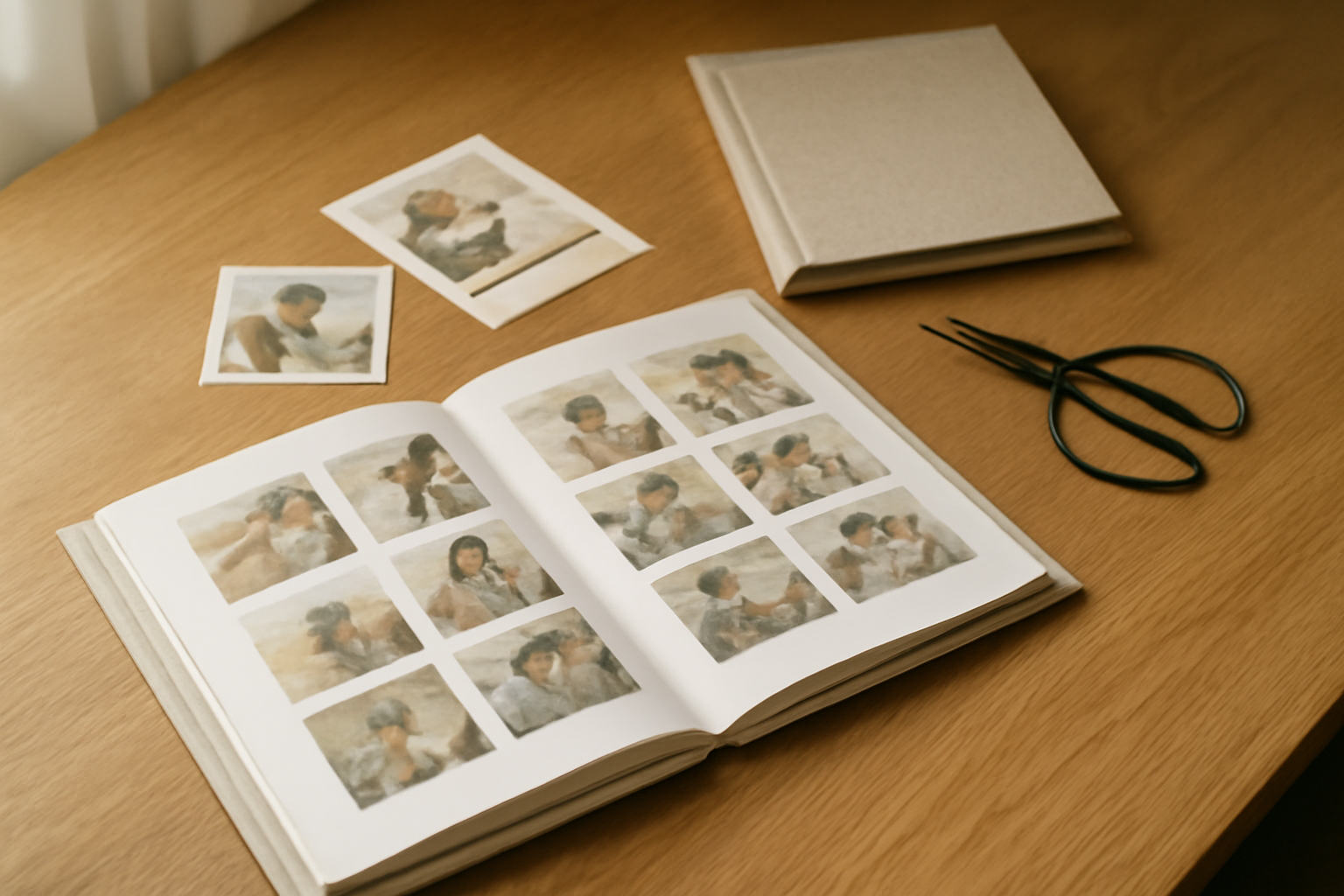
Quick picks #
| If you need… | Use | Why |
|---|---|---|
| Different grid layouts on every spread | Frames Lab | Set rows, columns and gap; it generates the grid |
| One dense mosaic or feature spread | Frame Collage | Toggle cells on an 8x8 → 32x32 matrix |
| A page shaped like something (heart, state, logo) | Image to Frame | Turns any PNG/SVG into a real Canva frame |
| A cover with the year filled with photos | Text to Frames | Each letter becomes its own frame |
| A dated "this year in review" spread | Calendar Maker | Drops a real month grid into the page |
| Colour that holds together across 40 pages | Color Harmony | Generates a palette and applies it in one click |
1. Frames Lab — the layout workhorse #
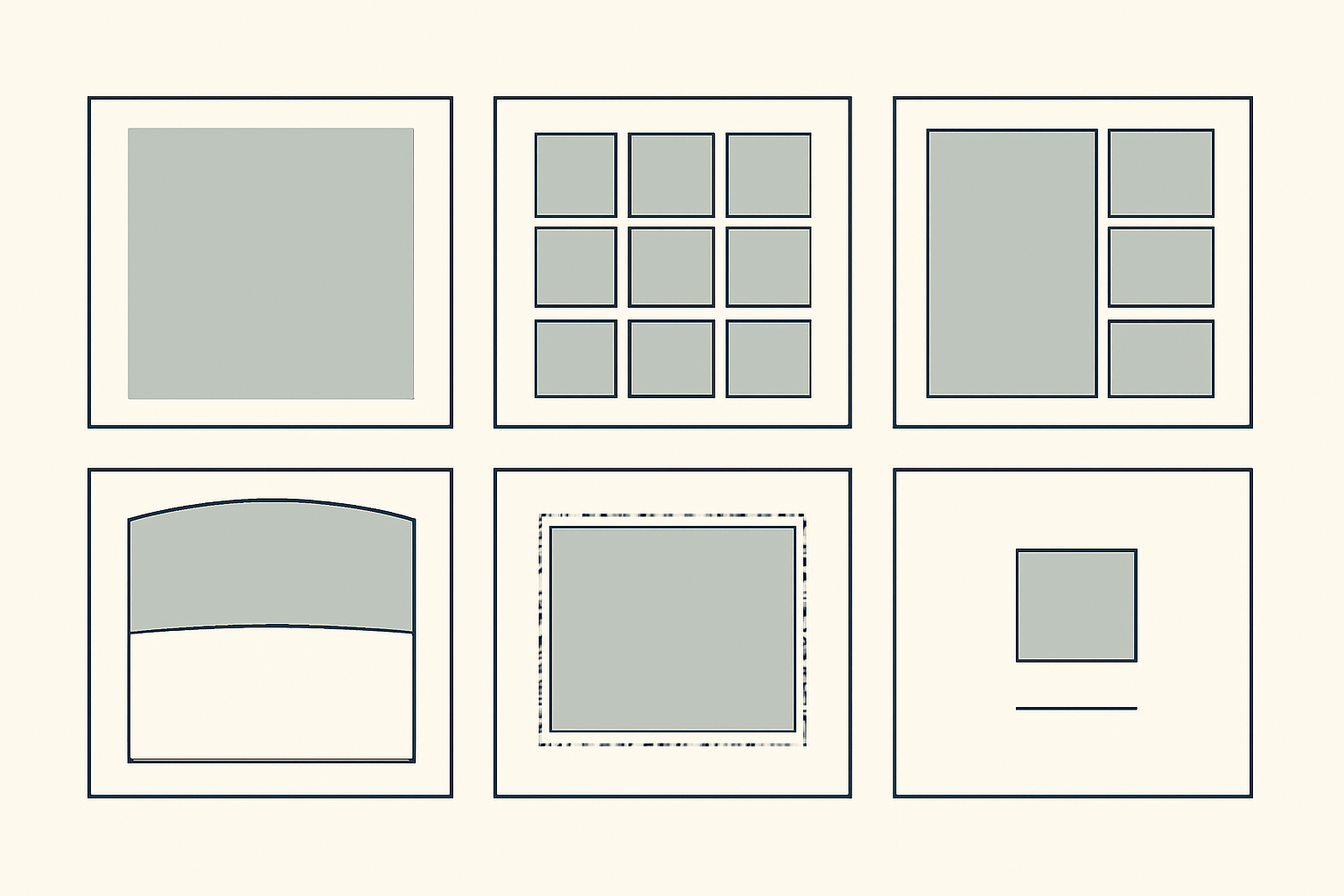
This is the one to install first. Frames Lab is a Canva app that builds frames to your parameters rather than making you draw them, and for a photo book that mostly means the Grid mode: set width and height, number of columns and rows, and the gap between cells, then hit Add to design. Every cell is a real Canva frame, so you drag photos straight in.
Two things make it useful specifically for books:
- Frames auto-fit the page you have open. You are not resizing a grid to your 8x8 in trim on every spread.
- Arc and Diagonal modes give you variety without effort. An arc panel across the top of a chapter opener breaks up a book that would otherwise be forty rectangles.
There is also a Style tab that re-adds a frame you used recently with a blur, border or inner shadow applied — handy for giving every chapter opener the same treatment.
The limit worth knowing: grids much beyond ~30 cells get blocked, and heavy wave distortion can trip the same ceiling. For a genuine mosaic page, use the next app instead.
2. Frame Collage — for the one spread that goes big #
Frame Collage works like pixel art: pick a matrix from 8x8 up to 32x32, toggle individual cells on and off, adjust spacing and border colour, and every surviving cell becomes a frame.
For a photo book you will not use this on every page — but one mosaic spread near the end, built from every leftover photo, is a great closing page. It also has presets (hearts, stars, letters), so a shaped mosaic spread is a couple of clicks rather than a manual layout job.
3. Image to Frame — pages shaped like the story #
Image to Frame converts a PNG, SVG or JPG (up to 5 MB) into a proper Canva frame that follows the image's outline. Upload a shape, pick a border colour and thickness, click Add frame to design, then drop a photo inside.
What it unlocks in a book:
- A travel chapter opener where the hero photo sits inside the outline of the country you visited.
- A wedding book where the monogram is a frame filled with the ceremony shot.
- A pet book with pages shaped like a paw print.
The one rule that makes or breaks it: remove the background first. If your source image still has a white or coloured background, the resulting frame is just a rectangle. Cut it out (Canva Pro's background remover is fine), then convert.
4. Text to Frames — the cover, solved #
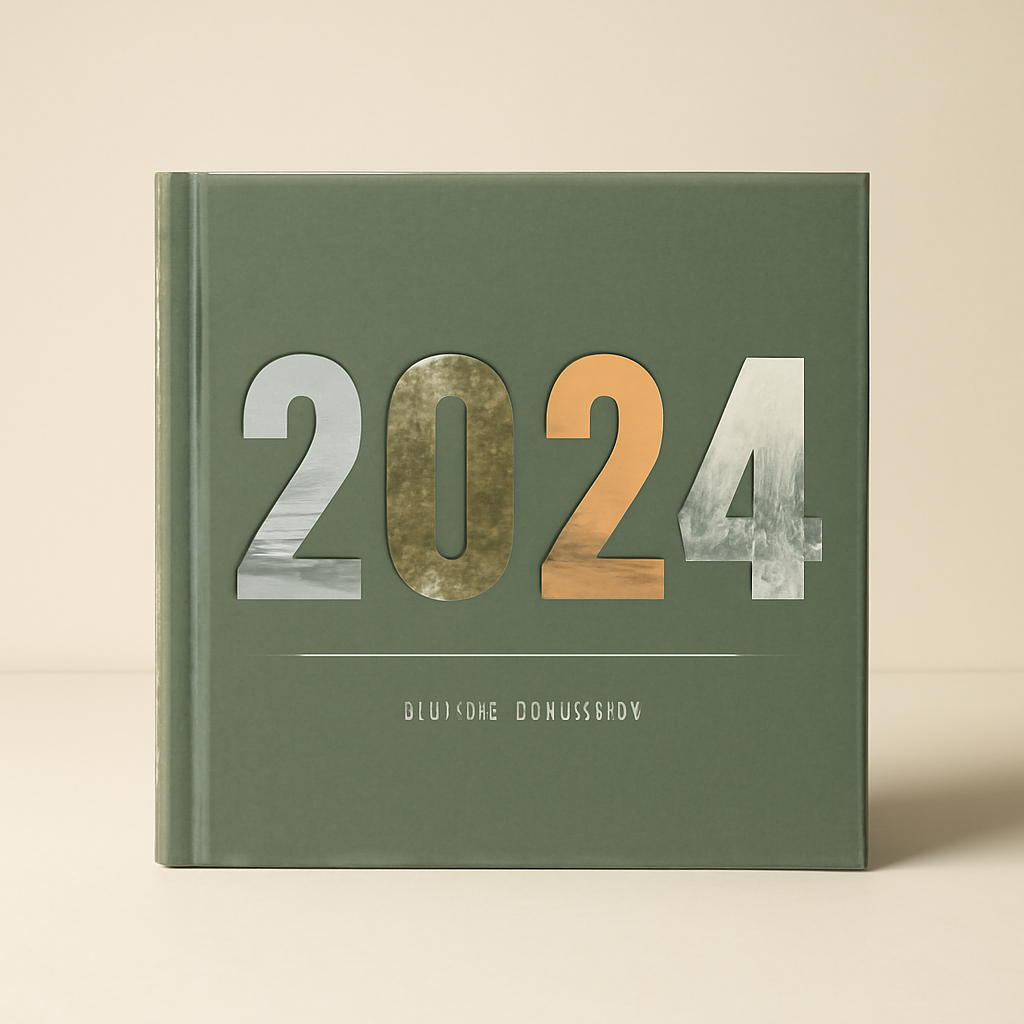
The cover is the page people actually look at, and "2026" set in a heavy typeface with each digit filled by a different photo is a reliably good one. Text to Frames turns each character of a text string into its own independent frame, so you drop four different photos into four digits — something Canva's native image-in-text treatment does not do, because it fills the whole string with one image.
Also good for chapter dividers: SPRING, SUMMER, each letter carrying a shot from that season.

5. Calendar Maker — the year-in-review spread #
Slightly unexpected in a photo book, but it works. Calendar Maker generates real month and week grids you can insert straight into a page. Put a small twelve-month year grid on the opening spread, circle the dates that matter, and let each following chapter cover one of them. It turns a pile of photos into a book with a structure.
It is also the app to use if your "photo book" is really a photo calendar — a different product, and one we cover in What Is a Photo Calendar?
6. Color Harmony — the thing nobody thinks about #
Forty pages designed over three weeks drift in colour. Page 4 has a warm cream background, page 31 has a cool grey one, and the book feels slightly off without anyone being able to say why.
Color Harmony generates a coherent palette (complementary, triadic and so on) and applies it across a template in one click. Pick the palette before you start laying out pages, not after.
Honest note: what Canva already does well #
You do not need any app for a decent photo book. Canva's own toolkit covers:
- Multi-page documents with duplicate-page — build one good spread, duplicate it, swap the photos. This is genuinely the fastest way to a consistent book, and it is free.
- Built-in Grids under Elements, which behave like frames and handle basic 2-up and 4-up layouts fine.
- Built-in Frames — circles, arches, hearts, film strips. Plenty for most pages.
- Photo book templates and Canva Print, so you can design and order in one place.
Reach for the apps when you hit the specific wall each one solves: too many grid variations to build by hand, a shape that is not in the frame library, or a cover that needs four photos inside four letters.
A workflow that finishes the book #
- Set the trim size first. Square 8x8 in or 12x12 in is the most forgiving for mixed orientations. Do this before any layout.
- Cull ruthlessly, then sort by date. 200 photos become about 80 keepers. A book is a sequence, not an archive.
- Pick the palette with Color Harmony and set your background colours once.
- Build three master spreads — full-bleed hero, grid page (Frames Lab), quiet caption page. Duplicate and swap from there.
- Add the specials last: the Text to Frames cover, the Image to Frame chapter openers, the Frame Collage closing mosaic.
- Check the gutter. Nothing important — a face, a caption — should sit in the middle 1 cm of a spread, because that is where the binding eats it.
- Export at 300 DPI as PDF Print with bleed on if you are using an outside printer.
If you are building school-style books with lots of portraits instead, our best Canva apps for yearbooks roundup covers a different set of tools for the same problem.
Frequently asked questions
Yes. Canva has a multi-page editor, photo book templates, and its own print service, so you can design and order without leaving the app. What Canva does not do well is repetitive layout work at scale — building a different grid on every spread, or cropping photos into shapes other than the built-in frames. That is where add-on apps save real time.
Match the size to where it will live. Square (8x8 in or 12x12 in) is the most forgiving for mixed portrait and landscape photos. Landscape (11x8.5 in) suits travel and scenery. Portrait (8.5x11 in) suits portraits and text-heavy memory books. Pick the size first and set your Canva document to it before you lay out a single page — resizing later reflows everything.
Vary it deliberately. A book where every page has six photos reads as a contact sheet. A common rhythm is one full-bleed hero image, then a grid of four to nine supporting shots, then a quiet page with one small photo and a caption. The white space is what makes the grid pages feel intentional rather than crowded.
No — Canva Pro and app Pro plans are separate things. Most of these apps run on a free Canva account with usage limits, and unlock unlimited use through the app developer's own plan. Canva Pro is worth having separately for background remover, which matters a lot if you are converting cutout images into custom frames.
Related products


More from QRdy Blog
Can You Still Use Mockups on Etsy? What the New AI Photo Rules Mean for Print-on-Demand Sellers
Etsy's new listing image rules require one unedited photo for most items, but print-on-demand sellers may use authorized stock photo mockups. Here is what Etsy actually says, which mockups fit, and how to order your listing photos now.
The Best Canva Apps for Name Tags (2026): Photo Initials, Shaped Badges and Batch Sheets
Name tags are one of the easiest things to make in Canva. These apps add the parts Canva does not: photo-filled initials, shaped badge windows, photo-grid tags, and batch QR tags.
How to Make a 2026-2027 School Year Calendar in Canva (Semester by Semester)
Build a printable 2026-2027 school year calendar in Canva: generate each month or semester with Calendar Maker, mark breaks and exam weeks, and print or share it as a PDF.