
What Is a Photo Border? Border vs Frame vs Clipping Mask (and How to Add One in Canva)
A photo border is the decorative edge around an image. Here's what it is, how it differs from a frame and a clipping mask, and how to add one in Canva.

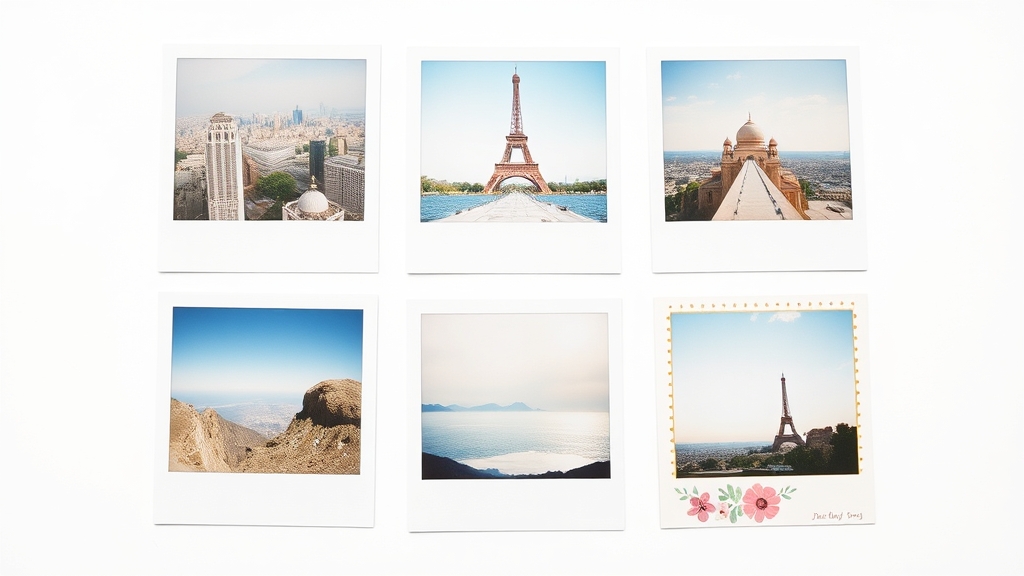
A photo border is the decorative or plain edge that runs around the outside of an image. It's one of the oldest tricks in design — the thick white margin on a polaroid, the thin black line around a print, the floral edge on a wedding invite. A border doesn't change the photo itself; it wraps around it to make the image feel finished, separate it from the background, or match a theme.
If you've searched for a photo border frame, a canva frame border, or how to add a border in canva image, this guide clears up what a border actually is, how it's different from a frame and a clipping mask (people mix these up constantly), and the fastest ways to add one in Canva.

What a photo border actually is #
A border is an edge treatment. It sits at the perimeter of a photo and can be:
- Solid — a single-color line or margin (classic white, black, or a brand color).
- Thick margin — the polaroid look, where a wide band of color surrounds the image.
- Patterned — dots, dashes, stripes, or a repeating icon like stars or hearts.
- Artistic — a hand-drawn or textured edge, torn paper, watercolor wash.
The key point: the photo underneath keeps its normal rectangular shape. The border is a separate decorative layer. That's what makes it different from the two things it gets confused with.
Border vs frame vs clipping mask #
These three terms get used interchangeably, but they do different jobs. Here's the honest breakdown.
| What it does | Photo shape changes? | Best for | |
|---|---|---|---|
| Photo border | Adds a decorative edge around the photo | No — stays a rectangle | Finishing an image, matching a theme, separating from background |
| Frame | A container shaped like anything (star, heart, letter) that you drop a photo into | Yes — photo takes the frame's shape | Custom shaped photos, playful layouts, logos and letters |
| Clipping mask | Cuts a photo to the outline of a shape or text | Yes — photo is cropped to the mask | One-off cutouts, photo-filled typography, composites |
A border decorates the edge. A frame and a clipping mask both change the shape the photo fills — the difference between those two is that a Canva frame is reusable (drop a new photo in anytime and it re-fits), while a clipping mask is more of a one-time crop. If you want the full breakdown on those two, we cover it in Image to Frame vs Clipping Mask.
You can also combine them: put a photo in a custom heart frame, then add a dotted border around that heart for extra polish.
How to add a photo border in Canva #
Canva doesn't have one single "add border" button, so which method you use depends on the look you want.
1. Quick solid border (built-in) #
For a plain edge, the fastest route is to place a rectangle or line element slightly larger than your photo, send it behind the image, and match the colors. Some elements and stickers also have a built-in border-weight and color option in the top toolbar when selected. This is fine for a simple line, but it's fiddly for anything decorative.
2. Decorative or repeating borders (Border Art Maker) #
For dotted edges, icon borders (stars, hearts, flowers), or a repeating image border, the Border Art Maker Canva app builds them automatically. Instead of copy-pasting one dot 40 times and eyeballing the spacing, you pick the element, and the app distributes it evenly around the edge — with controls for spacing, rotation, and size. It's built for exactly the canva frame border and how to add a border in canva image jobs where the native tools get tedious.
3. Custom shaped edge (Image to Frame) #
If what you actually want is a photo with a shaped border — say a rounded-rectangle photo card with a dotted outline, or a photo cut to a badge shape with a colored rim — that's frame territory. Image to Frame turns any PNG, SVG, or JPG (up to 5MB) into a real Canva frame, and it has a built-in border control: after you add the frame to your design, you can set the border thickness (0–50) and border color right there. So the shape and its edge come from one tool.

One tip worth knowing: with Image to Frame, the border only shows up after you add the frame to the design, not in the preview — so don't panic if you don't see it right away.
When to use a border (and when not to) #
Reach for a photo border when you want to:
- Make an image feel finished or print-ready, like a framed print or gallery wall.
- Separate a light photo from a light background so it doesn't blend in.
- Tie a photo into a themed design — floral borders for a wedding, dotted for a kids' party, gold for something premium.
- Create a polaroid or scrapbook look with thick margins.
Skip the border when the photo already fills the whole canvas as a background, or when a hard edge would fight with a busy design. In those cases a soft shadow or a shaped frame often reads better than a literal border.
The short version #
A photo border is the decorative edge around an image — it finishes the photo without changing its shape. A frame or clipping mask, by contrast, changes the outline the photo fills. In Canva, use a rectangle or element for a plain line, Border Art Maker for decorative and repeating edges, and Image to Frame when you want a custom shape with its own colored border baked in. Match the tool to whether you're decorating the edge or reshaping the photo, and the choice gets easy.
Frequently asked questions
A photo border is the decorative or plain edge that runs around the outside of a photo. It can be a simple solid line, a thick white margin like a polaroid, a dotted or patterned edge, or a repeating icon design. The border sits on top of or around the image without changing the photo itself.
A border is the decorative edge added around a photo's existing rectangle. A frame in Canva is a container shaped like anything (a star, heart, or letter) that you drop a photo into so the photo takes that shape. A border decorates an edge; a frame changes the outline the photo fills.
For a quick edge, add a rectangle or line element behind or around the photo, or use the built-in border options on some elements. For custom repeating or artistic borders, the Border Art Maker Canva app builds dotted, icon, and image borders automatically. To give the photo a fully custom shaped edge, turn a shape into a frame with Image to Frame.
Related products


More from QRdy Blog
How to Make a Hat Mockup From a Photo (So the Design Curves With the Cap)
Turn one photo of a blank cap into realistic hat mockups: drag a box around the front panel, let the design wrap the curve with the photo's real shading, then render all your designs at once in your browser.
The Best Canva Apps for Family Reunions (2026): Invites, Banners, Photo Walls and Calendars
Planning a family reunion in Canva? Here are the five Qrdy apps that actually help: shaped photo invitations, photo-letter banners, photo-wall grids, a countdown calendar and a QR link that can change after printing.
How to Make a Birthday Calendar in Canva (Family Birthday Tracker, Step by Step)
Build a printable family birthday calendar in Canva: 12 months, one page each, with names added in minutes. A step-by-step tutorial using Calendar Maker, plus honest notes on what Canva does on its own.