
What Is a Mood Board? Definition, Types, and How to Make One in Canva
A mood board is a visual reference that pins down how a project should look and feel before you start making it. Here is what goes on one, how it differs from a vision board or a photo collage, and how to build one in Canva.
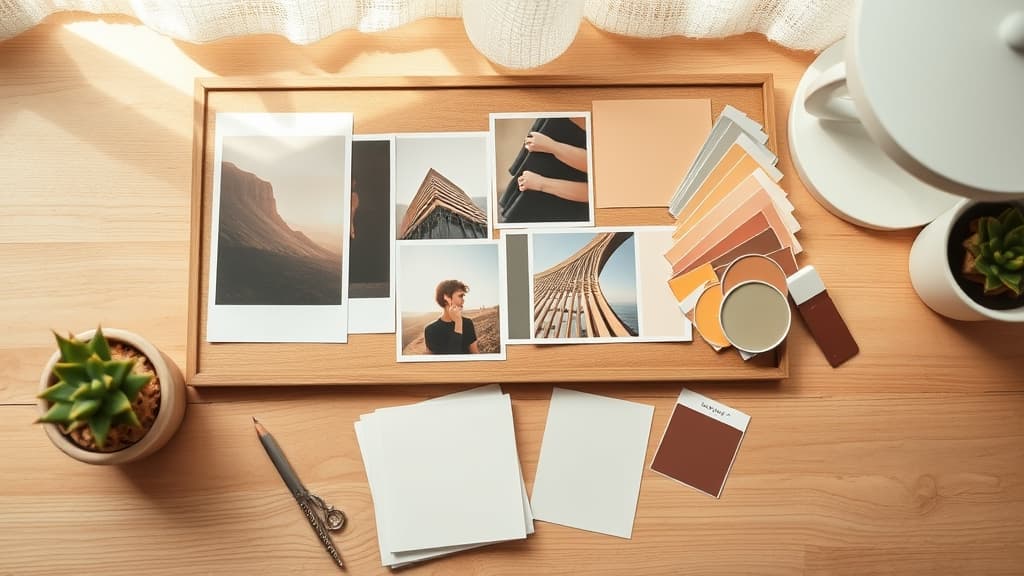
A mood board is a single page of visual references — photographs, colours, textures, materials and a few words — arranged together to show how a project should look and feel before anyone starts building it.
That last part is what makes it a mood board rather than a nice collage. A mood board is a decision-making tool. It exists to settle an argument early: is this brand warm or clinical, is this wedding rustic or black-tie, is this room sage-and-oak or charcoal-and-brass. You put it together first, show it to the client or the group, and once everyone nods at the board, the actual work has a direction.
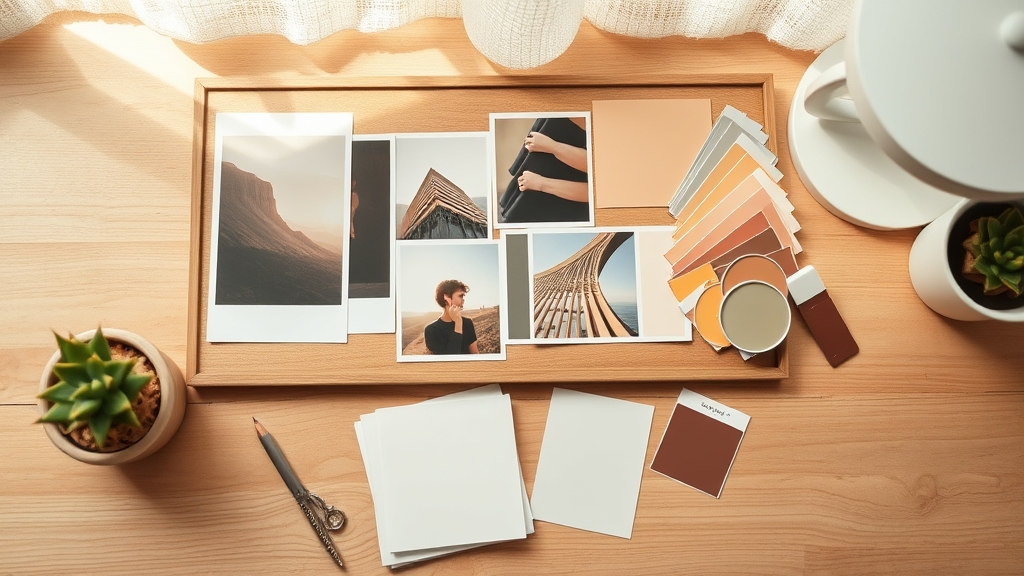
What actually goes on a mood board #
Most boards that work are built from four ingredients. You do not need all four every time, but a board with only one of them tends to feel thin.
Images. Six to fifteen photos that share a feeling — light quality, styling, subject matter. These do the heavy lifting.
Colour. A short strip or a few blocks of the actual palette, pulled from the images rather than picked separately. Three to five colours is plenty.
Texture and material. Linen, concrete, brushed brass, matte paper. Close-up shots of surfaces communicate "feel" faster than a wide scene does.
Type and words. One or two fonts you would actually use, plus three or four adjectives — quiet, sun-bleached, handmade. The words stop people from reading their own preferences into the pictures.
Five common types of mood board #
| Type | What it decides | Typically contains |
|---|---|---|
| Interior / room | The look of a space | Room shots, paint chips, fabric and wood samples, furniture silhouettes |
| Brand identity | How a business presents itself | Logo directions, palette, typefaces, packaging and photography style |
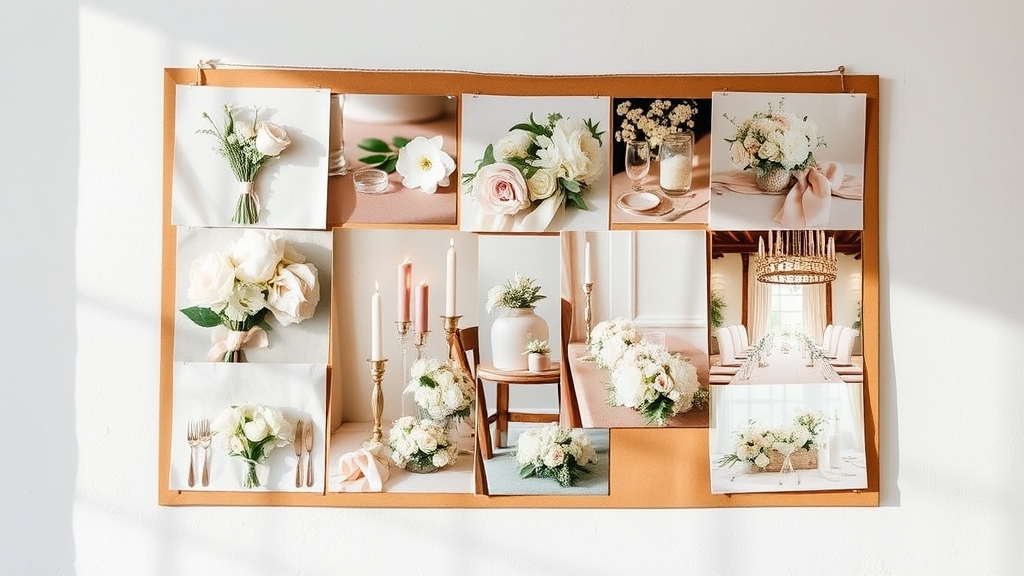
| Wedding or event | The atmosphere of a day | Florals, table settings, stationery, dress and colour details |
| Photoshoot / content | How a shoot should be styled | Poses, lighting references, locations, props, colour grade |
| Fashion / outfit | A wardrobe or costume direction | Garments, fabrics, silhouettes, accessories, colour story |
Mood board vs vision board vs photo collage #
These three get mixed up constantly, and the difference is entirely about when and why you make them.
| Looks | Purpose | Lifespan | |
|---|---|---|---|
| Mood board | Forward, at a project | Agree on how something should look before making it | Until the project ships |
| Vision board | Forward, at yourself | Keep personal goals visible | Months or a year |
| Photo collage | Backward | Display photos you already took | Indefinitely, as decor |
Practically: if a stranger could look at the board and correctly guess what the finished thing will look like, it is a mood board. If they would only learn what you want out of life, it is a vision board.
How the layout does the work #
A mood board is a comparison, so the layout has to let the eye compare. Two things matter more than anything else.
Consistent cells. When every image sits in the same size and shape of container, the differences you notice are the differences that matter — colour, light, texture. When images are scattered at random sizes and rotations, the layout itself becomes the loudest thing on the page and you end up judging the collage instead of the direction.
One dominant image. Give one photo roughly twice the area of the rest. That image becomes the anchor everyone argues about, which is exactly what you want — a board where everything is equally sized produces polite agreement and no decisions.
How to make a mood board in Canva #
Canva has no dedicated mood board generator, but it has everything the format needs. Here is the build that takes about fifteen minutes.
- Set the page size first. A2 or 16:9 for presenting, A4 or Letter for printing. Do this before you place anything, because frames scale to whatever page is open — resizing afterwards means redoing the layout.
- Gather more images than you need. Aim for roughly twenty, then cut to the ten or twelve that agree with each other. The cutting is the design work; the collecting is not.
- Build the grid. Canva's native Grids under Elements handle rectangular layouts and are free, so use them when a plain grid is all you need. When you want control — an exact number of columns and rows, a specific gap, a merged hero cell — open Frames Lab and use Grid mode in the Create tab. You set the dimensions, columns, rows and gap, watch the live preview, and press Add to design. The Advanced options let you round the corners or merge cells into one block, which is how you make that dominant image. Keep the grid under about 30 cells; past that the app blocks the layout as too complex, and a 30-cell mood board was never going to be readable anyway.
- Add one non-rectangular moment. An arched image reads as "considered" instantly and costs nothing — use Arc mode in Frames Lab, set the Pill degrees and the Start angle, and drop it beside the grid. If you have a shape already sitting in the design, Shape mode turns it into a frame: press Recheck design so the app rescans the page, then click the shape it finds. The app does not auto-refresh, so press Recheck again after any edit.
- Fill the frames. Drag each photo onto a frame and release only while the frame highlights — otherwise the photo lands on top of it instead of inside. Double-click a filled frame to reposition the photo within it rather than resizing the frame itself.
- Pull the palette out of the photos. Use Canva's colour picker on your own images, or run Color Harmony, which generates a harmonised palette from one of six harmony types and applies it across the page in a click. Lay the result out as a row of blocks along the bottom edge.
- Add type and three words. One headline font, one body font, and three adjectives. If you want the project name filled with one of your reference photos, Text to Frames turns each letter into its own frame — it caps at 200 characters, has five fonts free, and keeps the fancier effects behind Pro.
- Polish, then stop. The Style tab in Frames Lab keeps your recently added frames under Last frames and lets you re-add one with Blur, Border or Inner Shadow applied. A thin border in a colour from your palette is usually all a mood board needs. Then stop — a mood board that has been designed is a mood board nobody trusts.
What Canva already does well #
Worth saying plainly: Canva ships mood board templates, its native Frames and Grids are free and work on mobile, Background Remover cleans up product cut-outs in a click, and Brand Kit stores your palette. If your board is a straightforward grid of rectangles, the built-in tools are the fastest route and you can skip the apps entirely. The apps earn their place when you want a specific grid you cannot get from a preset, a curved or custom-shaped cell, or a photo-filled headline.
Four things that make a board better #
- Cut ruthlessly. Ten strong images beat twenty decent ones. Anything that made you hesitate goes.
- Include a "not this" corner. One small image of the direction you are avoiding prevents more misunderstandings than five images of what you want.
- Print it, or view it at 30% zoom. A board is judged at a glance. If the feeling does not survive being small, it is not a direction yet.
- Keep the source links. Note where each image came from — you will need it when someone asks for that exact chair.
Want to build the grid? Frames Lab is free to try in the Canva editor: add it here.
Frequently asked questions
A mood board is about a project: it collects colours, textures and images so everyone agrees on how the finished thing should look. A vision board is about you: it collects goals and aspirations for a year or a life stage. Same collage format, completely different job. A mood board gets thrown away when the project ships; a vision board stays on the wall.
Usually between 6 and 15. Fewer than 6 and there is not enough evidence for a direction; more than 15 and the board stops making an argument and starts looking like a folder. If you cannot decide between two images, that is a sign the board is holding two directions and should probably be split into two boards.
No. Canva has free mood board templates and free Grids, and the free tier of Frames Lab lets you add frames up to a limit before it prompts you to upgrade. You would only pay if you want unlimited frame adds or Pro-only assets and effects.
You can assemble one in the Canva mobile app using templates and native Grids, and you can drop photos into existing frames by tapping them. The QRdy frame apps, including Frames Lab, run in the editor sidebar on desktop, so build the layout once on a computer and fill or swap the photos on your phone afterwards.
Related products


More from QRdy Blog
10 Weekly Schedule & Countdown Calendar Ideas You Can Make in Canva
Ten practical ideas for weekly schedules and countdown calendars in Canva: class timetables, chore charts, 30-day challenges, wedding and holiday countdowns, all built with Calendar Maker's Week and Custom tabs.
Vector vs Raster: What's the Difference (and Which to Use)
Vector graphics are built from math paths that scale to any size; raster images are grids of pixels that don't. Here's the real difference, plus which one to reach for with logos, photos, and Canva frame shapes.

The Best Canva Apps for Graduation Announcements (2026)
Graduation announcements have to survive being shrunk to a five-by-seven and handled by fifty relatives. Here are the Canva apps that make a cap-shaped photo, a photo-filled headline, and a real four-year collage possible — plus an honest look at what Canva already covers for free.